Document List
For use in any width container.
The Documents list widget allows you to create a list of links to documents.
Visual demo
Widget standards
The preset layout, document list, is needed for this widget.
Do:
- Use filters to show only necessary documents.
- Use Documents List when you have a set of documents.
Do NOT:
- Stack multiple Document List widgets on top of each other.
Written instructions
1. Click "Add widget" where you want to add your document list.
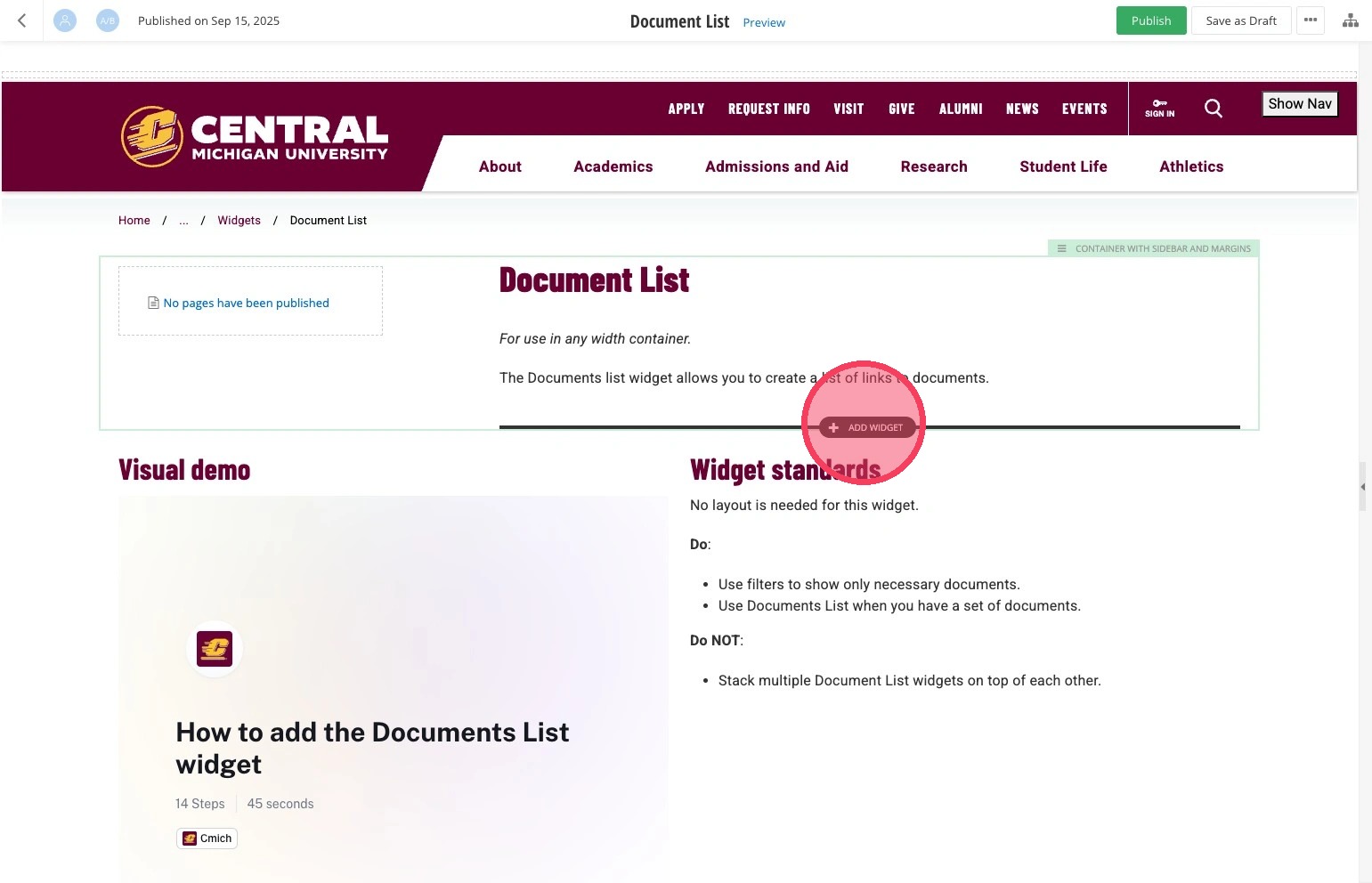
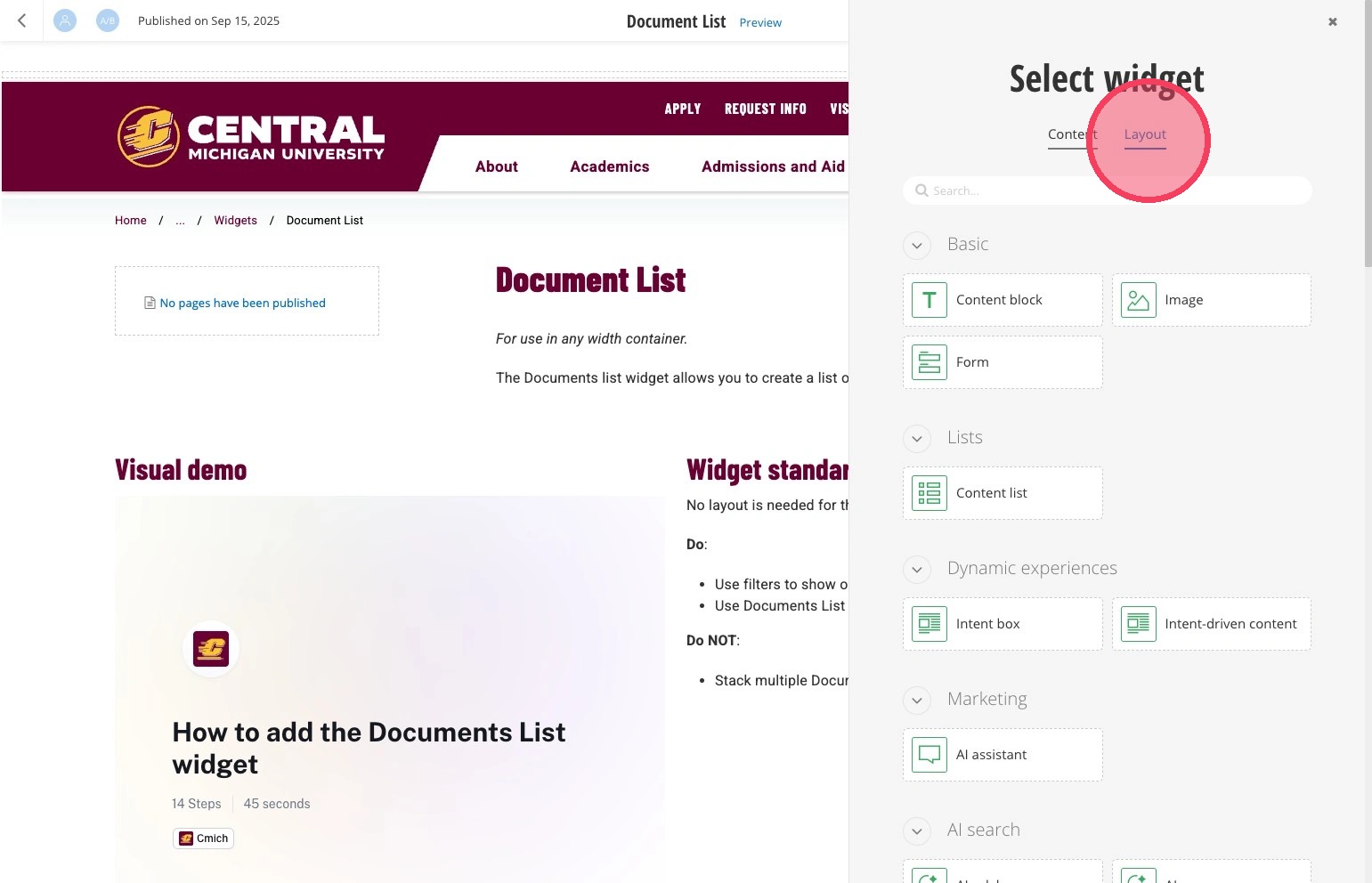
2. Click 'Add widget', select 'Layout' tab, and click 'Select' on Section layout.
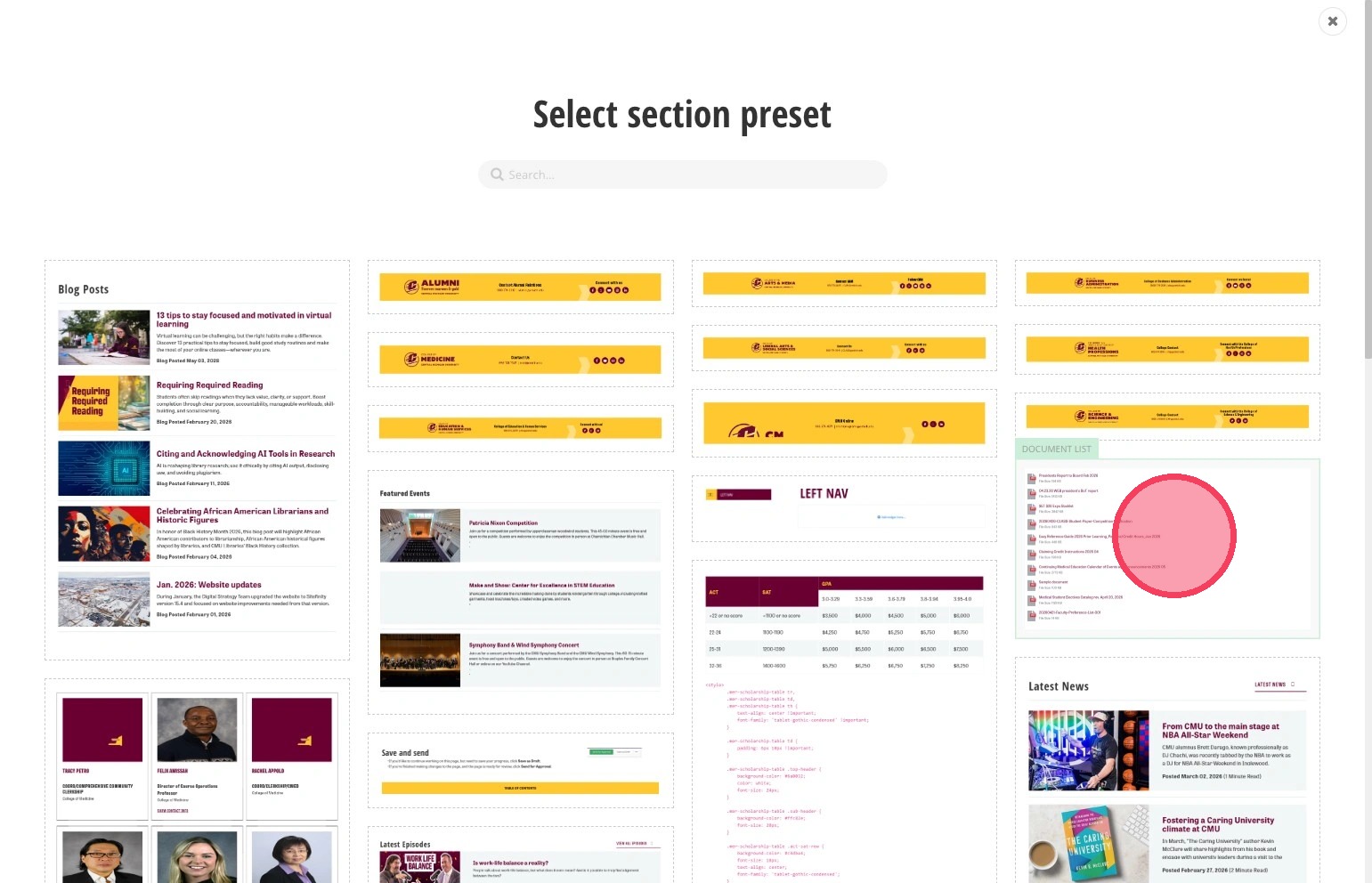
3. Choose layout preset to add section to page.
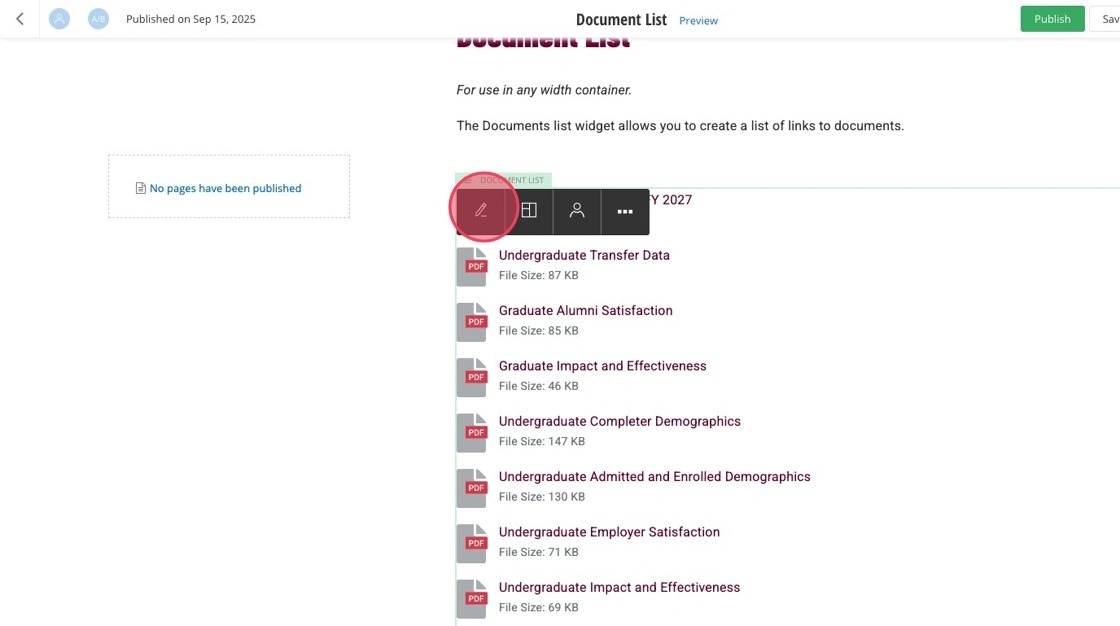
4. Select 'Document List' widget and click Edit icon.
5. Determine if you want to share all published documents from a folder, category or tag OR if you want to select specific documents to share.
If you want to select specific documents, jump to step 8.
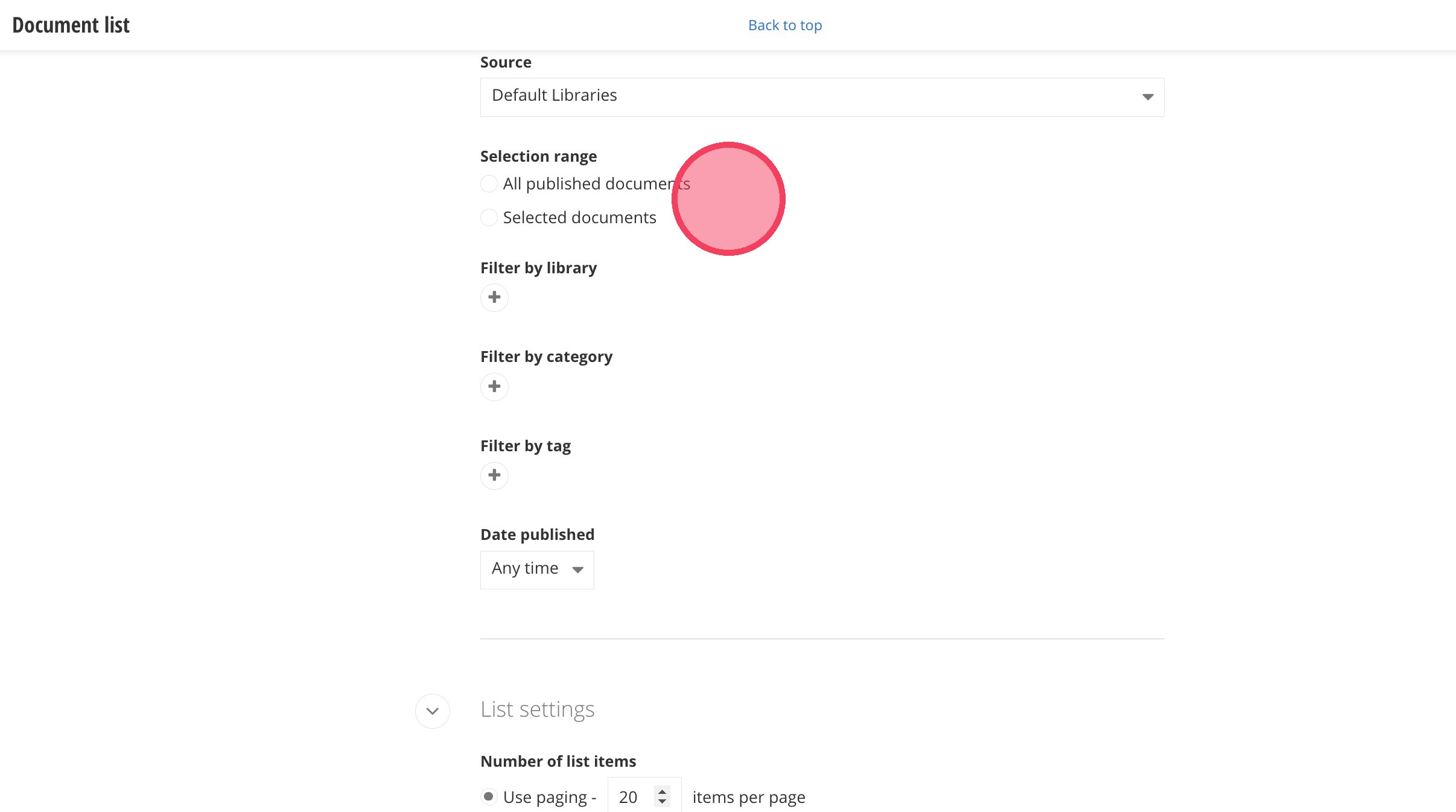
6. Click + under Filter by library to select the library folder to share.
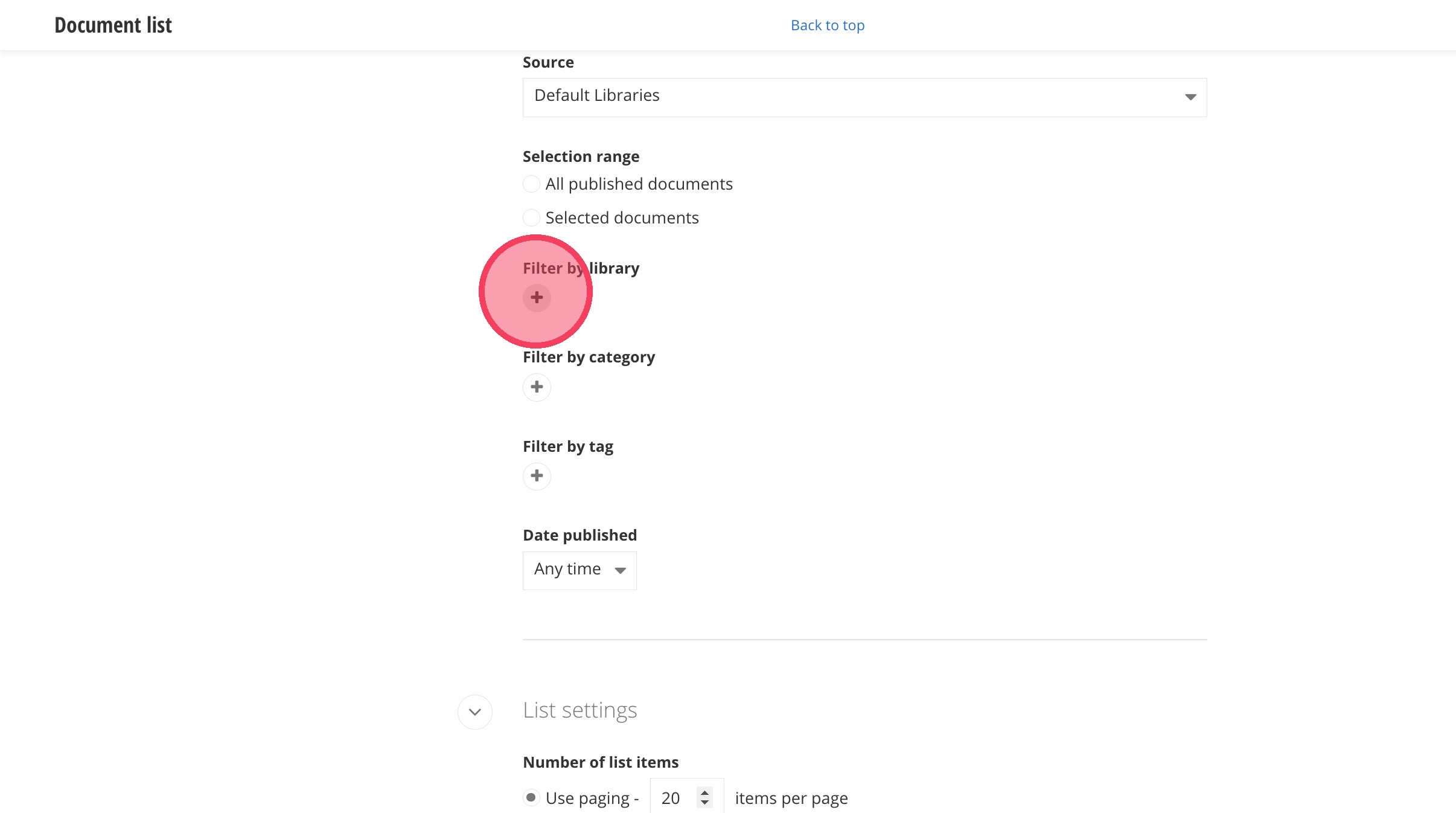
7. To filter the documents by category click the + under Filter by tag.
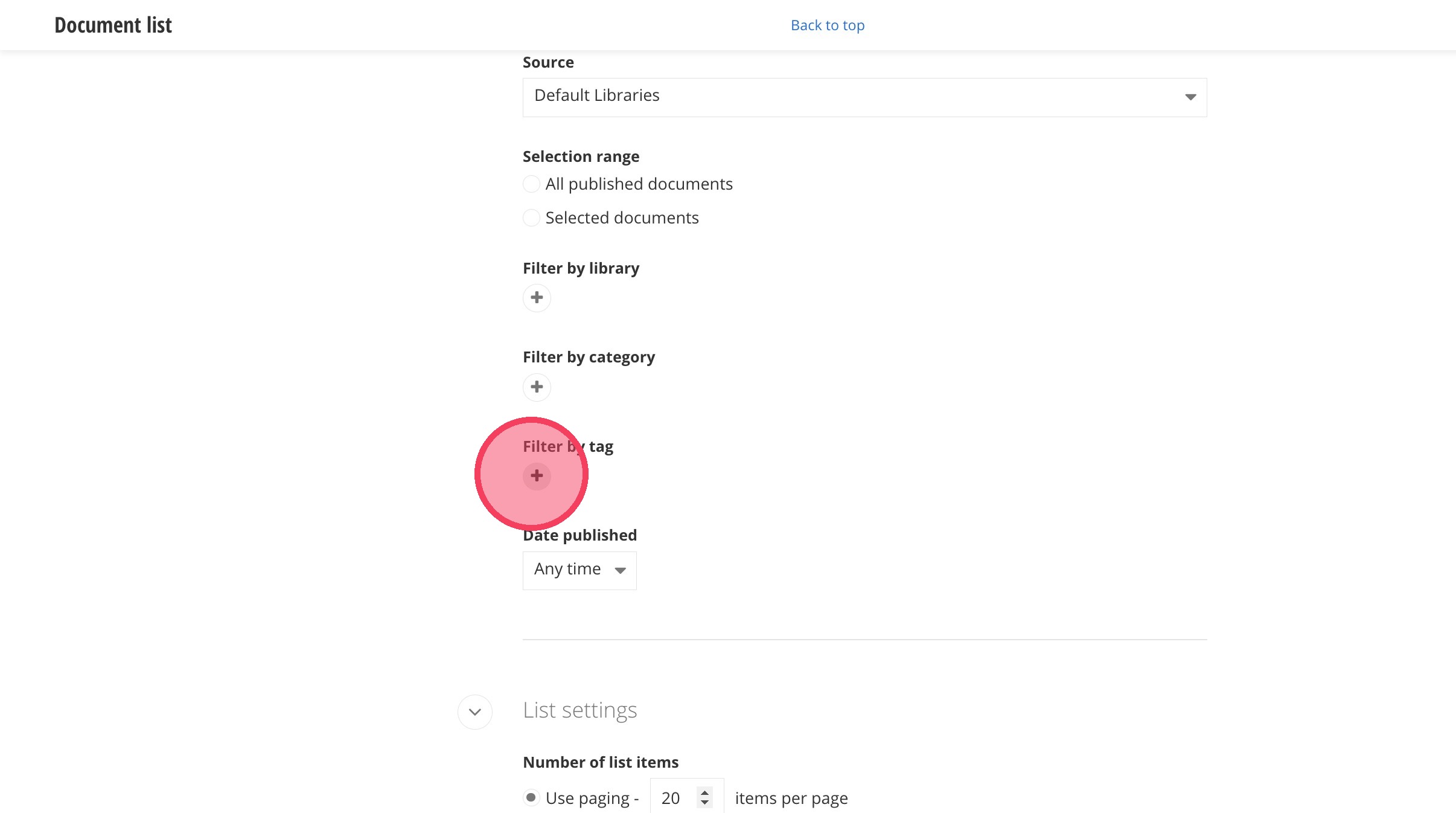
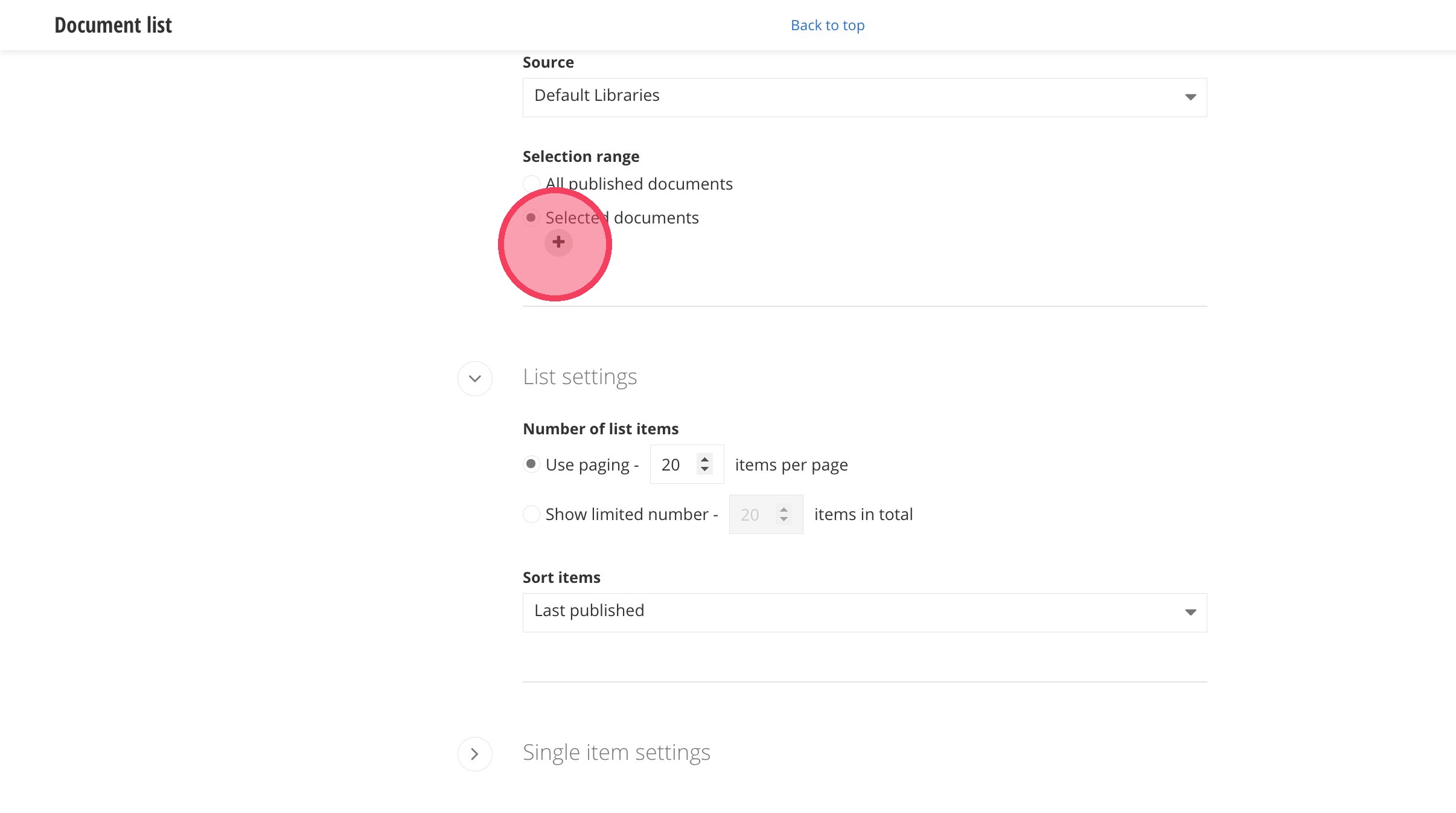
8. To add specific documents, click Selected documents and then the +.
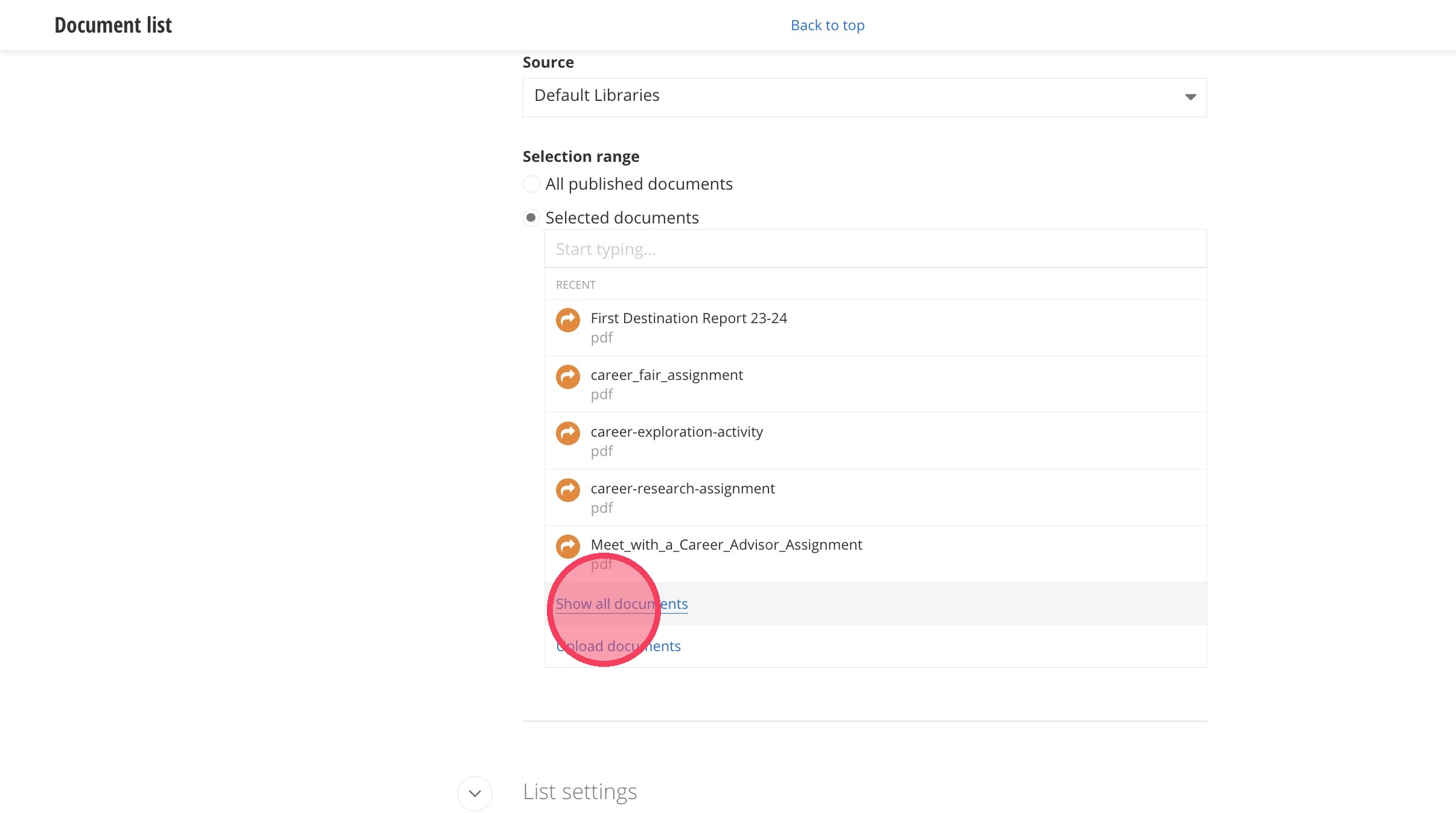
9. Click "Show all documents" to see all the documents you can select.
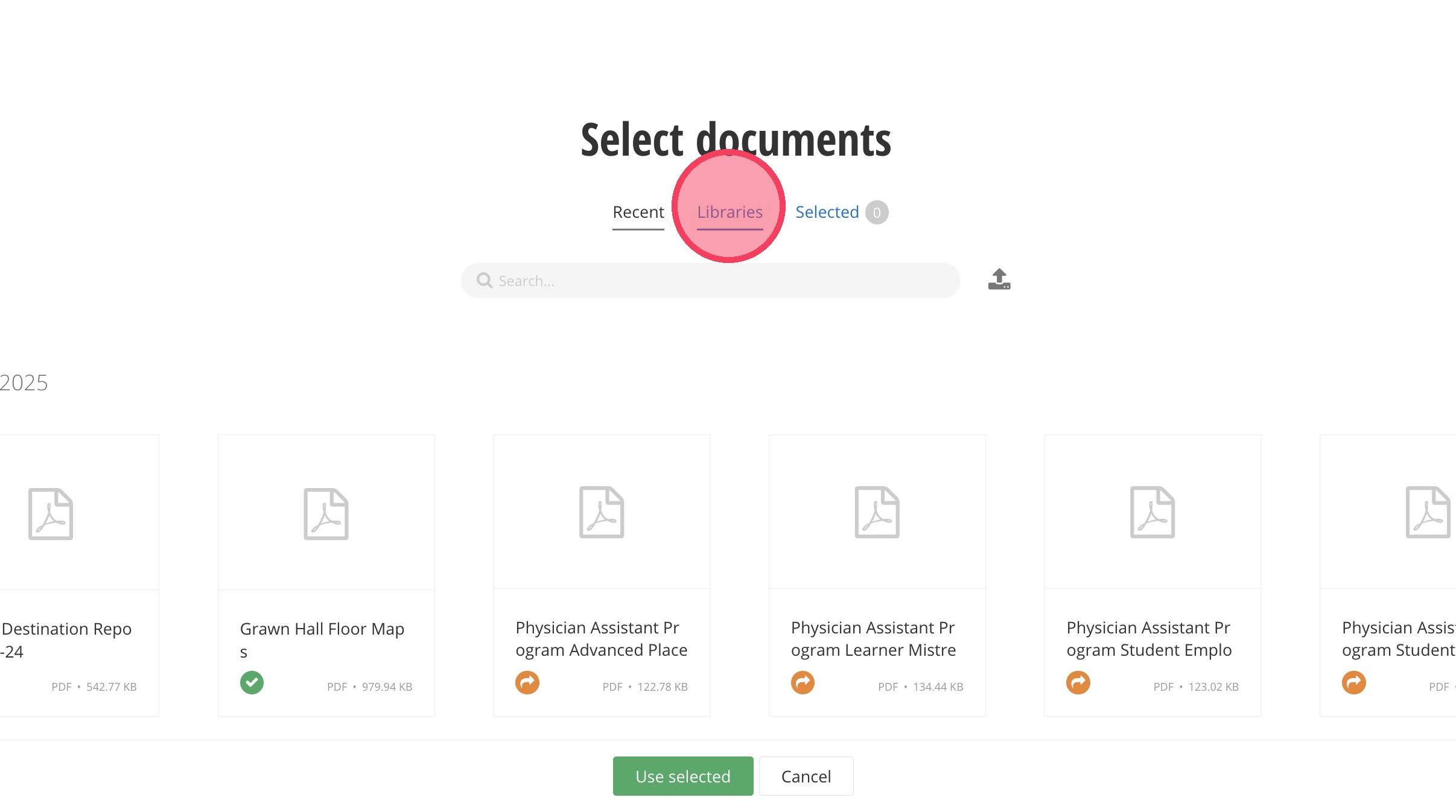
10. Locate the documents you want to choose and select them.
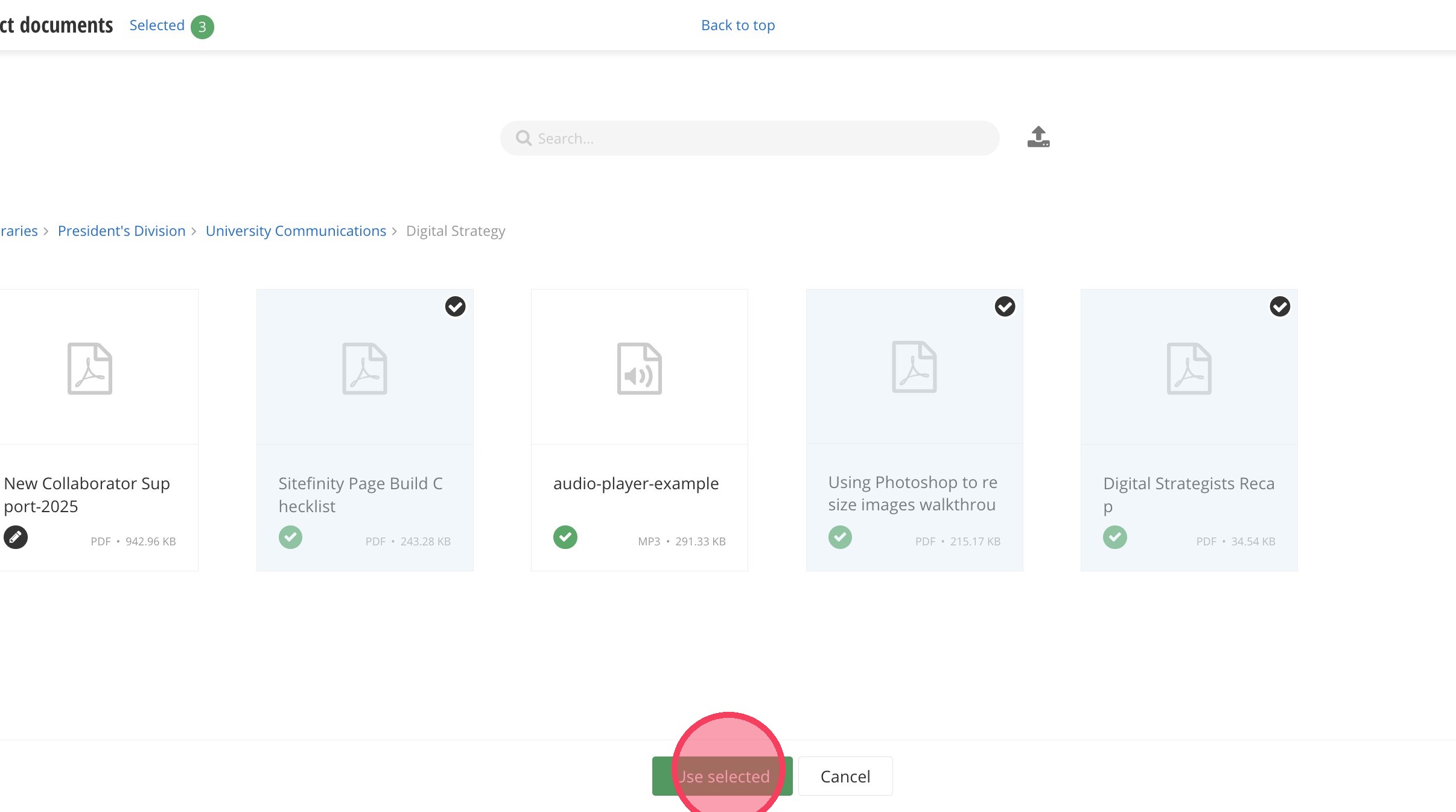
11. Click "Use selected."
12. Under List settings you can control the number of documents displayed and how they are arranged.
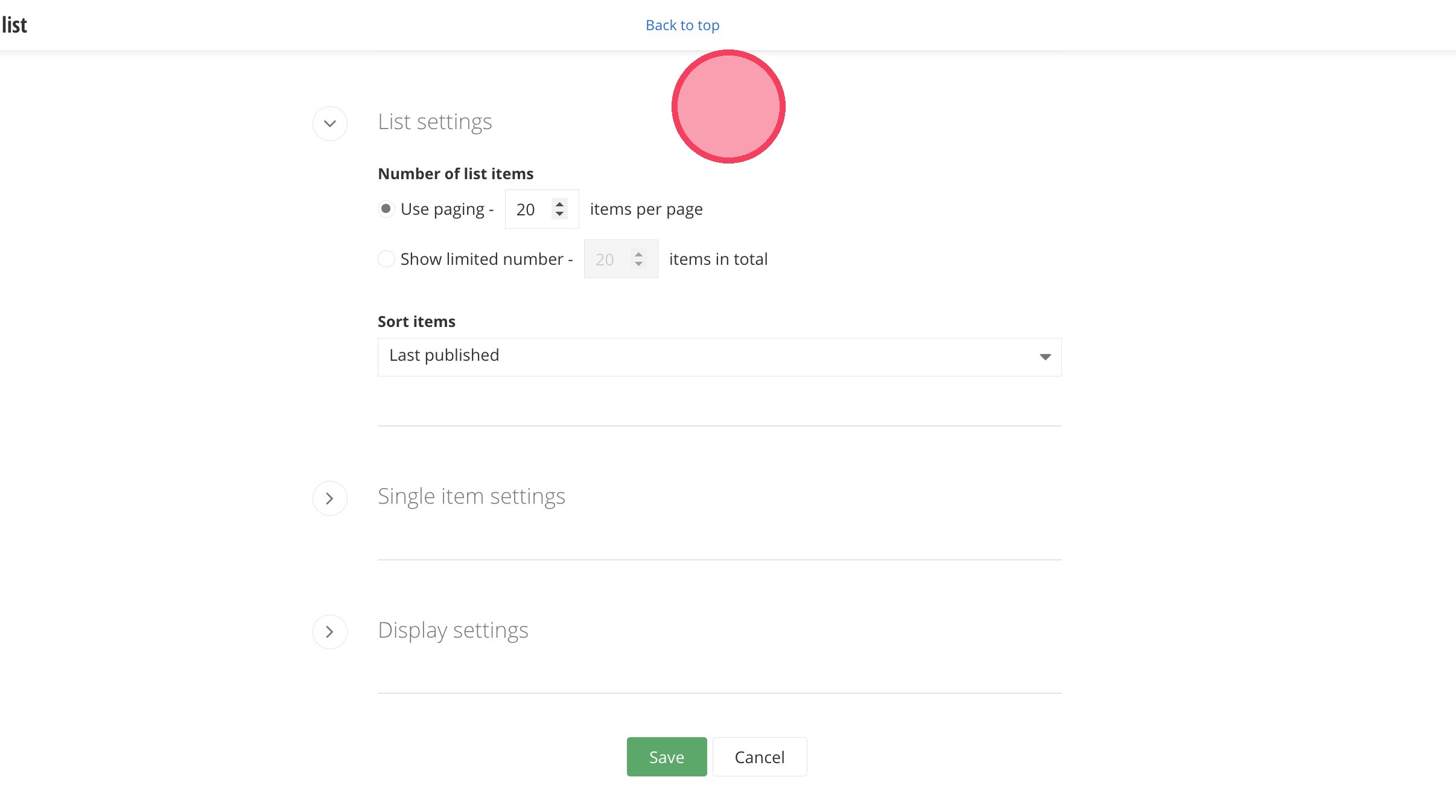
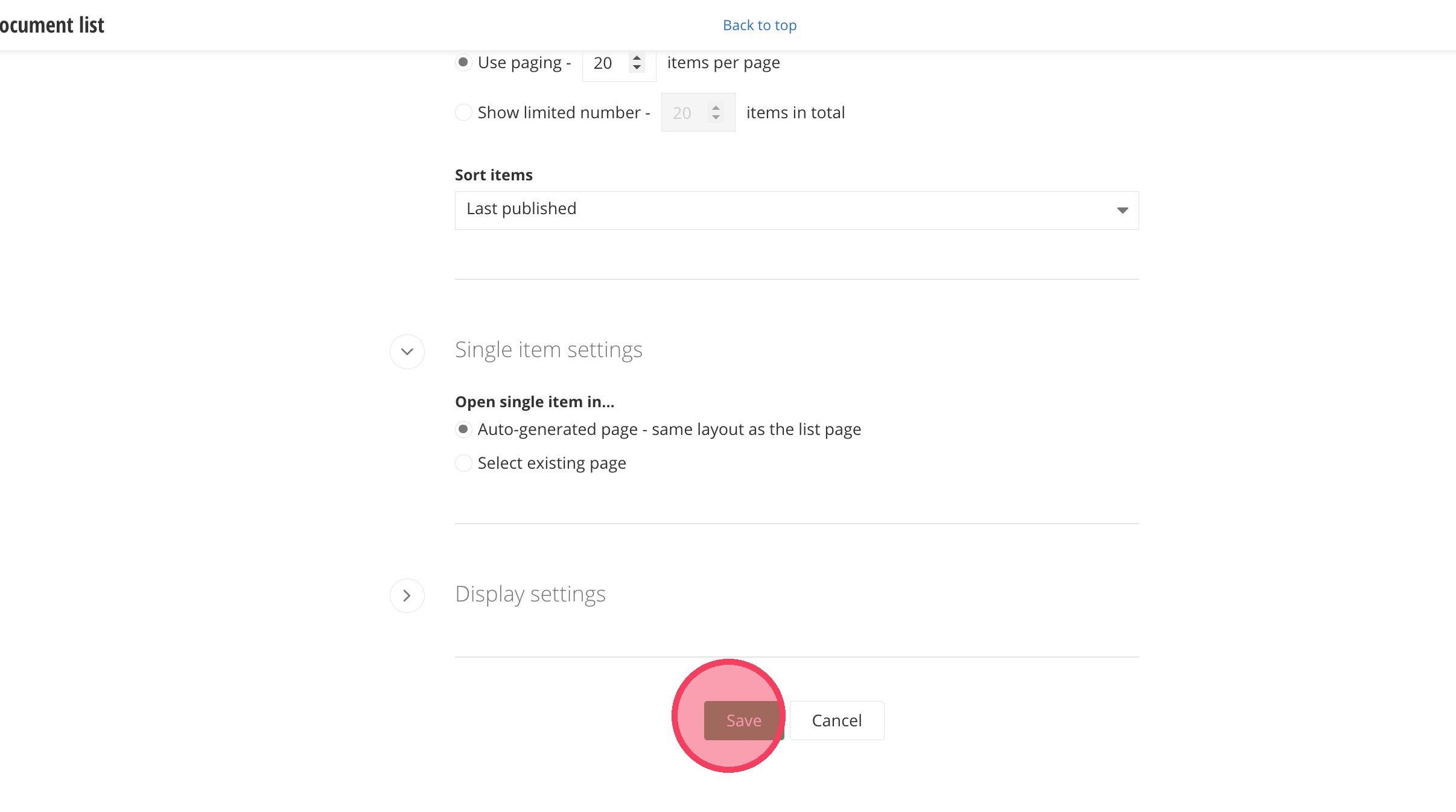
13. Click "Save."
Save and send
- If you'd like to continue working on this page, but need to save your progress, click Save as Draft.
- If you're finished making changes to the page, and the page is ready for review, click Send for Approval.
