
How to use Smart Search
Smart Search, located on the CMU Libraries homepage, allows you to search most of the resources available to you through CMU Libraries. For some of you, this may be the first time you have heard of this tool, while others may have used it many times before. Regardless of your familiarity, Smart Search has many cool tools and features, and here we introduce some of them, with a range of applicability for different types of researchers.
To start, let's begin by looking at a recent addition to Smart Search: the AI Search Assistant. The AI Search Assistant tab will come up after you perform an initial search, with the tab appearing along the top of the page. An image of that tab along the top of the page can be found below.

The AI Search Assistant is a noteworthy tool because it allows you to enter a question directly rather than breaking it into key terms. The search assistant will then generate a one-paragraph answer to your question based on five relevant sources (most often journal articles). By using the summaries/abstracts of the sources available in our collection as its sole source of information, the AI Search Assistant can generate more accurate responses than other AI platforms. Unlike other tools such as Microsoft Copilot or ChatGPT, which scour the entire internet for information, our AI Search Assistant uses only the summaries of scholarly sources available through the CMU Libraries website. While confirming accuracy is still important, the AI Search Assistant is nevertheless a highly beneficial tool for both beginning researchers and advanced researchers who have trouble finding relevant sources.

Another Smart Search research tool worth noting is the "Ask me Anything" feature. It can be found at the top of the page next to the search bar after you complete an initial search and is identified by the icon seen below.
The primary purpose of the Ask Me Anything feature is to generate a search based around a topic you are interested in rather than generate an answer to a research question. For example, sleep apnea in college students. Through the built-in "Generated Query" option that comes up after completing a search using this tool, one can see the keyword search that this tool generated to complete the search. The query option can serve as an excellent way to learn about keyword searching strategies.
Additionally, filters are an advanced feature available in Smart Search. After completing your search, the All-Filters link appears above the results. An image of the filters appears below.
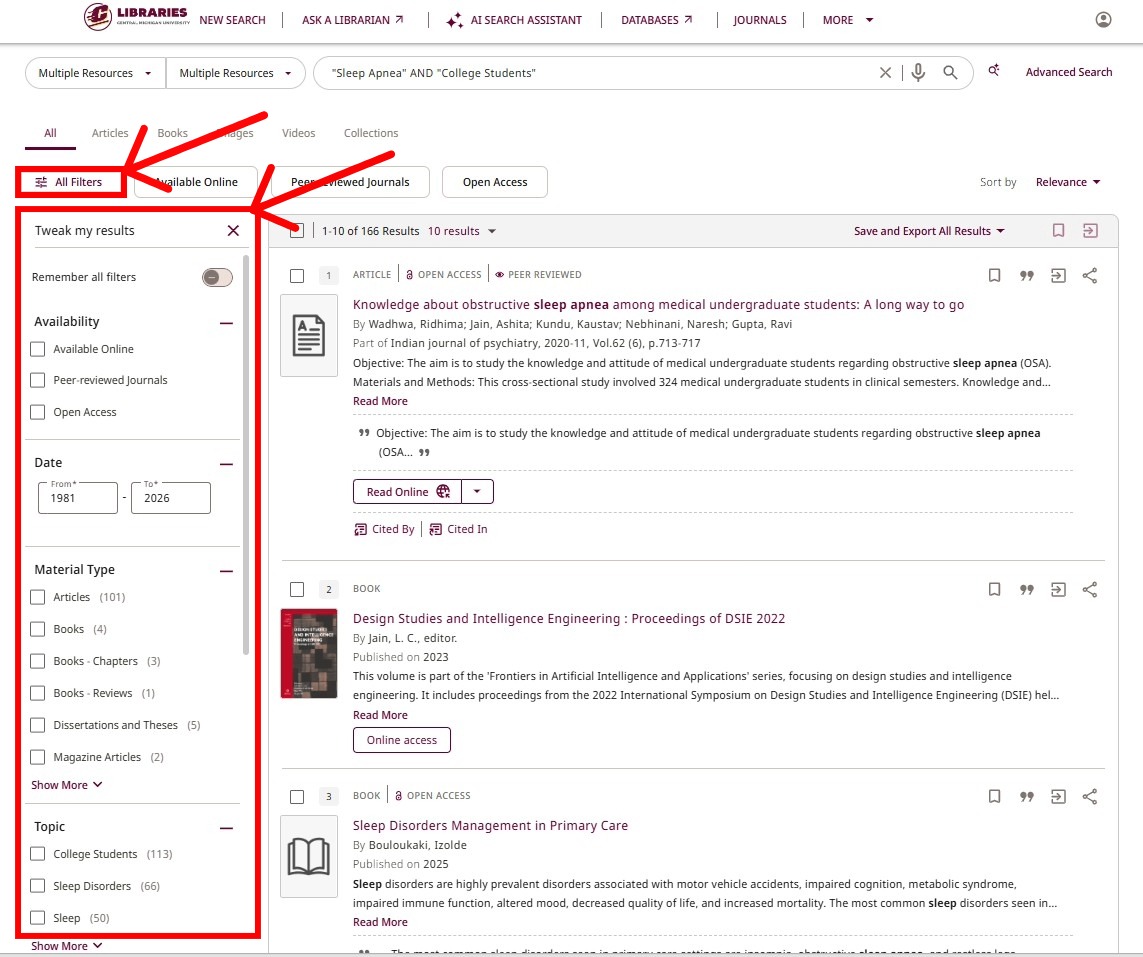
Finally, click the All-Filters link to see the options available to limit search results, including resource type, date of creation, topic(s), and language. These can be used by experienced researchers to turn a basic search into a far more targeted one.
These are just some of the functions available through Smart Search. While this doesn't represent all that Smart Search can do, we do hope that you will be able to use some of these tools to enhance your future searches.