Written instructions
1. Open your document in Adobe Acrobat Pro.
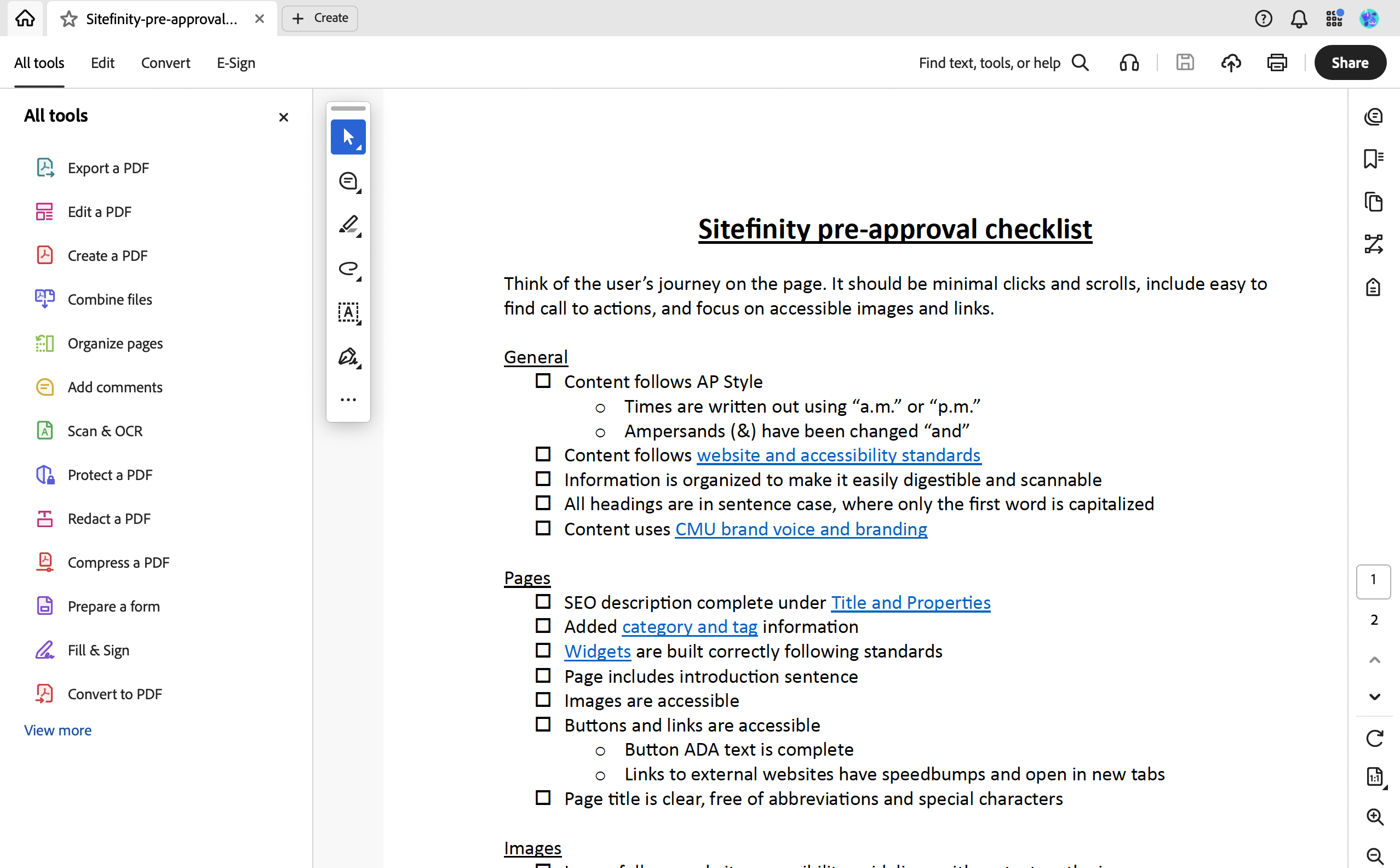
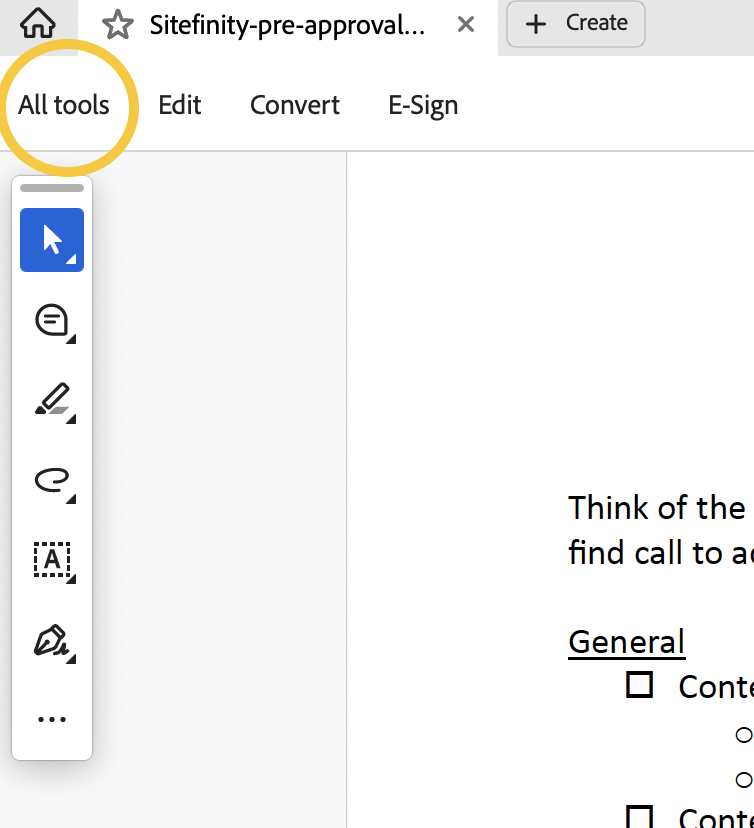
2. Using the top navigation, select All tools and Prepare for Accessibility. If you do not see Prepare for Accessibility, click the View More option and scroll through the other tool items.

Work in the accessibility report
1. Click "Check for accessibility." A box will open asking you what settings you want to use in the report. Make sure all items are checked, and click "Start Checking."

2. On the right side of the screen, your report results will show.

- Anything that is marked "Pass" means that your pdf follows accessibility guidelines for that item.
- Anything marked "Fail" means there is an accessibility issue.
- Anything marked "Needs manual review" will require you to look at it and use your best judgement.
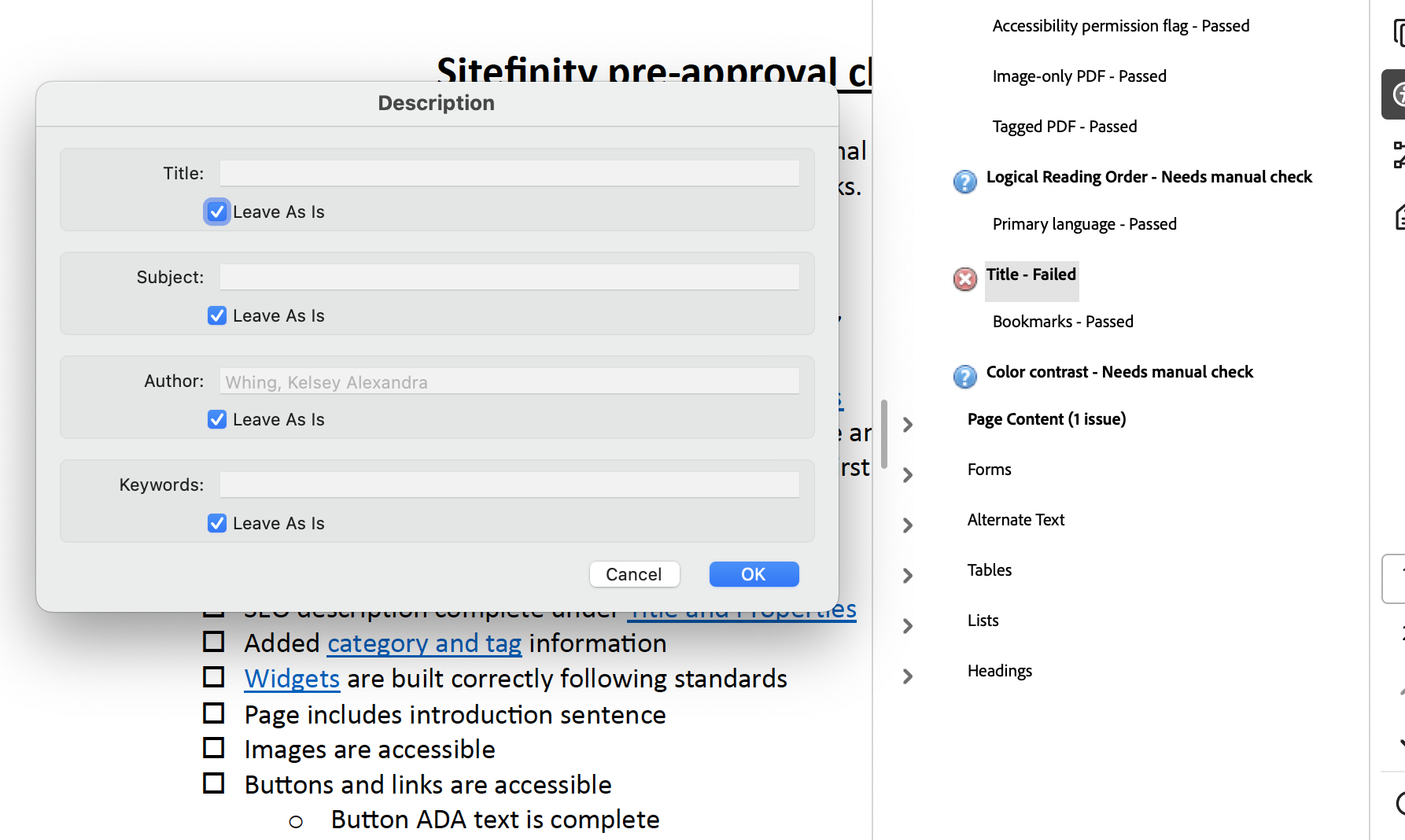
3. Open each element by clicking the drop-down carrot. Take note of the ones that Fail or Need a Manual Check. These are the ones you'll need to adjust.

4. Right click on a "Failed" item that needs attention, and a small menu will pop up with your options.
- "Fix" means Adobe Acrobat can guide you in how to fix the item, or can make the fix itself.
- "Explain" means Adobe Acrobat will point you to a webpage with a description and tips on how to fix the item.

5. In this example, Title needed an edit. By clicking "Fix" on this Title element, the program prompts a box asking for a manual entry of alternative text or relevant metadata. For this example, the user would type in the heading at the top of the document and select OK.
Needs manual check
Any item in the accessibility report marked "Needs manual review" will require you to look at it and use your best judgement. If you're not sure what to look for, select the "Explain" feature on that element of the report for more information.
Logical reading order
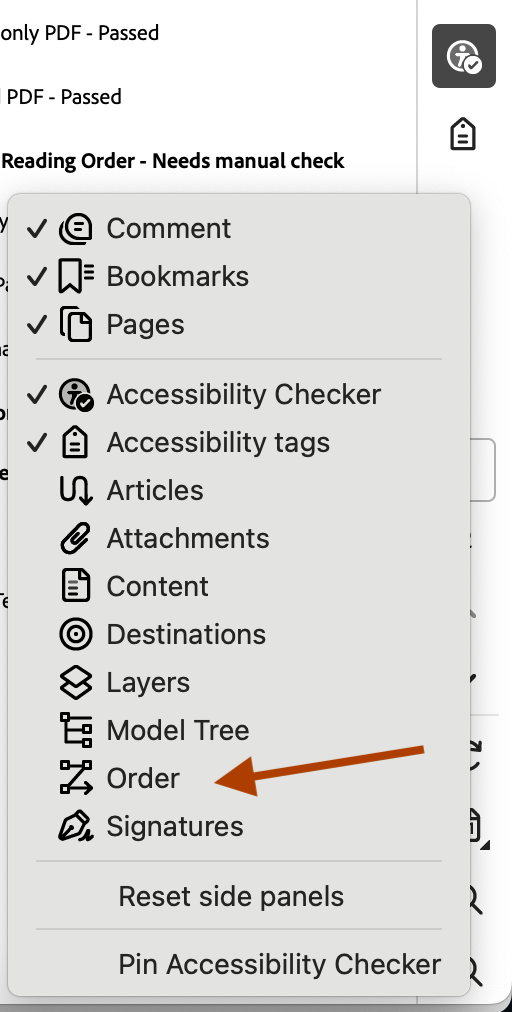
1. You will likely see '"Logical Reading Order" as an element that needs a manual check. Click the tool on the right side that resembles a "Z" to review the reading order that assistive technologies will use.

Make sure that the numbers are consecutive and aligned with how you would read through a page. You can drag and drop the content order if adjustments need to be made.
- Not seeing the Z tag? Add it to your toolbar by right clicking to open a menu and selecting the icon you want to add.
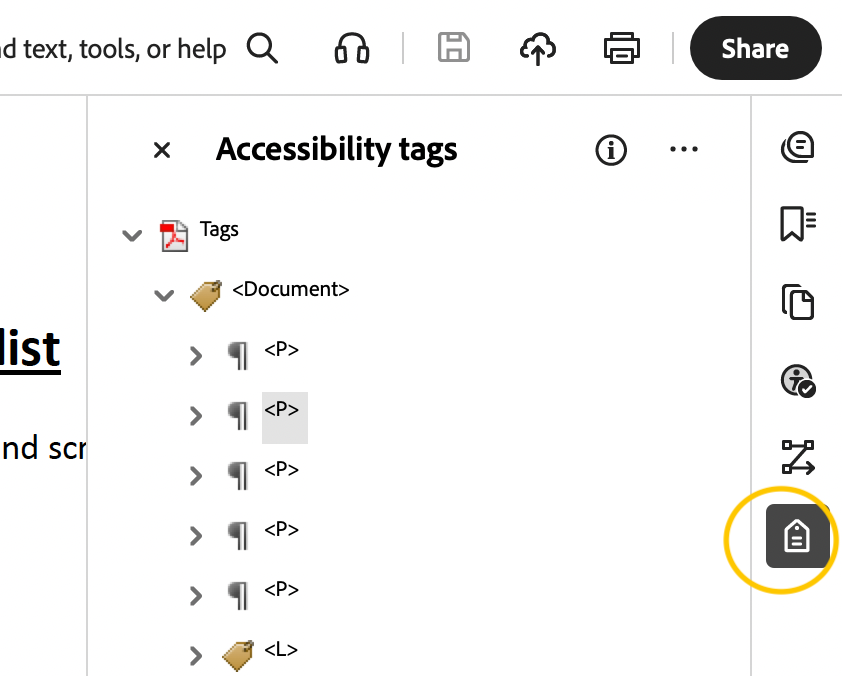
2. If you need to add a tag or delete a tag (sometimes blank elements or decorative elements will be included in the reading order), open the tag feature on the right-hand toolbar.
- Adding tags: Run the "Automatically tag PDF" tool on the left-hand menu.
- Try to limit your use of this tool to ONE time per PDF. Running it multiple times can create more problems.
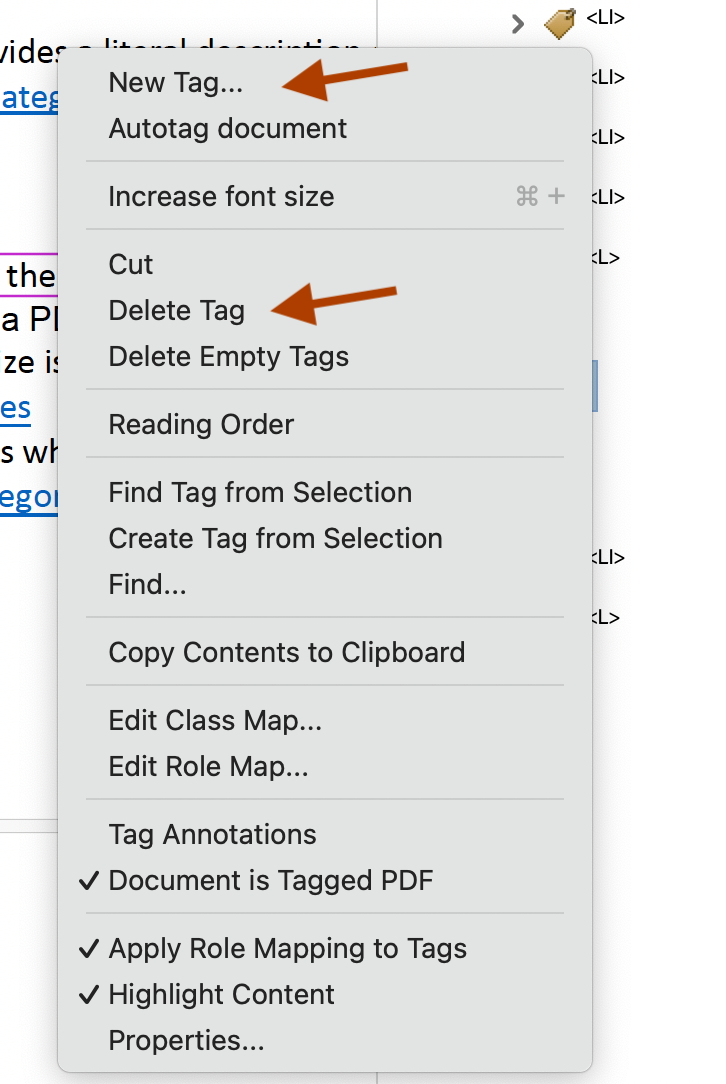
- Deleting tags: Select the element you want to delete a tag for, and choose "Delete tag."
Color contrast
1. It's also likely that you'd have a "Needs manual check" note on "Color Contrast." Review the document and check that the text color and background color of the document are high contrast.

If you have black or dark text on a white document, you can mark this as "Pass" because black and white have high visual contrast.
2. An example of a "Failed" color contrast could be that your text is a medium gray and the background of your document is light gray. We can change the color of links using the "Replace Document Colors" feature.
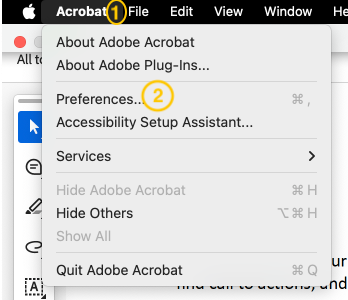
With your Adobe Acrobat window selected, go to the very top menu and select "Acrobat." Then, select "Preferences."
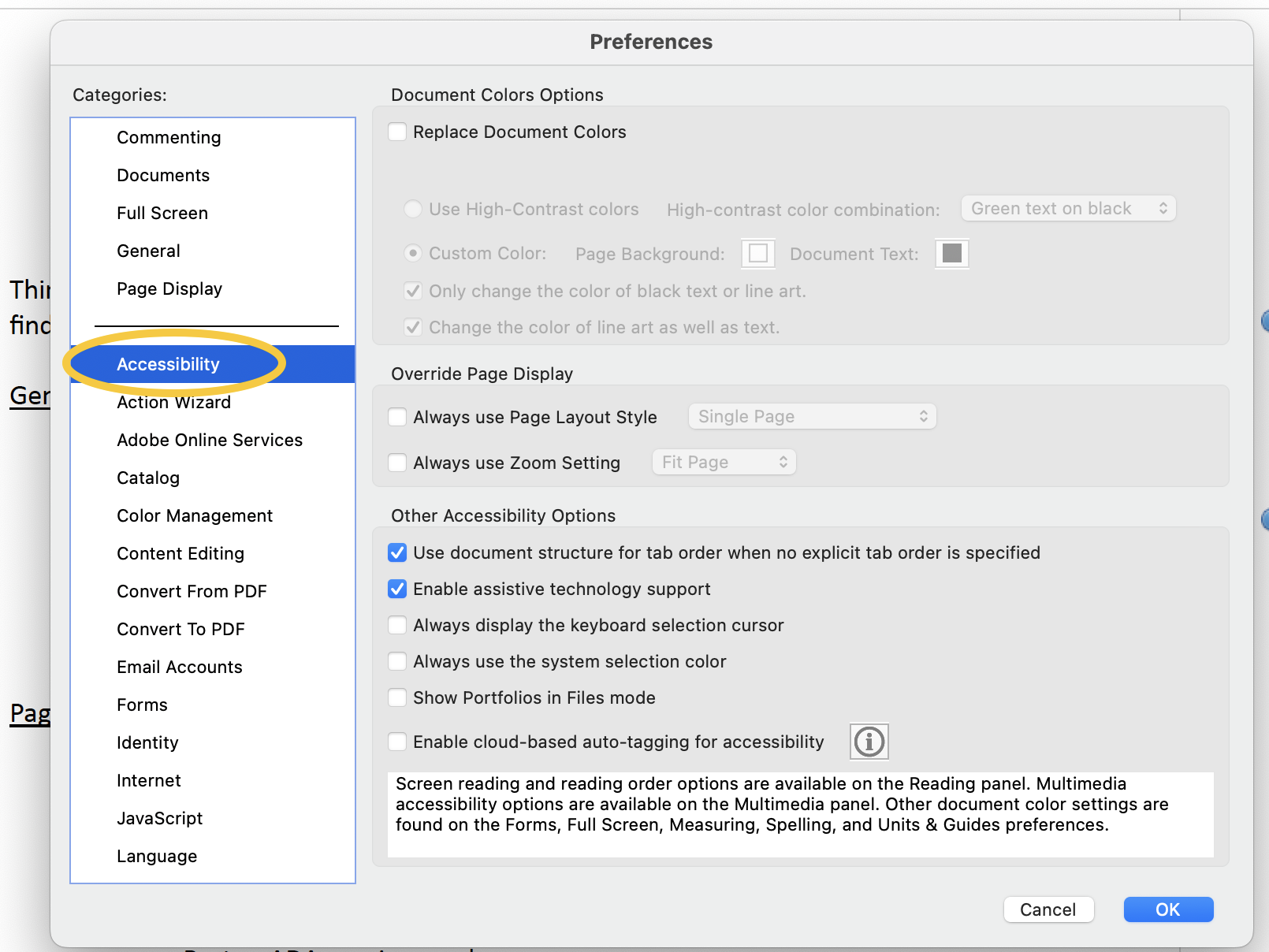
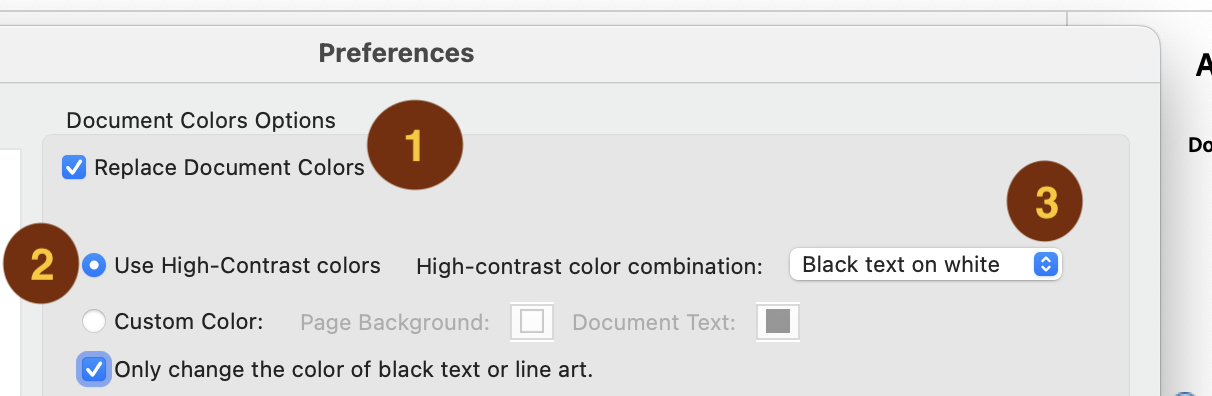
3. Then, check the box next to "Replace Document Colors," and select "High-Contrast colors." Lastly, choose "Black text on white" for your high-contrast color combination, and select "OK" at the bottom of the preferences menu.
Good job getting started with making your documents more accessible! As you continue, please refer to the resources at the top of this page.
Prep the document for the DAM
If you haven't already, make sure you reduce the size of your PDF before uploading your PDF to the DAM.