Now through October 31, we're waiving application fees for all freshman and transfer applicants!
*Common app code: Central27
Migrating MVC to NET Core
Once you have completed the required training, you can begin rebuilding your MVC pages in the .NET Core template. This involves breaking the MVC template, choosing a new .NET Core template, adding foundational widgets to your new page, and rebuilding your content.
On this page, you'll find two sets of instructions:
- Switching templates from MVC to .NET Core
- Adding foundations of your .NET Core page
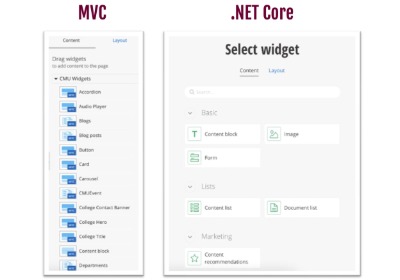
Visual demo
Page migration standards
Do:
- Remove all red boxes from the end of your page.
Do NOT:
- Choose a template that does not have the Circle Action C design.
Written instructions
1. Log into the Training environment of Sitefinity. https://training-www.cmich.edu/Sitefinity/

2. Once you're on the dashboard, click "Pages."

3. Locate the MVC page you would like to transition to .NET Core.
Pages that are already transitioned will have green "NEW EDITOR" text after the page name when viewing in Pages or on the Dashboard.

4. Open the page and click "Preview". You’ll reference the Preview tab while rebuilding your page. You can also use the live page as a reference.

5. Switch back to the editor tab. Click "Layout".

6. Click "Select another Template" on the bottom right of your window.

7. Select your template. The CMU Main template is used for virtually all lower-level pages. If your page uses a college-specific template, click the college-specific .NET Core template.
All templates with the Circle Action C are .NET Core templates. Please ignore the little blue MVC boxes.
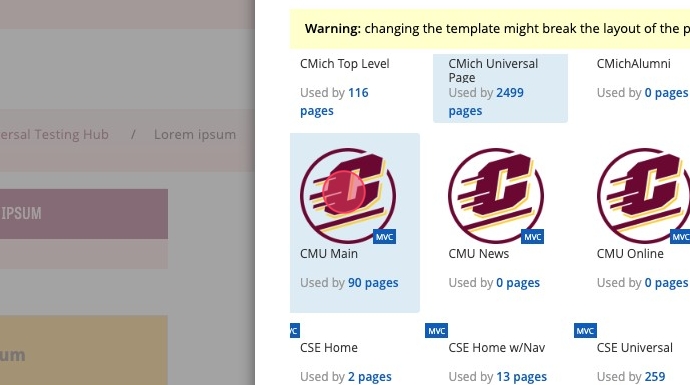
8. Once you have located and selected your template, click "Done."

9. Click "Save as Draft."

10. Refresh the page by clicking the circling arrow in the top left of your browser, or by right clicking and selecting "Reload" from the gray pop-up menu.

11. After you have reloaded the page, scroll to the bottom. You'll see red boxes. These are old MVC widgets that are incompatible with your new .NET Core framework.
Click on a red box to activate the pop-up menu.

12. Click the ellipses icon.

13. Then, click “Delete."

14. Click "Delete widget." This will remove the old MVC code from your .NET Core page.
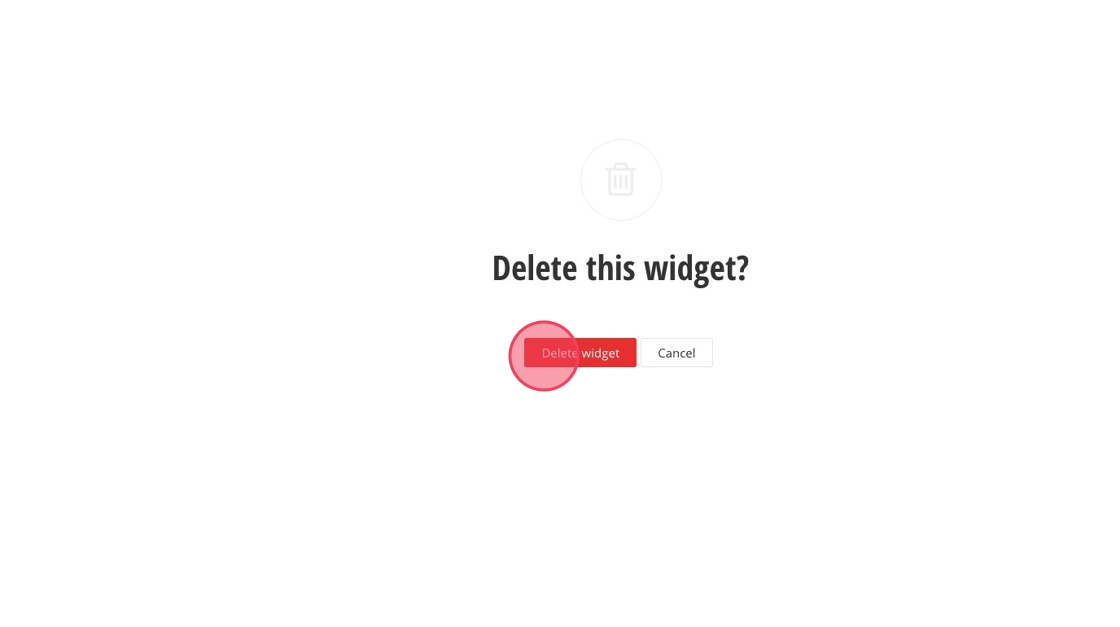
15. Repeat steps 12-14 until all of the code has been removed.
To speed up the process, you can add a Section (Layout > Section) to the page and then drag and drop simple widgets into the section. Simple widgets, like Content Blocks, can be deleted in bulk when you delete the section they are in.
16. After your clear out the red boxes, you can start to rebuild your page. You have finished switching your template from MVC to .NET Core!

Visual demo
Page foundation standards
Do:
- Copy and paste links and text characters.
- Make sure all text made in the text editor is assigned a style.
- All styled text has a thin, orange dotted box around it.
Do NOT:
- Place widgets in a container without having first placed them in a section.
- Alter the navigation widget. Instead, post in the collaborator channel if you have a custom navigation request.
Written instructions
1. Click "Add widget here."
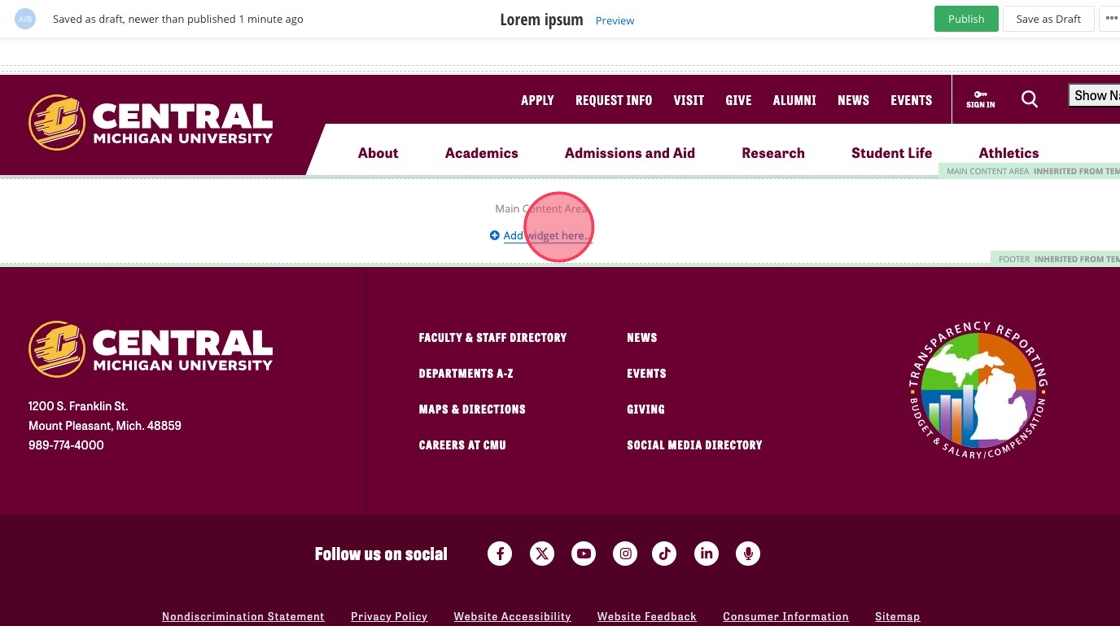
2. Click the Breadcrumb widget under "Navigation and search."
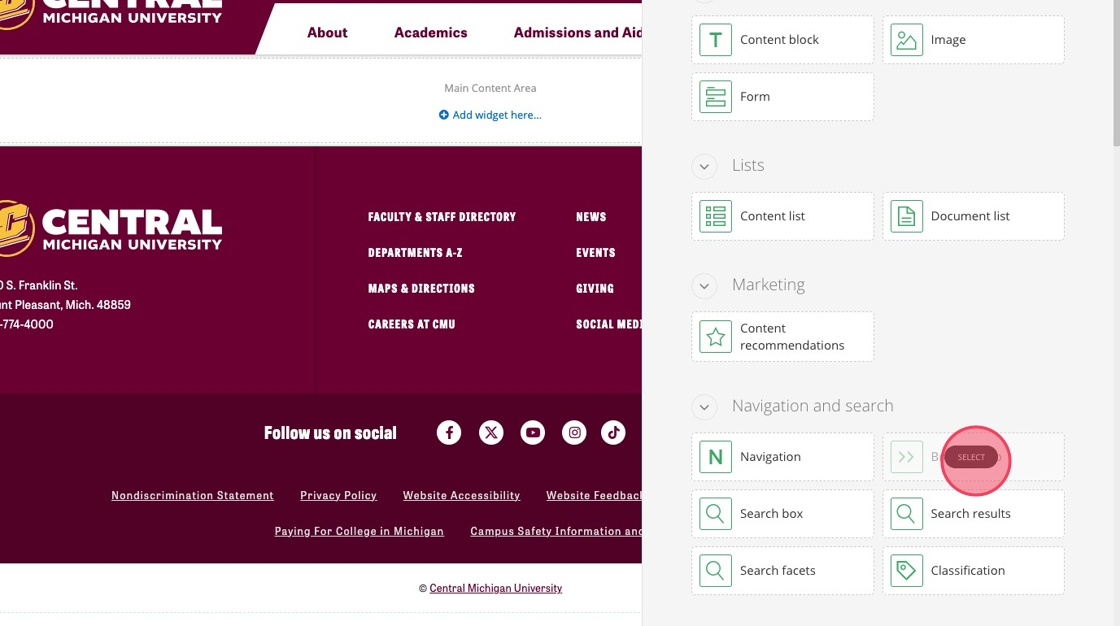
3. Ensure the breadcrumb widget is directly under the header.

4. Click "Add widget here."

5. If your page includes a sidebar, you can easily add a sidebar and page title using our Left Nav Preset. Start by clicking "Layout."
If your page does not include a sidebar, skip ahead to Step 8.

6. Then, click "Section Preset."

7. Then, select the "Left Nav Preset." This will add a Page Title, a Container with Sidebar and Margins, and a Section to your page.
Skip ahead to Step 10.

8. Some pages do not have a sidebar and will not require the Left Nav Preset.

9. If your page does not have a sidebar, select "Container with Margins" under Grid Layout Containers.

10. Utilize the .NET Core playbook to recreate your page's widgets.
https://www.cmich.edu/website-playbook
11. Once you're finished, check that all content is inside a Section or Wrapper, and all Sections are in a Container. Then, click send for approval and/or send for publishing.
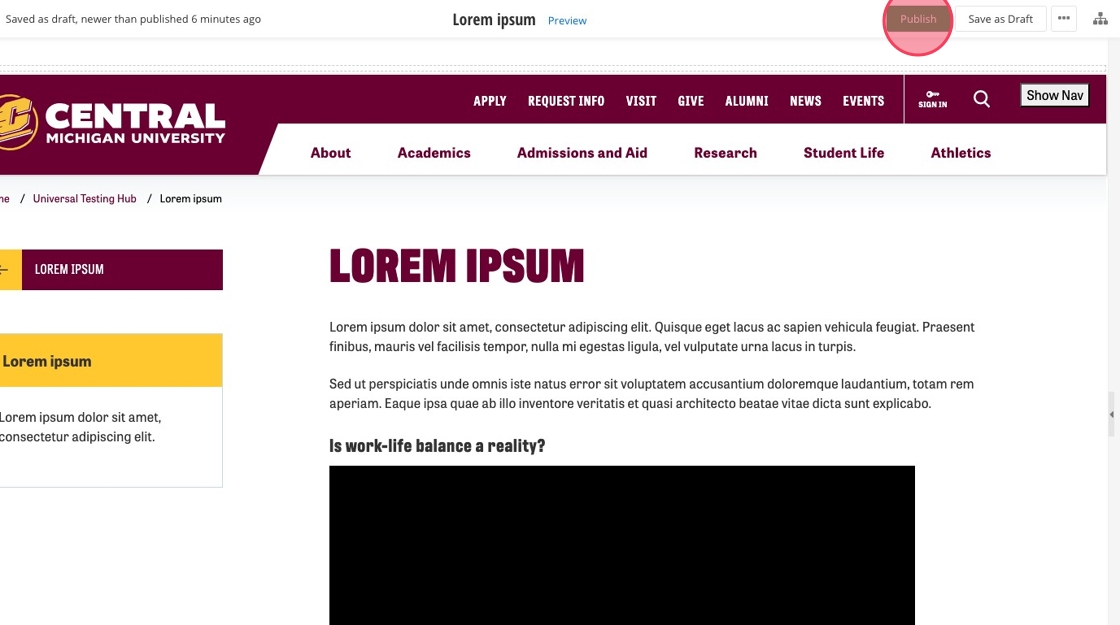
Save and send
- If you'd like to continue working on this page, but need to save your progress, click Save as Draft.
- If you're finished making changes to the page, and the page is ready for review, click Send for Approval.
