Now through October 31, we're waiving application fees for all freshman and transfer applicants!
*Common app code: Central27
Visual demo
Widget standards
- A layout is NOT needed for this widget.
- This widget must be in a section. You can group multiple accordion tabs into one section, but a section is required.
Do:
- Use this widget to guide users to additional information or details.
- Use this widget judiciously.
- Use 3-5 tabs or accordions per set.
Do NOT:
- Add images, videos or tables to tabs.
- Use this widget to "hide" important content, try to satisfy a desire for "movement," or to make long, scroll-intensive pages seem otherwise.
Written instructions
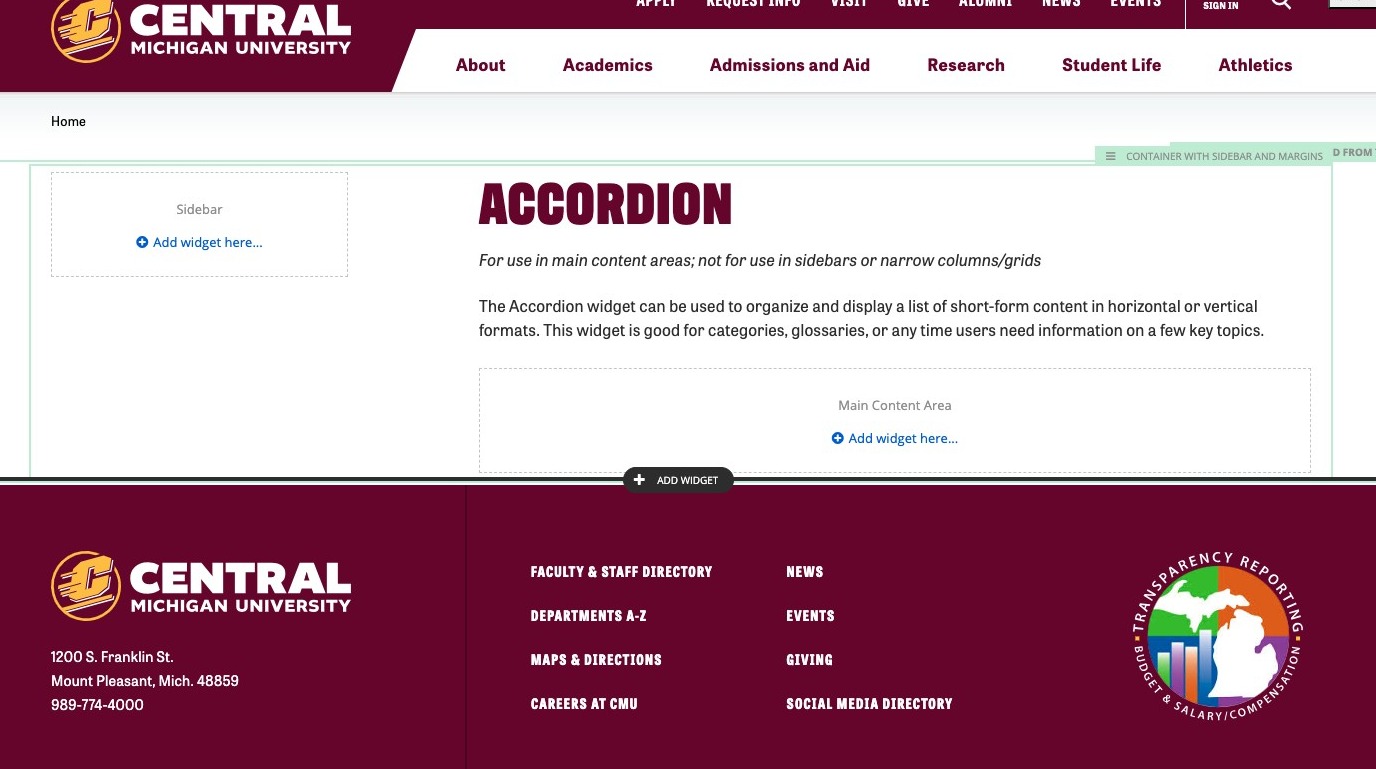
2. Click + Add widget here...
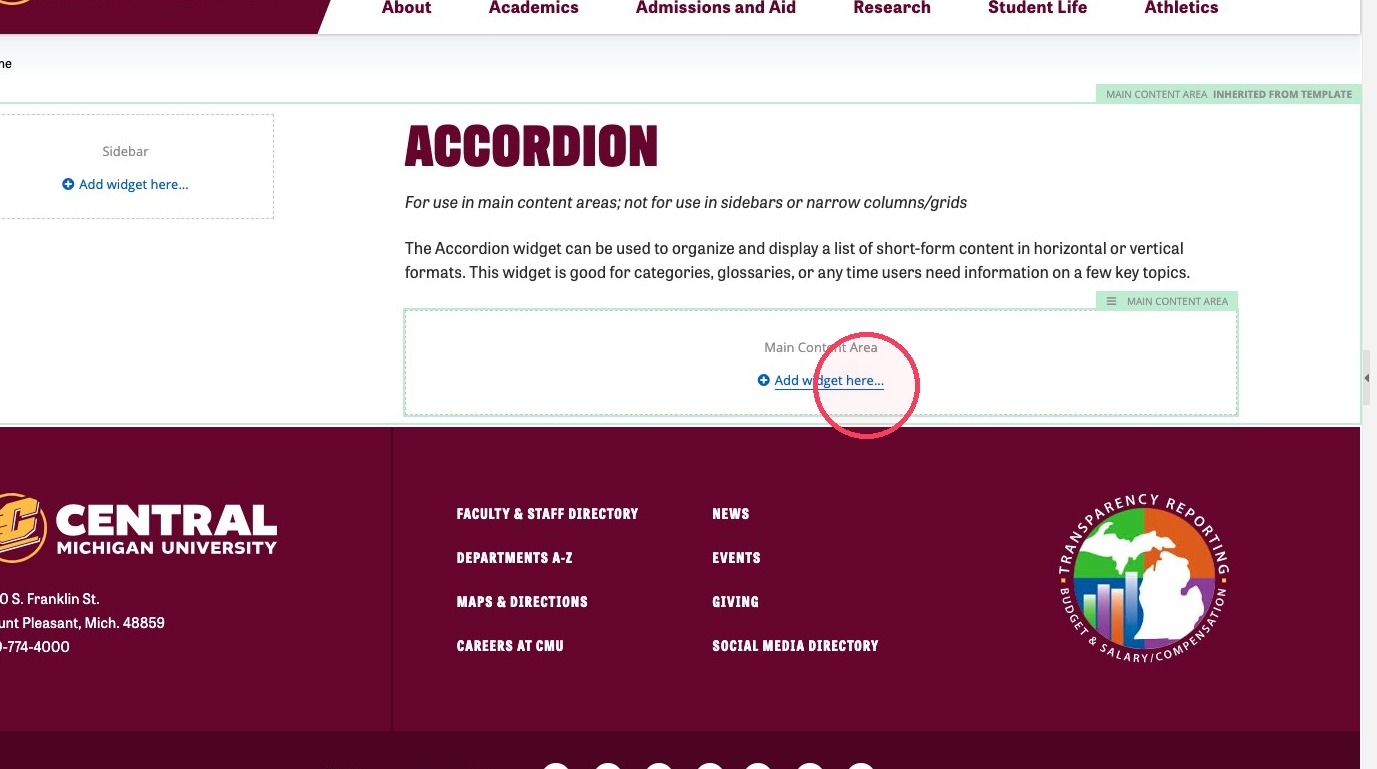
3. Click on the layout tab and click on a Section to add a section to the page.
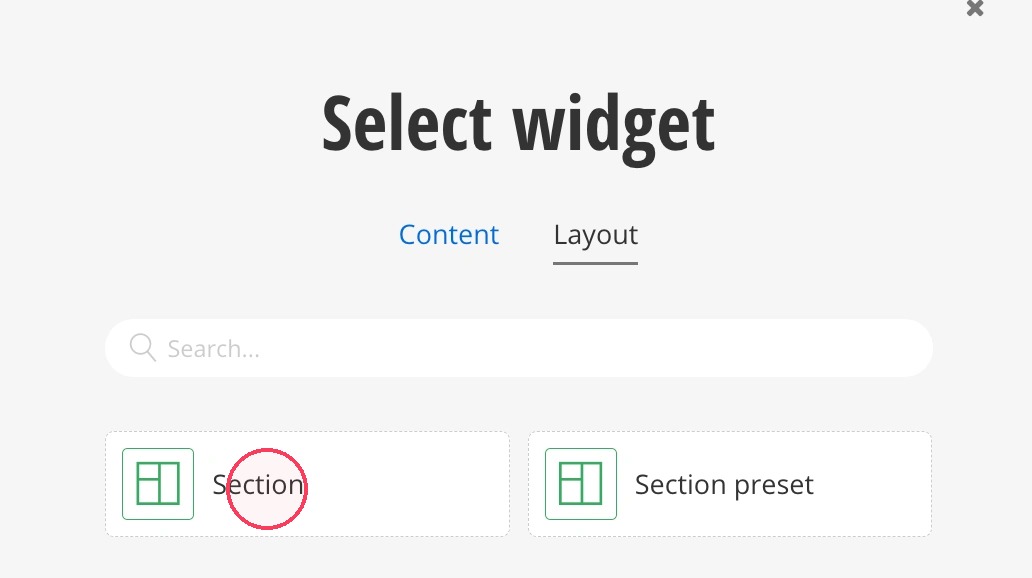
4. Inside the section, click on + Add Widget. Then click on Accordion under CMU Widgets and Select it. Add three to five Accordions, stacking each widget immediately below each other.
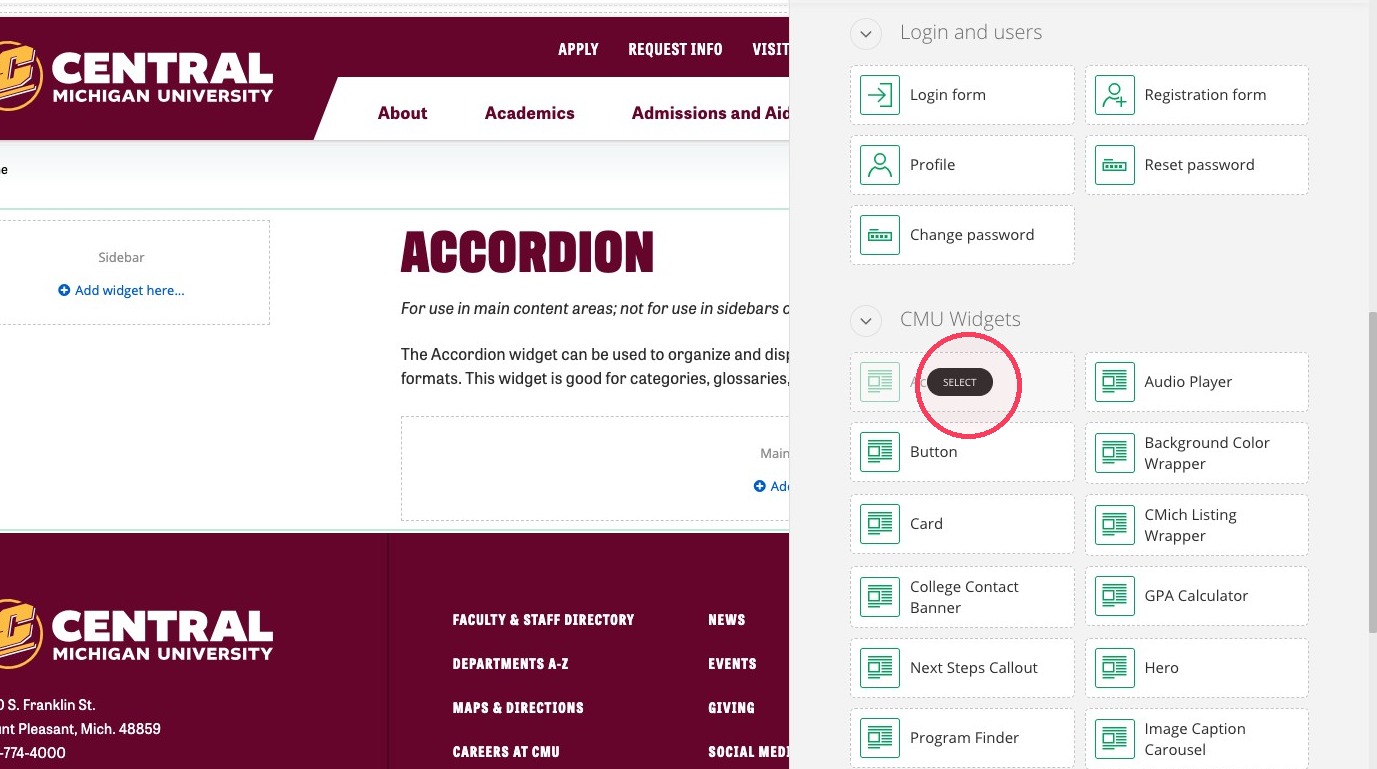
5. Click Create content.
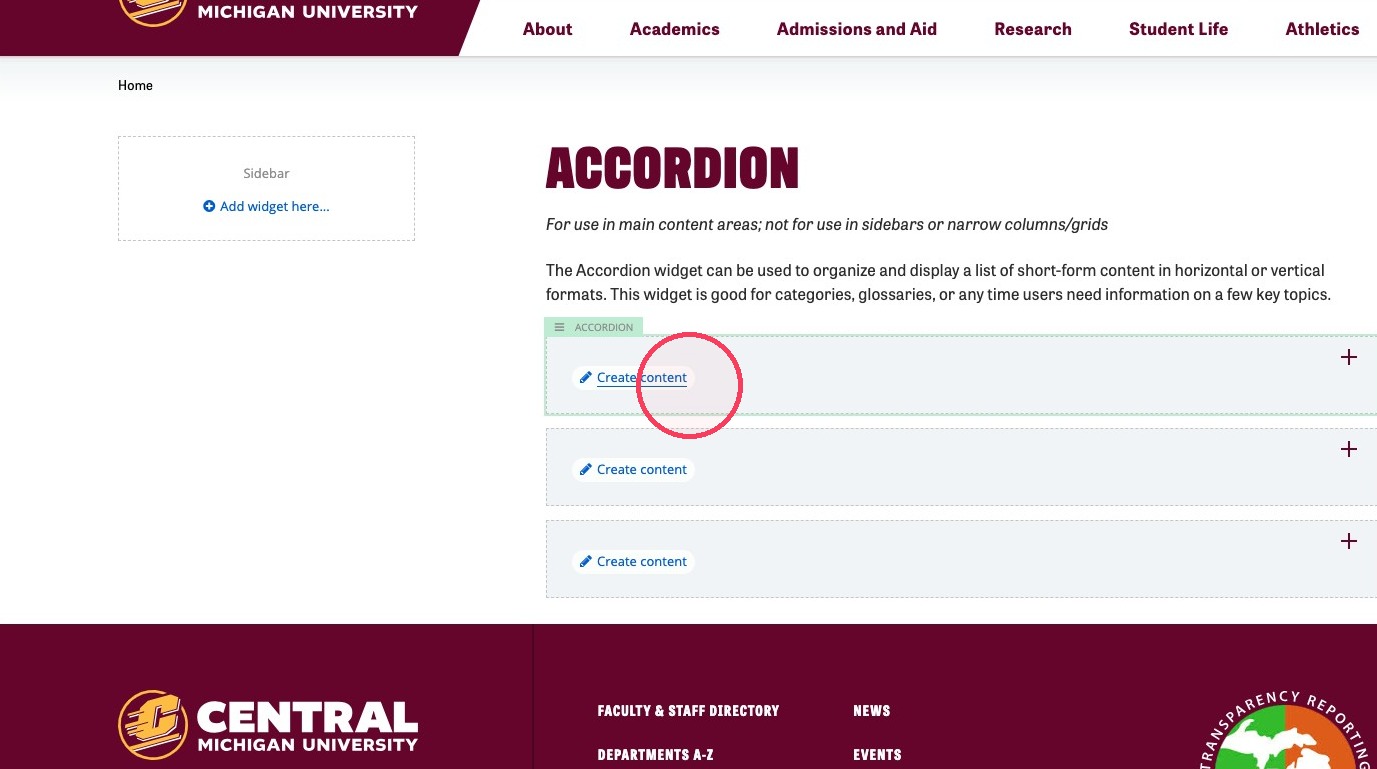
6. Add a heading (max. 75 characters.)
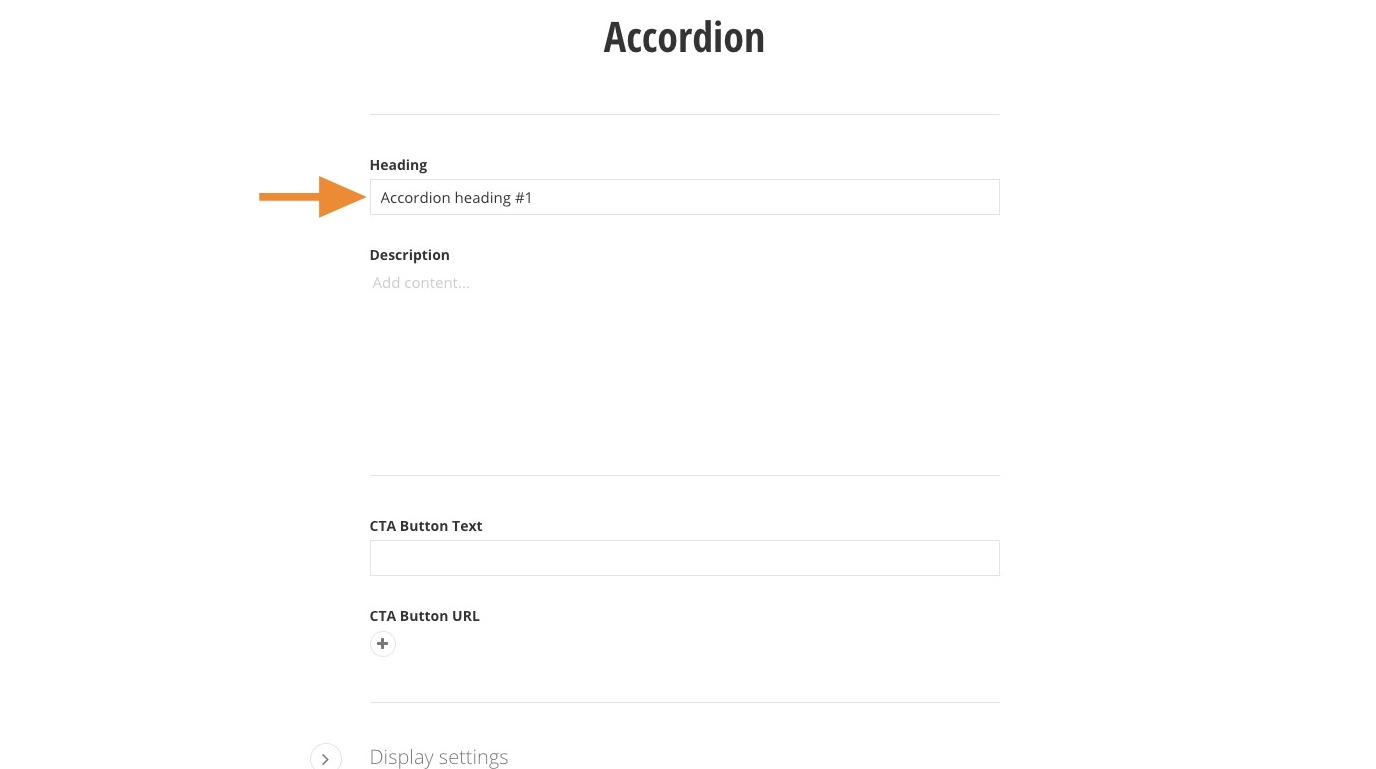
7. Enter text that will be in the Accordion tab.
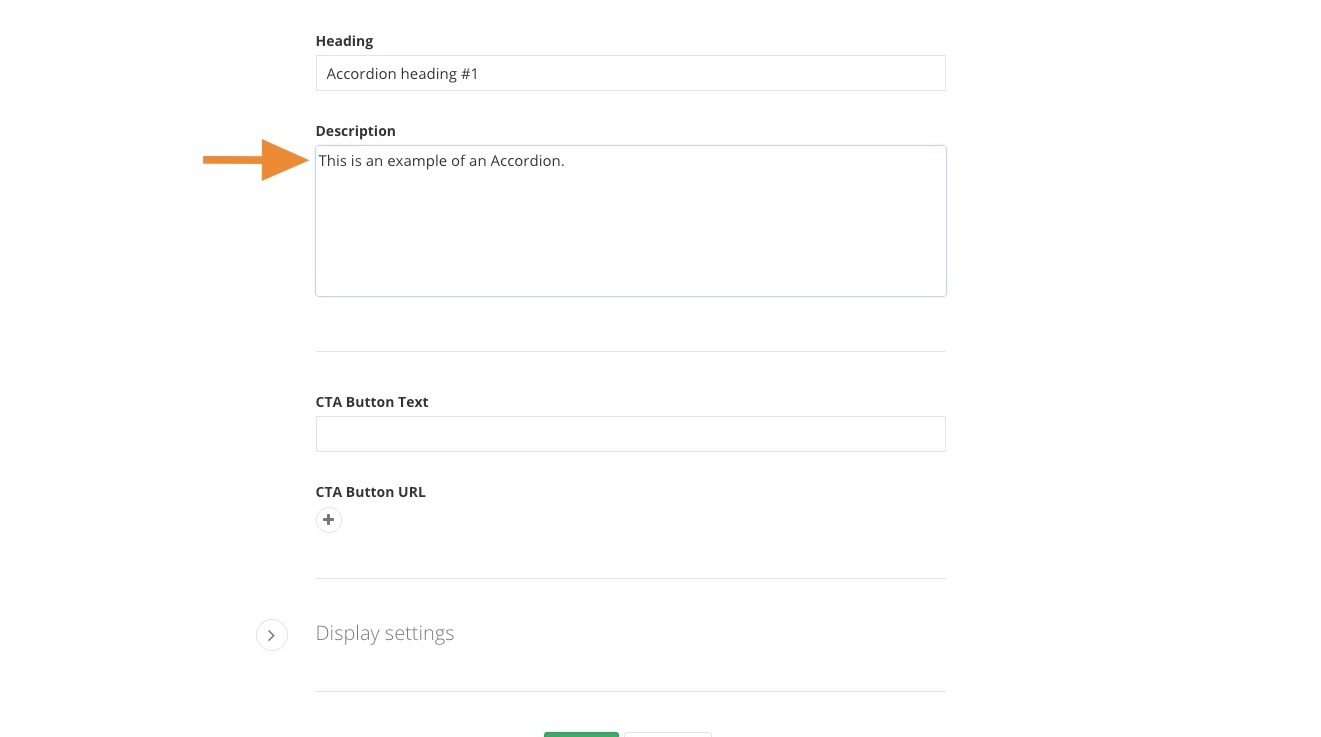
Tip: The following steps are optional if you choose to add a button link to your Accordion tab.
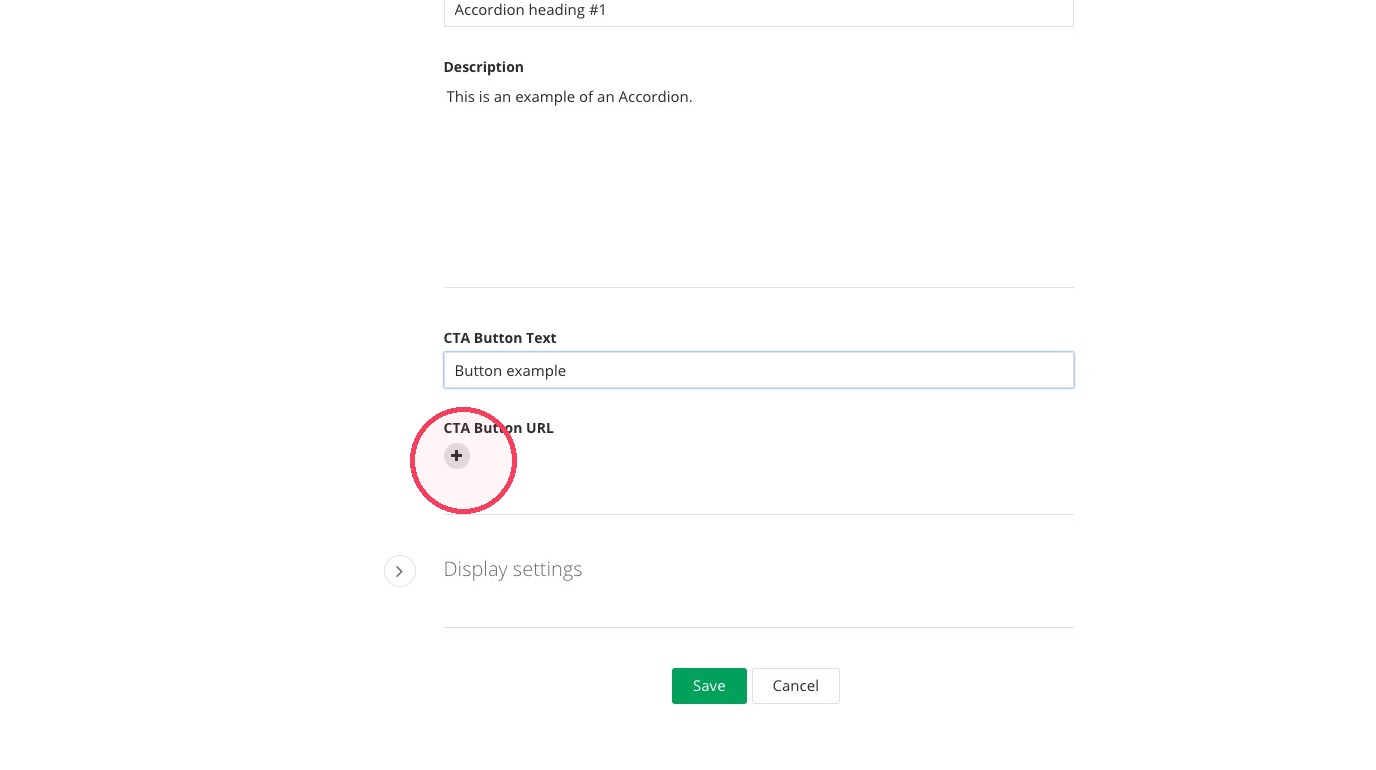
8. Fill out the CTA Button Text field.
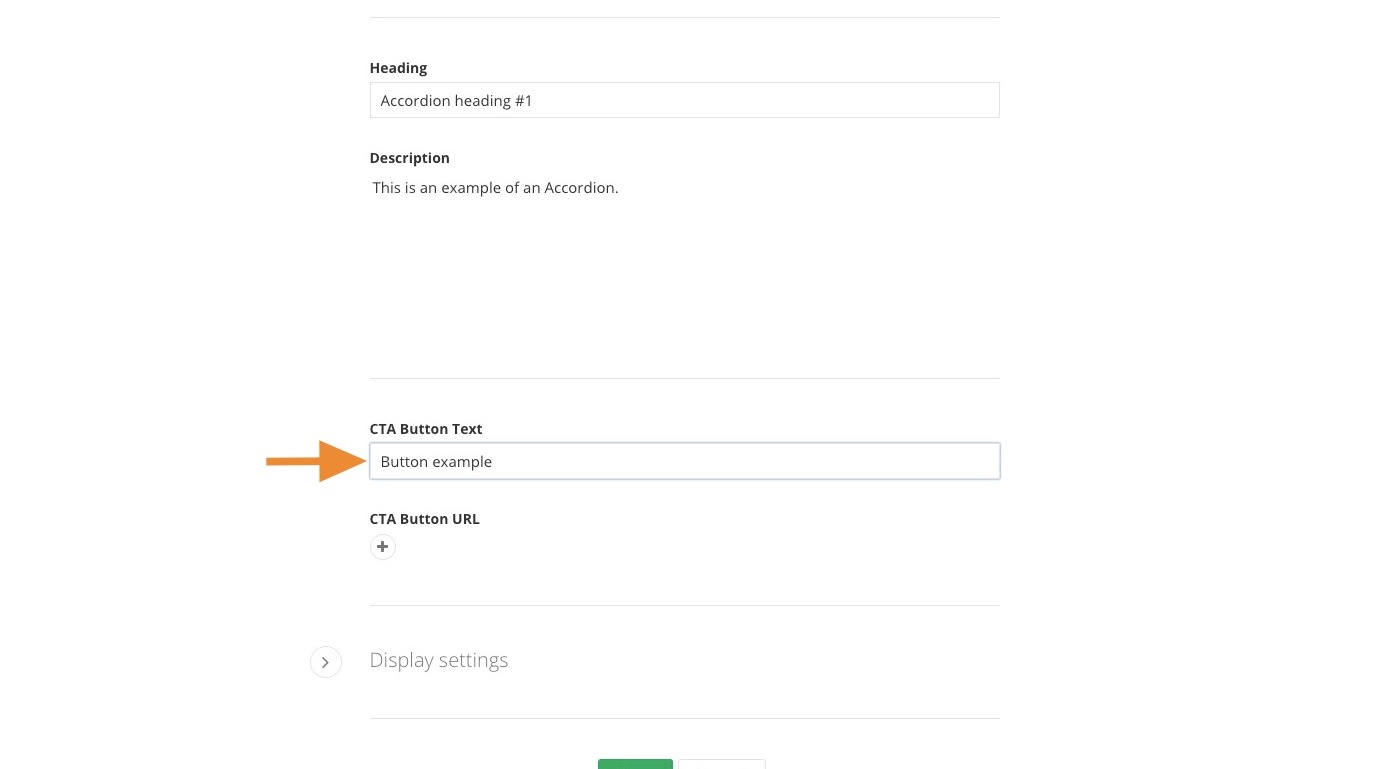
9. Click the + to add a URL you'd like to link to.
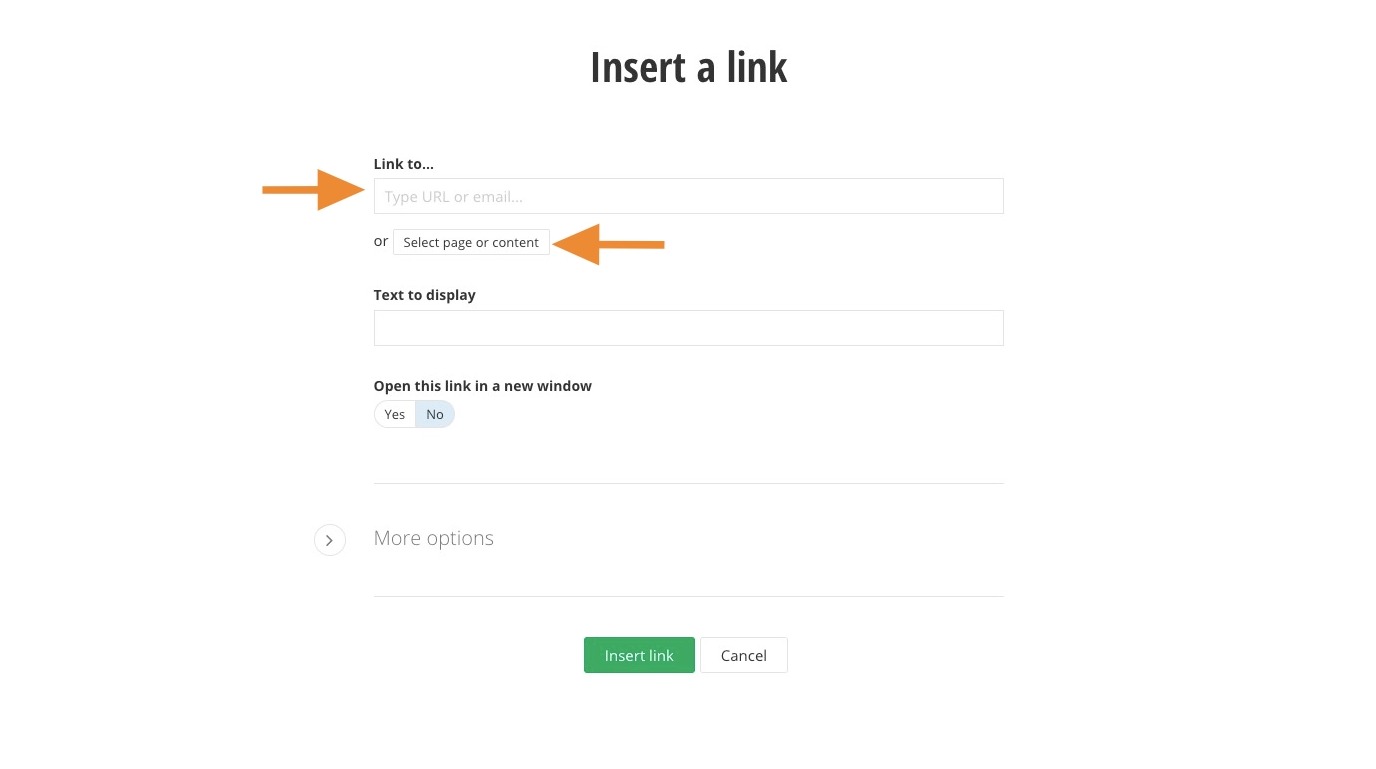
10. Either fill in the Link to... field with a specific URL or click "Select page or content" button to choose a page or document within the site.
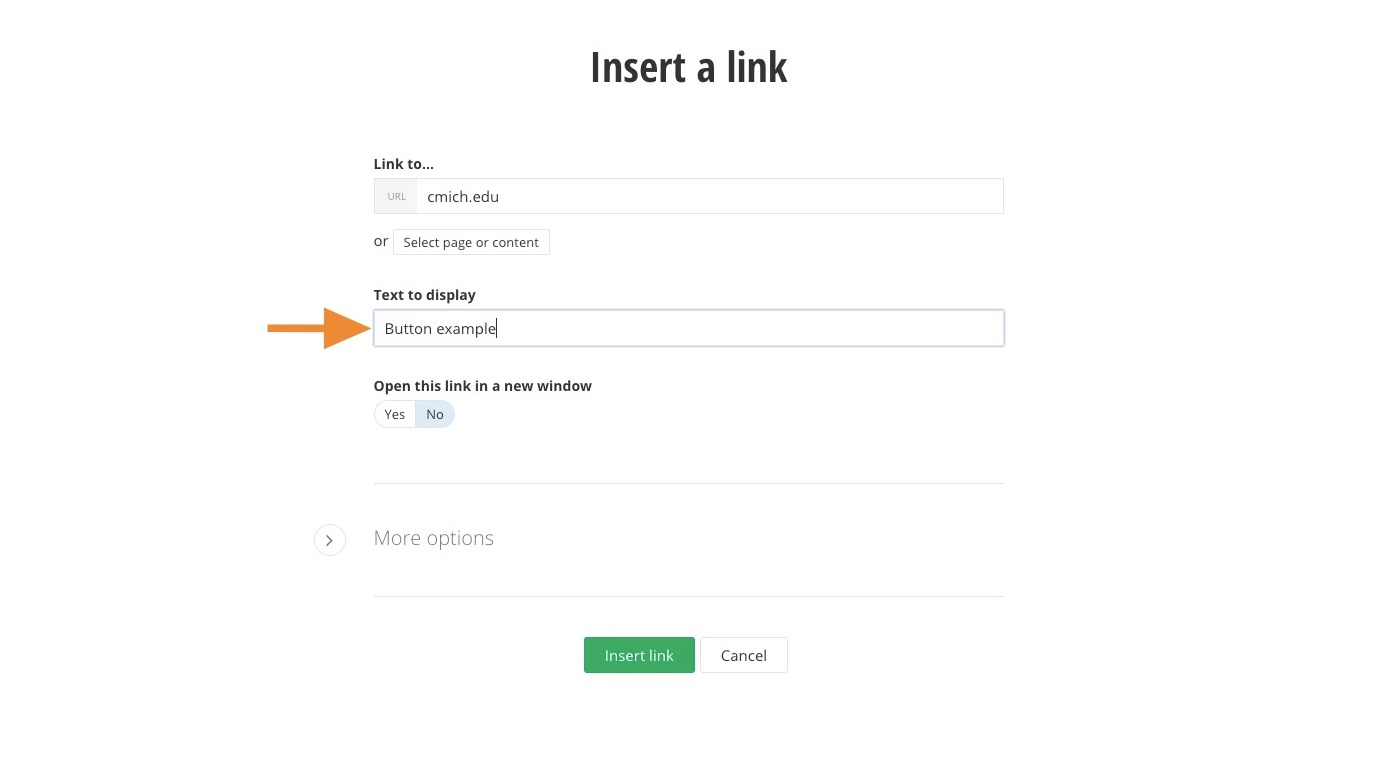
11. Fill the Text to display field with what the button text will read.
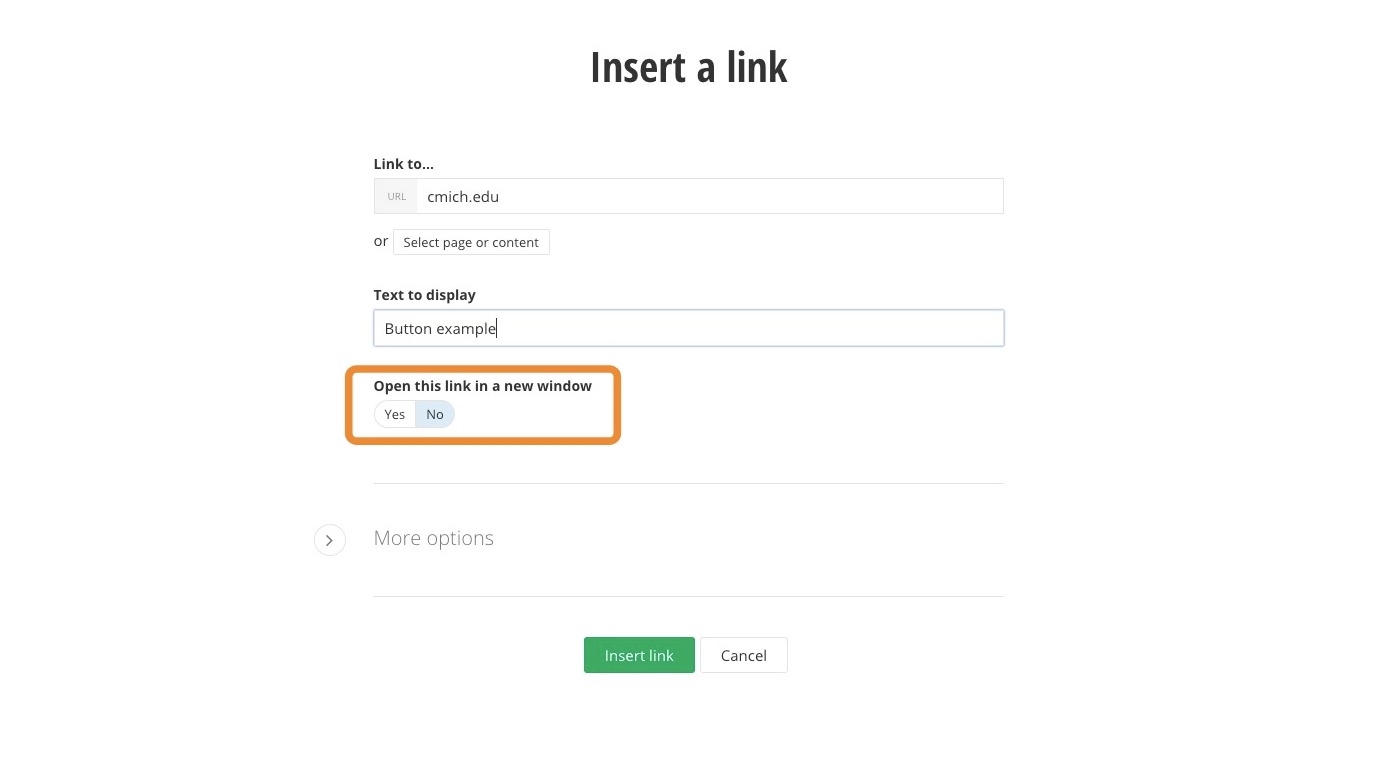
12. Determine whether the link will be opened in a new window.
Yes: If the page leads to an external site
No: If the page is within the site
13. Click "Insert link".
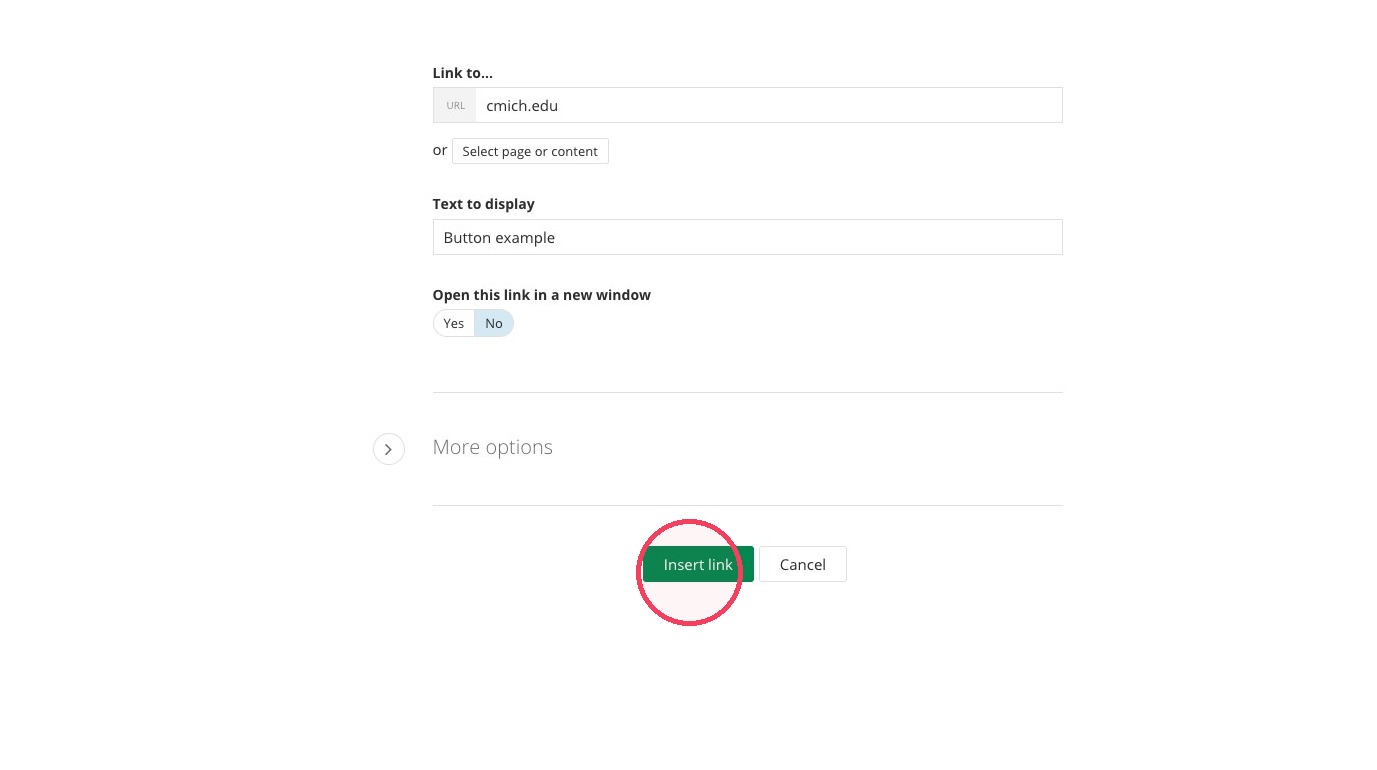
14. Click "Save"
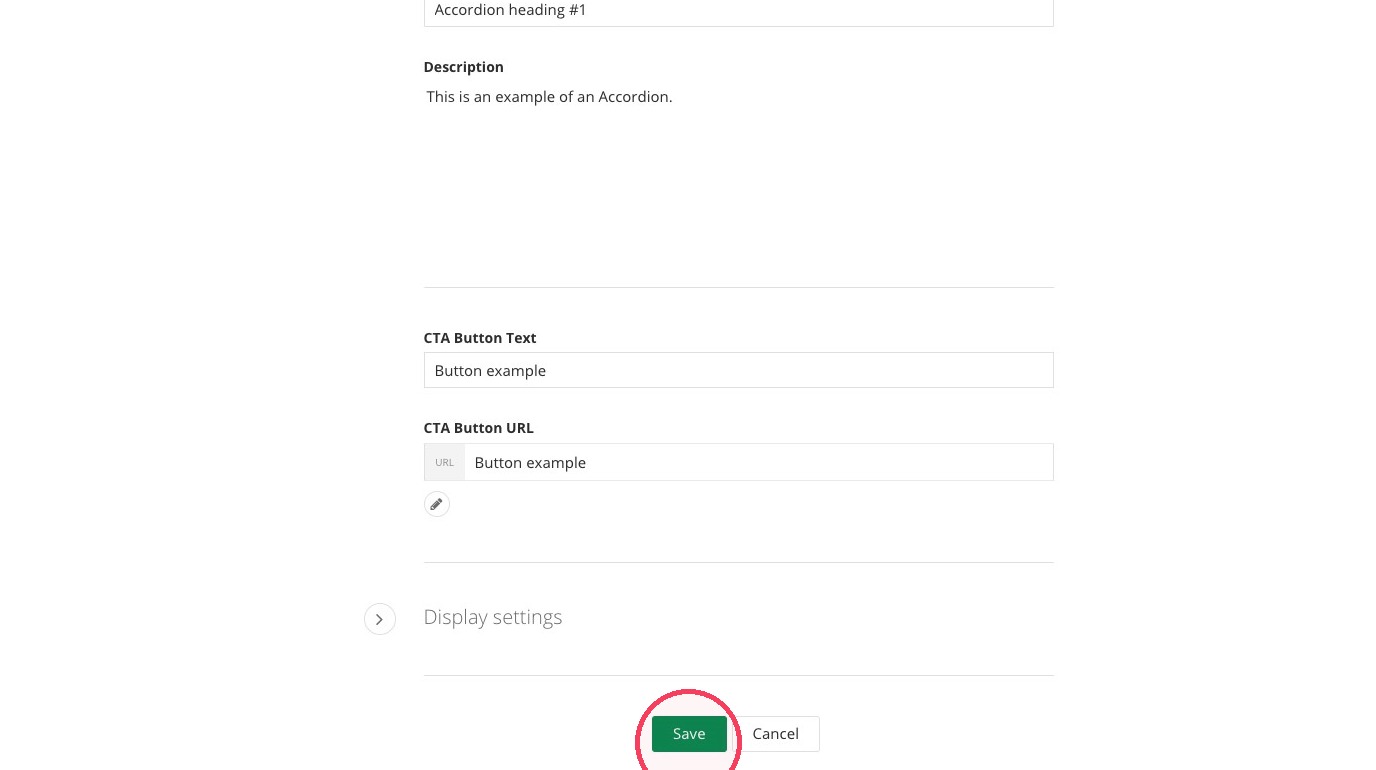
Save and send
- If you'd like to continue working on this page, but need to save your progress, click Save as Draft.
- If you're finished making changes to the page, and the page is ready for review, click Send for Approval.
