Replacing Documents within the DAM
Updating the content of a document stored in the Digital Asset Management (DAM) can be accomplished in a few steps. There is a setting in the document properties that lets you replace the document in the DAM and then the document will automatically be updated on all web pages that include the document. This saves you time by making the edit once on the document and Sitefinity auto-replacing the document anywhere it is linked on the website.
Capabilities
- Edit and update document(s) in the DAM.
- Automatic replacement of edited/updated document(s) anywhere it is linked on the website.
- Save time making edits/updates to documents stored in the DAM.
Guidelines
- All documents uploaded to the DAM should be 5MB or less.
- Optimize (compress file size) document(s) before replacing in the DAM.
- Keep file naming and library structure/organization when editing/updating document(s) in the DAM.
Instructions
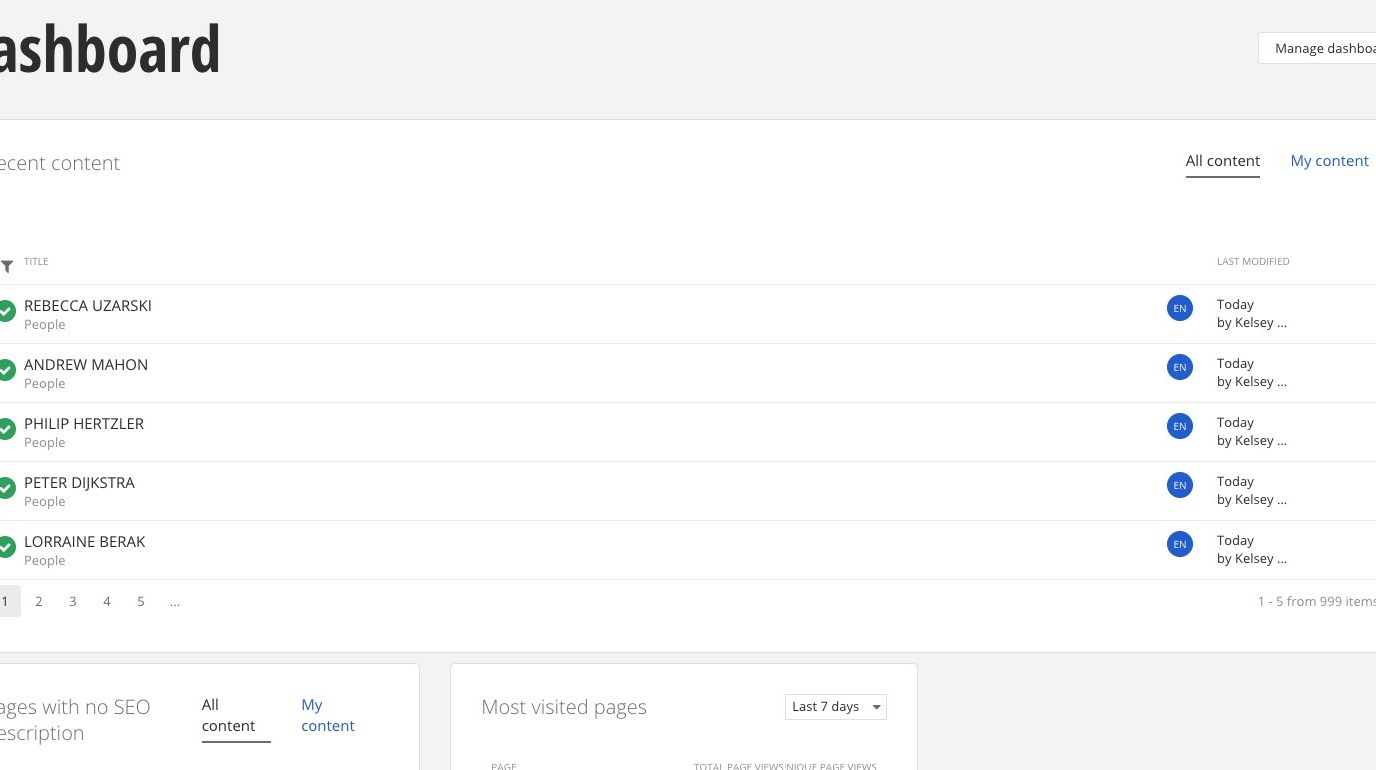
1. Open Sitefinity and navigate to Documents and Files.
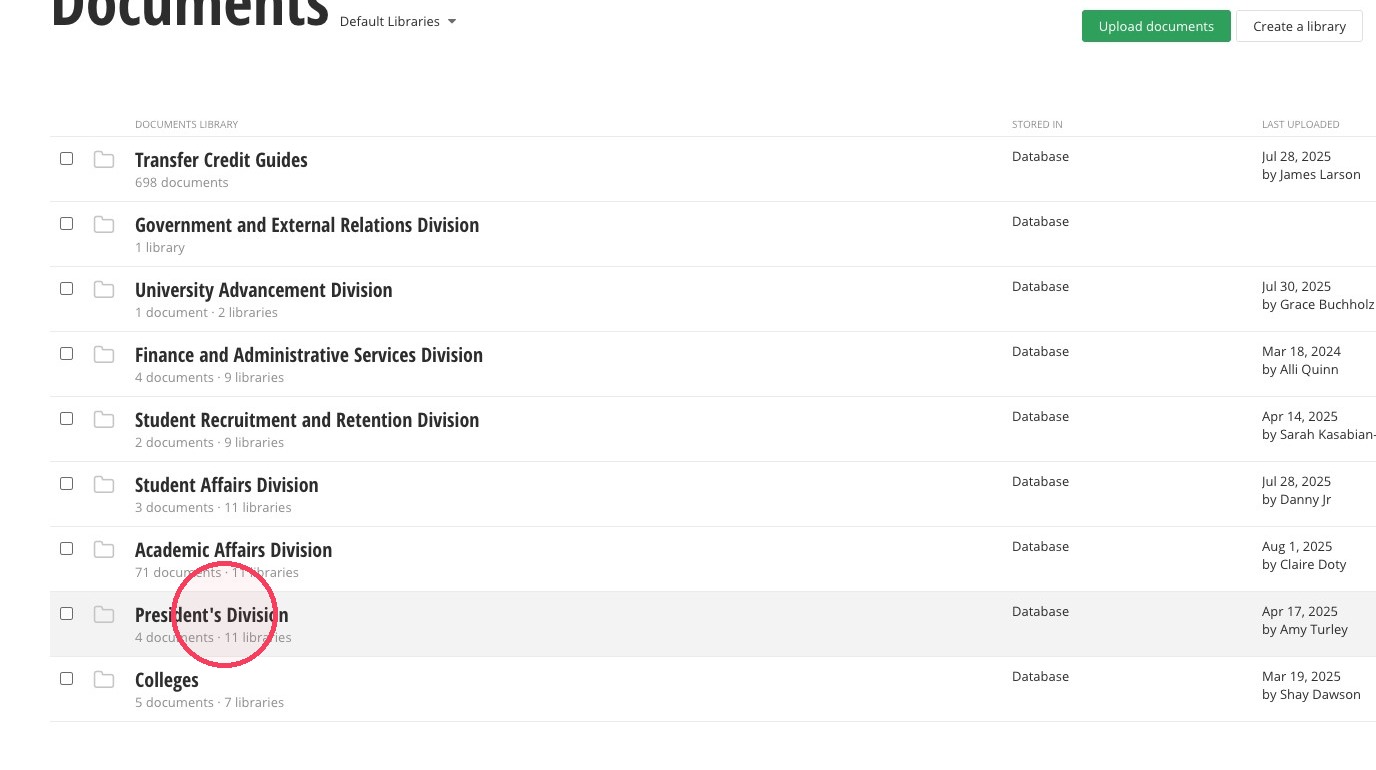
2. Find your area's folder.
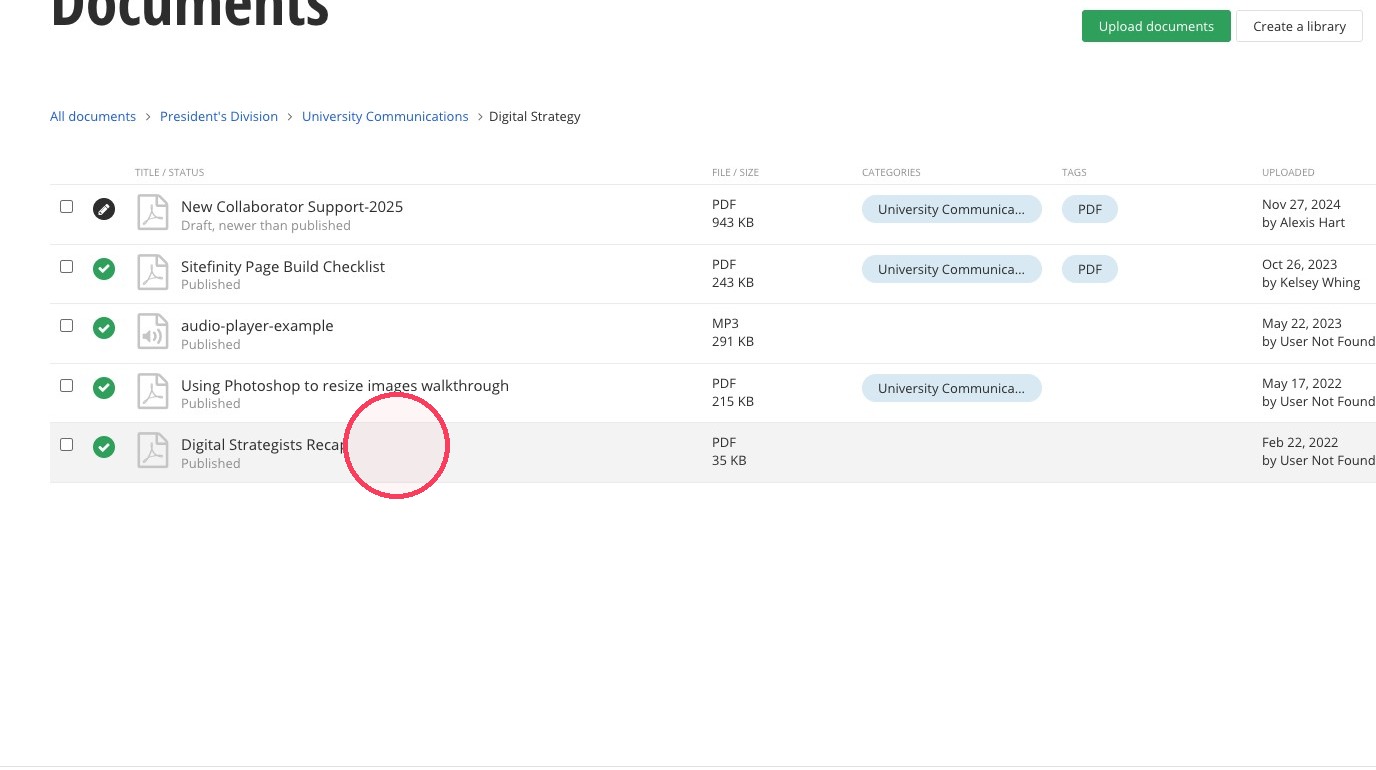
3. Find the specific document you need to replace.
4. On the document properties screen, click on the gear icon.
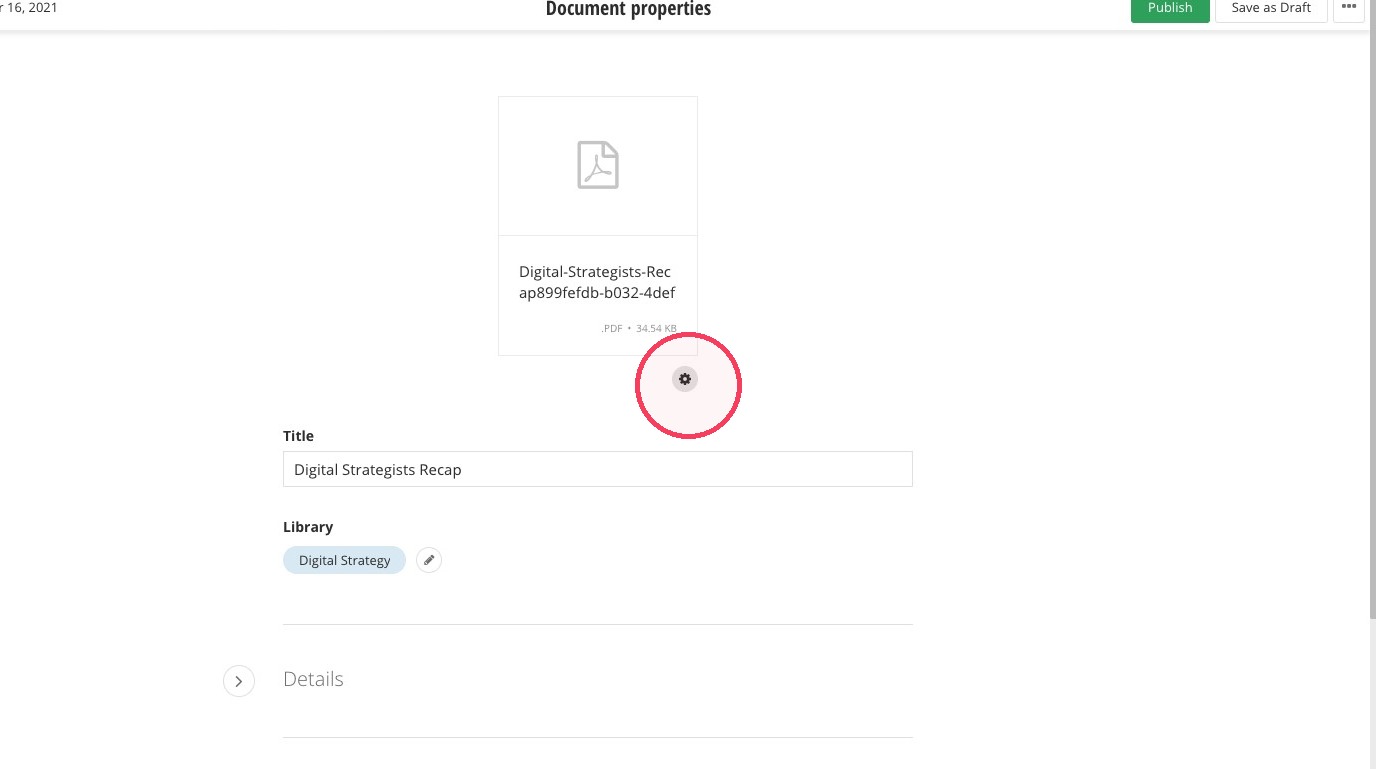
5. Click "Replace file".
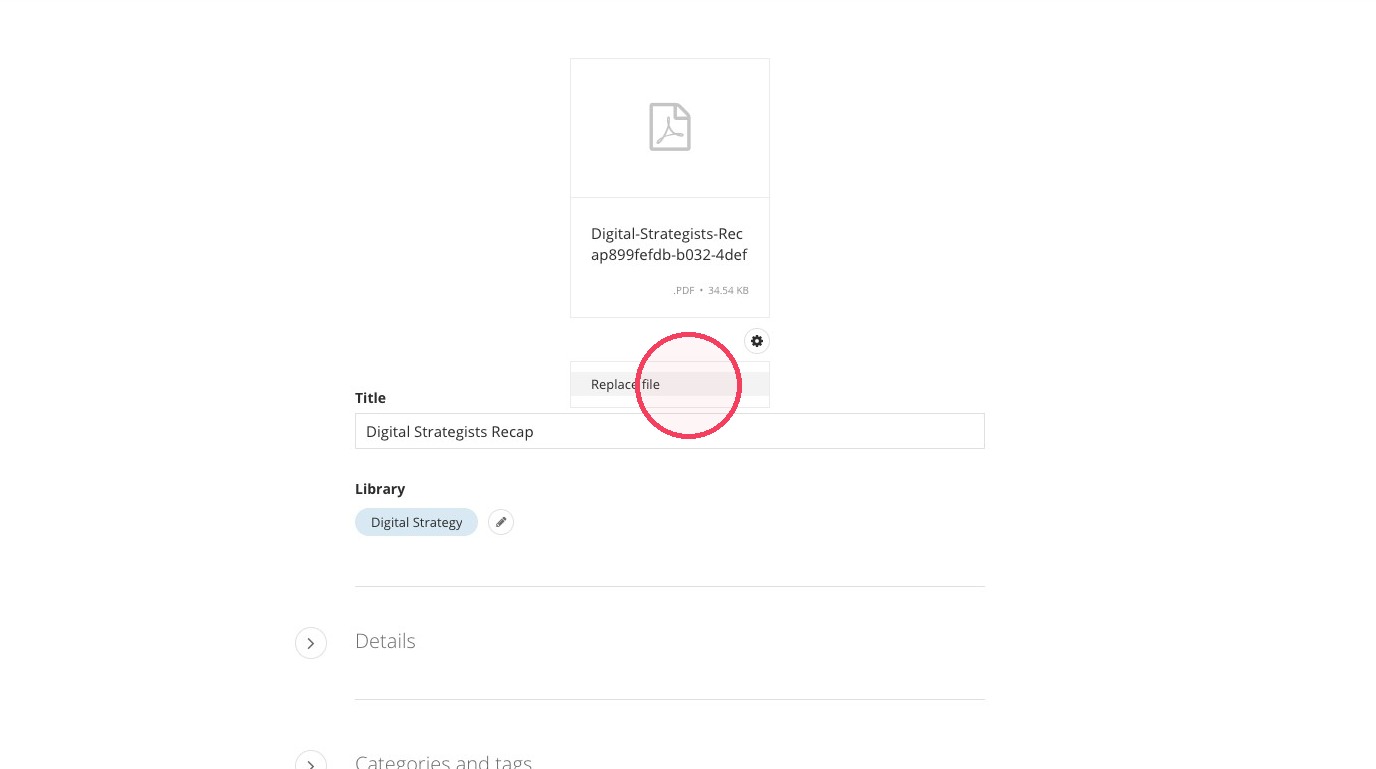
6. You can either:
-Select a file in the DAM to use as a replacement.
-Upload a new version from your computer to use as a replacement.
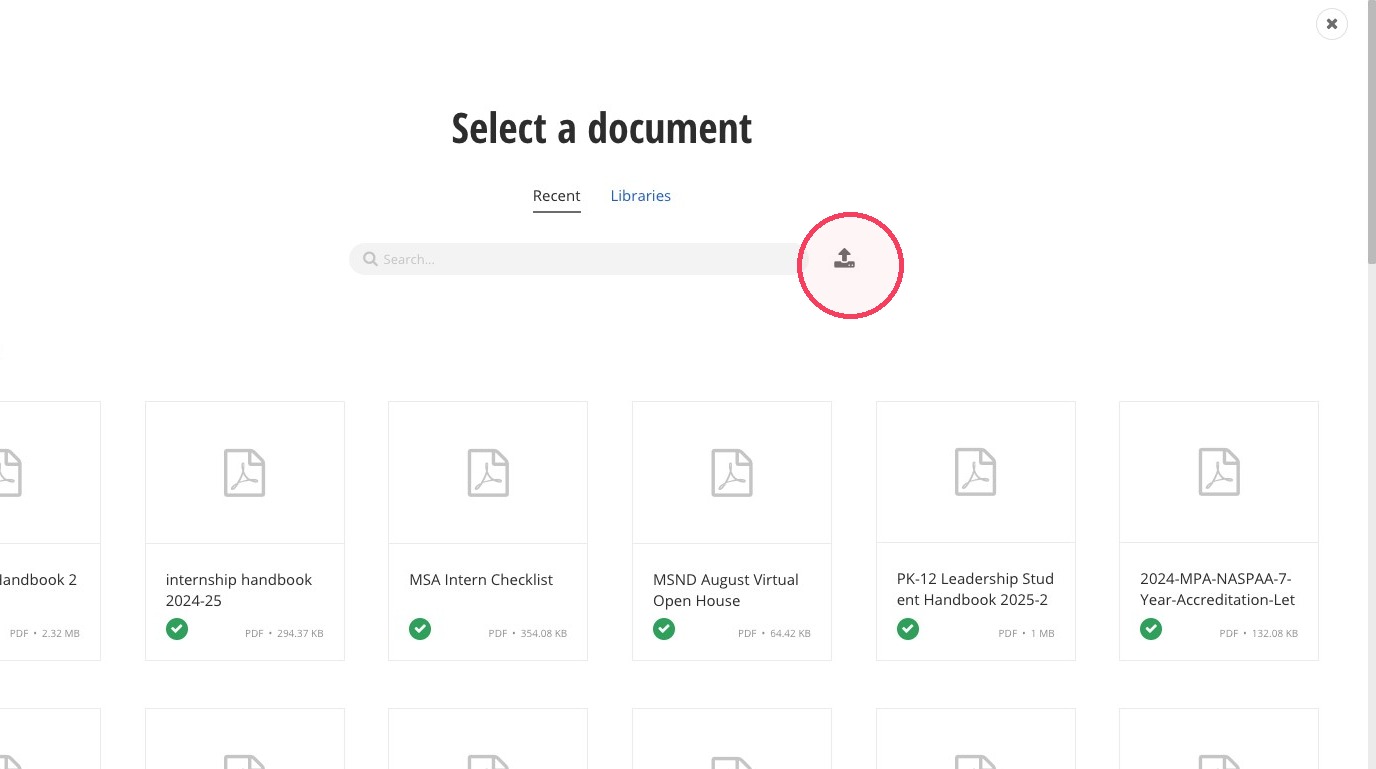
7. Once you've selected the file, send your newly replaced document for approval.
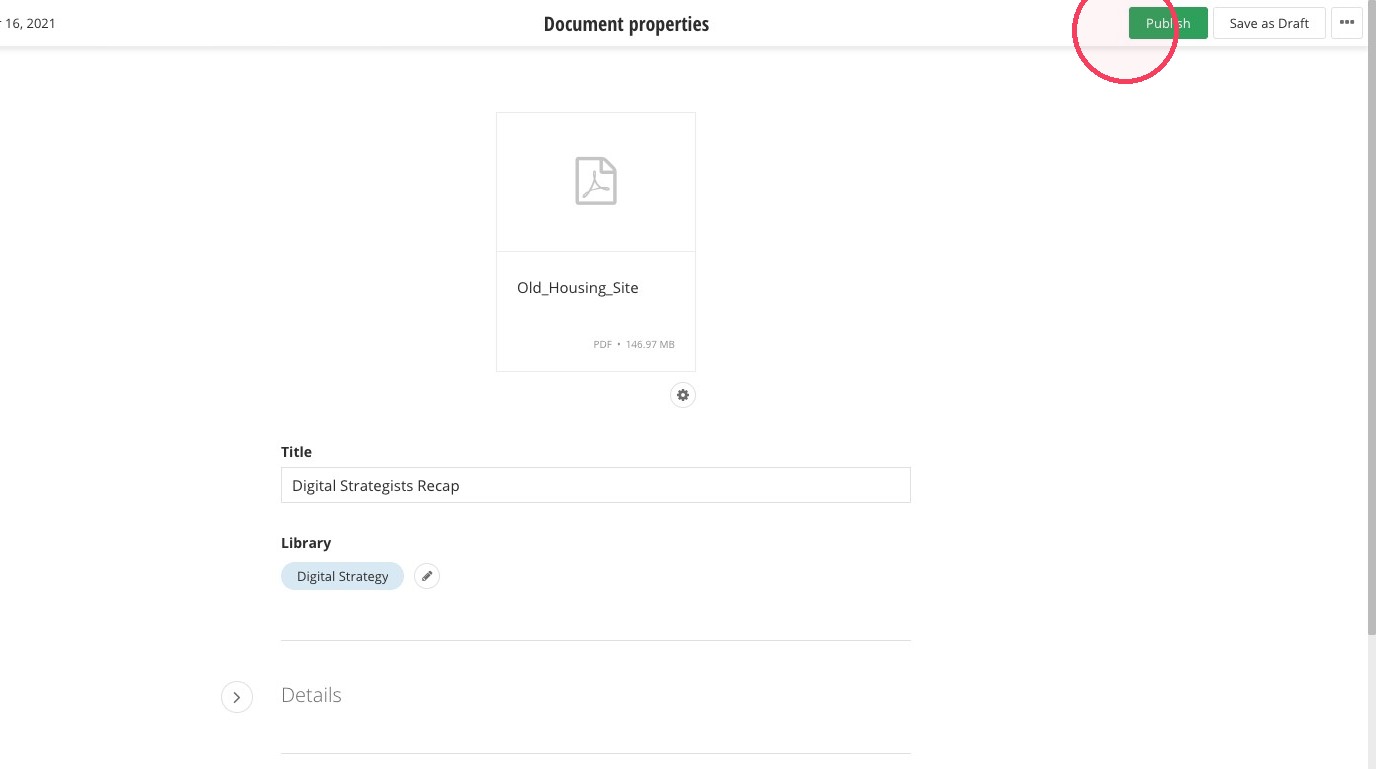
Once the document is sent for approval and published, it is completed. There is no need to change and URLs. They will automatically be updated with the new document.