People Widget
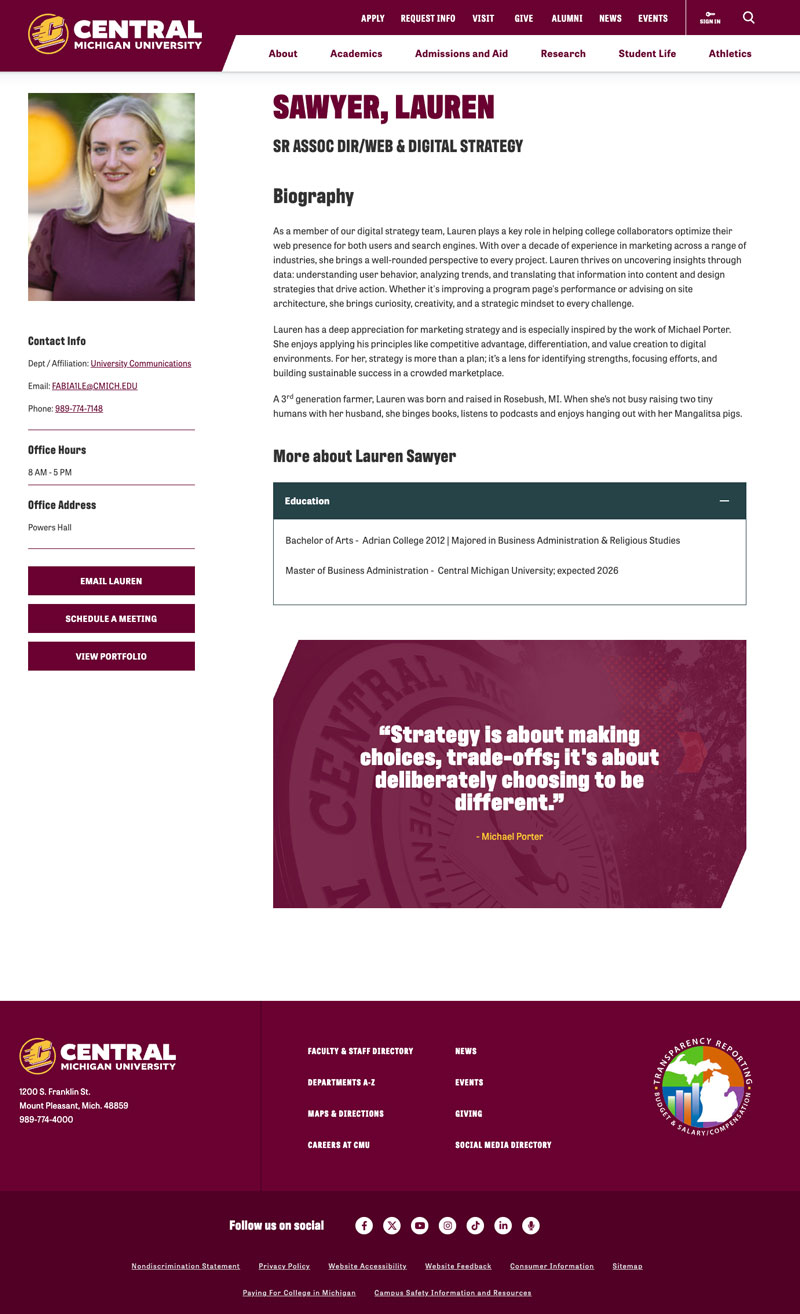
Quickly find a faculty or staff member's contact information, office hours, courses taught and more on their profile. All of this information is located in one central location to help our audience learn more about our fired-up faculty and staff. The profile will appear when the faculty or staff's name is searched for on the site. This profile can also be linked directly in an email or email signature. There are many options to utilize the profile to bring more awareness of our faculty and staff.
People are imported directly from Active Directory into Sitefinity. You will need to work with Human Resources for the following changes:
- A faculty or staff member needs to be added OR removed from Sitefinity
- The auto-populated fields have incorrect information in Sitefinity
Information on this page
Preview of people profile
Instructions
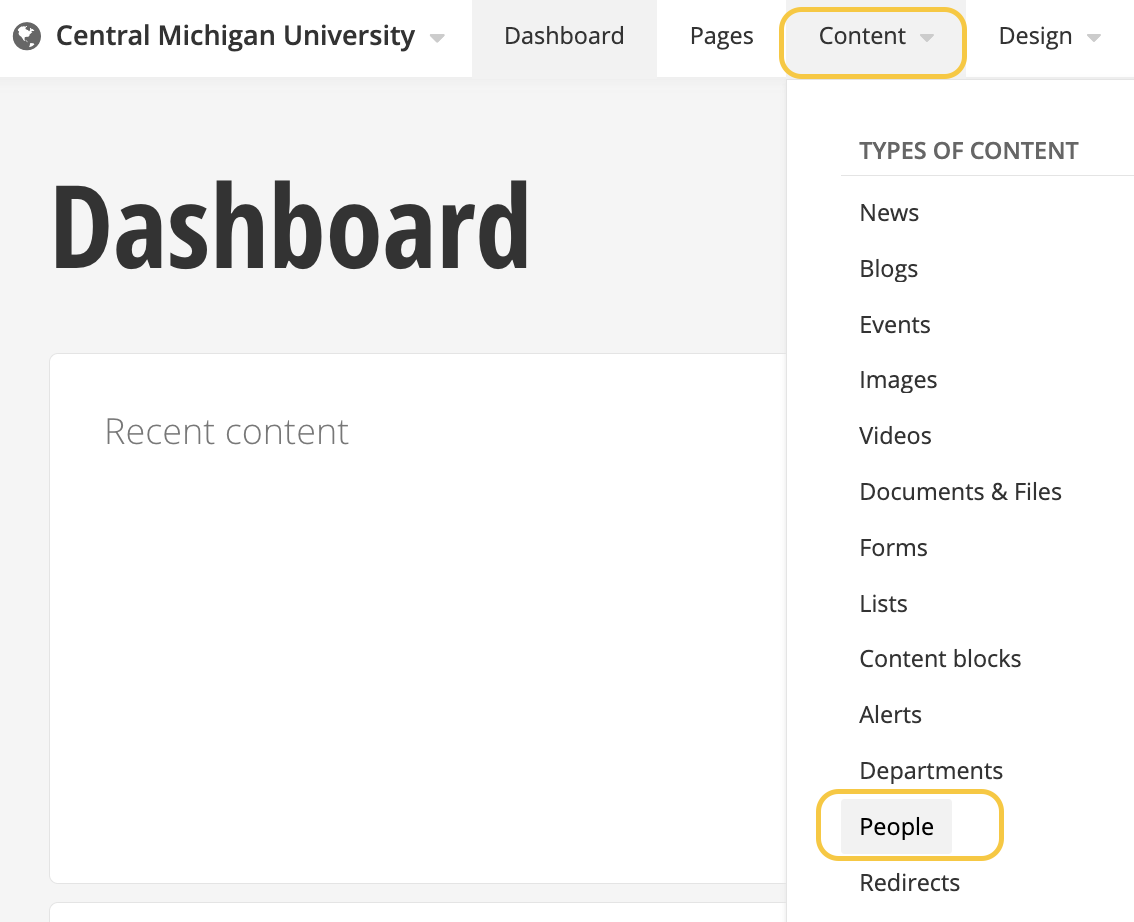
Navigate to the People section under Content.
From there, click on the name of the Person whose profile you want to edit.
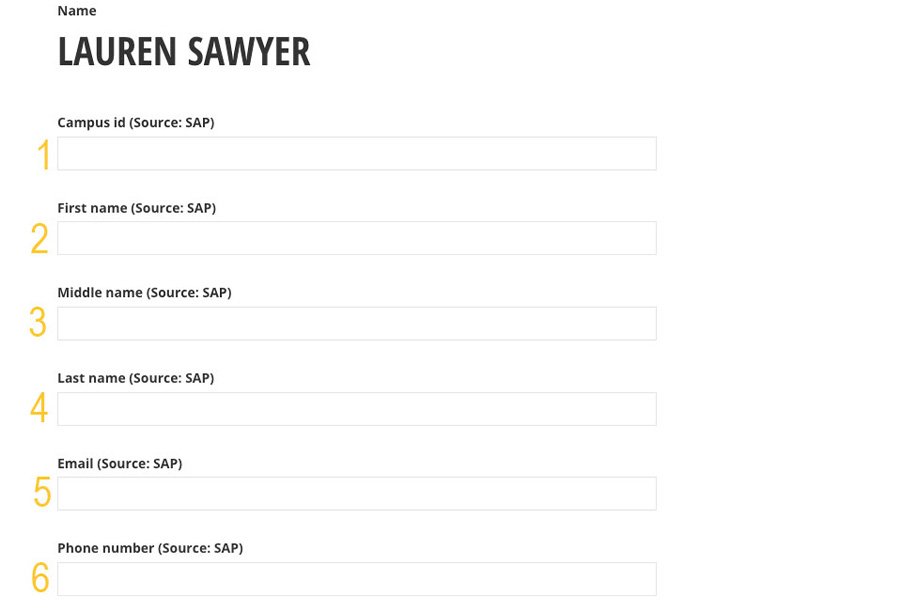
This will open the page to a number of fields that are blank or have been auto-populated from Active Directory. The content in these fields is the text that shows when it is published.
The items in bold are imported from SAP/Active Directory. The digital strategy team and the collaborator do not have the ability to update these. In order for them to be changed, please reach out to .
Content fields
1. Campus ID: Active Directory Import
2. First Name: Active Directory Import
3. Middle Name: Active Directory Import
4. Last Name: Active Directory Import
5. Email: Active Directory Import
6. Phone Number: Active Directory Import
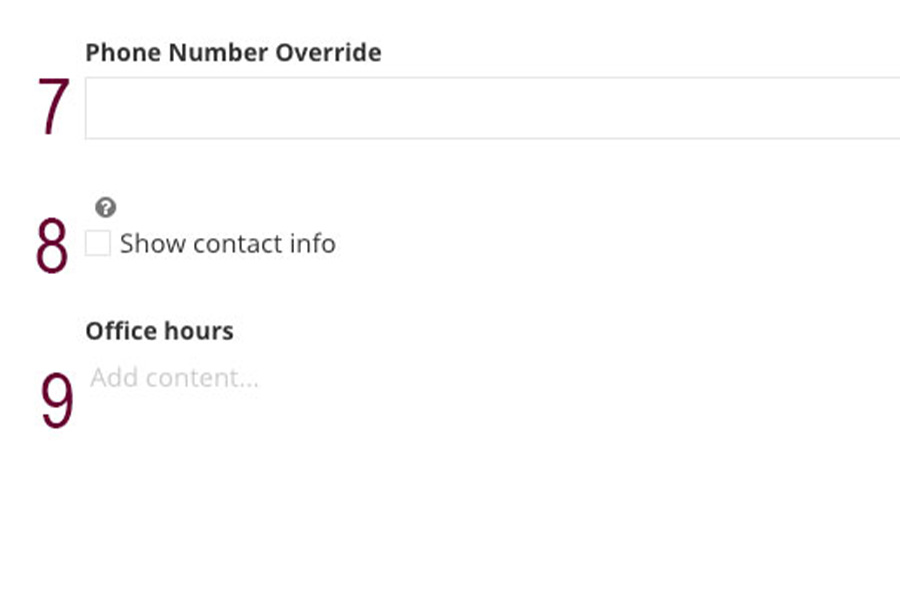
7. Phone Number Override: If you'd like to add a cell phone or phone number that is not tied to Active Directory, you can add it here and it will replace the phone number that is populated from Active Directory.
8. Show contact info: Check this box to allow the phone number and email to be publicly available.
9. Office Hours: provide the time the faculty/staff member is available.
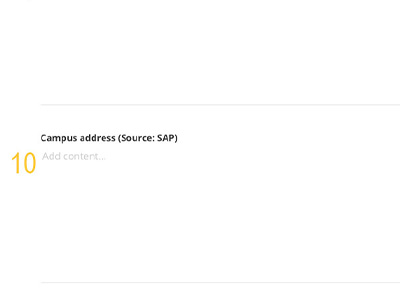
10. Campus Address: Active Directory Import
11. Location: add information on the faculty/staff location - Mt. Pleasant, Traverse City, etc.
12. College: the faculty/staff member's college
13. Button Text: link to email, programs, outside research, etc.
14. Button URL: add the full URL to the button above. Note: if you are adding an email, you must include mailto: before the email address. For example: mailto:test@cmich.edu
15. Button Text 2: link to email, programs, outside research, etc.
16. Button URL 2: add an additional button.
17. Button Text 3: link to email, programs, outside research, etc.
18. Button URL 3: add an additional button.
19. Academic Title: add a specific title - appears as the H2 on the page, directly under the name.
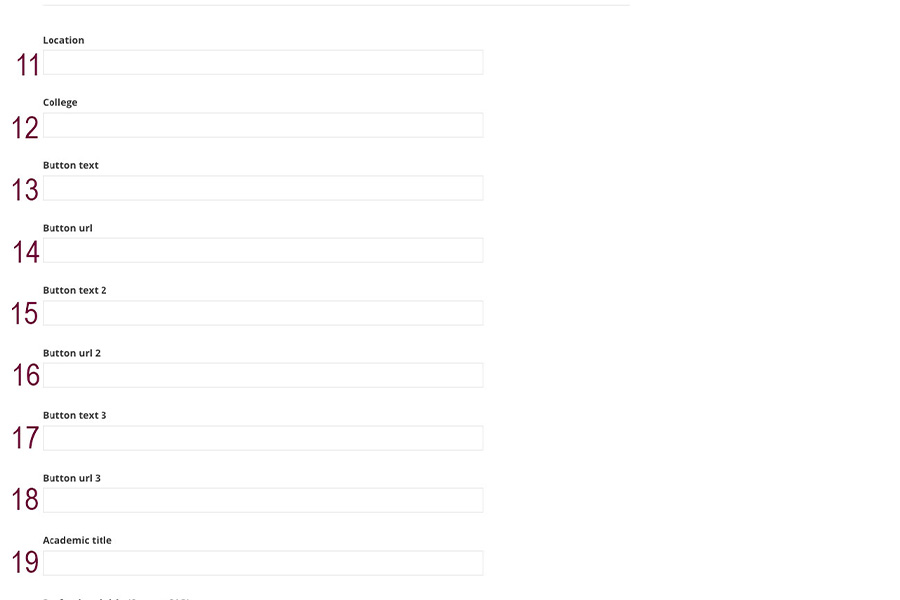
20. Professional Title: Active Directory Import

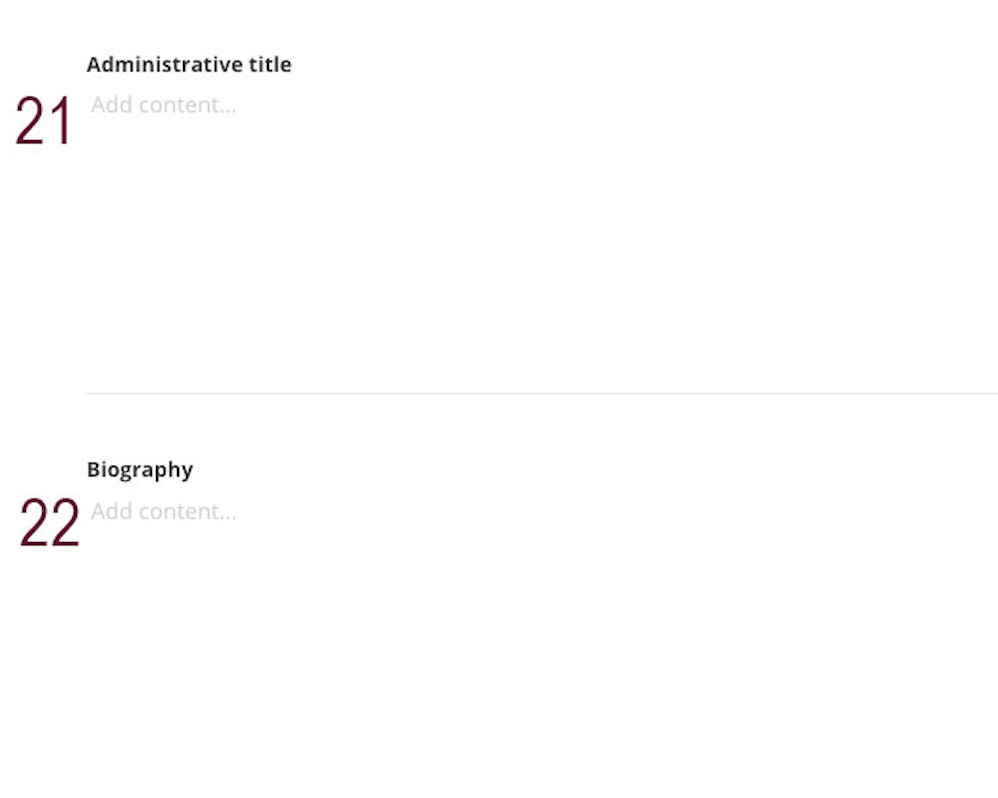
21. Administrative Title: add a specific title - appears as the H3 on the page, directly under the name.
22. Biography: add relevant information about the faculty/staff member. Remember to write it in an active and engaging tone.
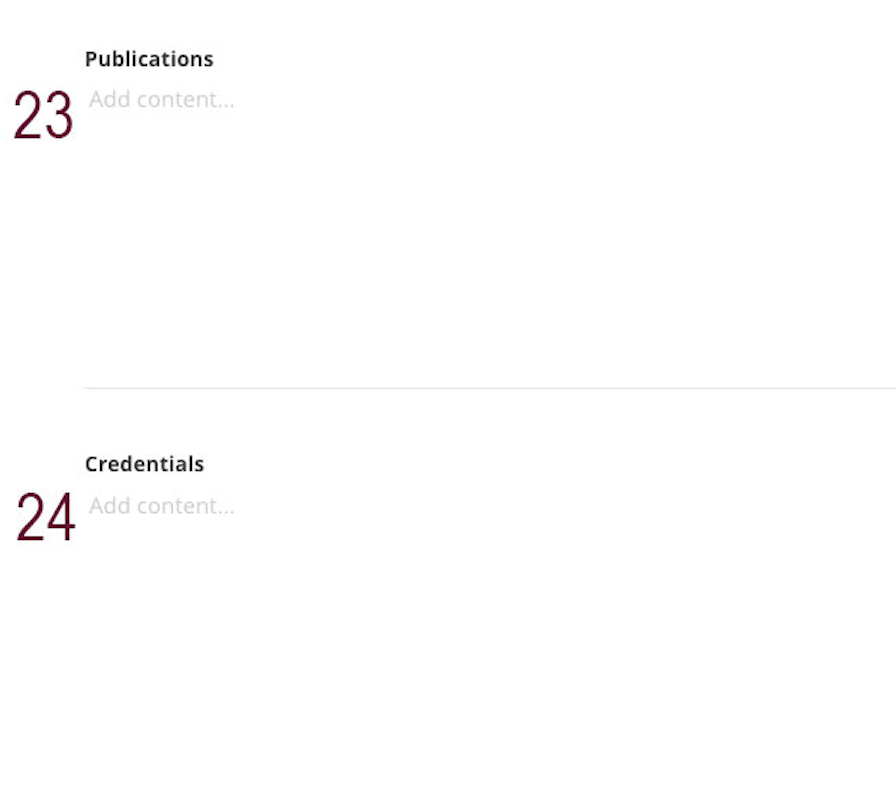
23. Publications: list and link any published work.
24. Credentials: include certifications, trainings, and other credentials.
25. Education: note various degrees, universities and educational information.
26. Research Interests: highlight the areas of focus and/or research.
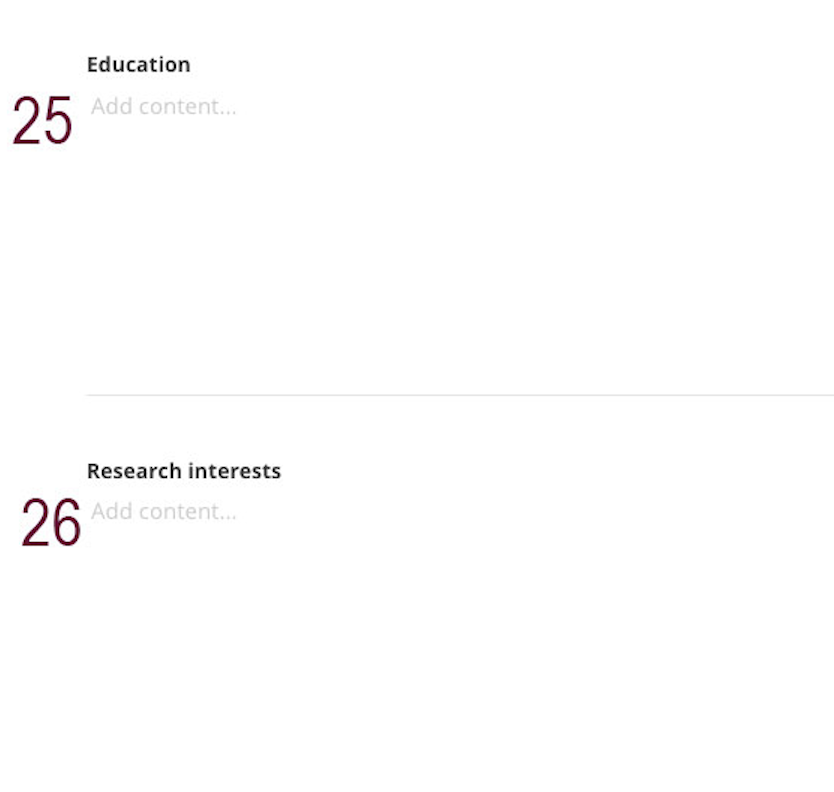
27. Memberships: include groups, clubs, and organizations where faculty/staff member is a member.
28. Current Licenses: add up to date information of current licenses.
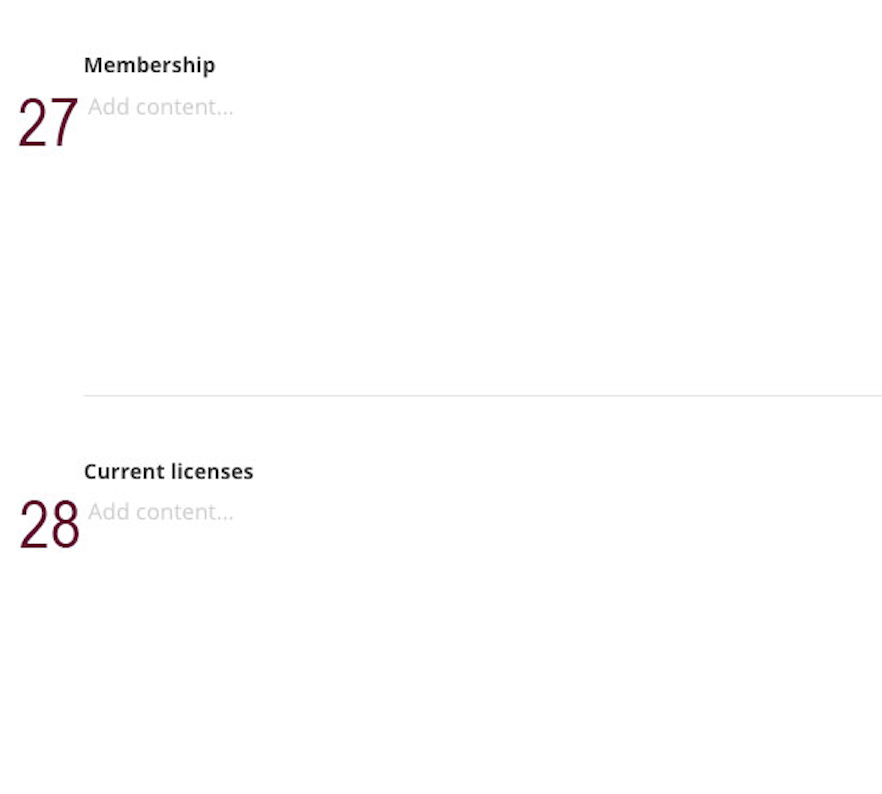
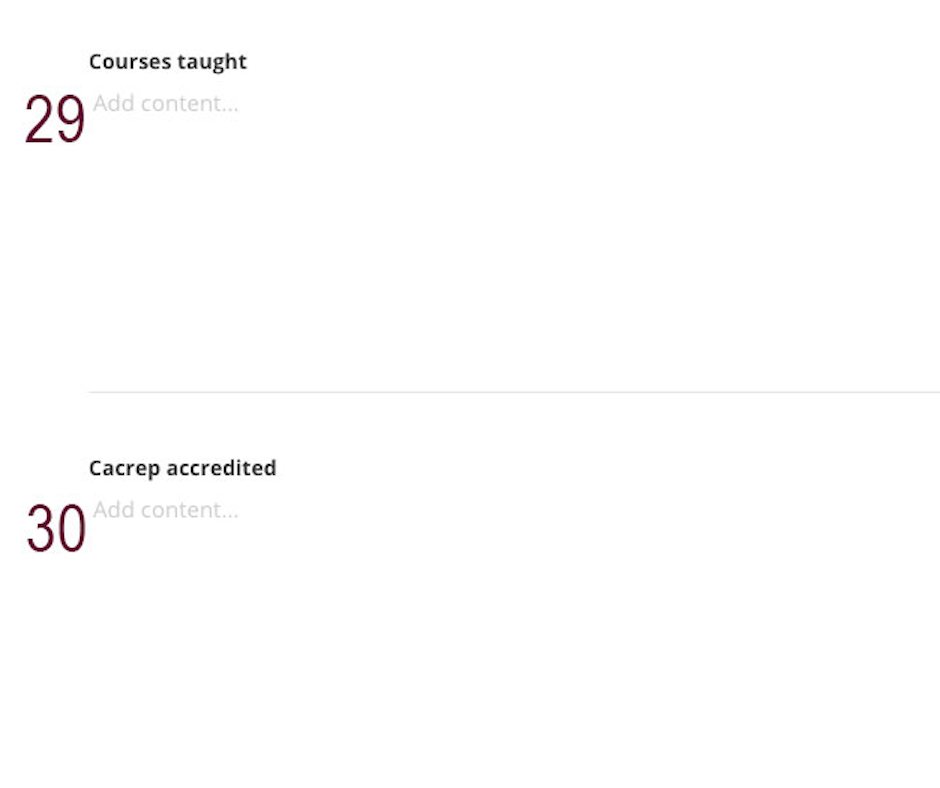
29. Courses Taught: add information about current courses, can also link to programs related to the courses.
30. Carcrep Accredited
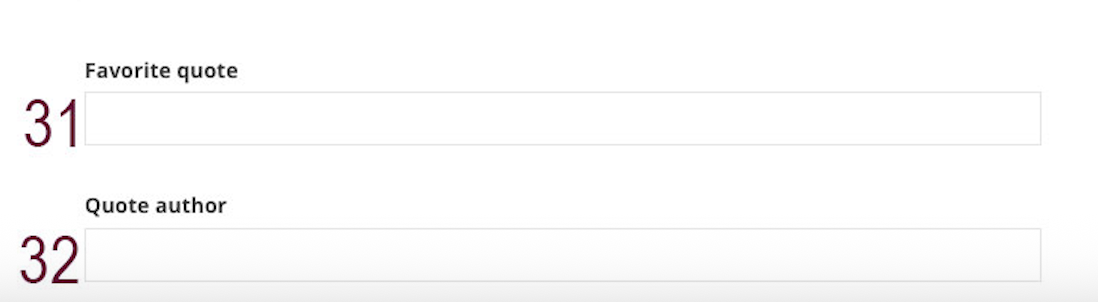
31. Favorite Quote
32. Quote Author
Tags & Categories
Tag: Select People
Categories: Select the department or unit in which the person works.
Related media
Upload a 200x250 pixel-sized headshot to display on the page.
- If you're unsure how to resize an image, view the playbook page.
- If you're in need of a headshot, reach out to Media Graphix.
- Images are not required. If an individual is not comfortable with their image being on the website, leave this section blank. A placeholder image will appear on the profile and in the directory.
- AI-generated images of humans or images that have been edited by AI are not allowed on cmich.edu. There could be legal or compliance violations due to creating likenesses of others without their approval, opening the University up to liabilities.
Related data
Related departments: This is imported from SAP/Active Directory.
Search engine optimization
Title for search engine: Name of person.
Description: Copy and paste the following with the details about the person.
- NAME is a/the TITLE at Central Michigan University.
Social media
Title for social media: Name of person.
Description: Will automatically match the SEO description. You can edit to add additional information, if desired.
Image for Social Media Platforms: This is optional, if you do upload an image in this section it is 1600x900.
Save and send
- If you'd like to continue working on this page, but need to save your progress, click Save as Draft.
- If you're finished making changes to the page, and the page is ready for review, click Send for Approval.
