Image Gallery
The Image Gallery is a great way to display multiple images of different sizes on your page. The descriptive text that is already in an image's properties will appear on-screen with this gallery widget. There is no limit to how many photos you can select.




Visual demo
Widget standards
Do:
- Select multiple images.
- Review the descriptive text before sending your page for approval.
Do NOT:
- Use this widget outside of sections or containers. They must be in a container and a section.
Written instructions
1. Click "Add widget."
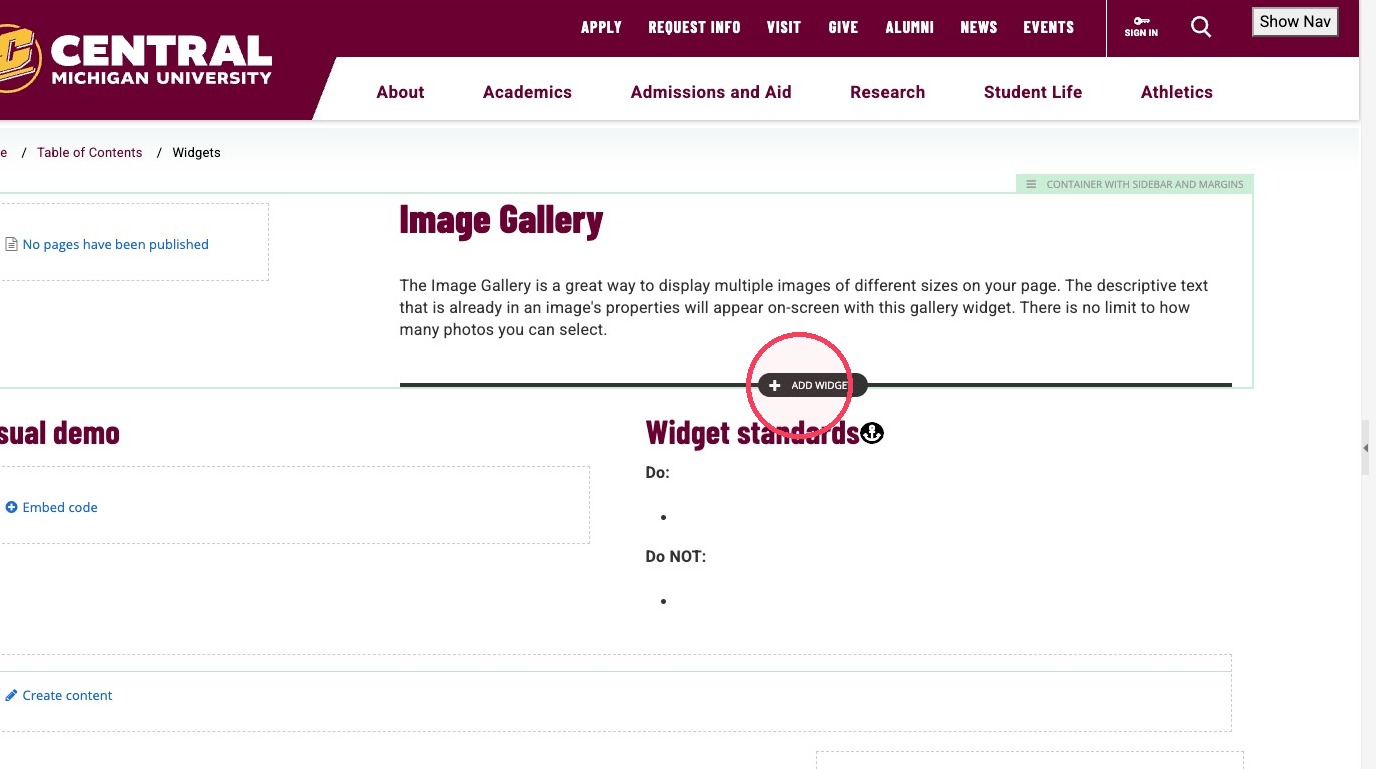
2. Add a section first. Click layout.
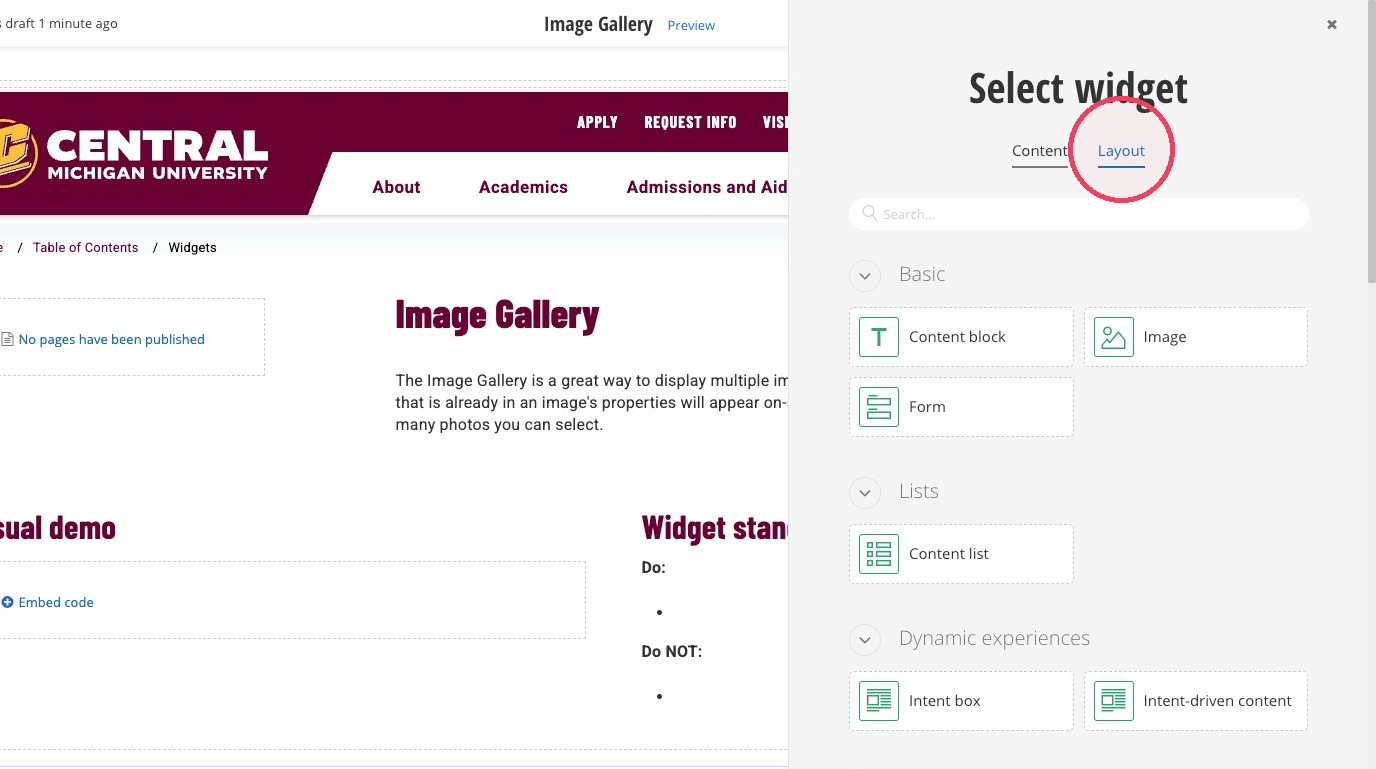
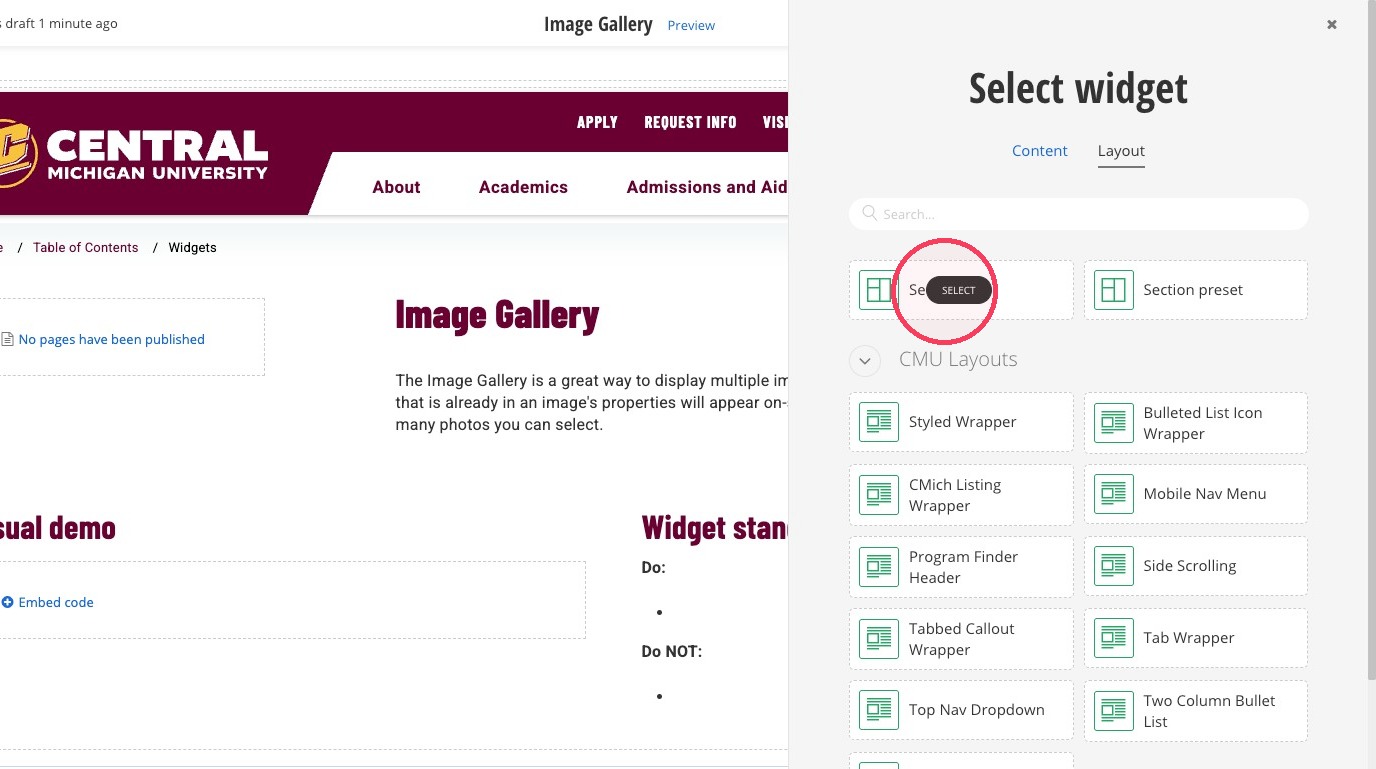
3. Select "Section."
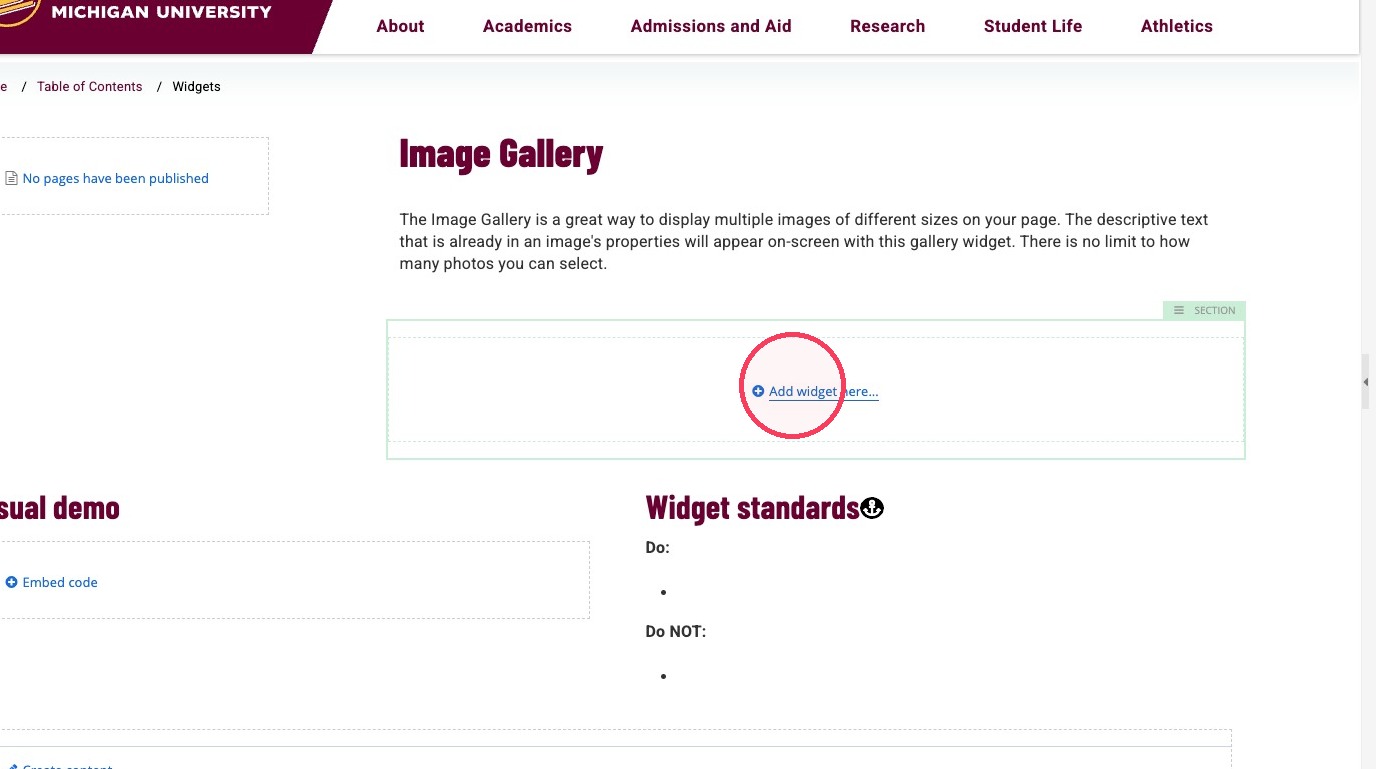
4. Click "Add widget here" inside the section.
5. Select the Image Gallery widget under Multimedia, or type the name to search.
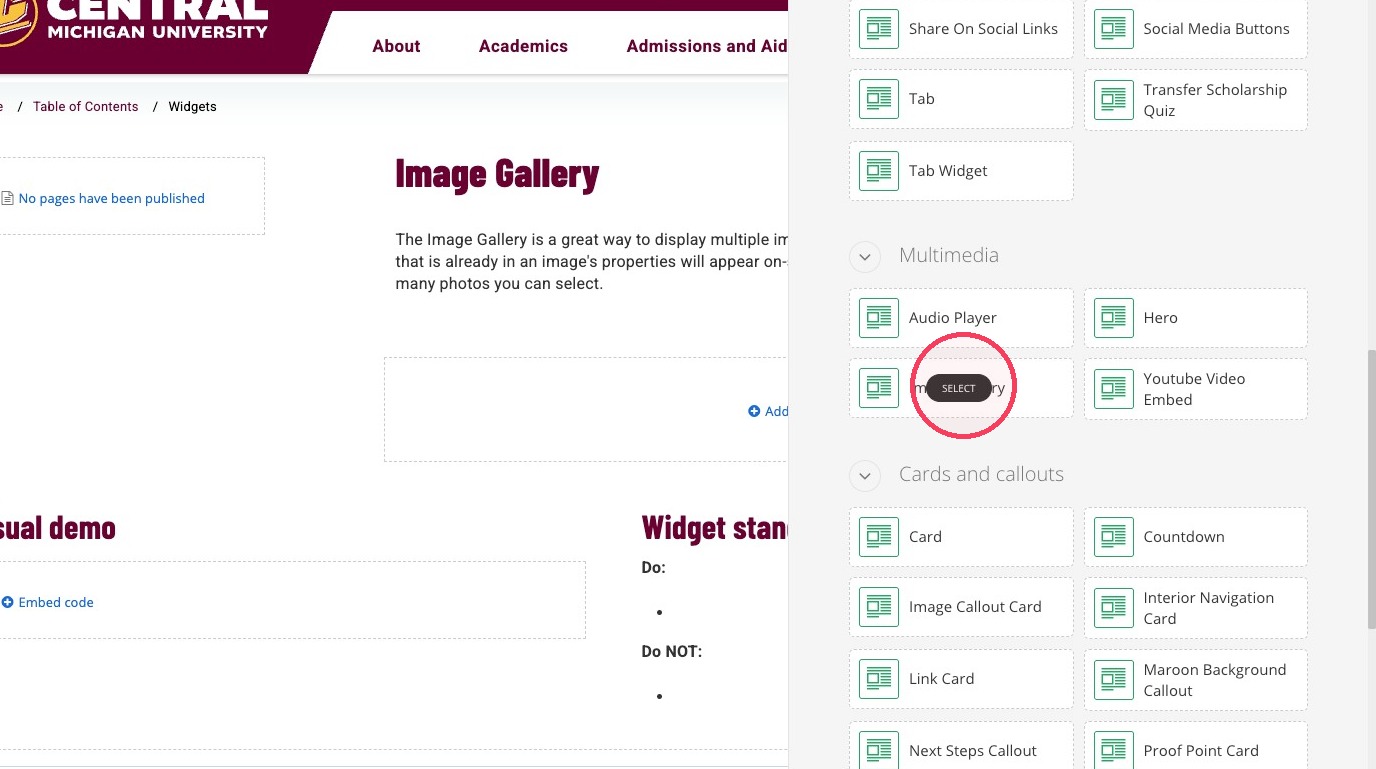
6. Click "Create content" inside the image gallery widget.
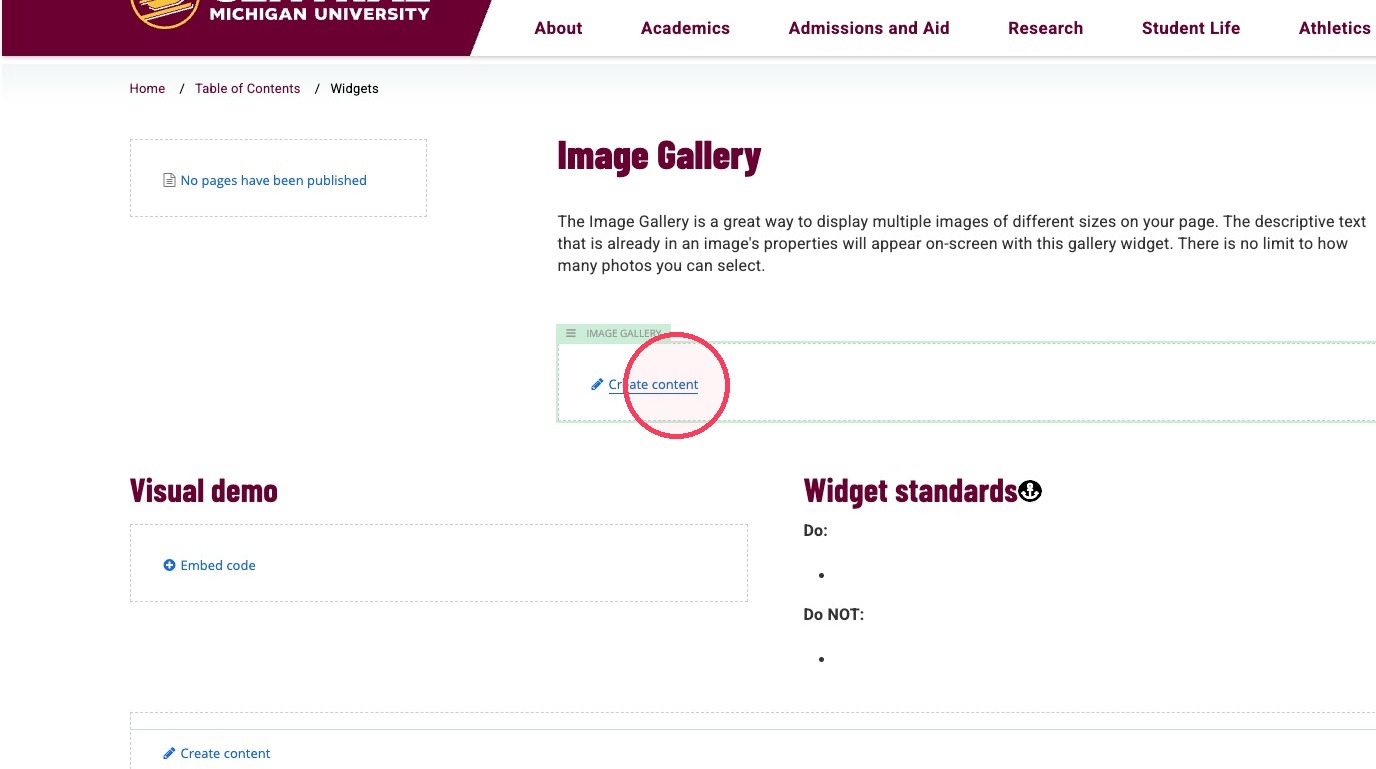
7. Open the Template dropdown. There are two choices: Default and Thumbnail strip.
We recommend Thumbnail strip for its updated, on-brand design!
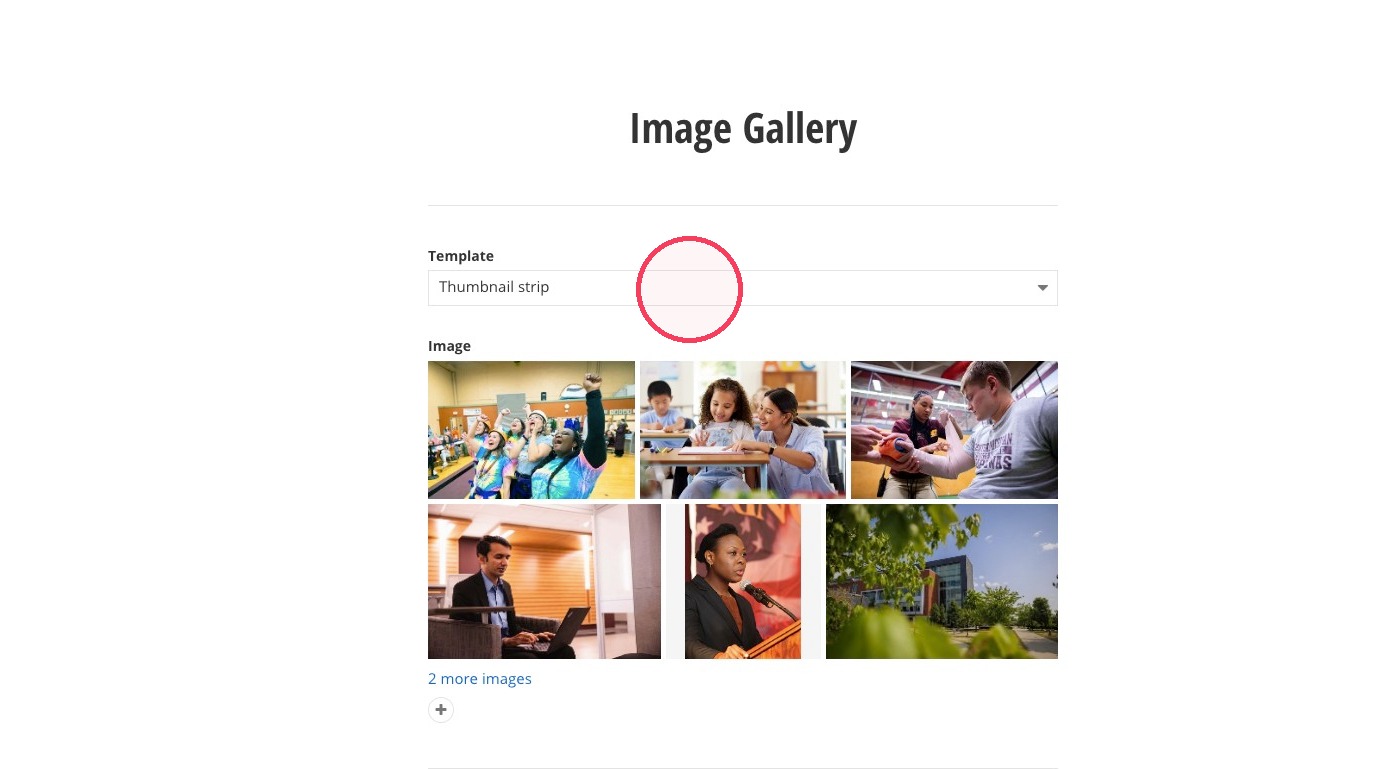
8. Click the image selection area.
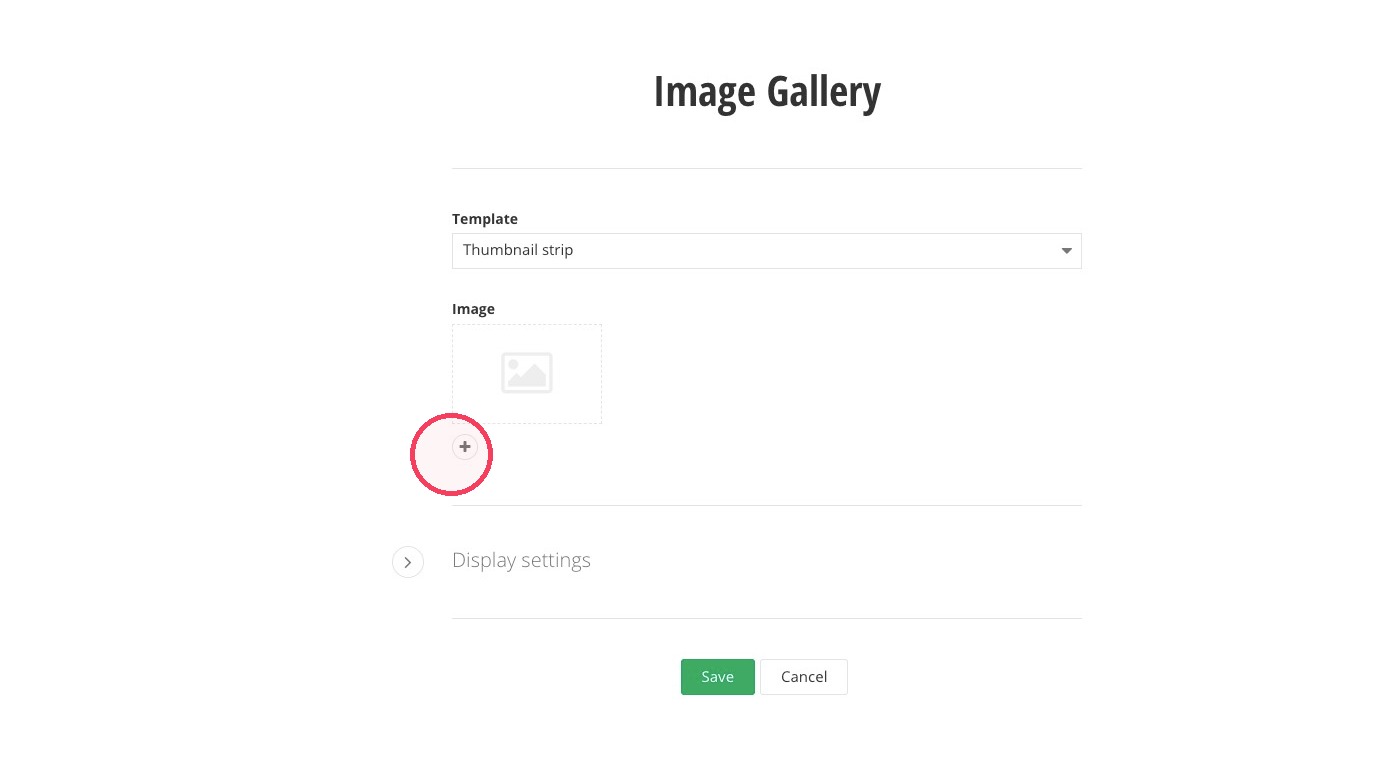
9. Click "Select images from library"
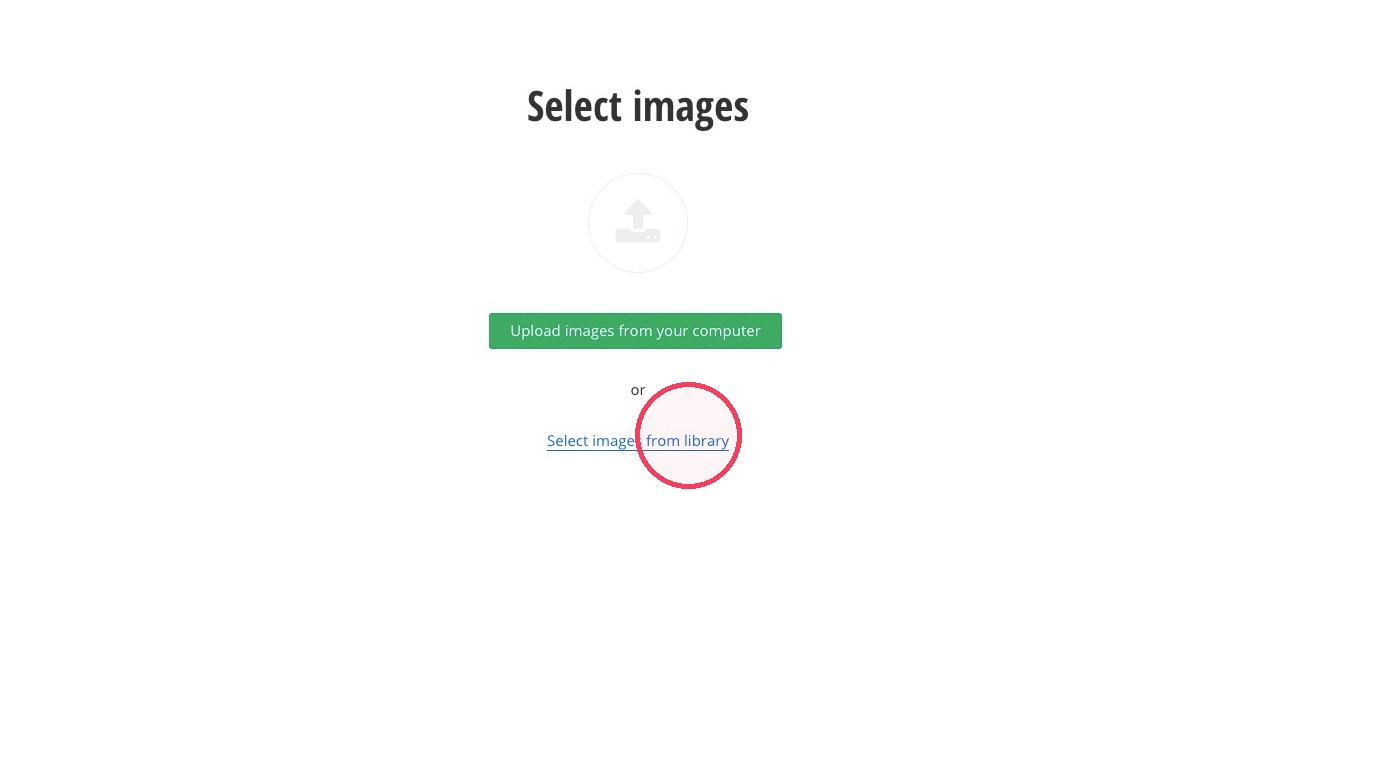
10. Click "Default Libraries," and navigate through library folders to find your images.
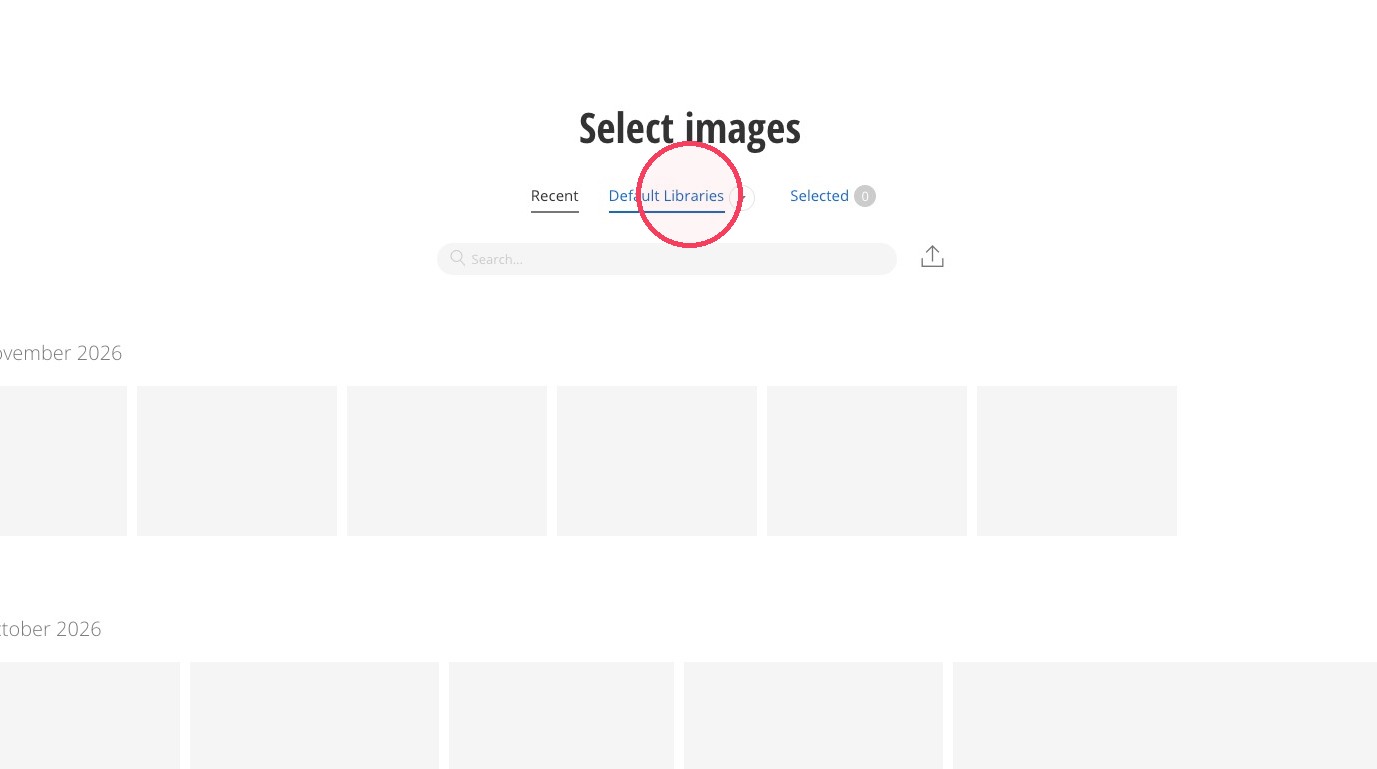
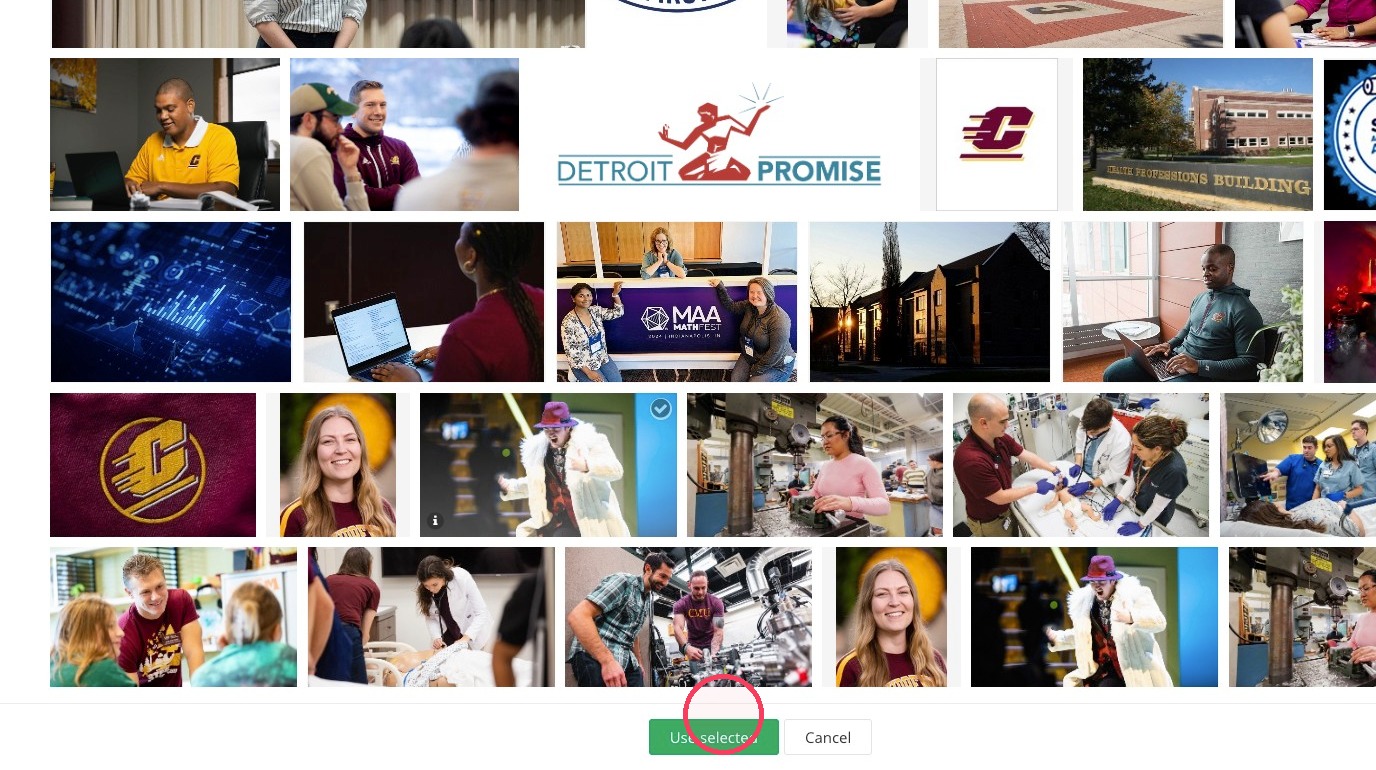
11. Select as many images as you'd like! There is no limit, and the image dimensions can be different.
Click "Use selected" when you're done.
12. Click "Save"
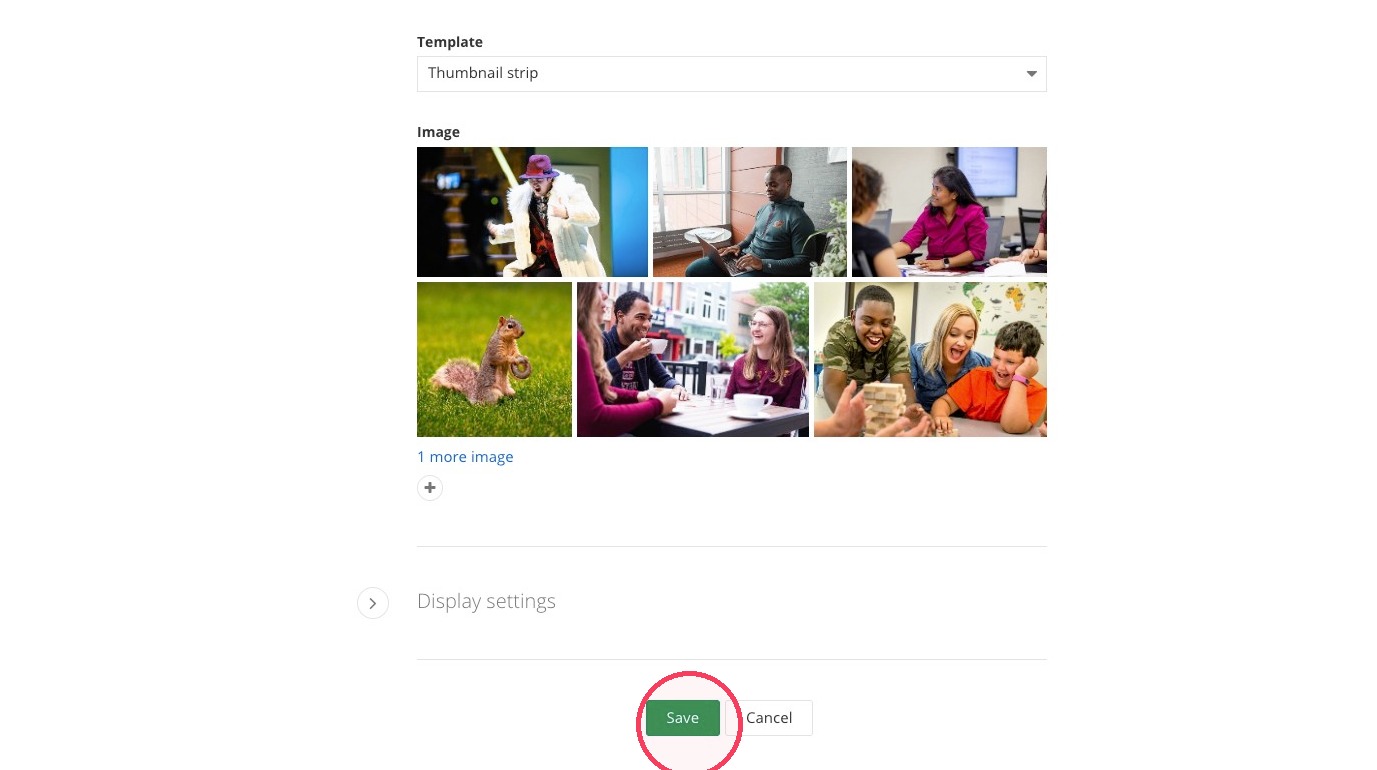
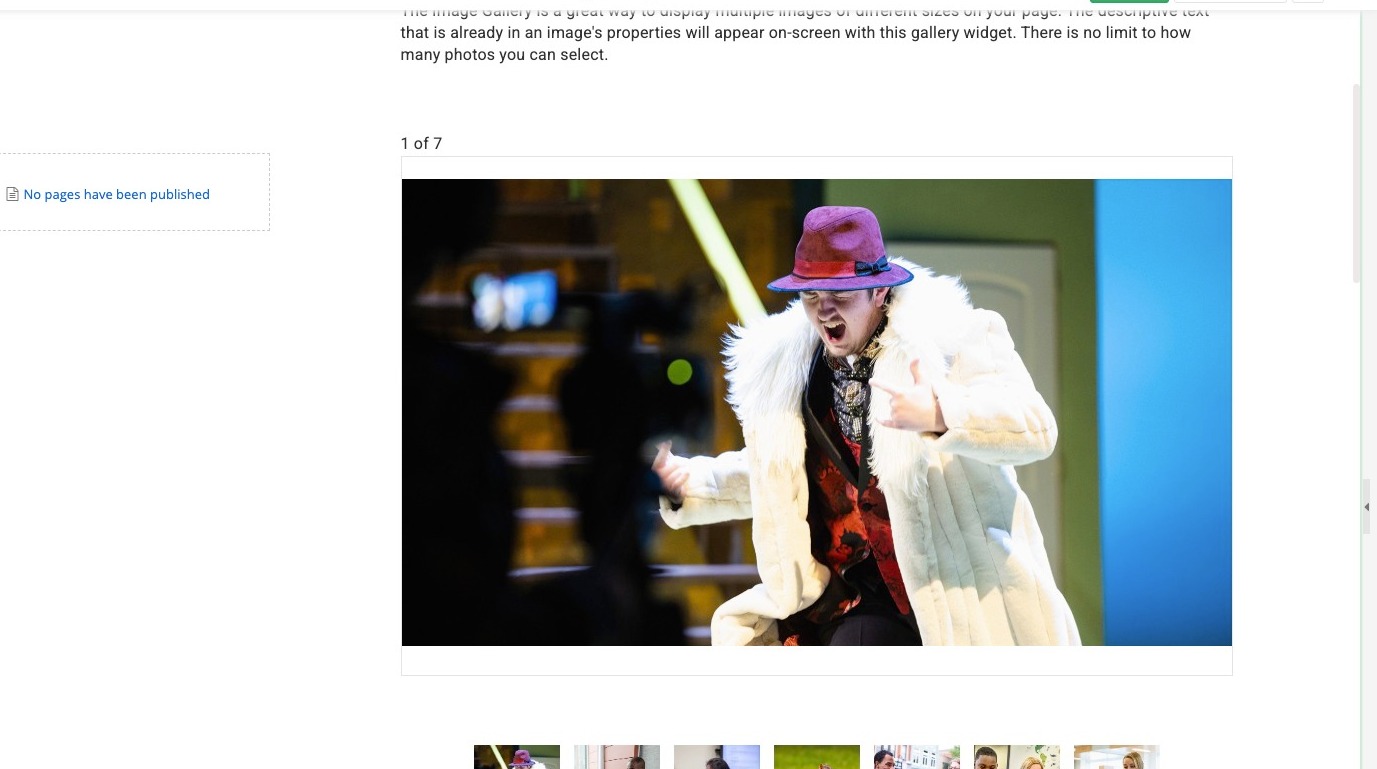
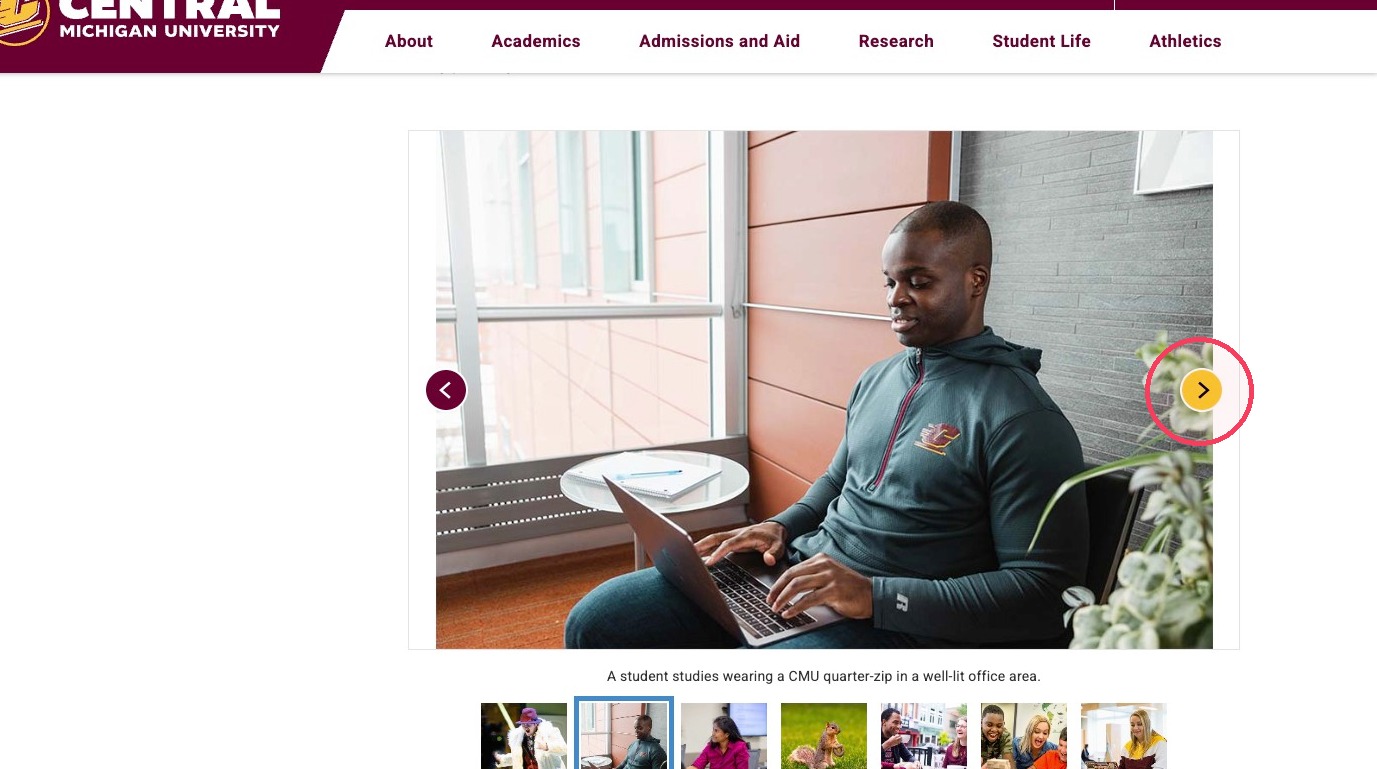
13. The Thumbnail strip view will look like this in the editor.
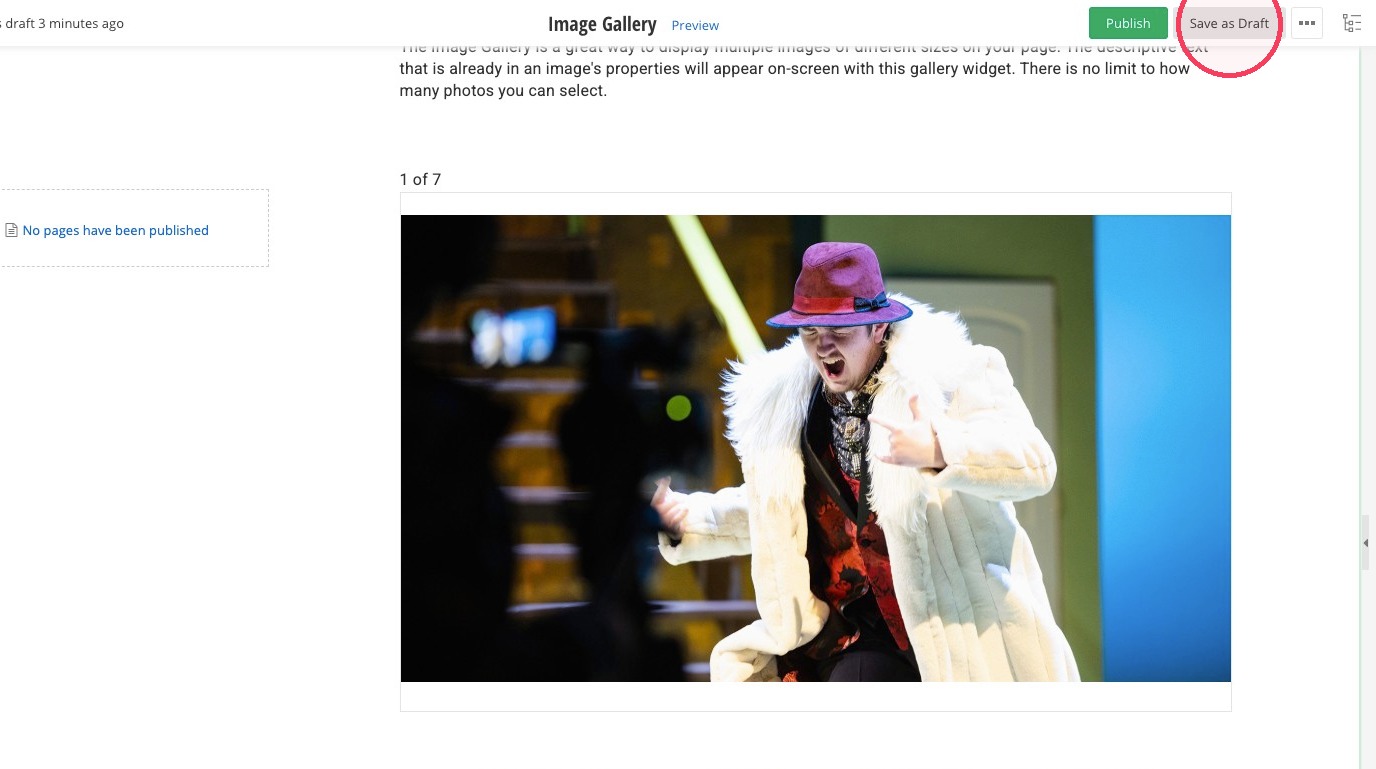
14. Click "Save as Draft."
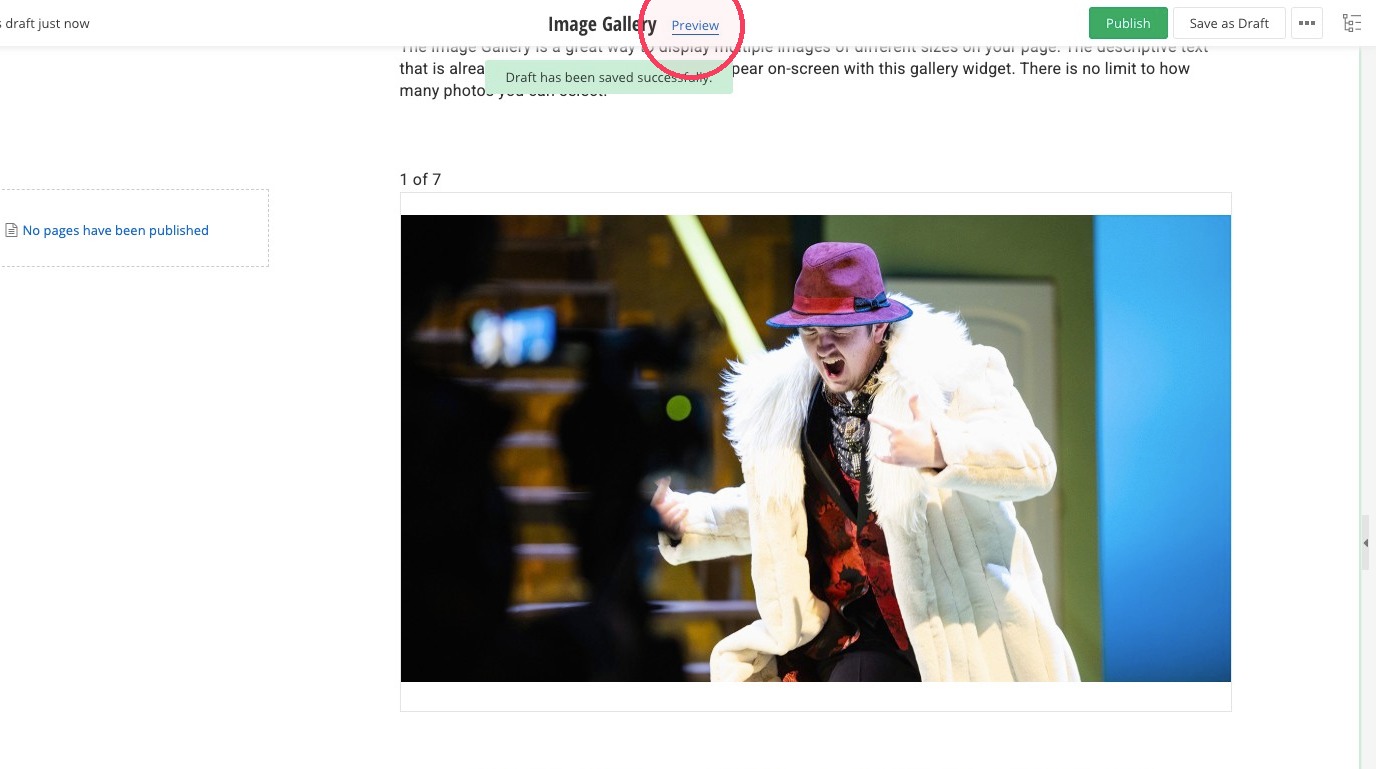
15. Click "Preview."
16. Use the arrows or the boxes below to move through your images.
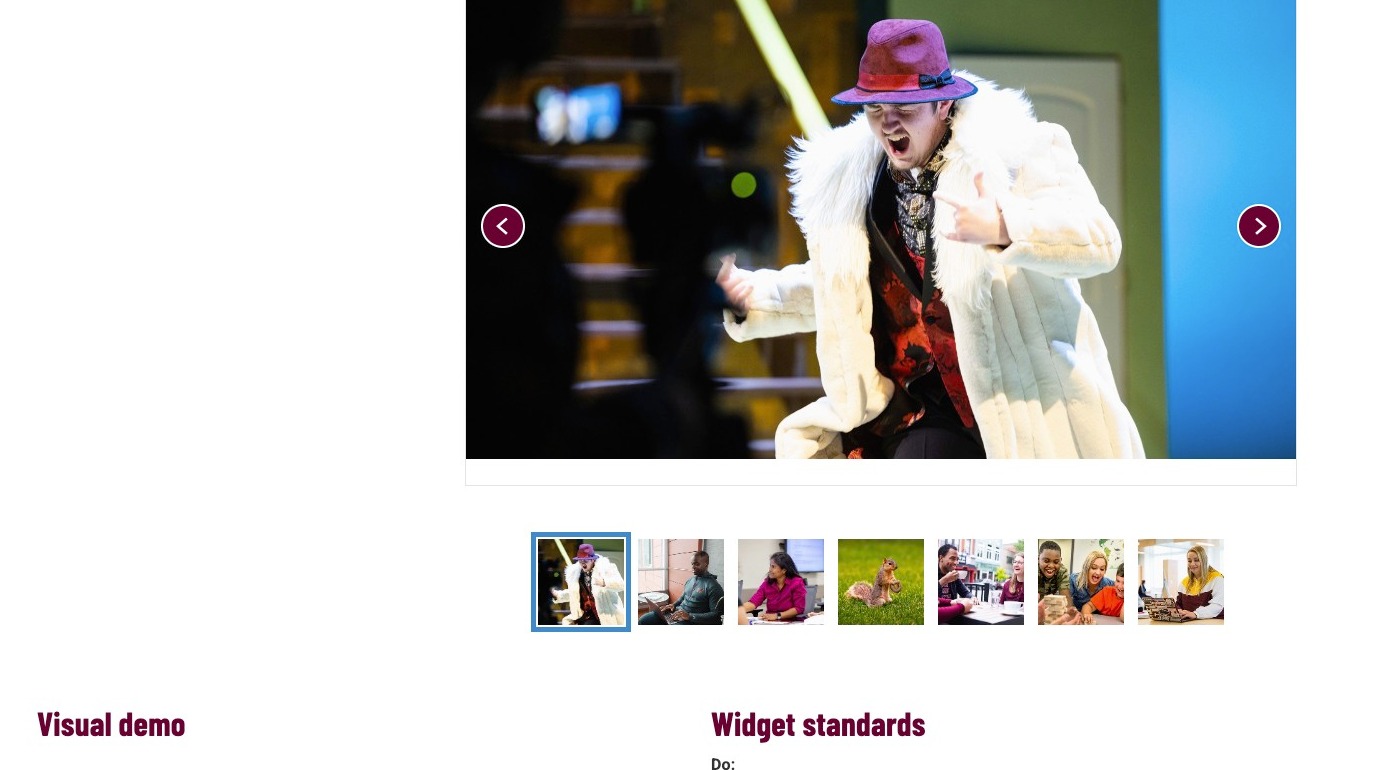
17. If your image properties include descriptive text, the text will appear between the feature image and the gallery strip. Descriptive text is optional.
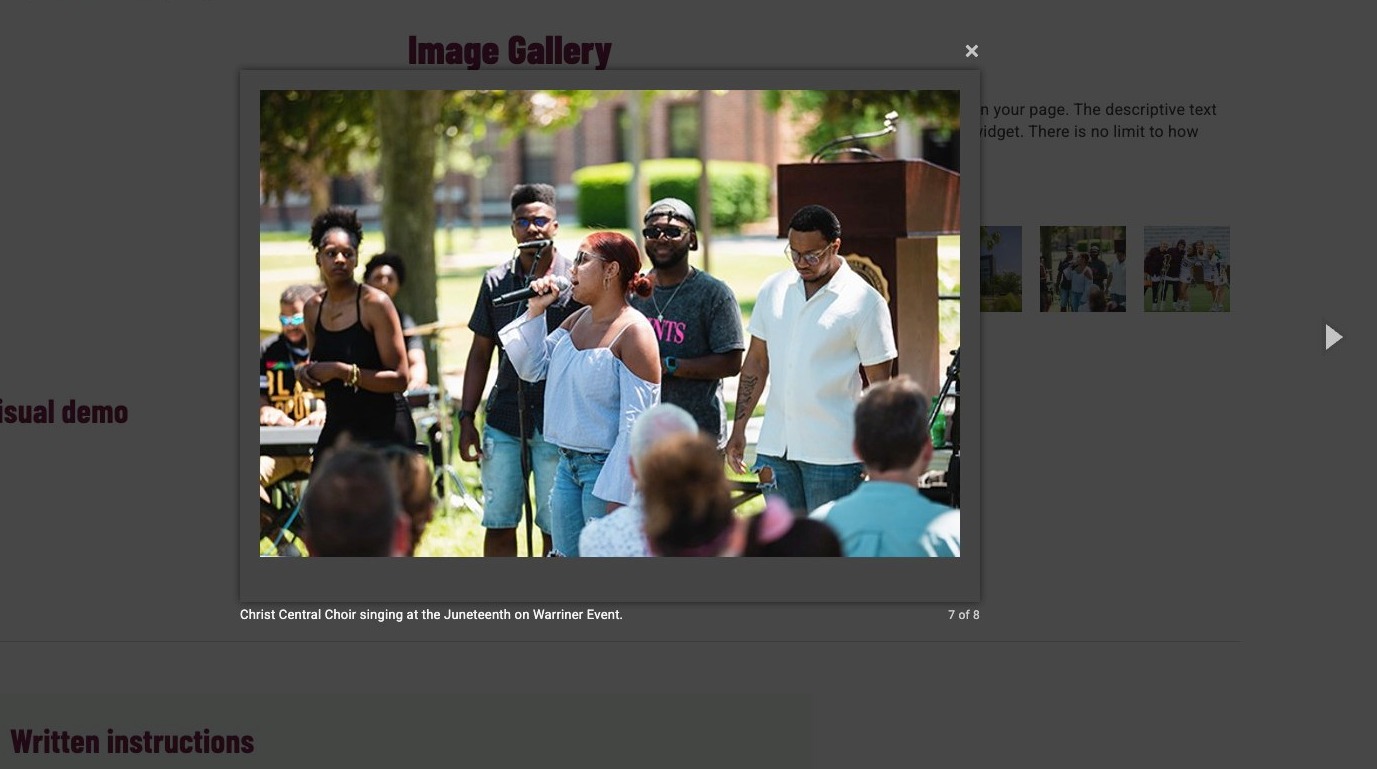
18. The other template, "Default," looks like this. You may use this or the Thumbnail strip. The process for building them is the same.
Save and send
- If you'd like to continue working on this page, but need to save your progress, click Save as Draft.
- If you're finished making changes to the page, and the page is ready for review, click Send for Approval.
