Interior Navigation Cards
For use in the full-width and main content areas.
The Interior Navigation cards allow readers to easily navigate to the next page on our site.
Content is entered on a page’s Title and Properties fields and then displayed in a responsive format through the Interior Navigation Card.
This feature works only for the published child pages of the main page where you want them displayed.
Interior Navigation Cards screenshots
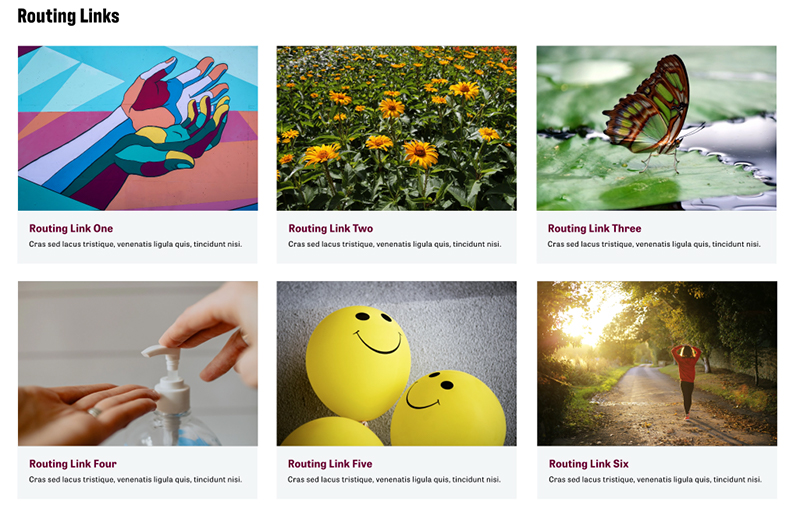
Visual demo
Widget standards
- A layout is not needed for this widget.
- This widget must be in a section
Do:
- Use this widget in the full-width or main content areas.
- Only use this widget on pages with child pages.
- Use images that are 400 pixels x 280 pixels.
Do NOT:
- Use the three column layout in the main content area; use the two column layout instead.
Written instructions
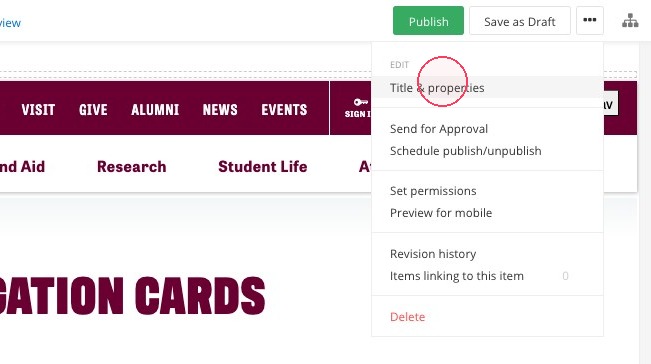
2. Under the 'related media' section, add the image you would like displayed on the Interior Navigation Card. Image size is 400x280.
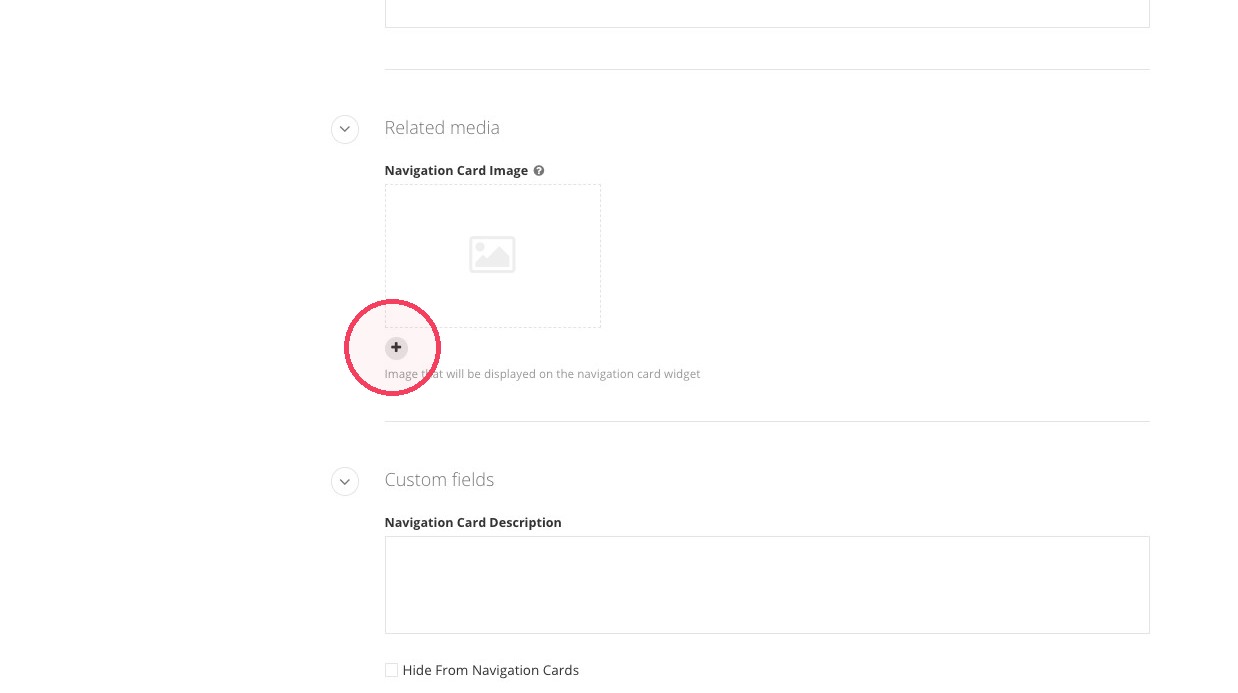
3. Add the description of the page that will appear on the Interior Navigation Card.
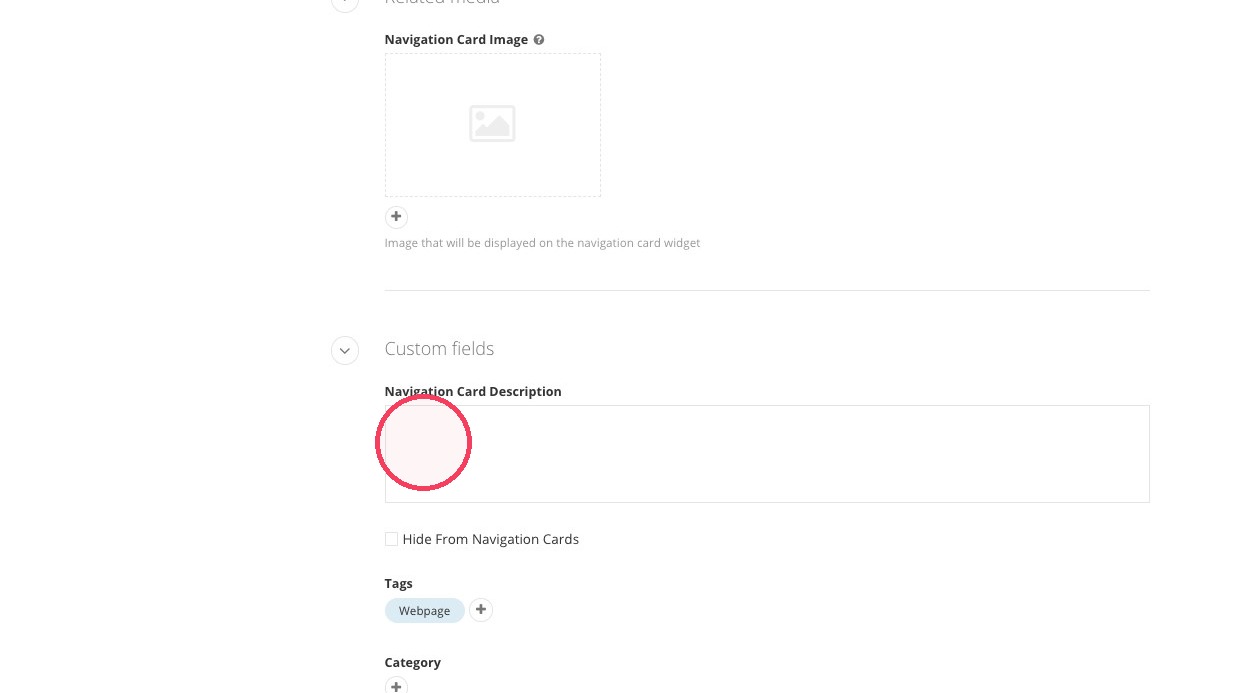
4. Note: If you do NOT want the card to show within the page, check the box that says "Hide from Navigation Cards".
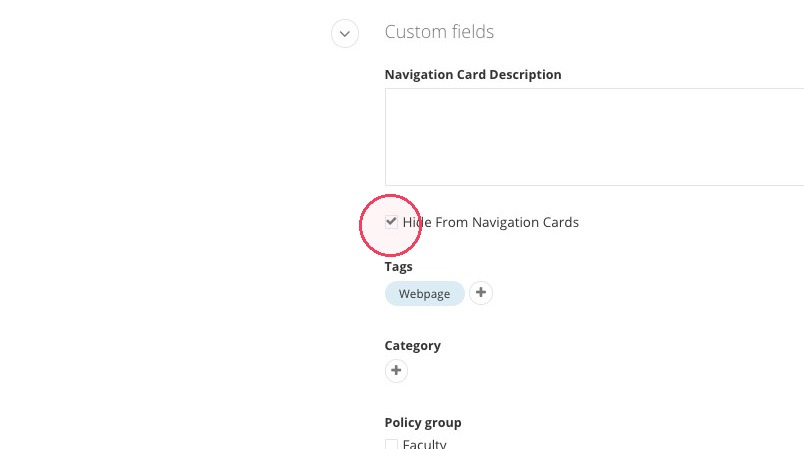
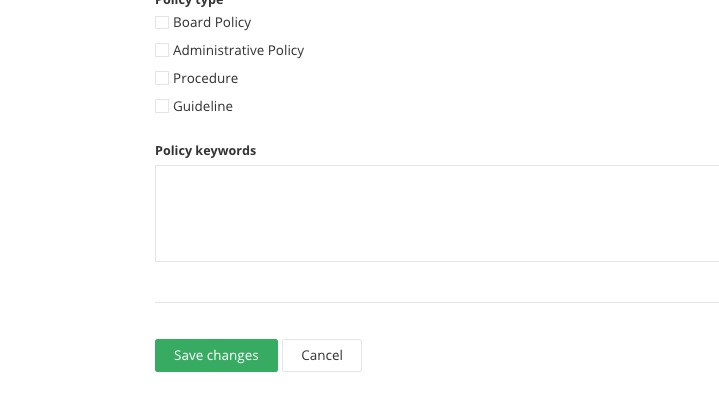
5. Click "Save changes". You've just completed the navigation card.
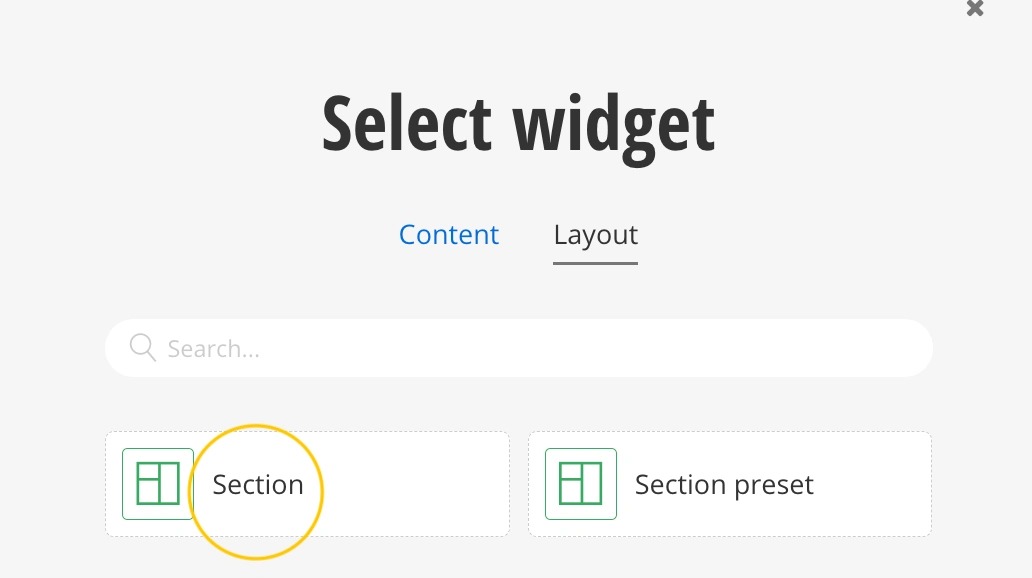
6. On the page you want to display the interior navigation cards, click on the layout tab and click on a Section to add a section to the page.
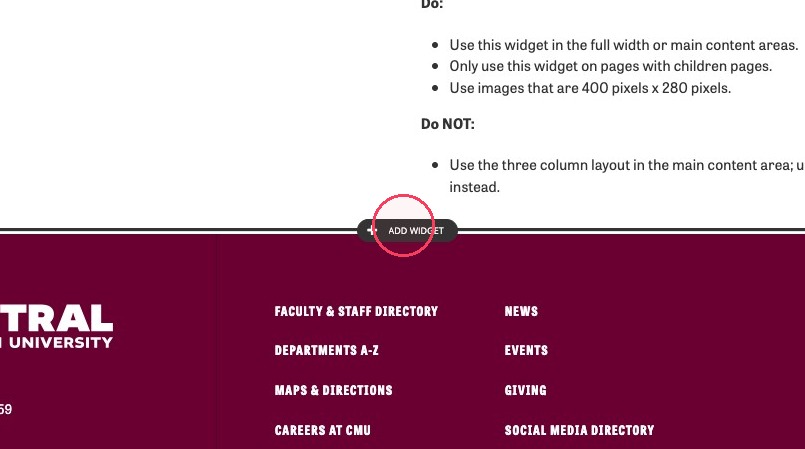
7. In the section, click "add widget".
8. Under Content, find the Navigation widget and select it.
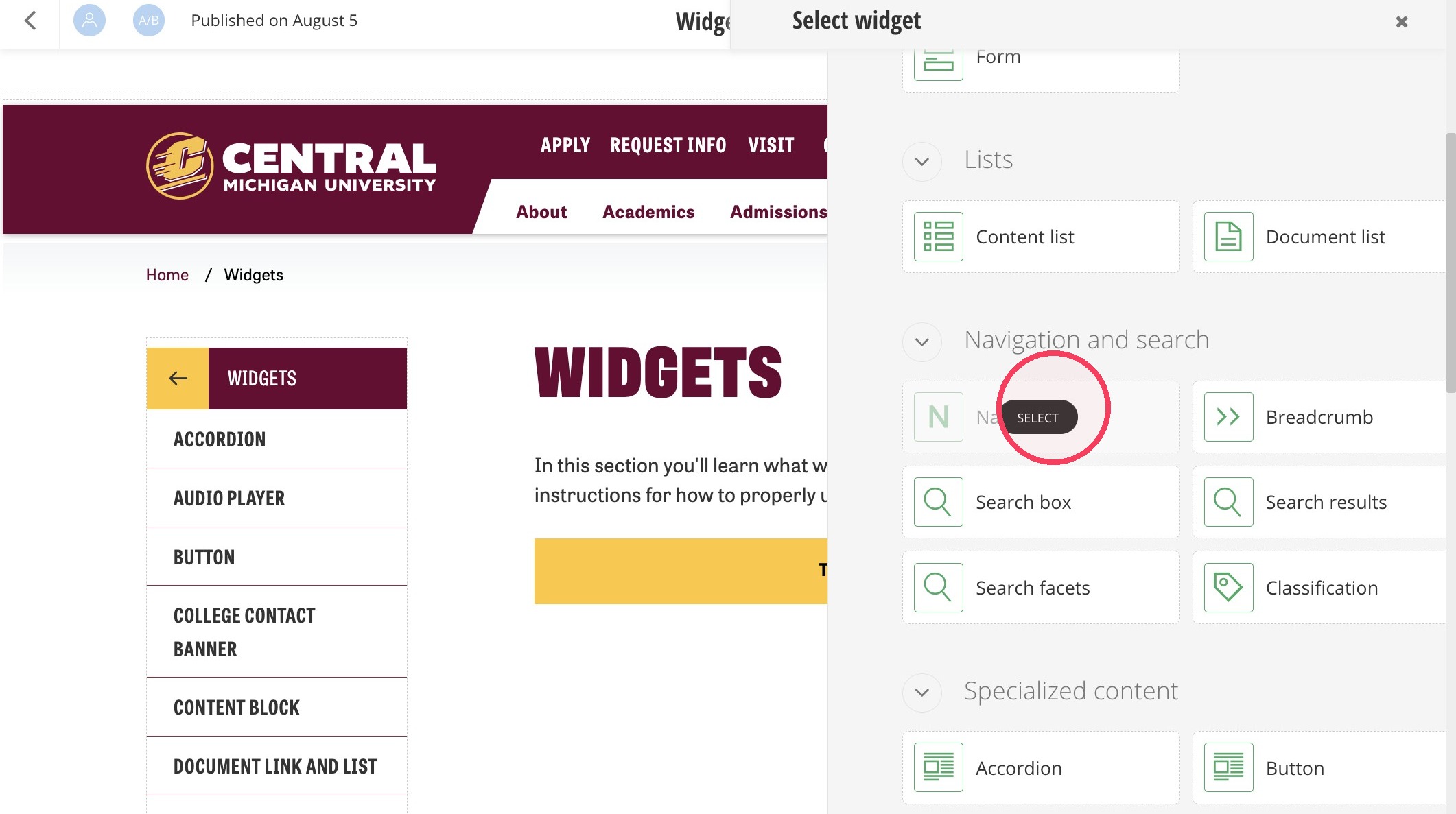
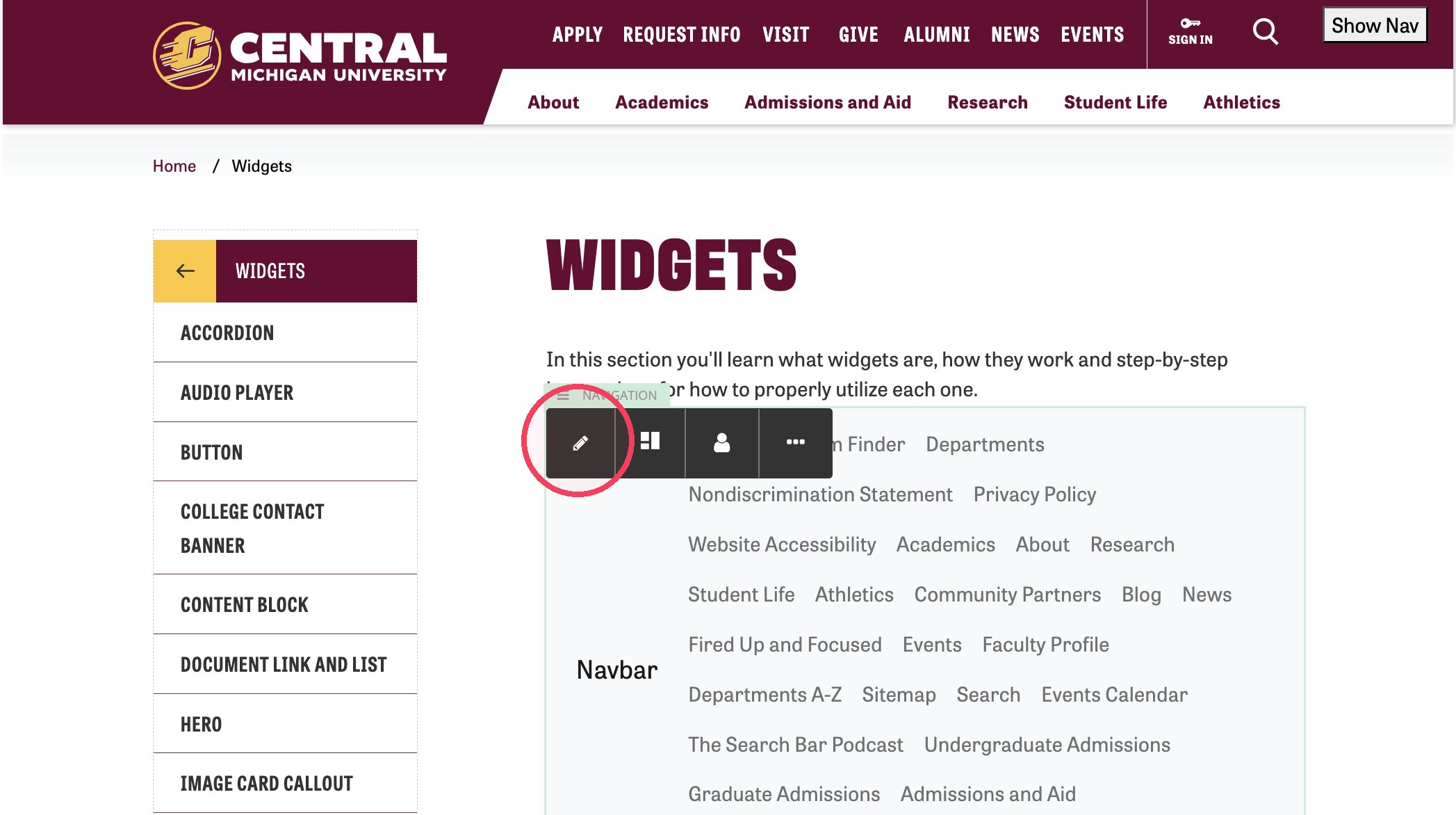
9. Click on the pencil icon to edit the Navigation widget.
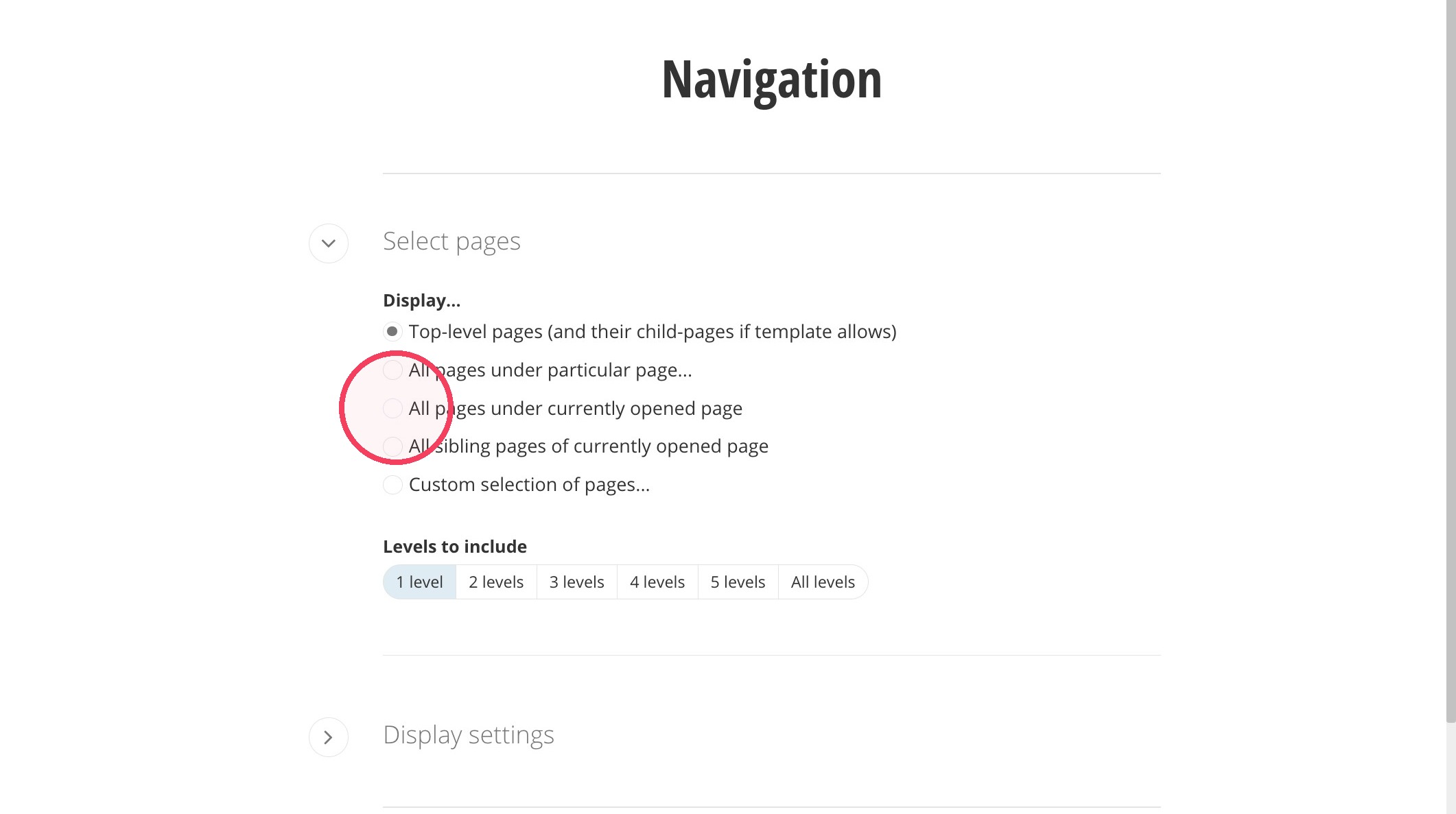
10. Click the "All pages under currently opened page" field.
11. Under Display settings, select the "Interior navigation card" option.
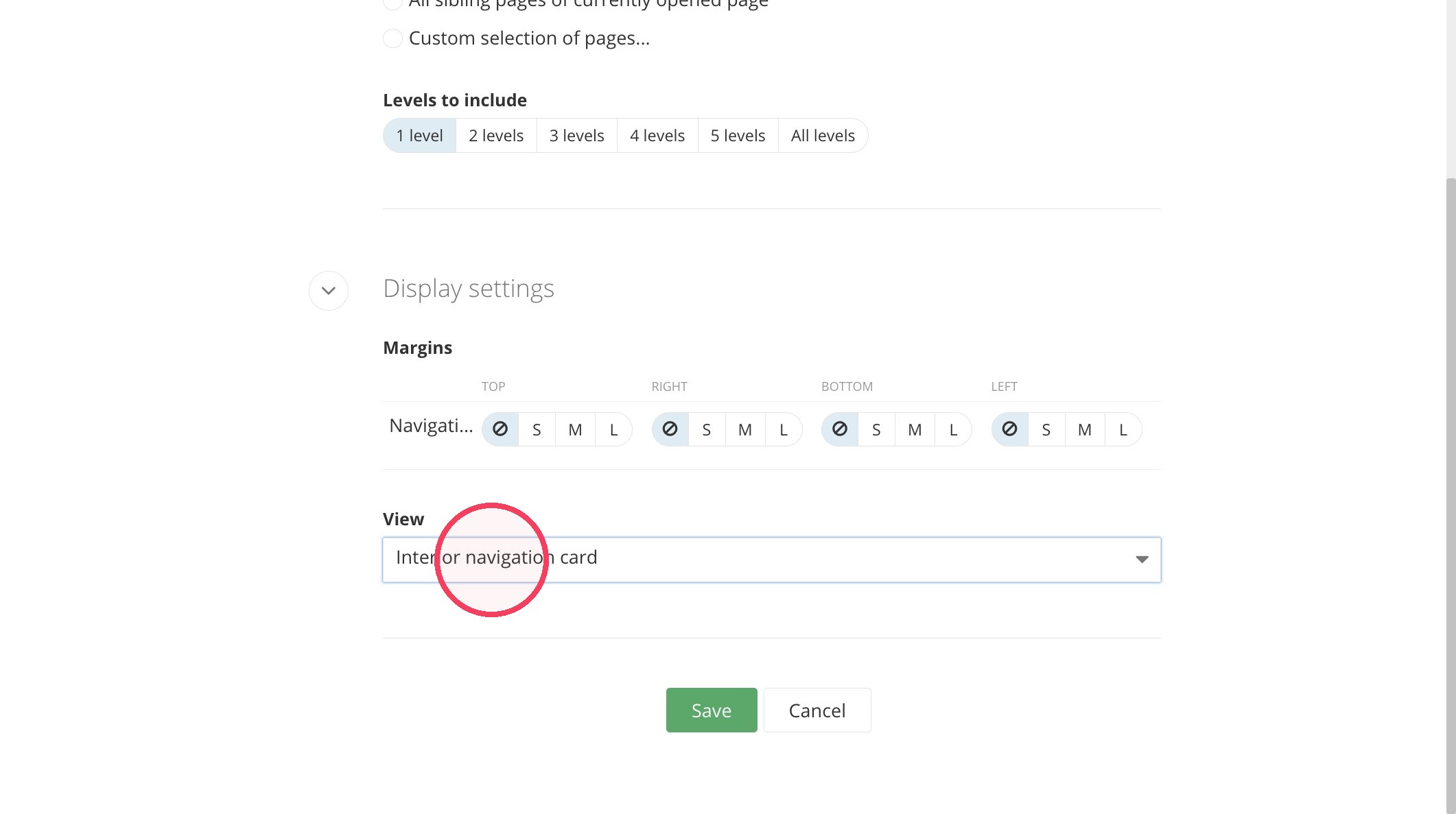
12. Click "Save".
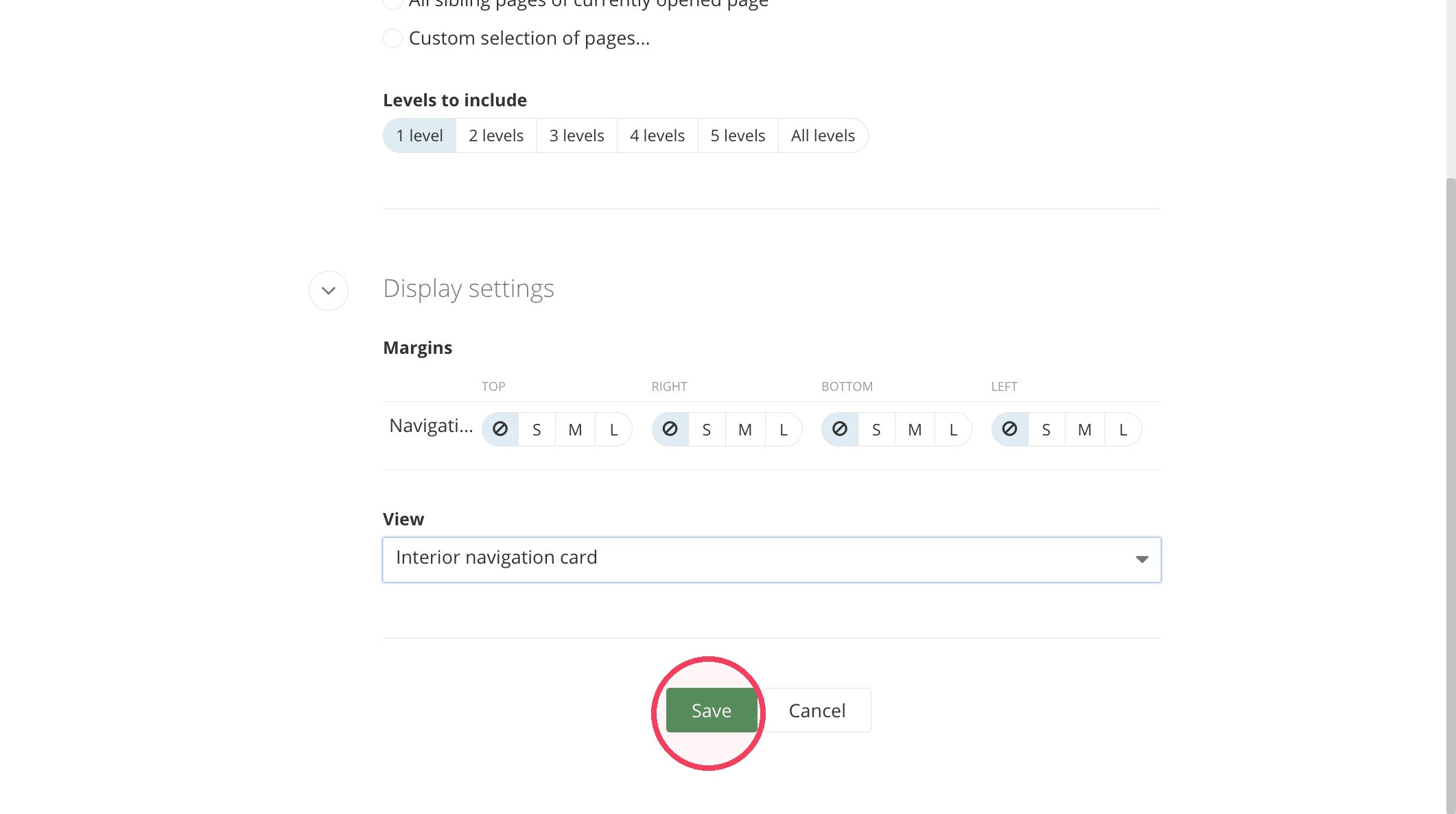
13. The interior navigation cards will be added to your page.
Save and send
- If you'd like to continue working on this page, but need to save your progress, click Save as Draft.
- If you're finished making changes to the page, and the page is ready for review, click Send for Approval.
