Written instructions
1. Open the page you'll be editing.
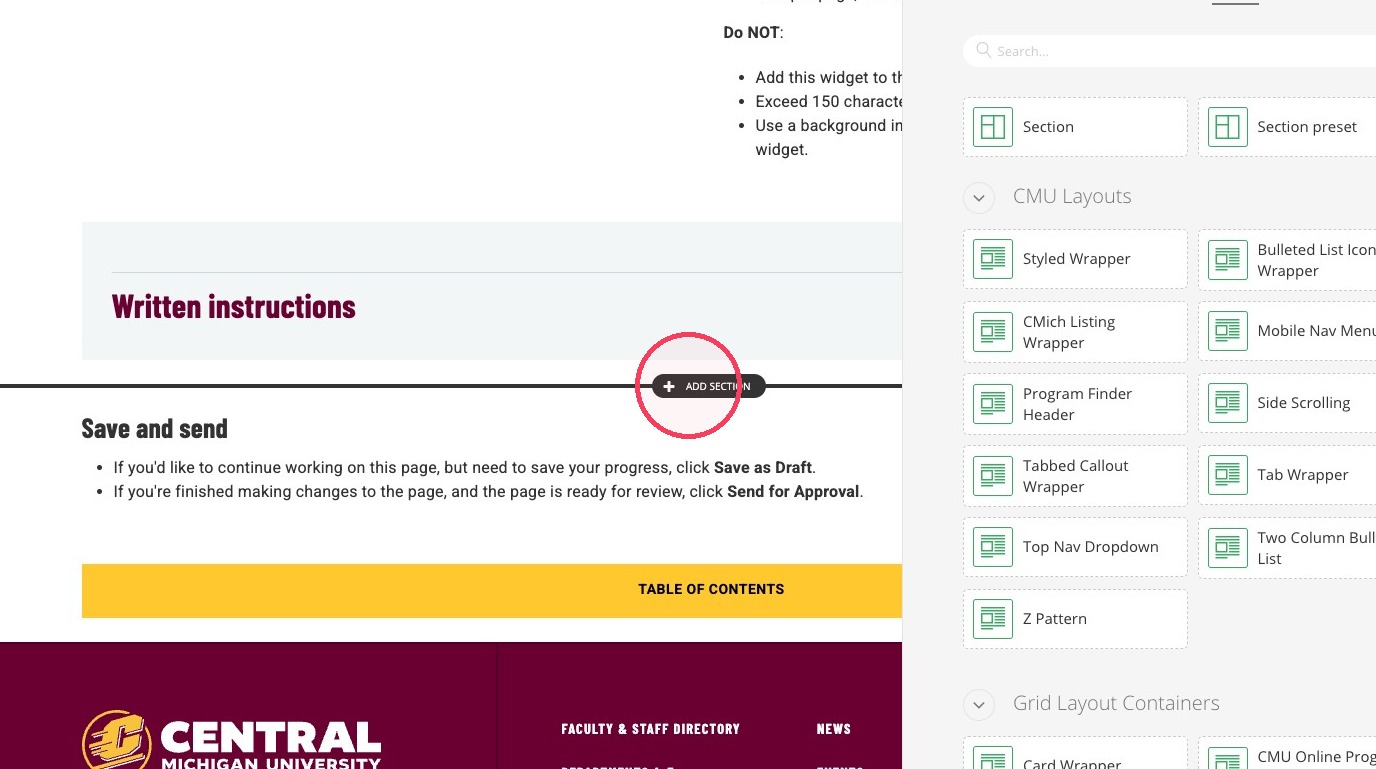
2. Click + Add Section in a full-width area of your page. It's full width if you can see the black line stretch across the entire window.
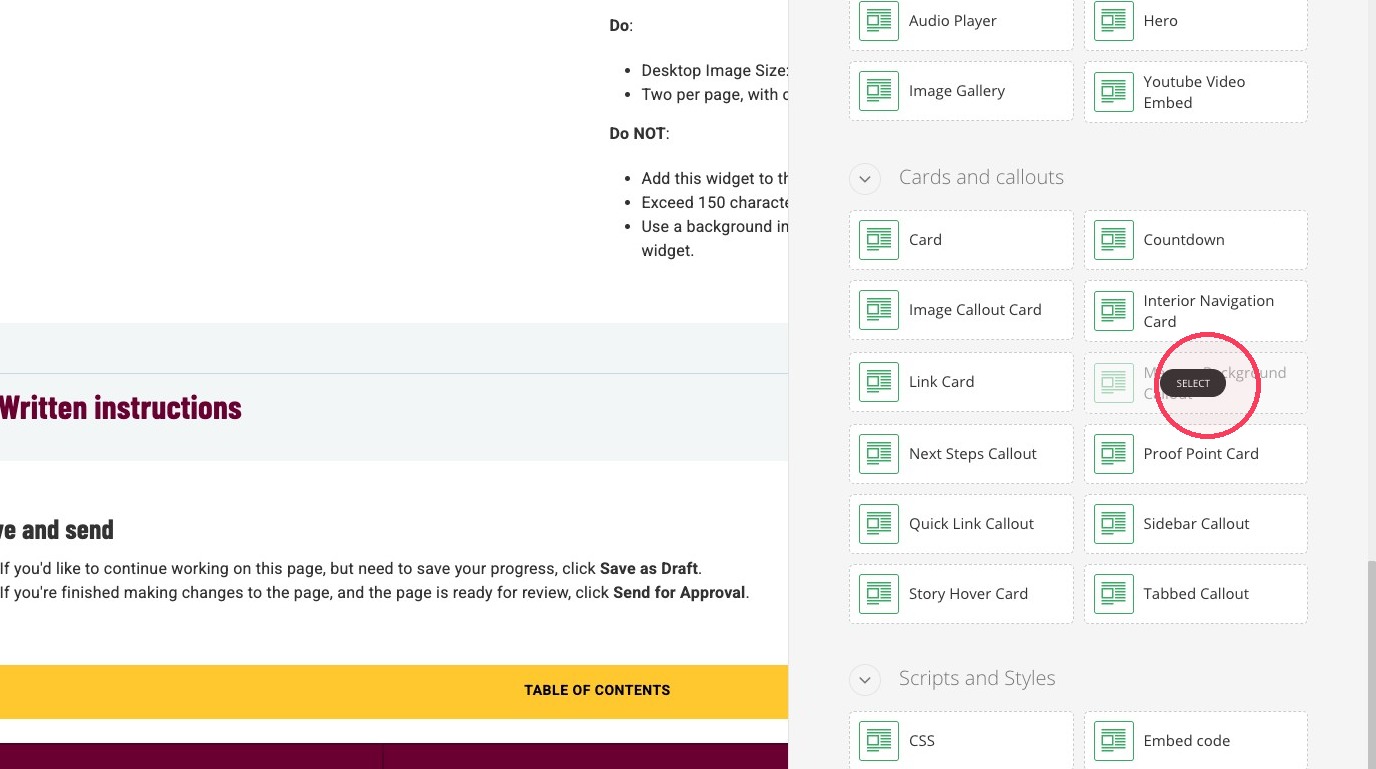
3. In the Content tab, find the Maroon Background Callout and select it.
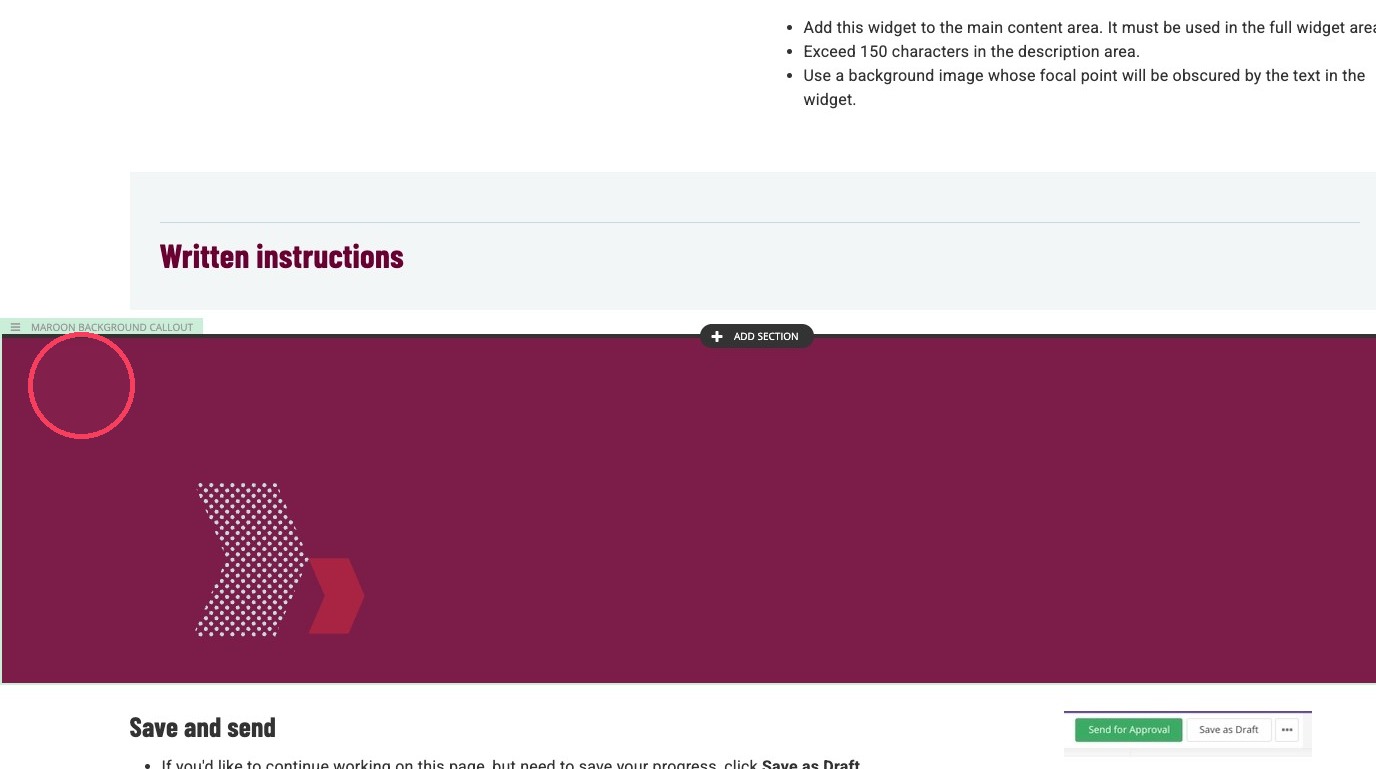
4. Click the widget to prompt the pop up menu.
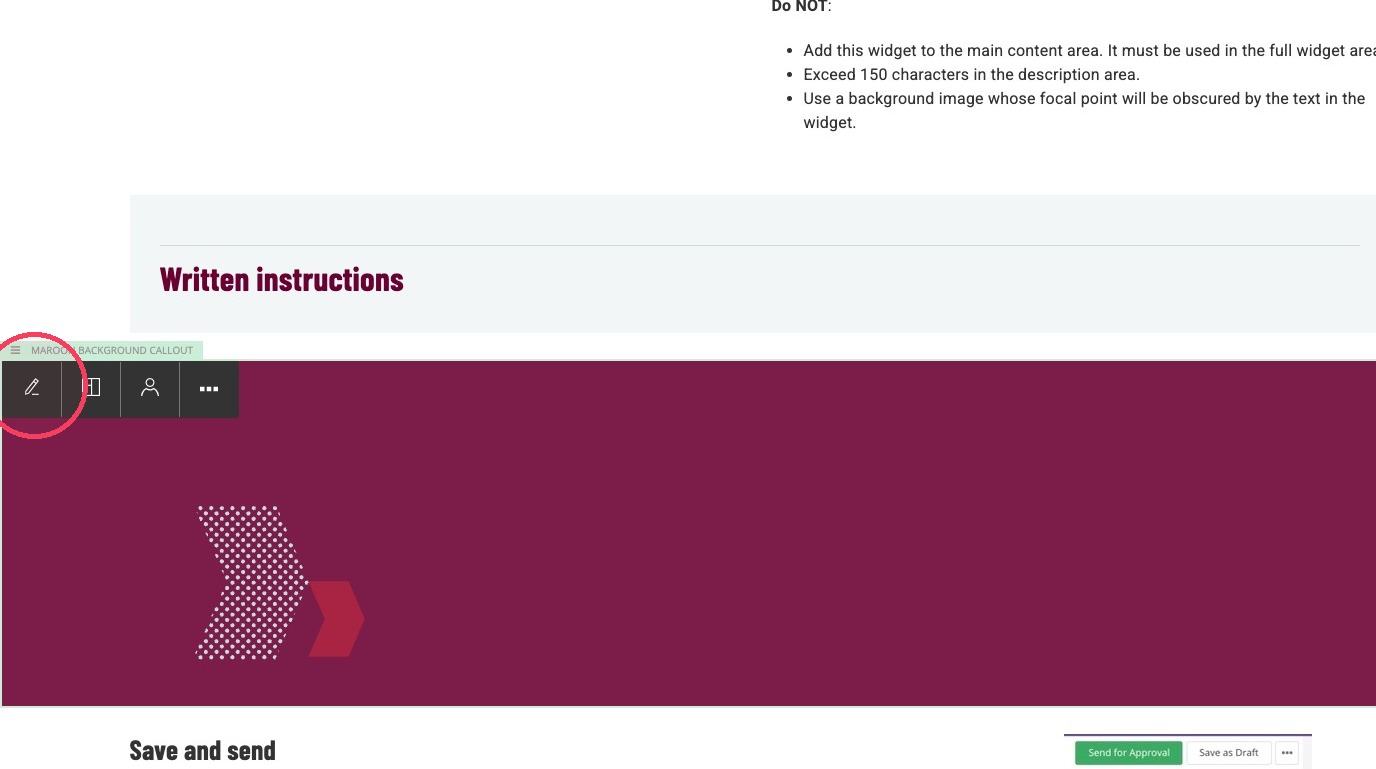
5. Click the edit pencil icon in the pop up menu.
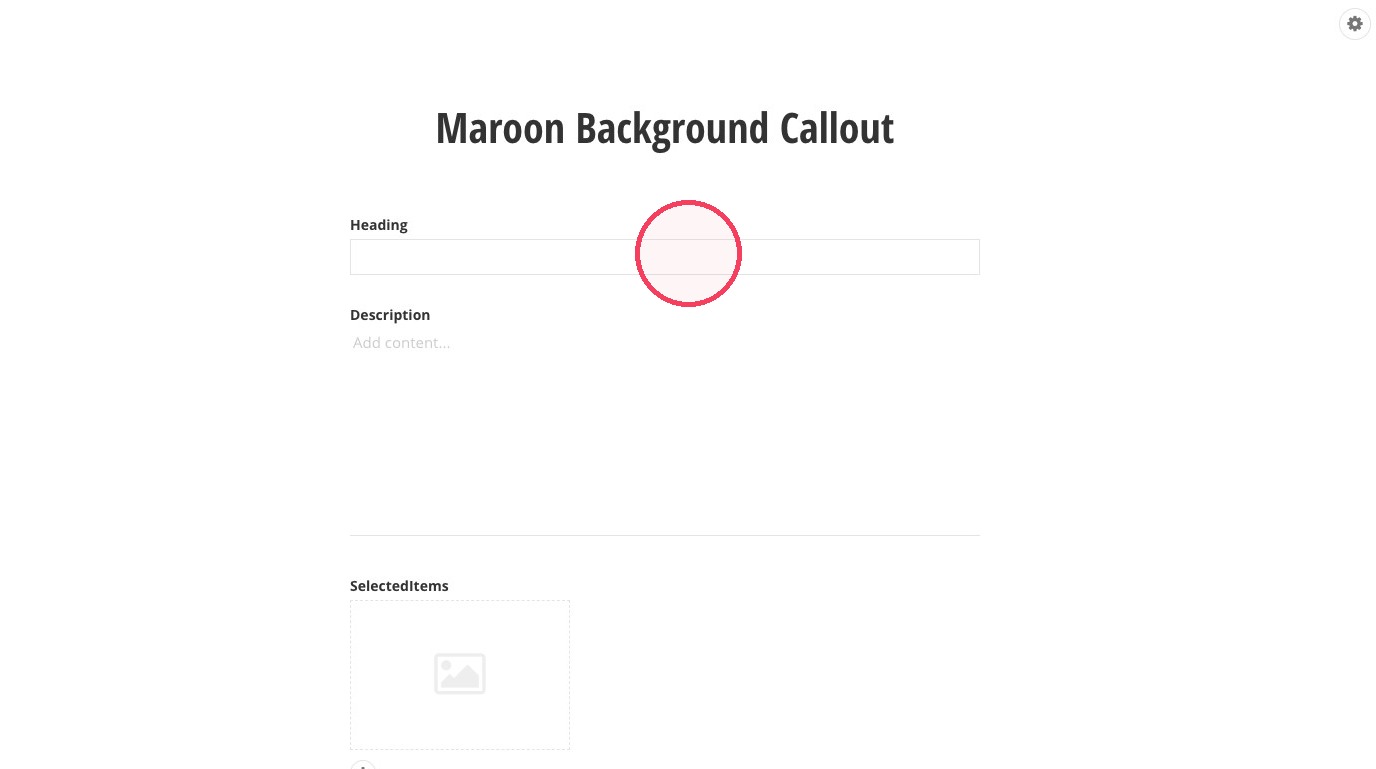
Configure Content
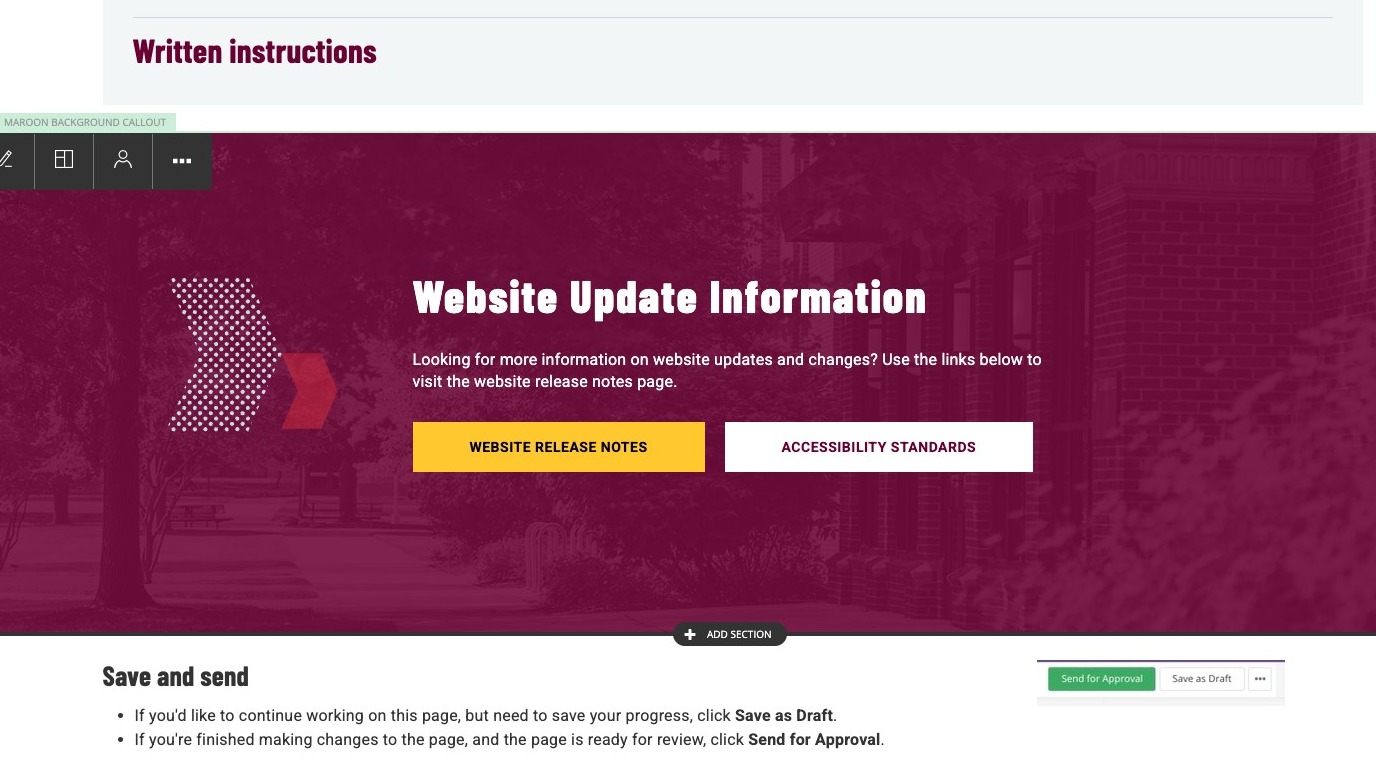
6. Add the title to the Heading field.
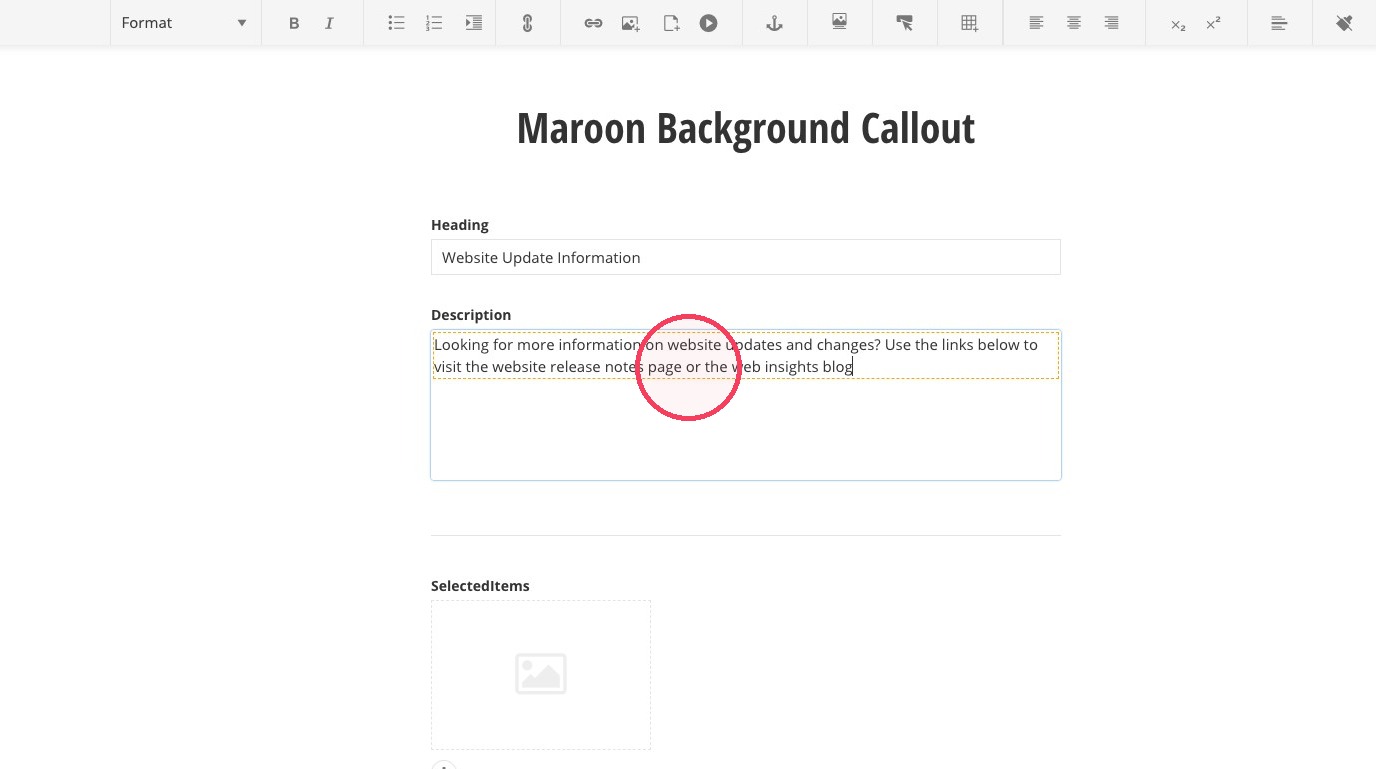
7. Add a description to the Description field. Do not add more than 150 characters.
8. If you would like to add a background image, click on Select image and select an image from the DAM that is 1800 pixels wide by 540 pixels tall.
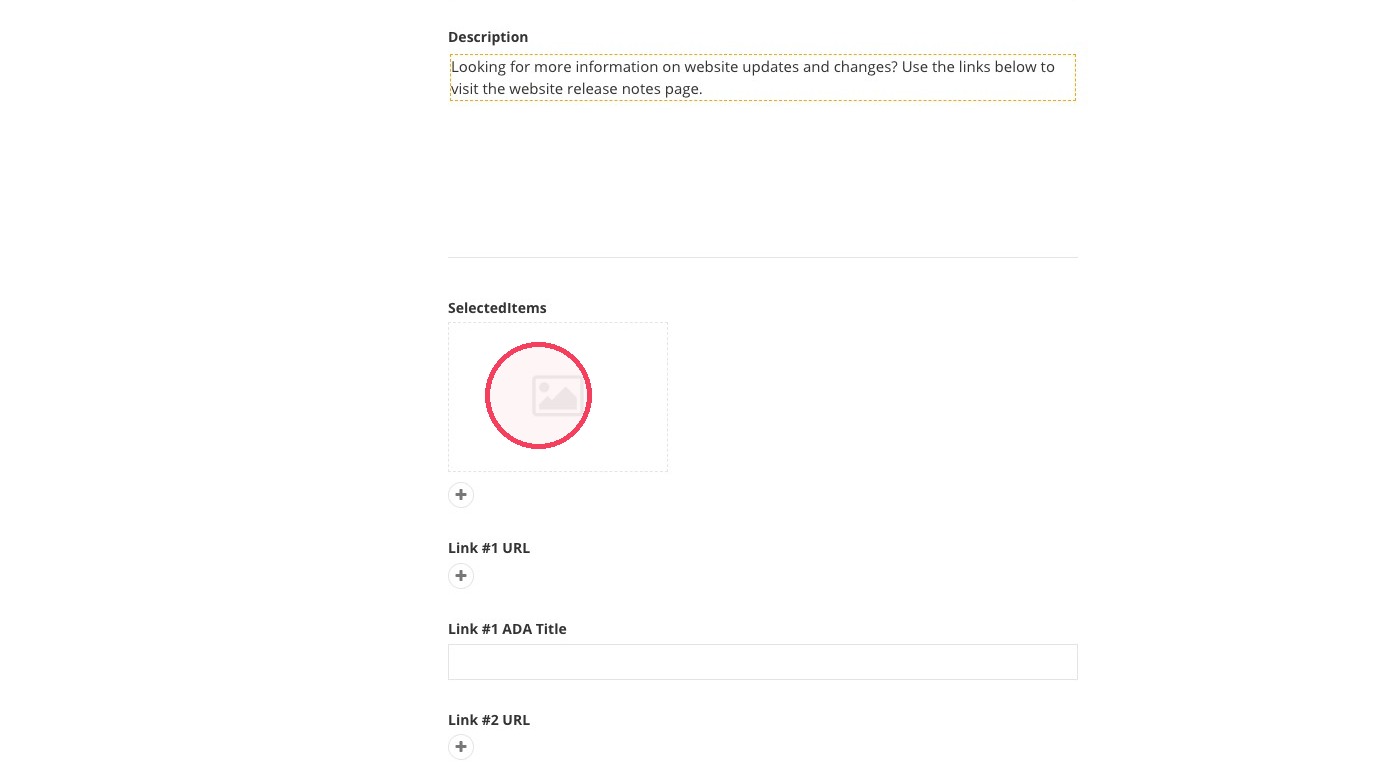
Add Image and Link
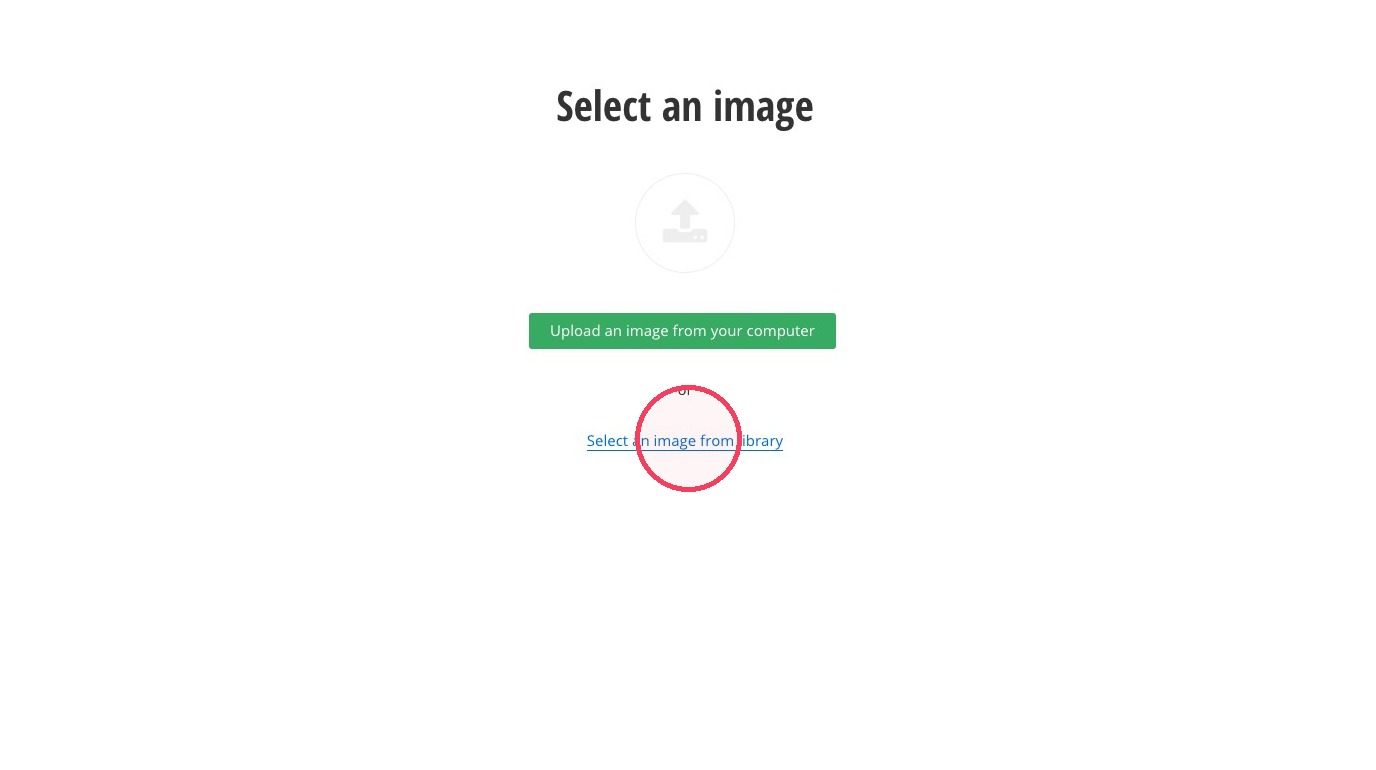
9. Click the Select an image from library link.
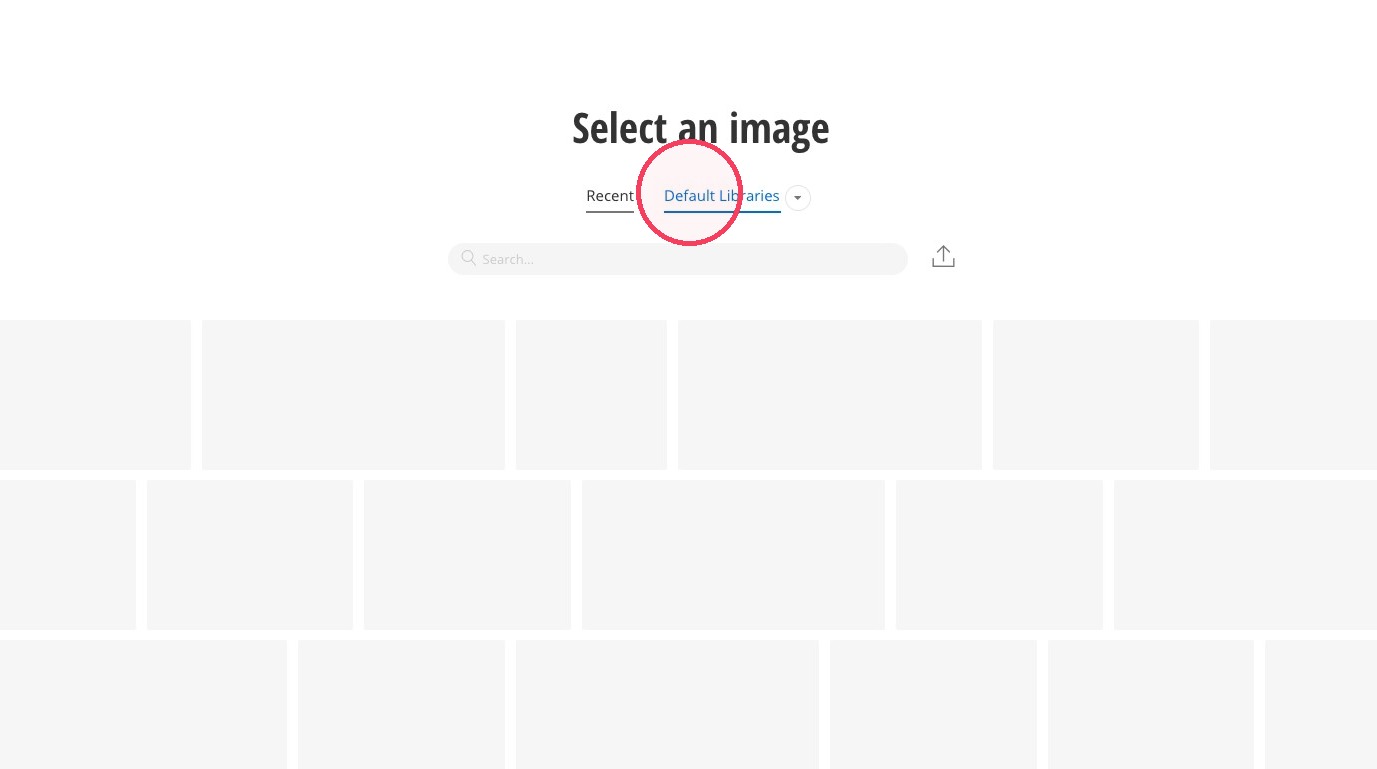
10. Click the Default Libraries tab.
11. Select an image that is 1800x540.
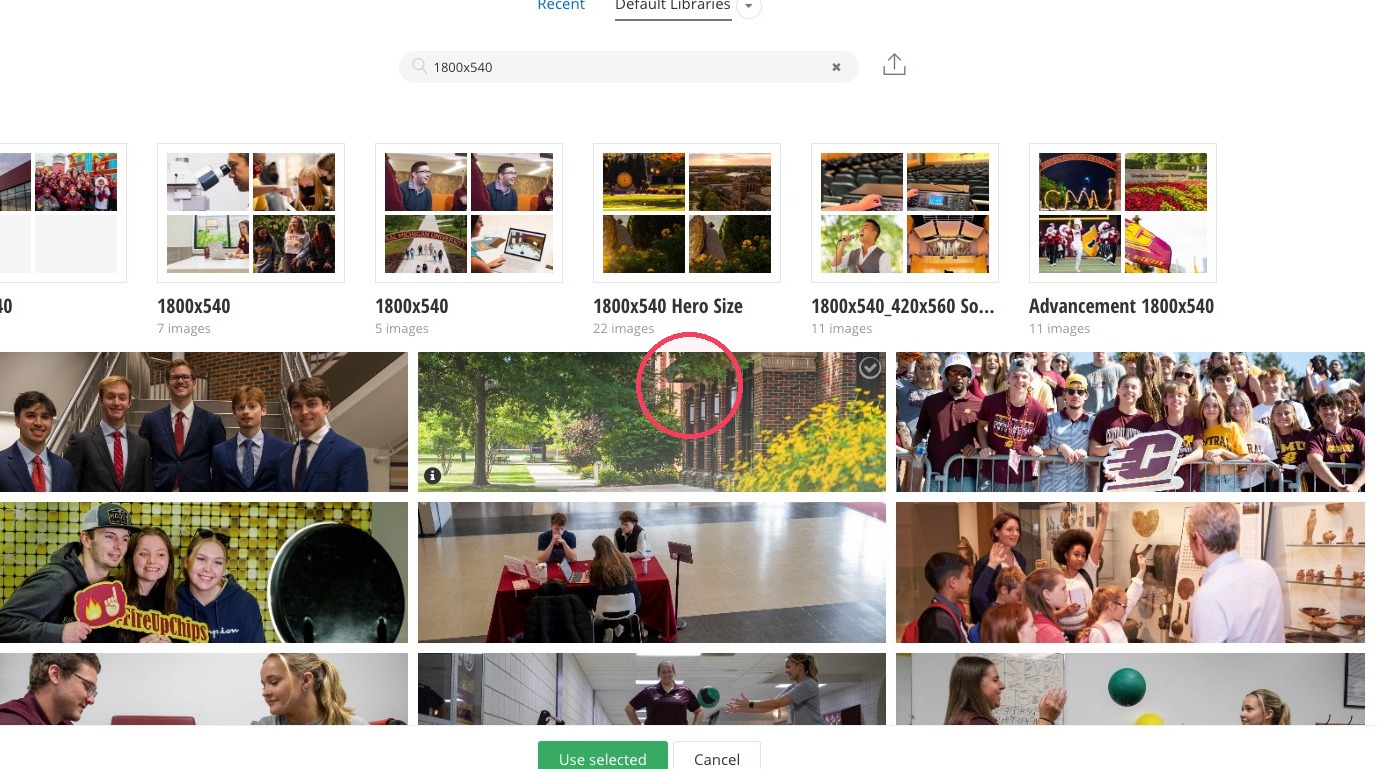
12. Click "Use selected."
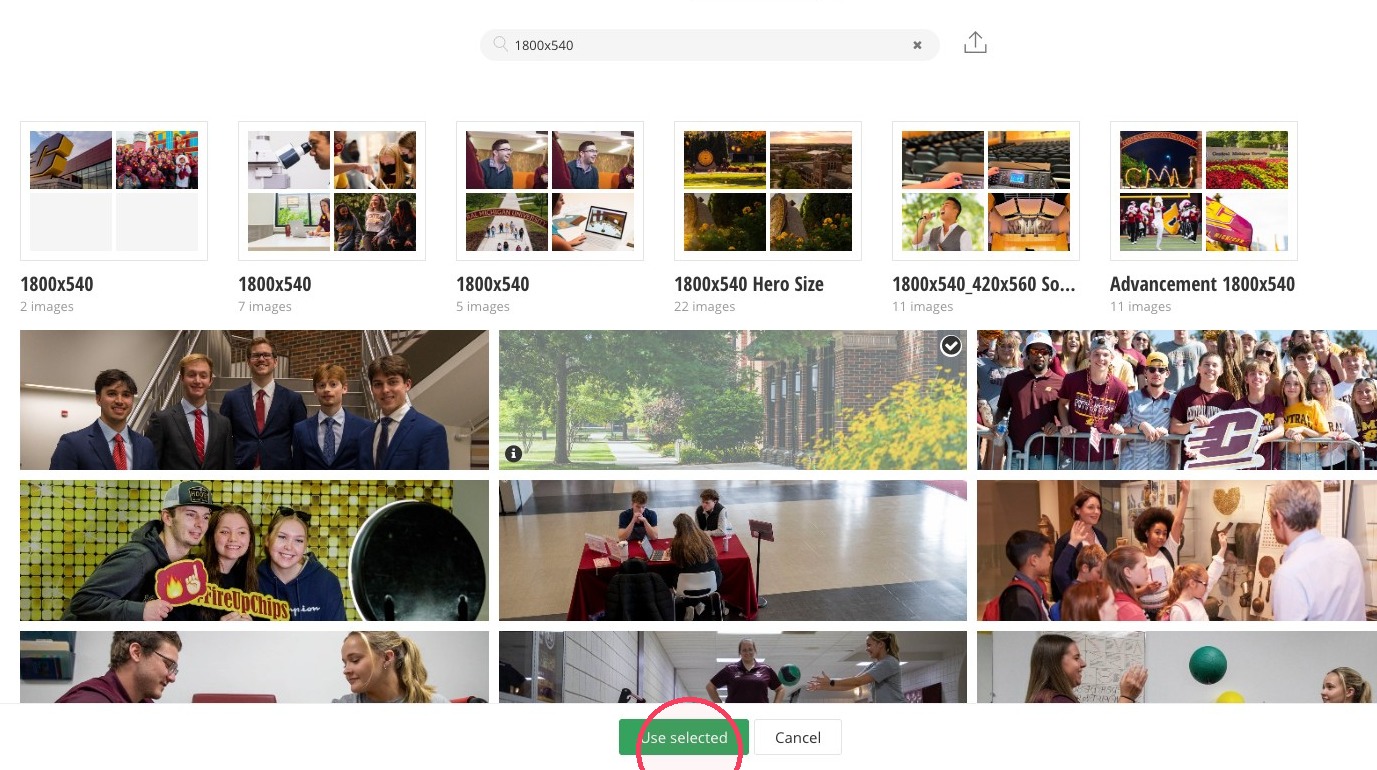
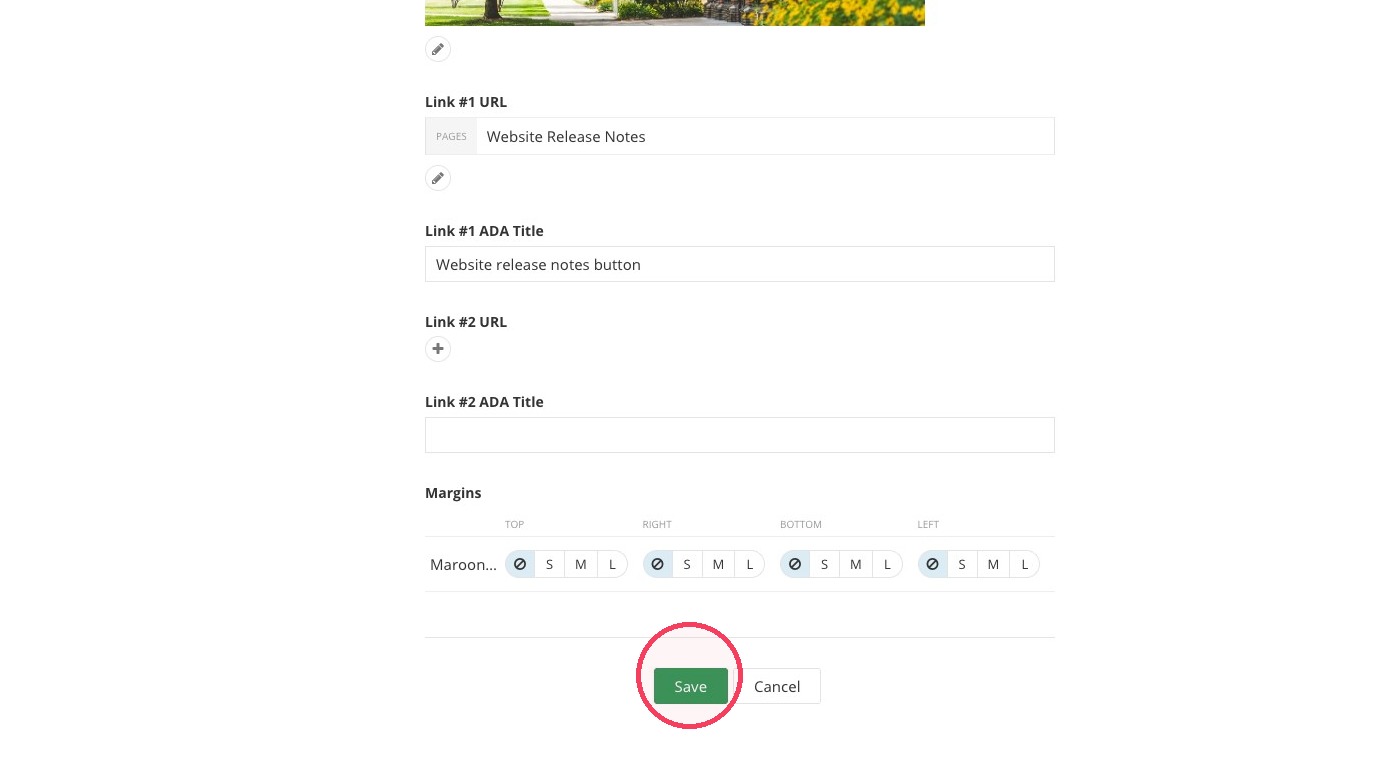
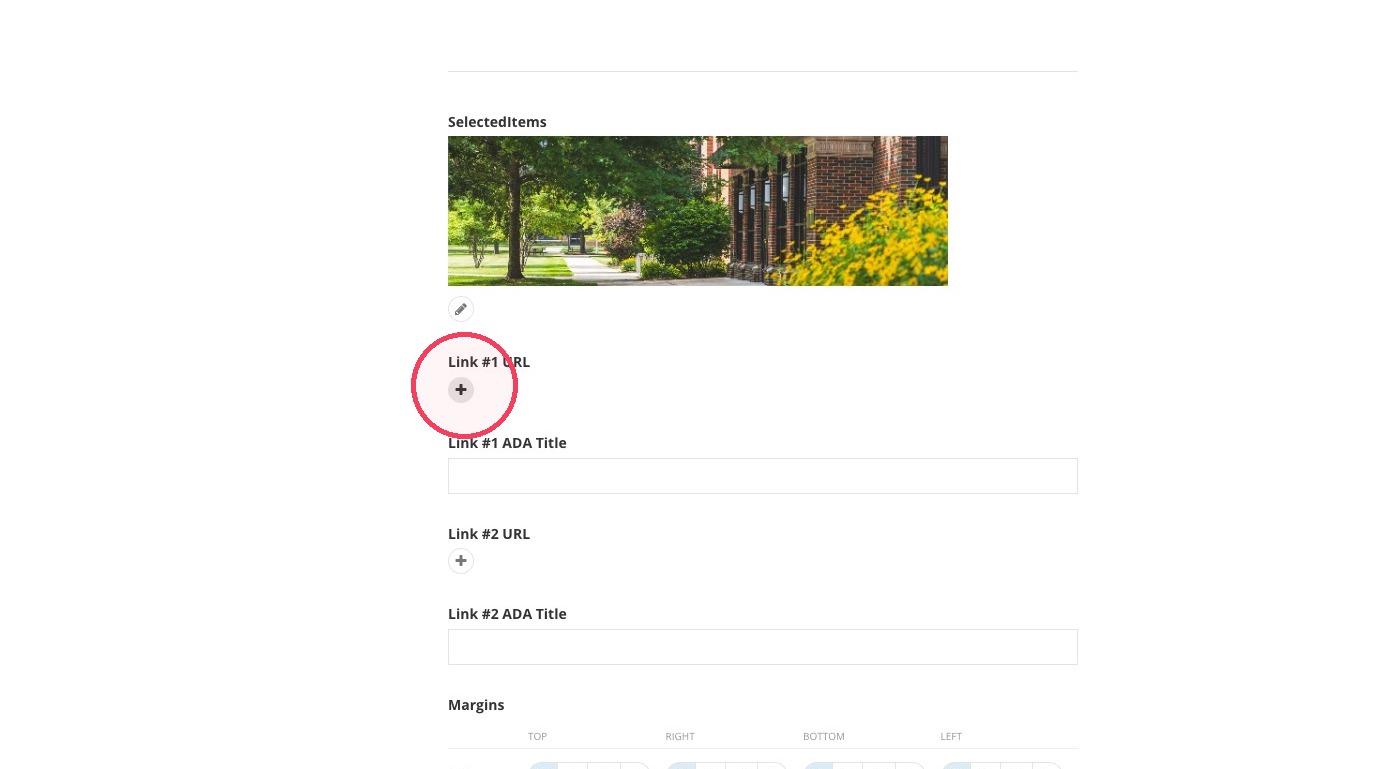
13. Click the + under Link #1 to add a button.
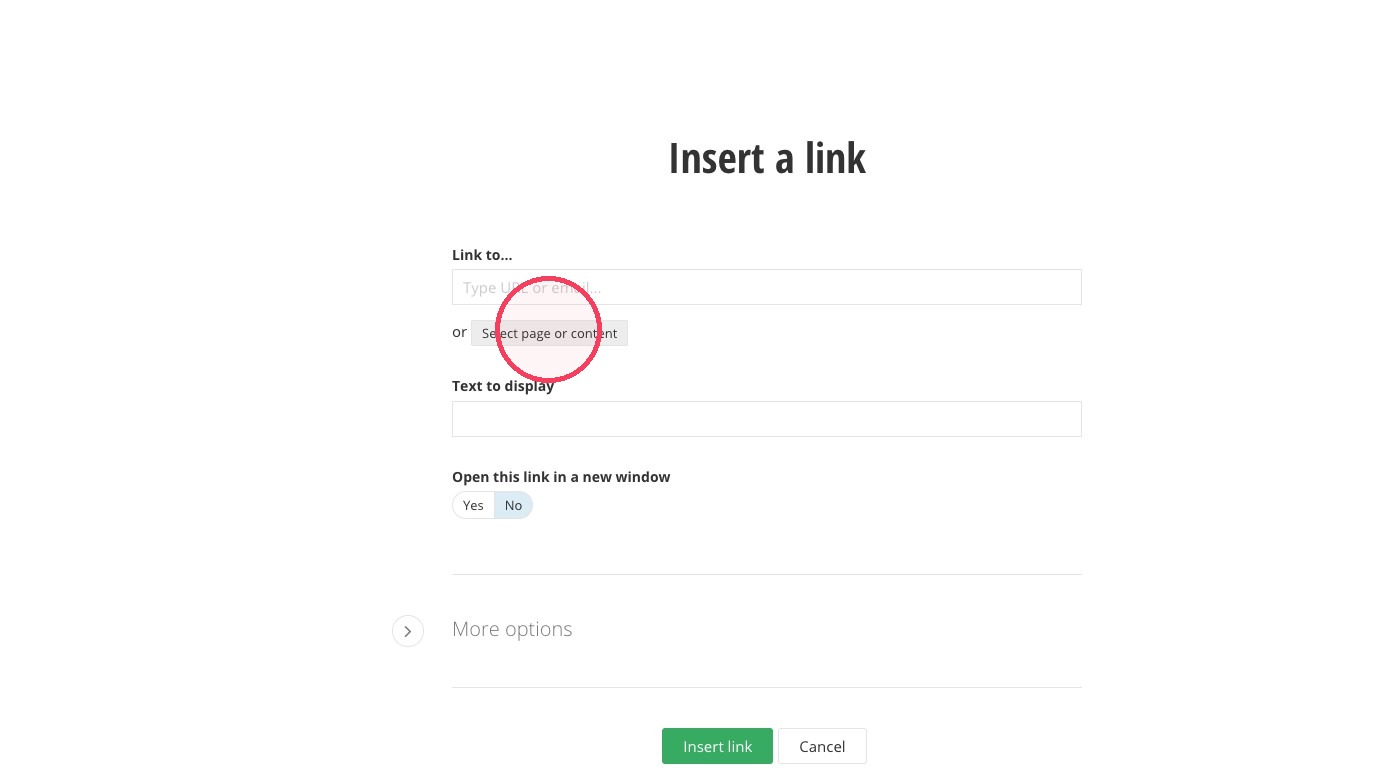
14. Click "Select page or content."
15. Click the Narrow by typing... field.
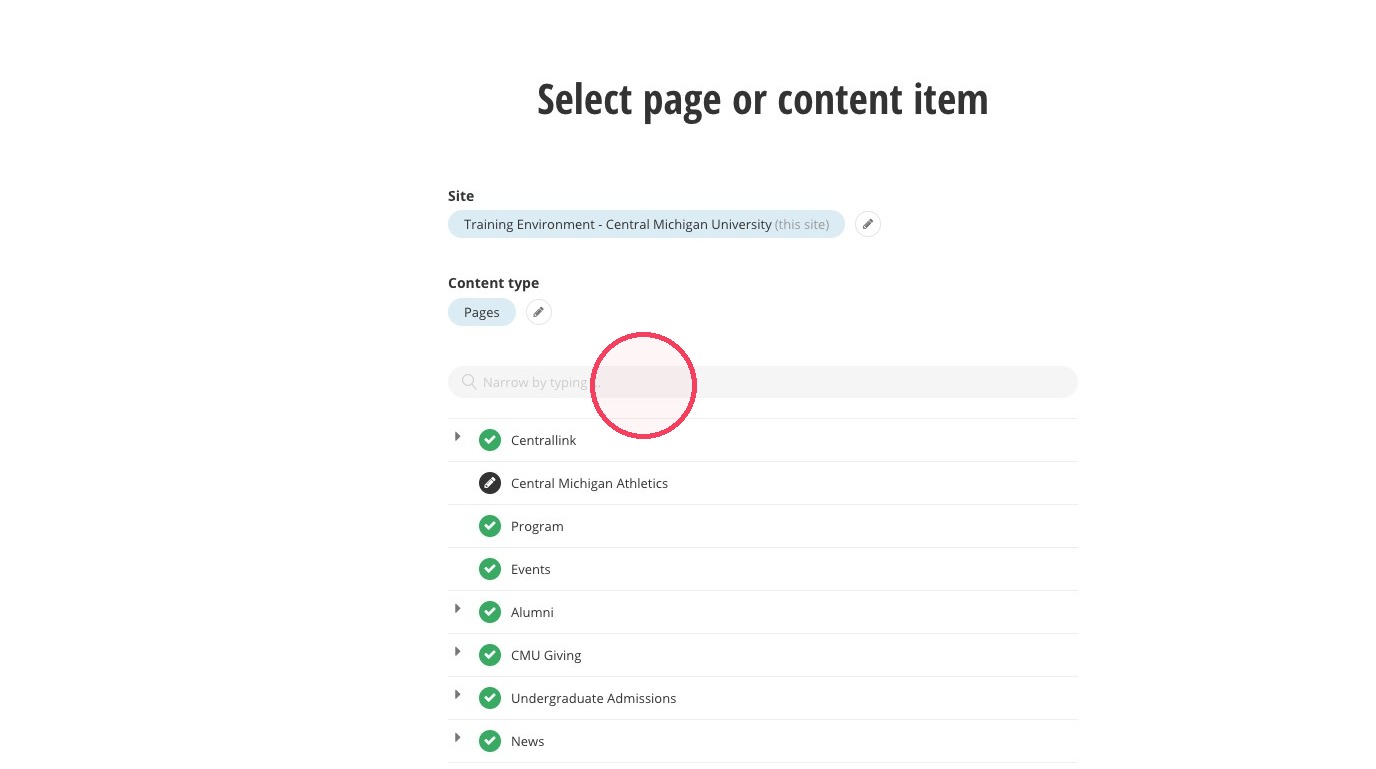
16. Search for and select your link, then chose "Use selected."
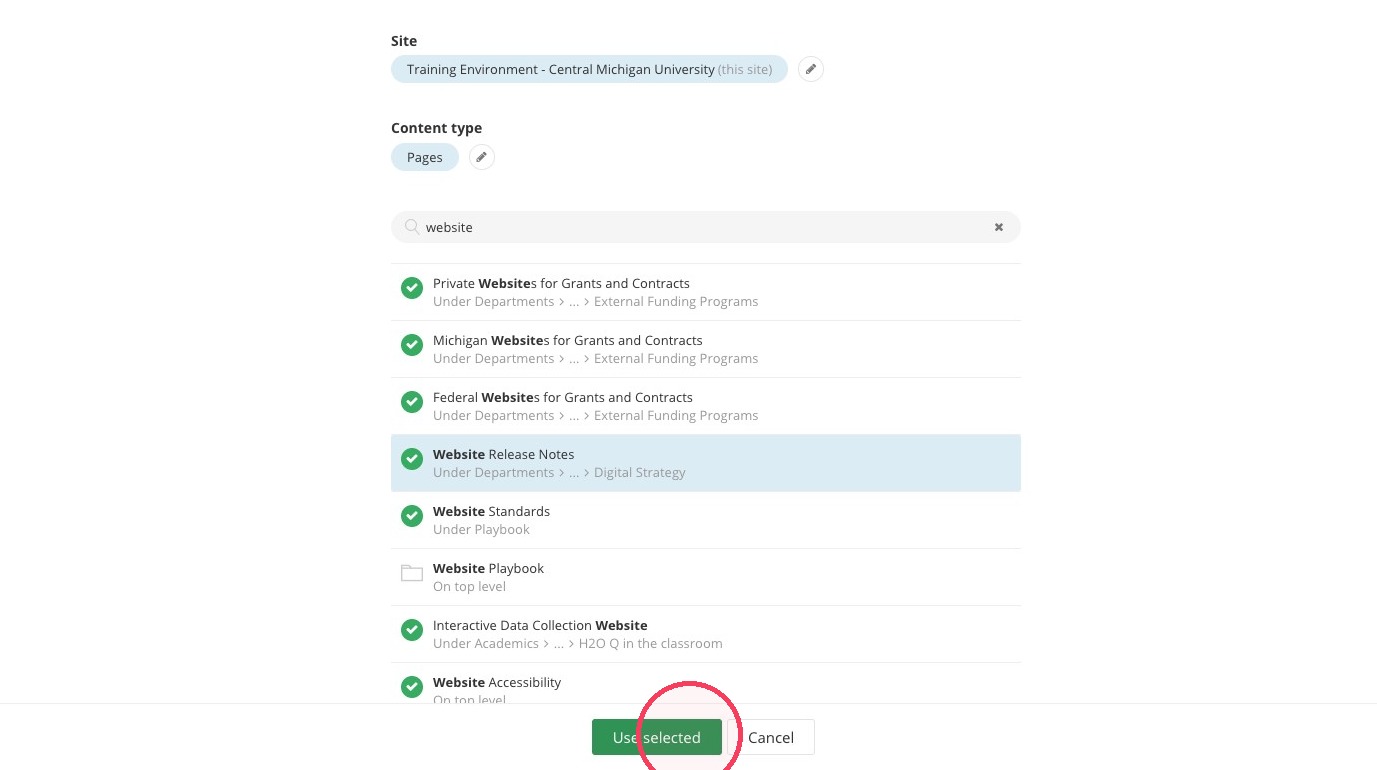
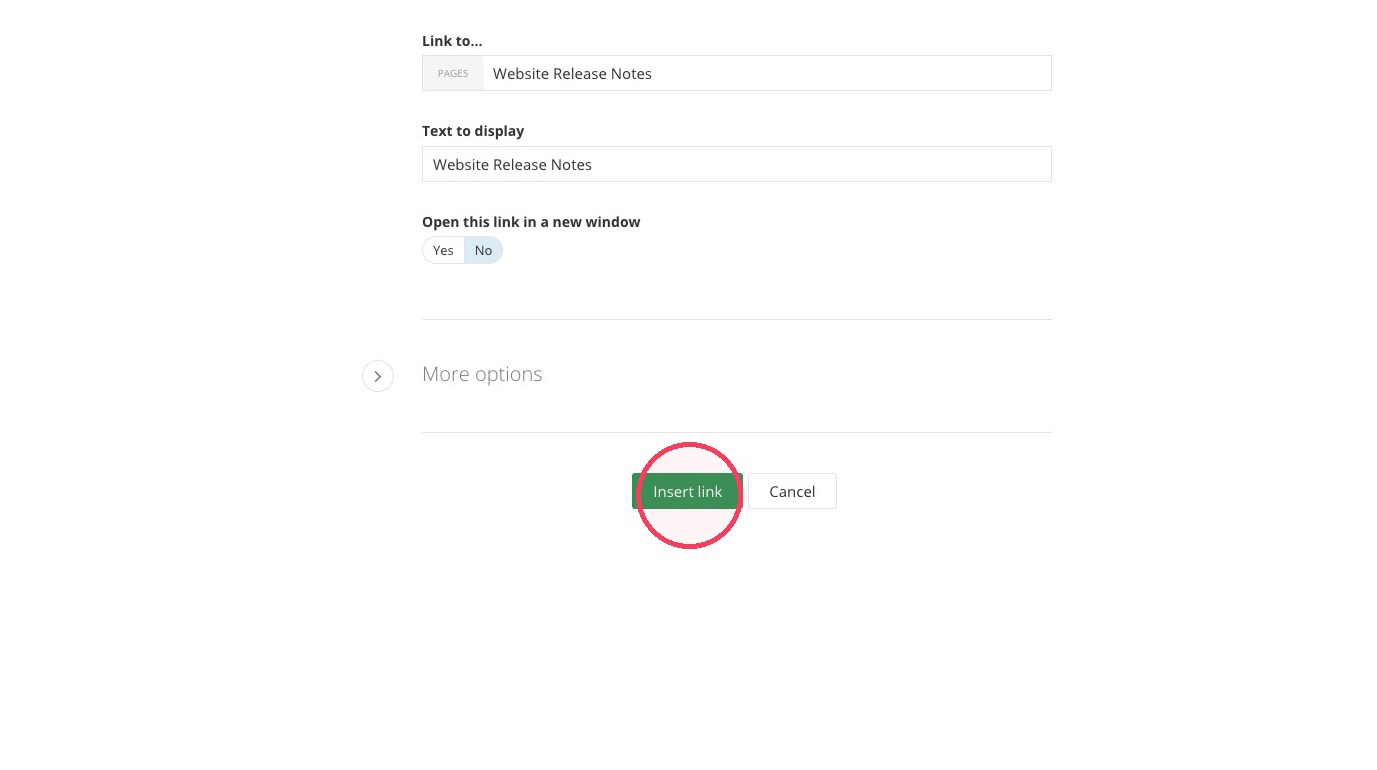
17. You can change the button text here. Then, click "Insert link."
18. Add alternative text under the ADA Title to describe your link.
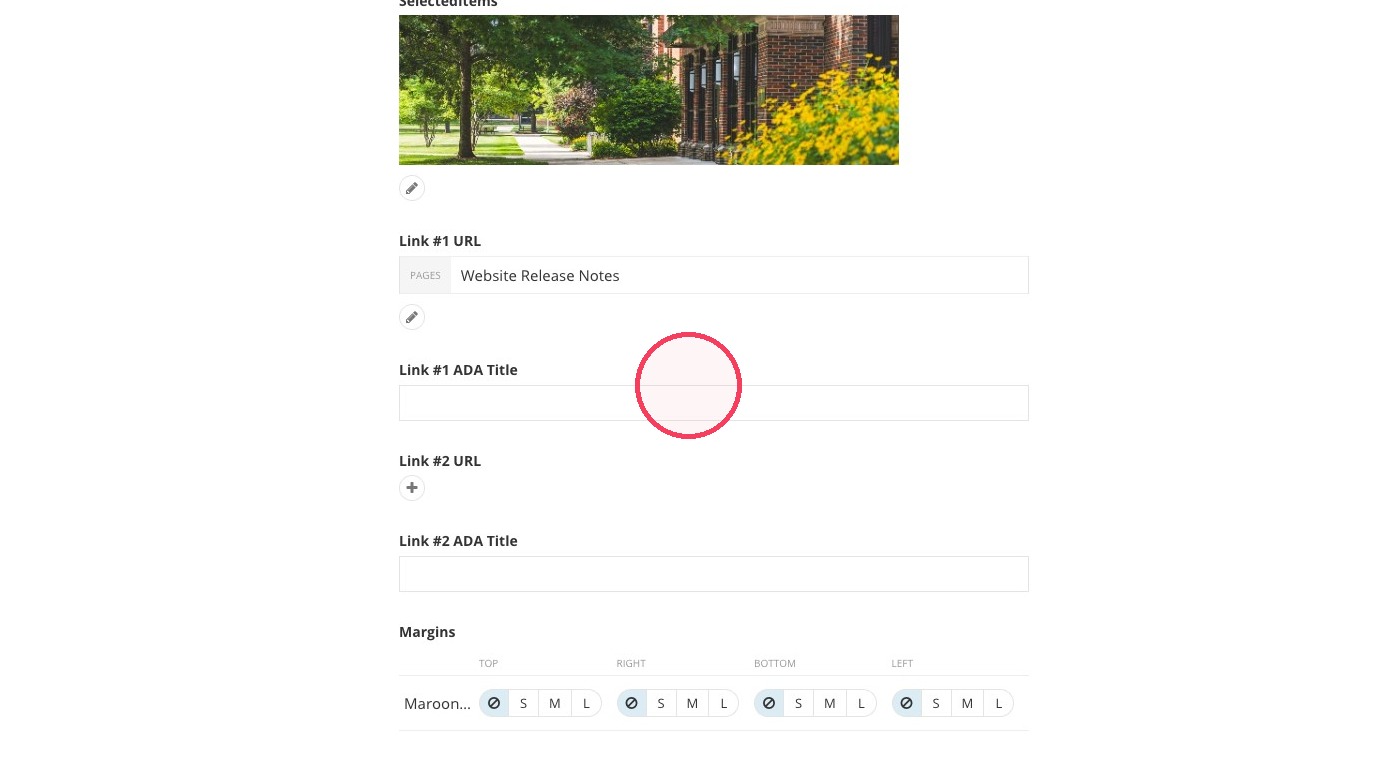
19. If you'd like another button, repeat steps 13 through 18 for Link #2. The second button will be white.