Maroon Link Card
For use in the main area of containers.
The maroon link card widget is used to display links in a visually appealing way. The widget uses an image for the background and a separate area for link text.
Maroon link card examples


Visual demo
Widget standards
- A layout is not required for this widget.
- This widget must be in a section
Do:
- Desktop Image Size: 600 x 400 - Ratio 3:2.
- Use one to twelve link cards per page.
Do NOT:
- Use this widget without adding a heading to give your audience context for the links.
Written instructions
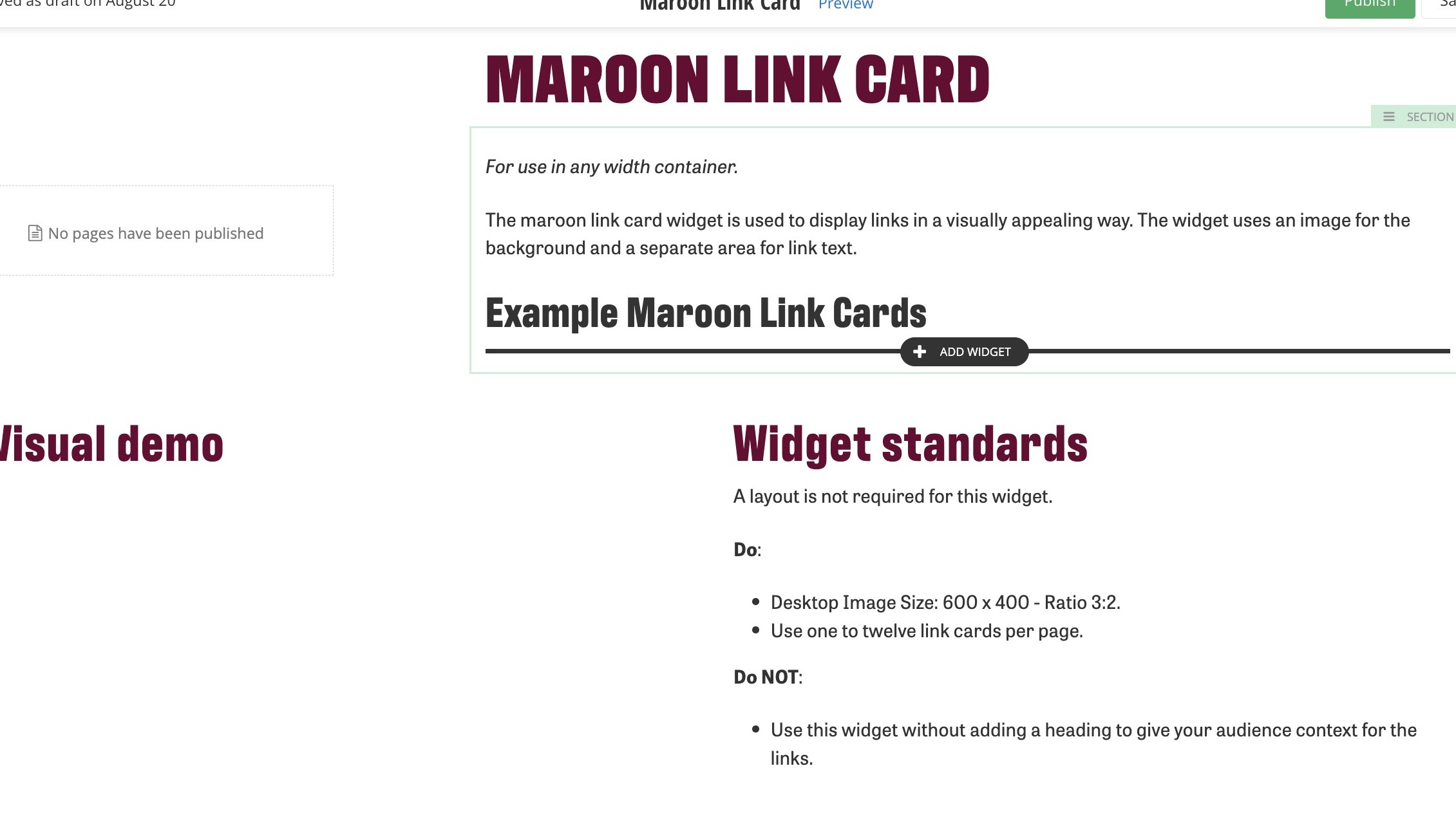
2. Click on + Add Widget or + Add Section.
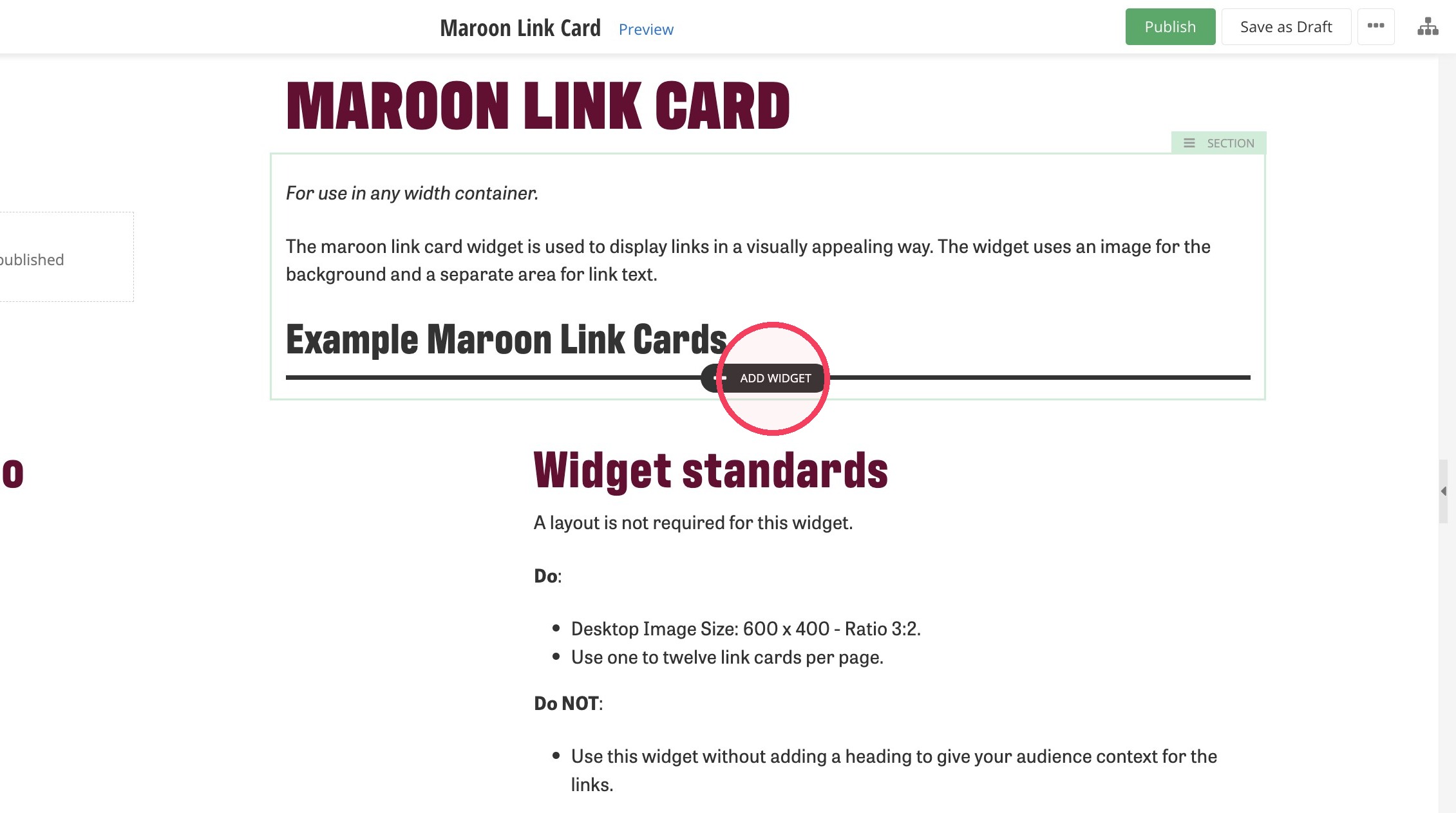
3. Click on the Layout tab and click on a Section to add a section to the page.
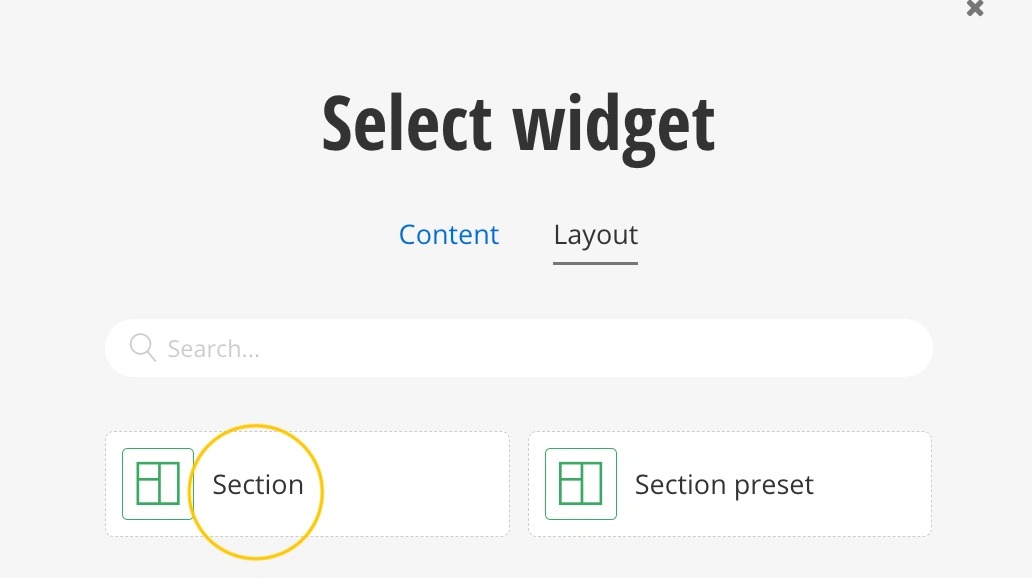
4. Once the Section has been added to your page, click on the top right corner to open the editing bar.
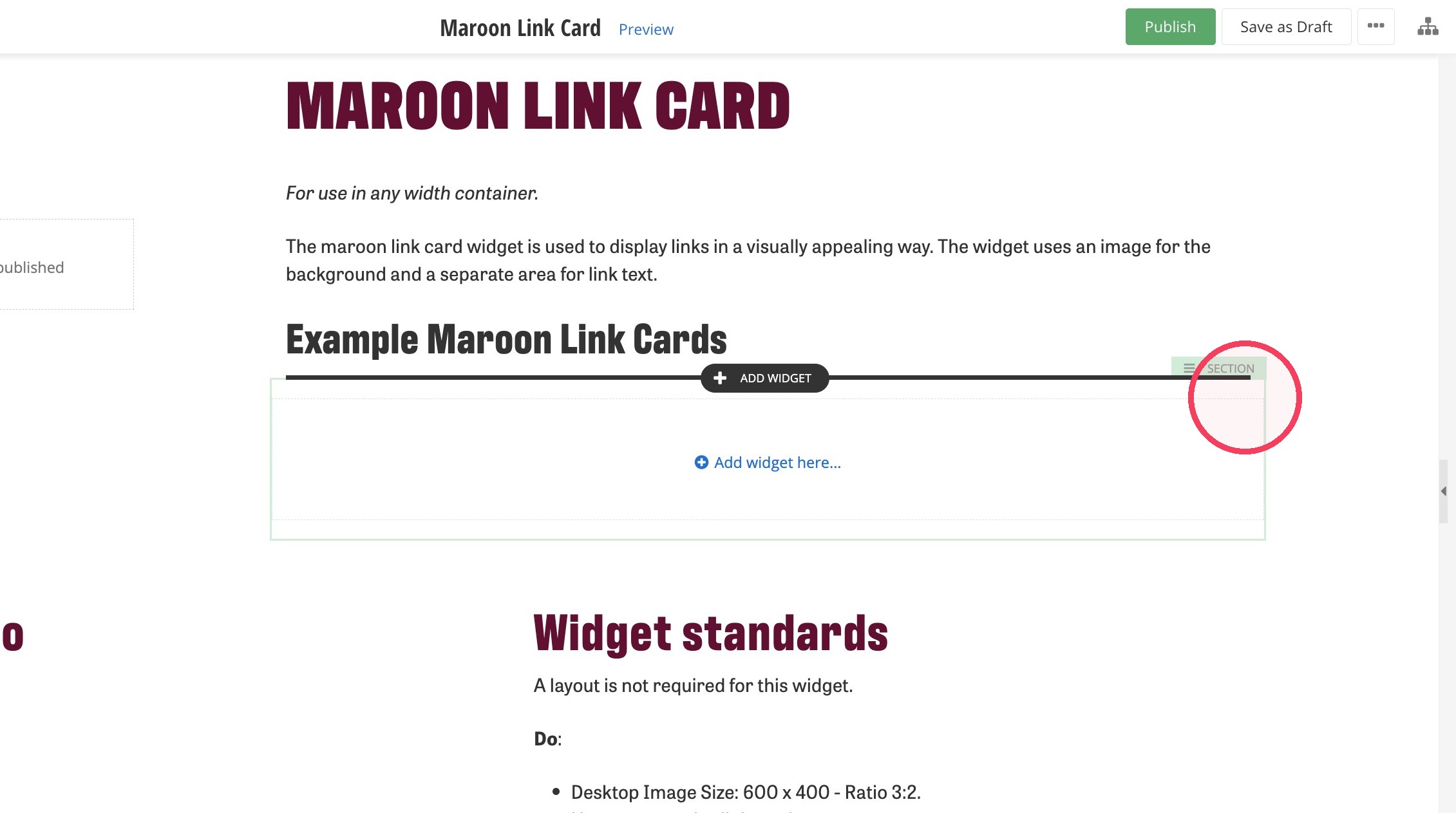
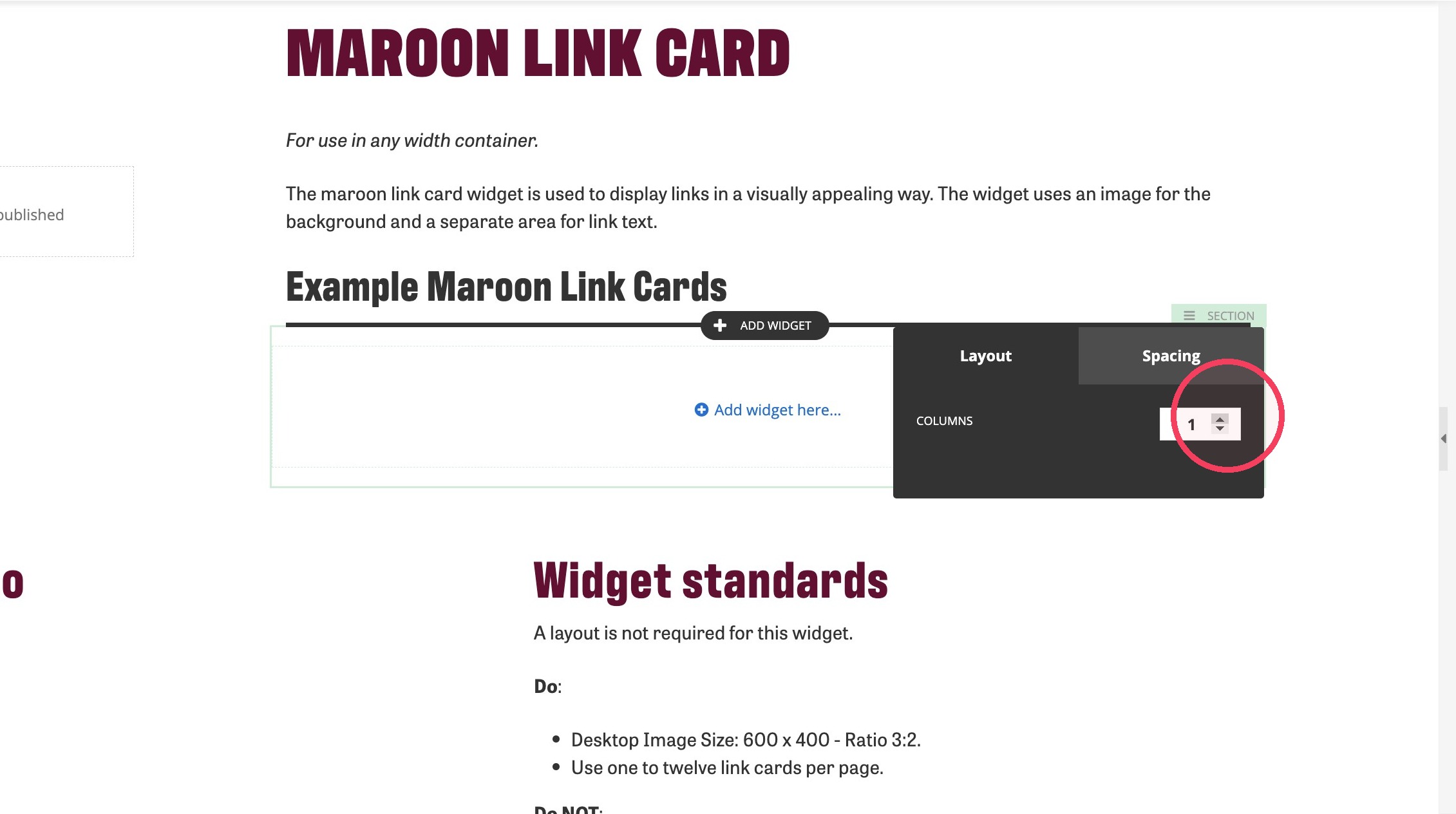
5. You'll divide the section into multiple columns. Note: The maximum number of columns is 3, regardless of whether you are putting the cards in the main content area next to the left navigation or the full width area.
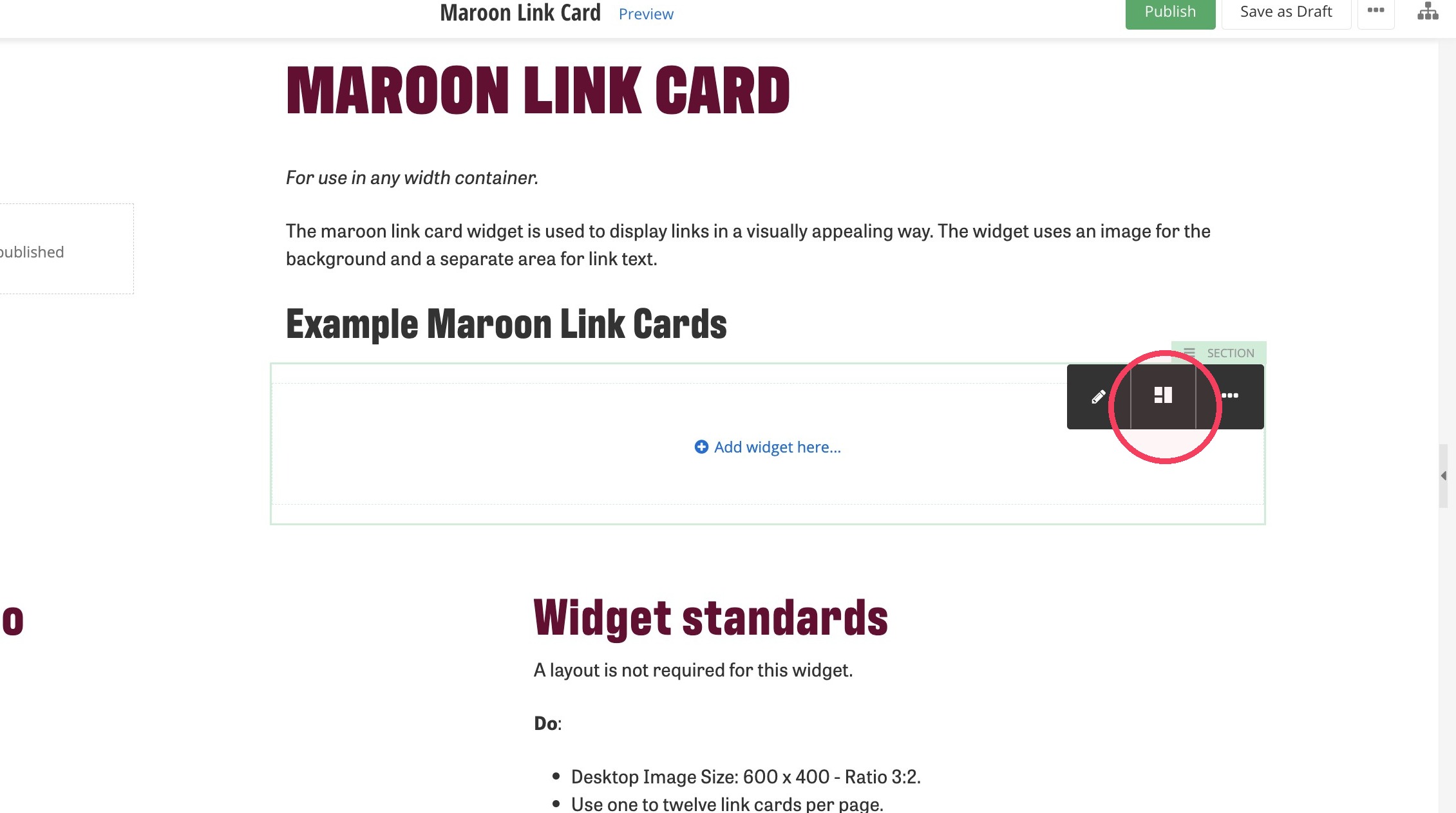
6. Divide the section into the desired number of columns.
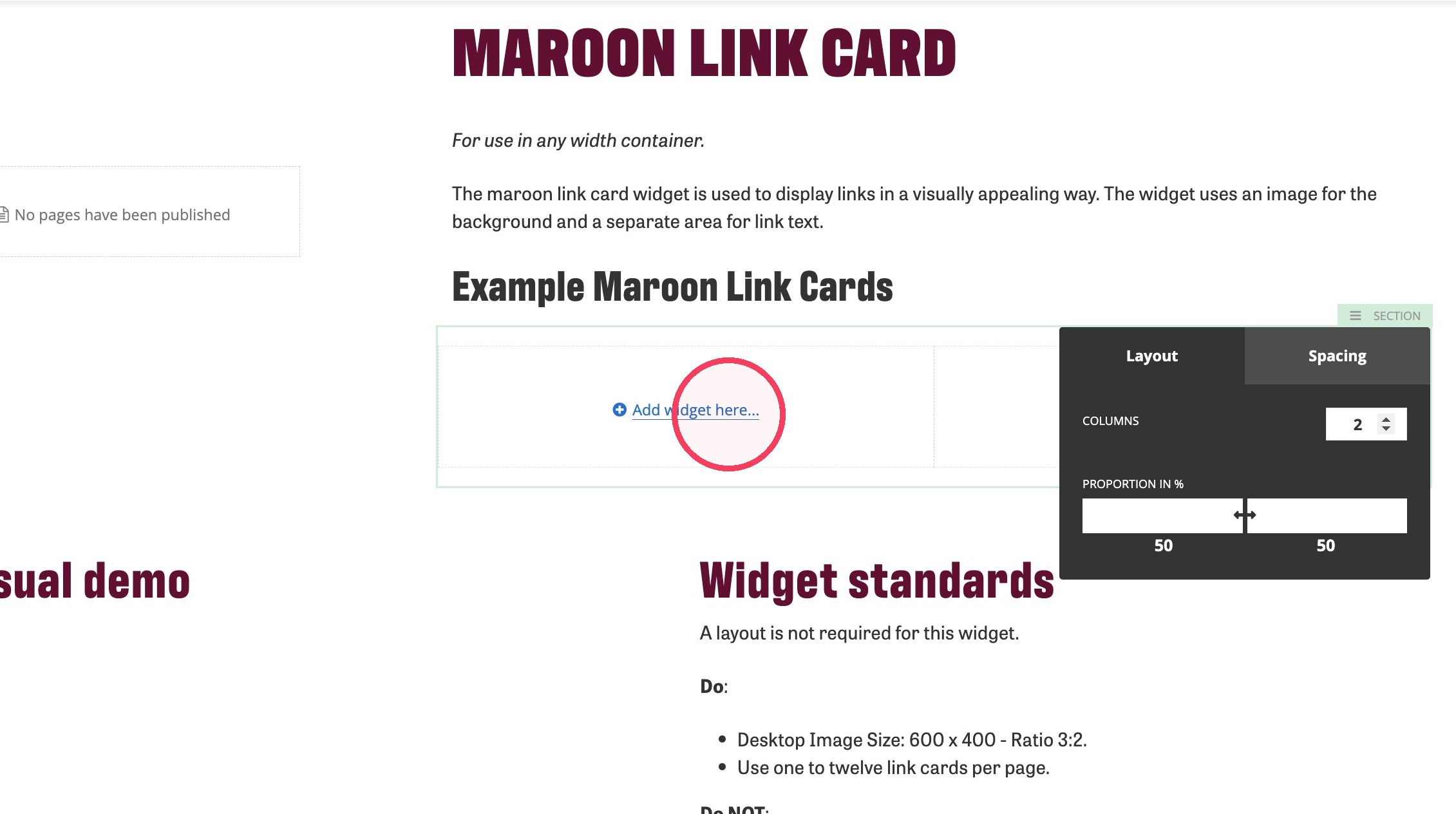
7. Click + Add widget here...
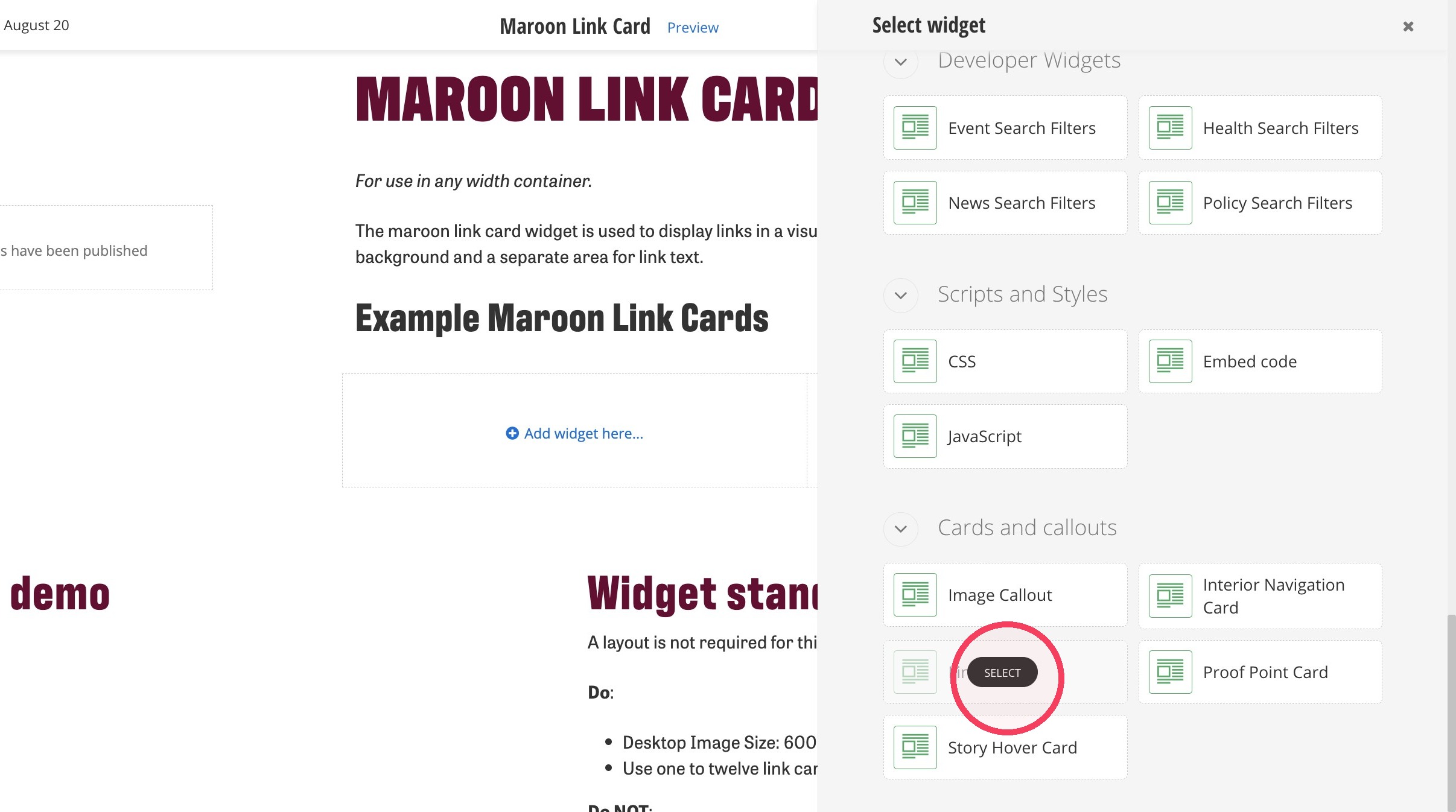
8. Under Content find the Link Card widget and select it.
9. Click Create content.
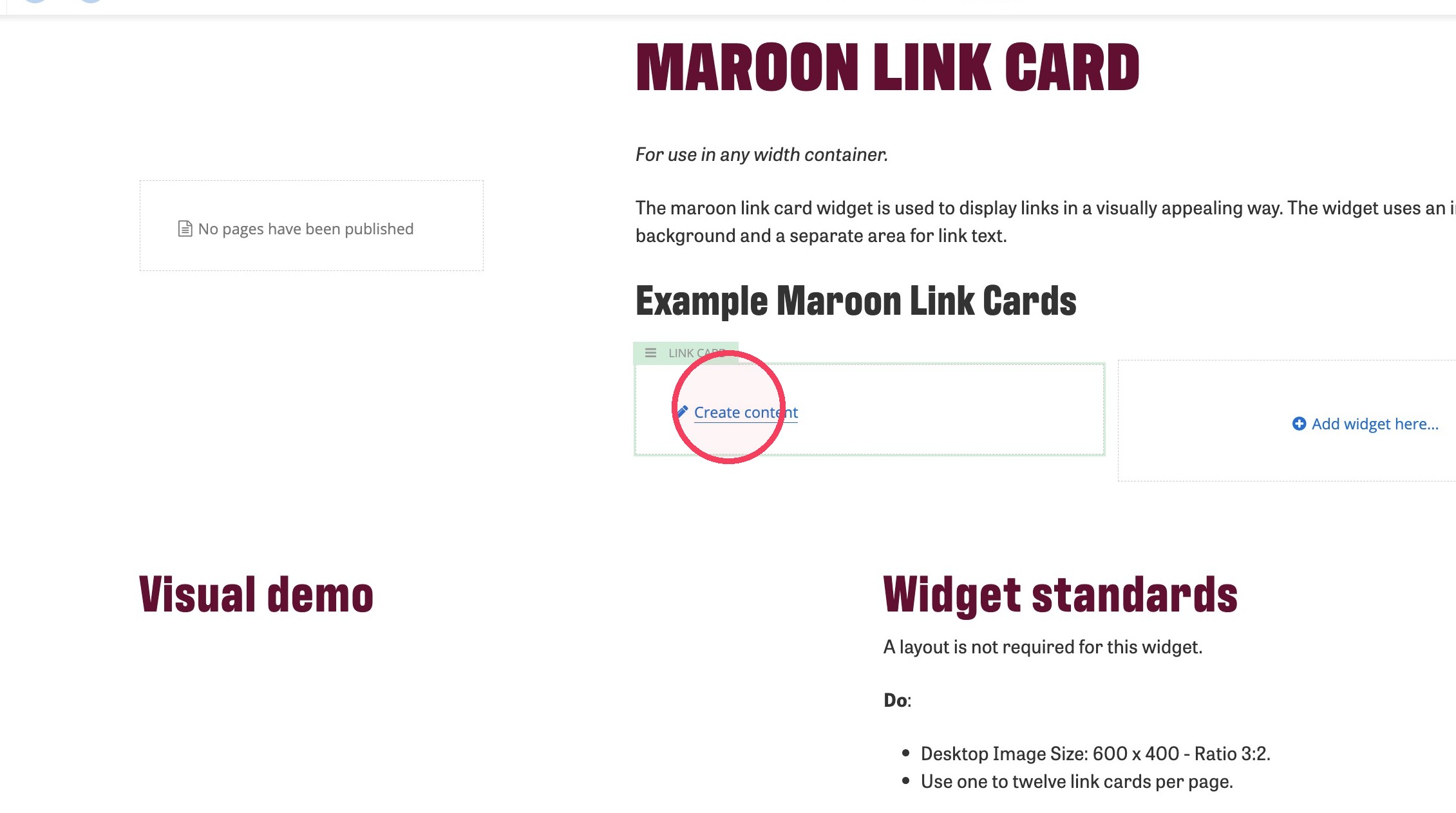
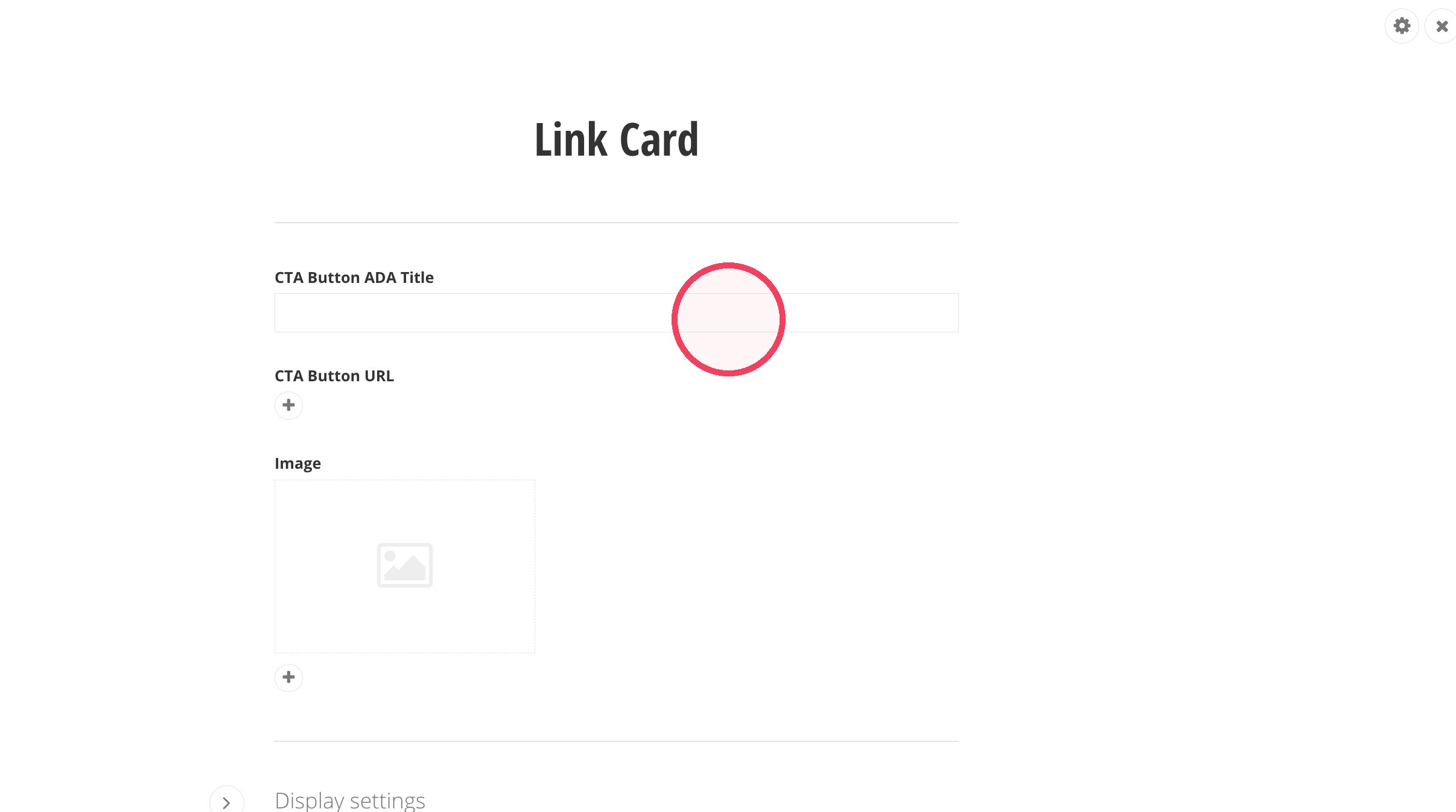
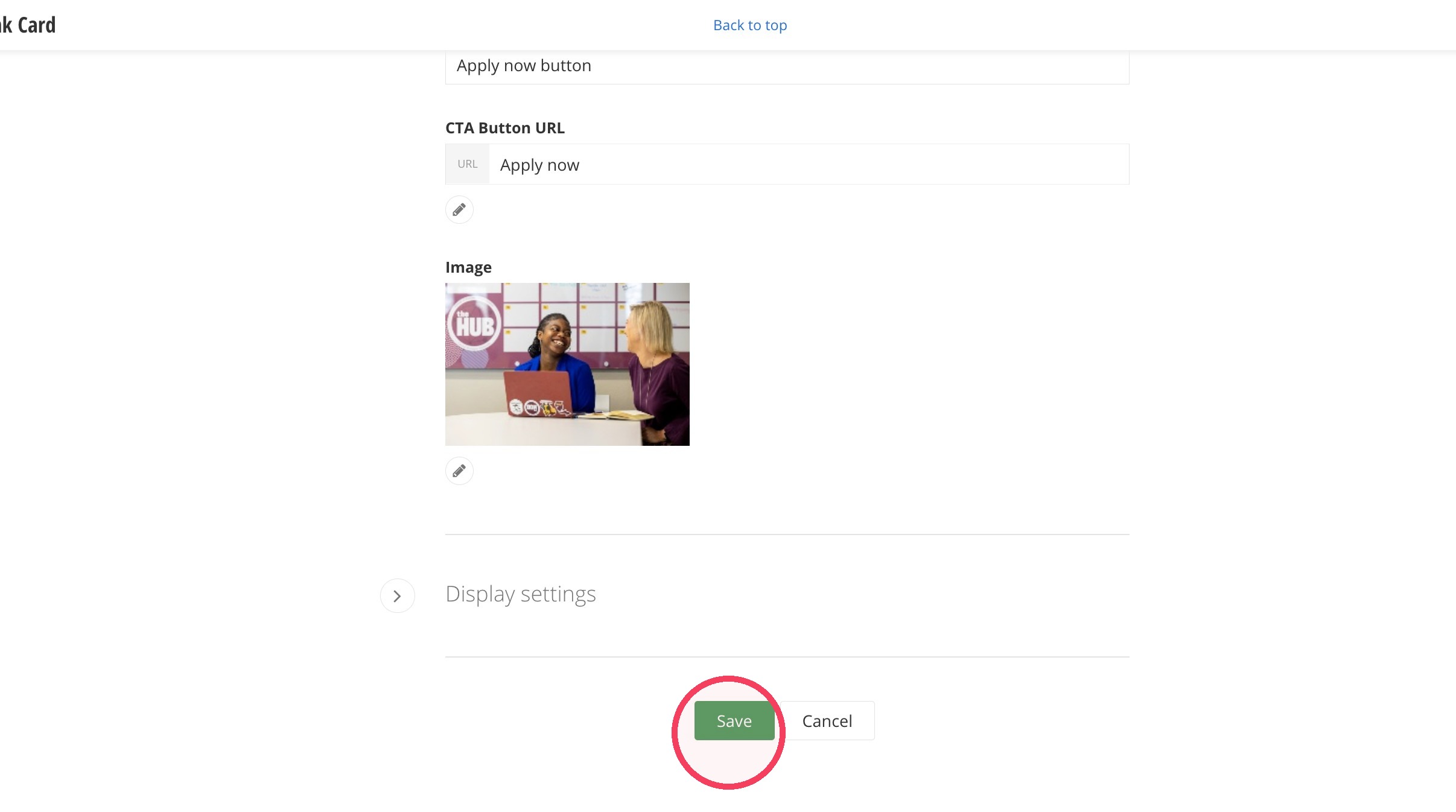
10. Now you'll fill in the link card widget. Add the ADA text in the CTA Button ADA Title field.
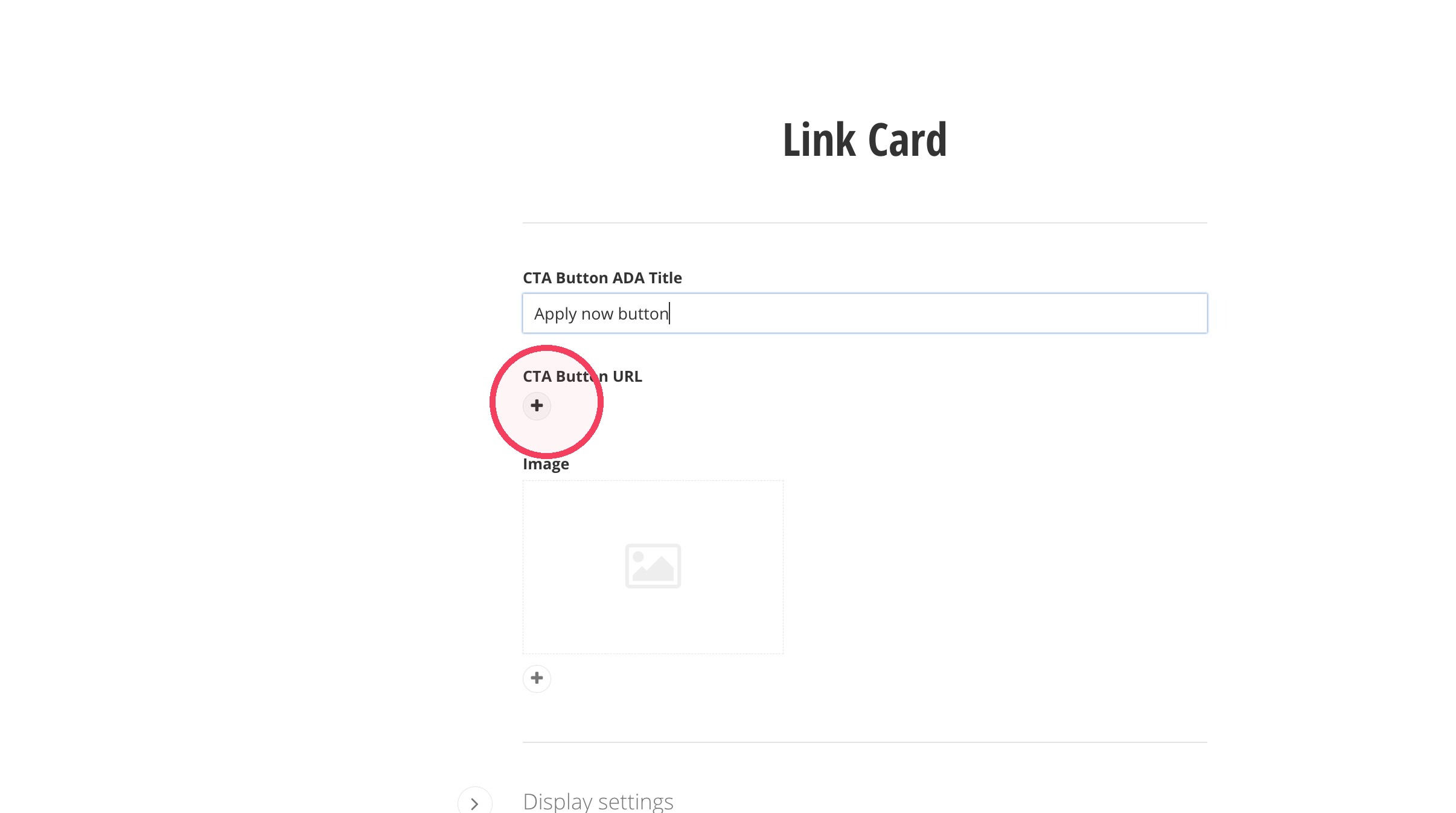
11. Add the link for the button by clicking on the + under CTA Button URL.
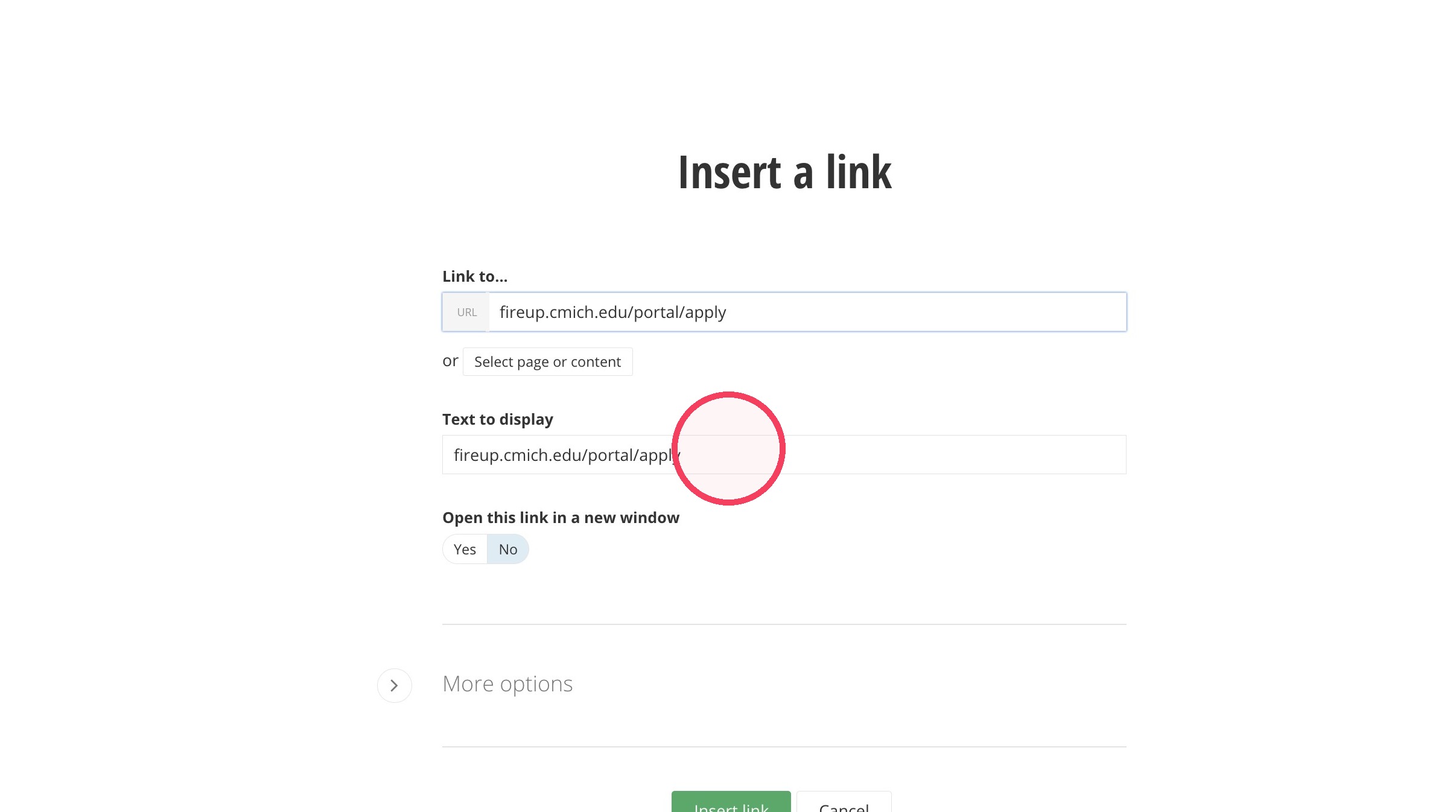
12. Click the Link to... field and either type in a URL or select a page from Sitefinity.
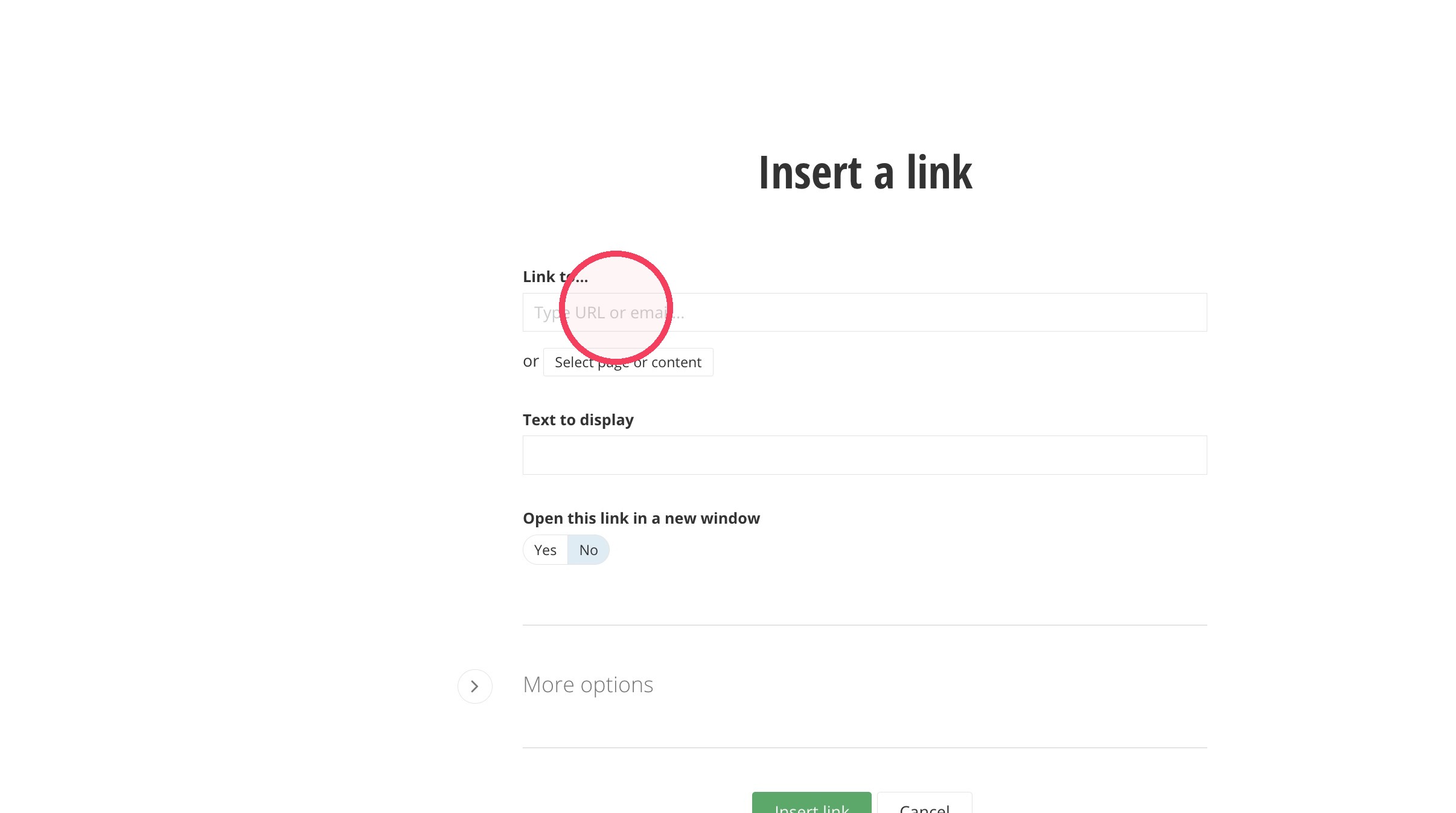
13. Click the Text to display field and type in your button text.
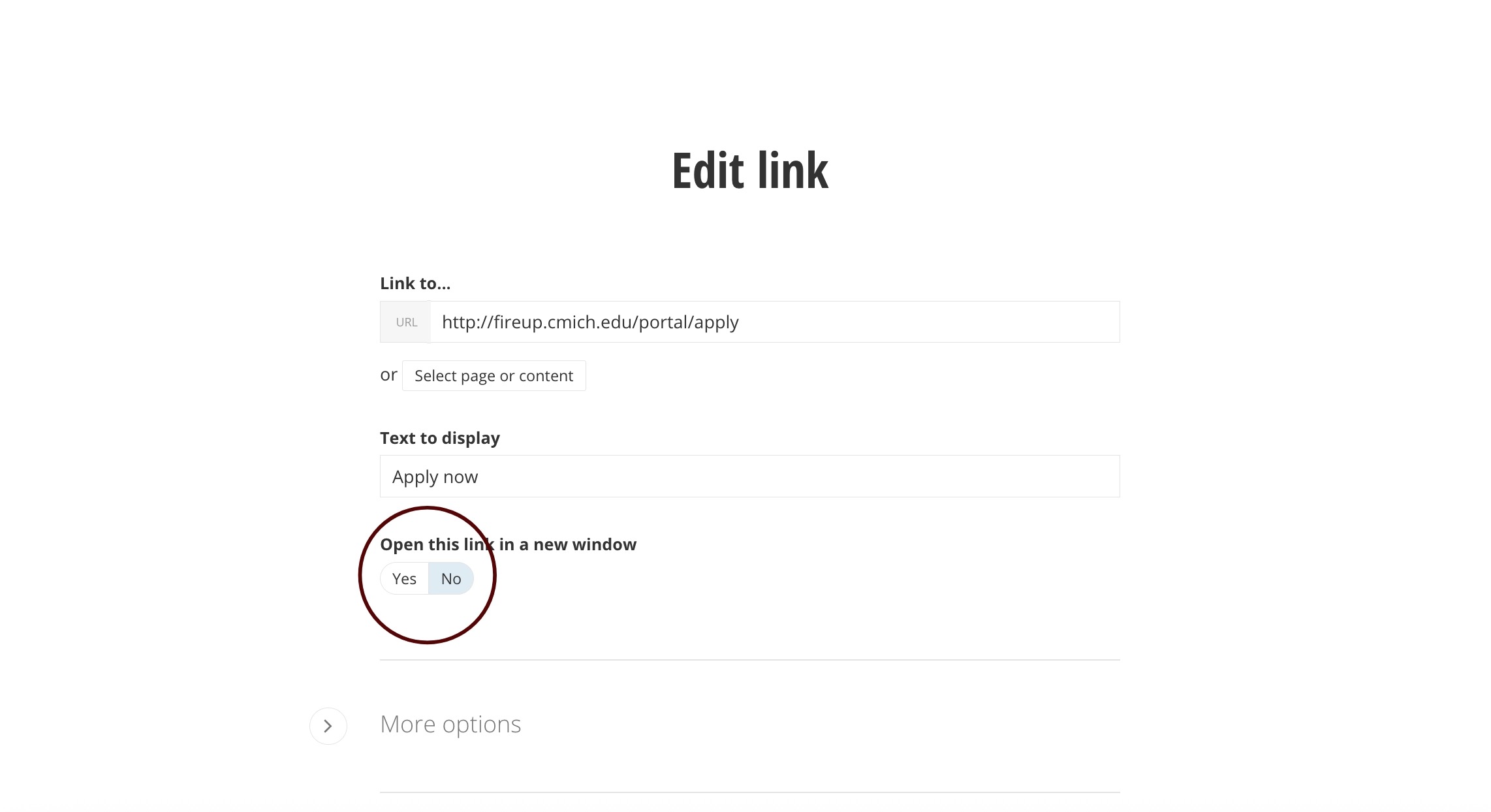
14. Select whether the link should open in a new window.
Yes - link is outside of cmich.edu.
No - link is part of cmich.edu.
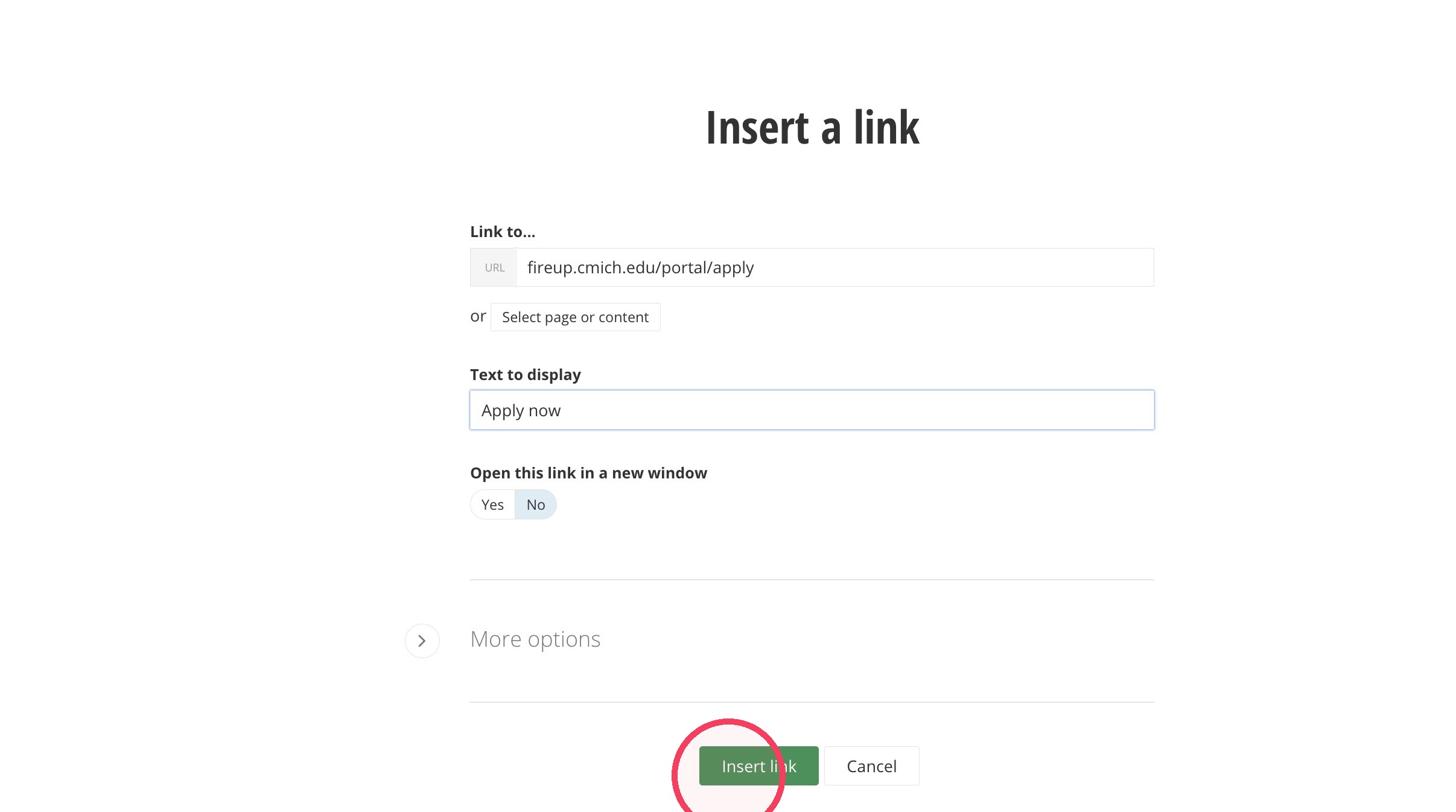
15. Click "Insert link".
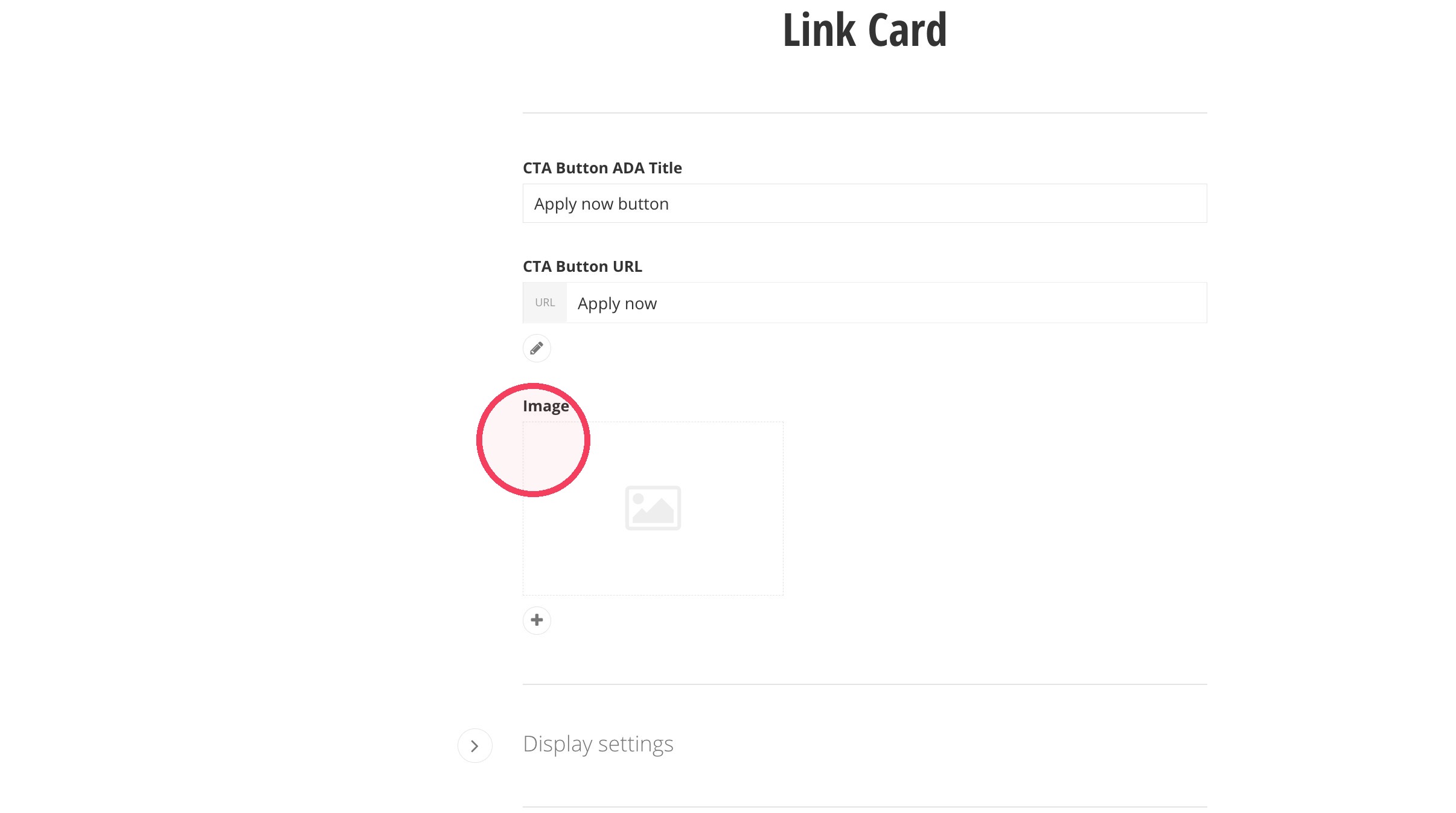
16. Add an image by clicking on the Image field. Images should be 600x400 pixels.
17. Find your image in the DAM and select it.
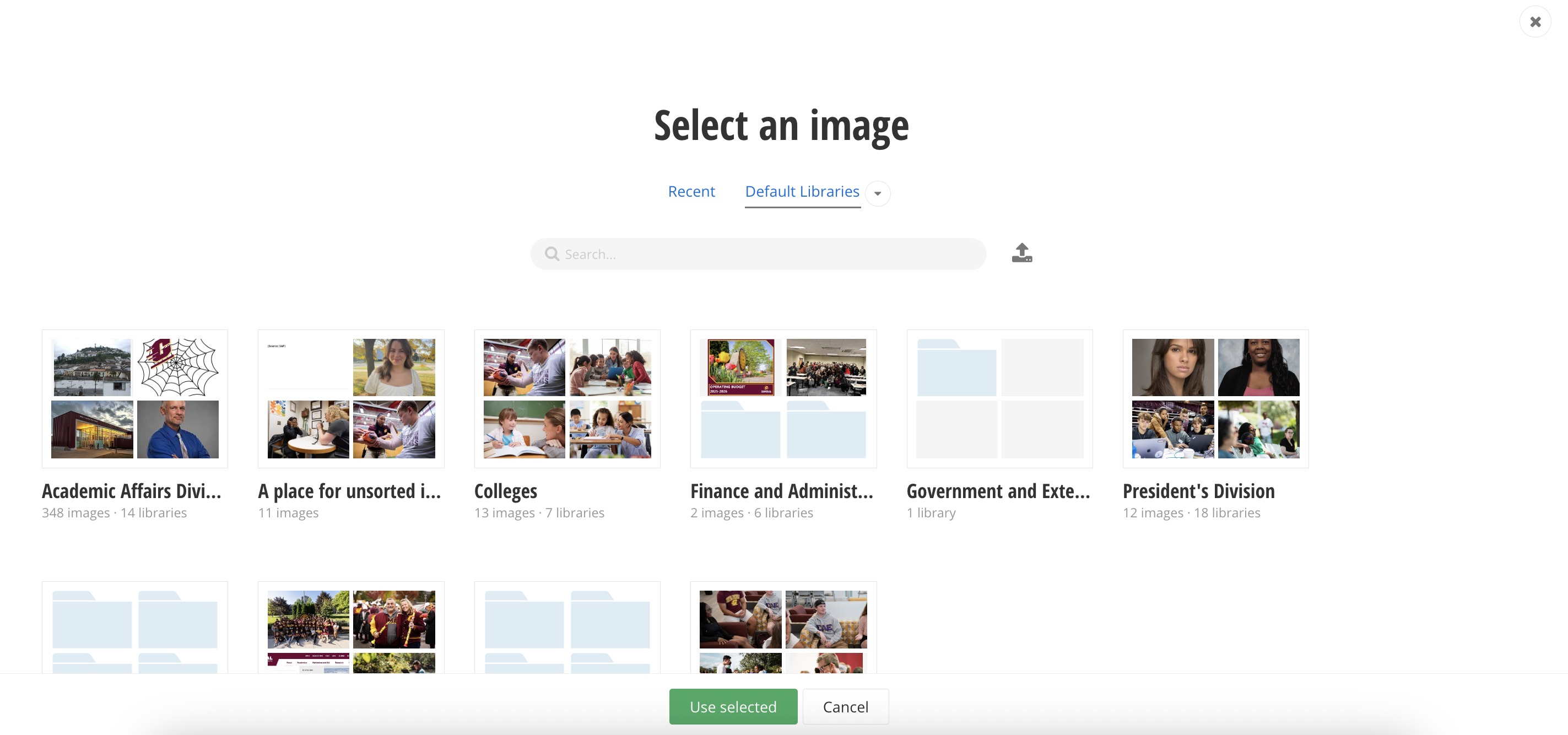
18. Click "Save" to save your updates to the link card.
Save and send
- If you'd like to continue working on this page, but need to save your progress, click Save as Draft.
- If you're finished making changes to the page, and the page is ready for review, click Send for Approval.
