Now through October 31, we're waiving application fees for all freshman and transfer applicants!
*Common app code: Central27
Program List
For use in the main content area.
List your college's programs and certificates right on the department or college homepages.
Program List widget example
Programs and certificates
Undergraduate Programs
On Campus
|
Online
{{undergraduate.Name}} ACCELERATED OPTION
We didn't find any results matching your criteria. Try adjusting or removing filters to see available options.
Undergraduate Certificates
On Campus
|
Online
{{undergraduateCertificate.Name}} ACCELERATED OPTION
We didn't find any results matching your criteria. Try adjusting or removing filters to see available options.
Graduate Programs
On Campus
|
Online
{{graduate.Name}} ACCELERATED OPTION
We didn't find any results matching your criteria. Try adjusting or removing filters to see available options.
Graduate Certificates
On Campus
|
Online
{{graduateCertificate.Name}} ACCELERATED OPTION
We didn't find any results matching your criteria. Try adjusting or removing filters to see available options.
Doctorate Programs
On Campus
|
Online
{{doctorate.Name}} ACCELERATED OPTION
We didn't find any results matching your criteria. Try adjusting or removing filters to see available options.
Visual demo
Widget standards
A layout is needed for this widget.
Do:
- Use this widget to call out your college's programs and certificates.
- Highlight undergraduate, graduate and doctoral programs, and undergraduate and graduate certificates.
Do NOT:
- Use this widget and select only one program. You MUST select at least two items. Examples include, but are not limited to:
- An undergraduate program and related graduate program
- An undergraduate program and related certificate
- A graduate program and related certificate
- A graduate program and related doctoral program
Written instructions
1. Open the page you'll be editing.
2. Click "Layout" to open the layout menu.

3. Find the "content-group" layout and drag and drop it into the main content area.

4. Switch to the Content menu to add the widgets.

5. Add the Content Block widget to the content-group layout.

6. Locate the Programs section under Widgets and click on the carrot to open it.

7. Find the Programs widget and drag and drop it into the content group layout, under the Content Block widget.

8. Click "Create Content" on the Content Block widget.

9. Type in "Programs and certificates" and give it Heading 2 formatting. Save your work.

10. On the Programs widget, click "Edit."

11. Under "Which programs to display?" pick "Selected programs..."

12. Click "Select."

13. Find the programs for the specific department you're working on.
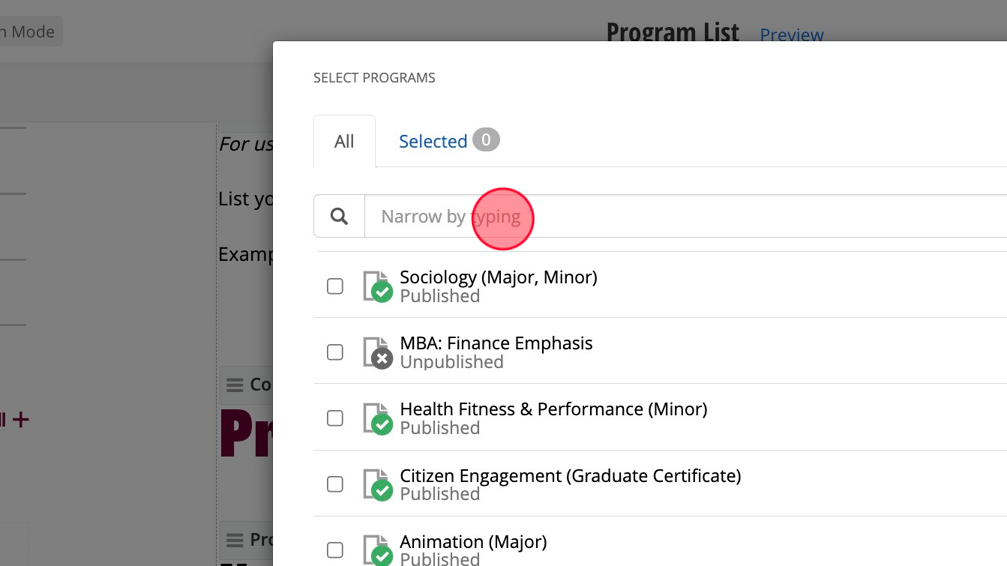
Note: If the department only has one program, you MUST add related graduate programs or certificates for the widget to function correctly.
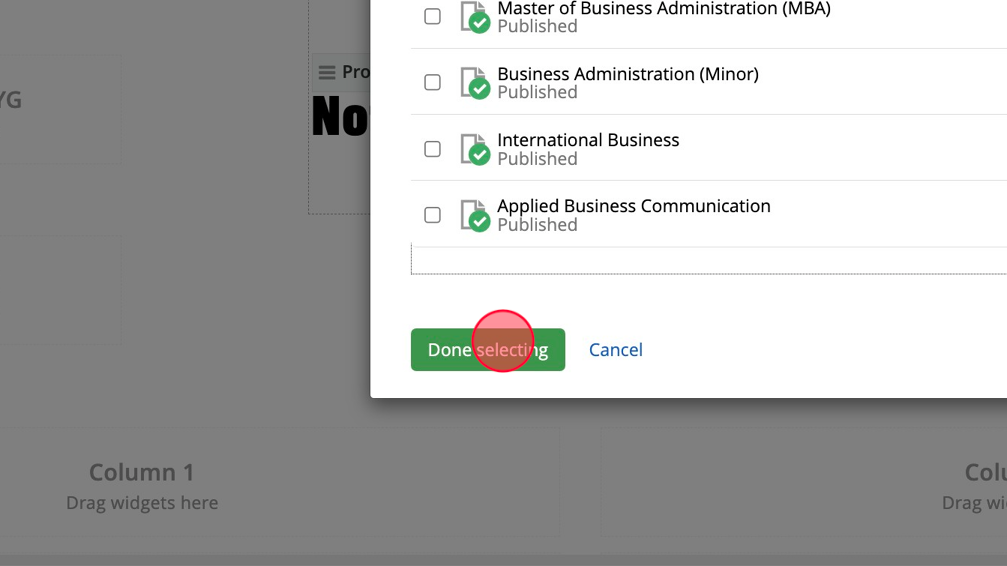
14. Select the programs you want to display from the search results.

15. Click "Done selecting" when you've finished selecting the programs or certificates.
16. Click "List settings."
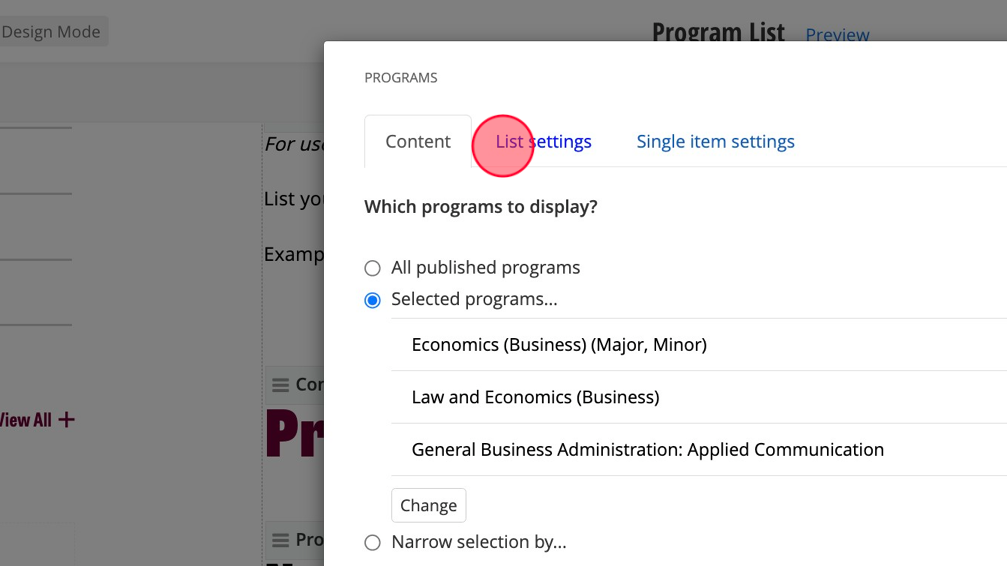
17. Under List settings, adjust "Sort programs" to "As set manually" to show the programs in the order you arrange them in.

18. Change "List template" to "Program list."

19. You do not need to change anything under Single item settings. Click "Save."

20. The programs and certificates you added to the widget will appear in the page's preview. Save your page as a draft or send it for approval or publishing if you're done working on it.

Save and send
- If you'd like to continue working on this page, but need to save your progress, click Save as Draft.
- If you're finished making changes to the page, and the page is ready for review, click Send for Approval.
