Title and Properties
Every page has its own unique title and properties. Here, you'll find the edit fields for page name, location and options for the navigation, URL, SEO title, meta-description, navigation card image, category and tag.
You can scroll down the page for a wholistic view, or use the links below to jump to a specific section.
Title and properties
1. Navigate to the Pages tab in Sitefinity.

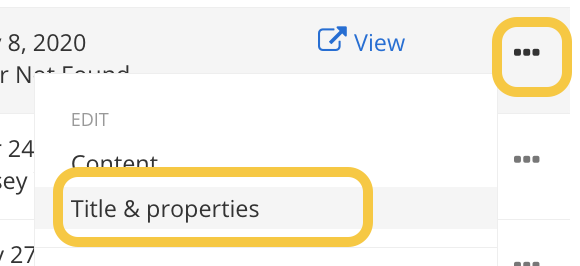
2. Locate your page in the list of pages and click on the action ellipses on the far right side of the screen.
3. Select Title and Properties from the dropdown menu.
Editing Title and properties
1. Page name: Edit the name of the page.
2. Put this page: Change the location of the page within the navigation.
- Note: All pages should be nested under a parent page. To place as a top-level, contact your strategist.
3. Navigation options: Edit to show in navigation, make a group page or redirect.
4. URL: If needed, you can Edit the URL.
5. Additional URL: This is where additional URLs for the page will show up. If you've moved the page from its original location, Sitefinity will store the original URL here.

Search Engine Optimization
6. Title for search engines: Enter the page title for search engine optimization.
7. Description: Enter a meta-description for search engine optimization. This is a 150-character description or summary of the page's content. It is also what shows up in search engine results under the name of the page.

Advanced options
- The Advanced options section is specifically for strategists and developers. You do NOT need to adjust or change anything in this section.

Related media and Navigation Card
8. Navigation Card Image: If this page will be used in an image navigation card widget, you can upload an image here. It should be 400x280 px.
9. Navigation Card Description: If this page will be used in an image navigation card widget, you can add the page description here for the navigation card.
10. Hide from navigation cards: Check this box if you do NOT want this page to show up in the navigation card widget.

Category and Tag
11. Tags: Tags are the type of the page you have created. Note: This will most often be "Webpage."
- Tags are the type of content you are submitting for approval or publishing.
- Academic program = Program page
- Blog = Blog post
- Events = Event detail page
- Excel = Microsoft Excel file
- News = News story
- PDF = PDF file
- Webpage = Page
- Word = Microsoft Word file
- Images = NO TAG. Images do not need a tag and can be left blank.
12. Categories: Categories are the department, college or unit the page belongs to.