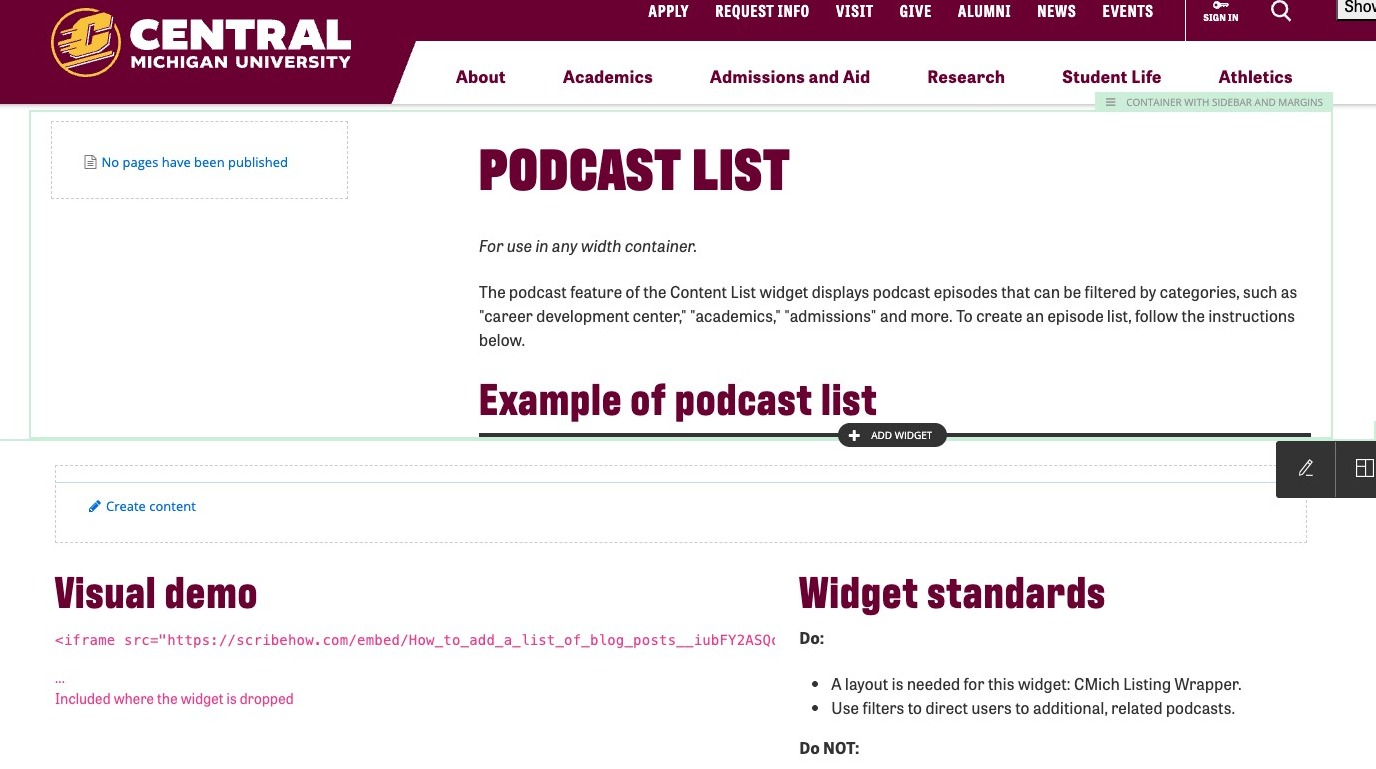
Podcast List
For use in container with margins or container with sidebar and margins.
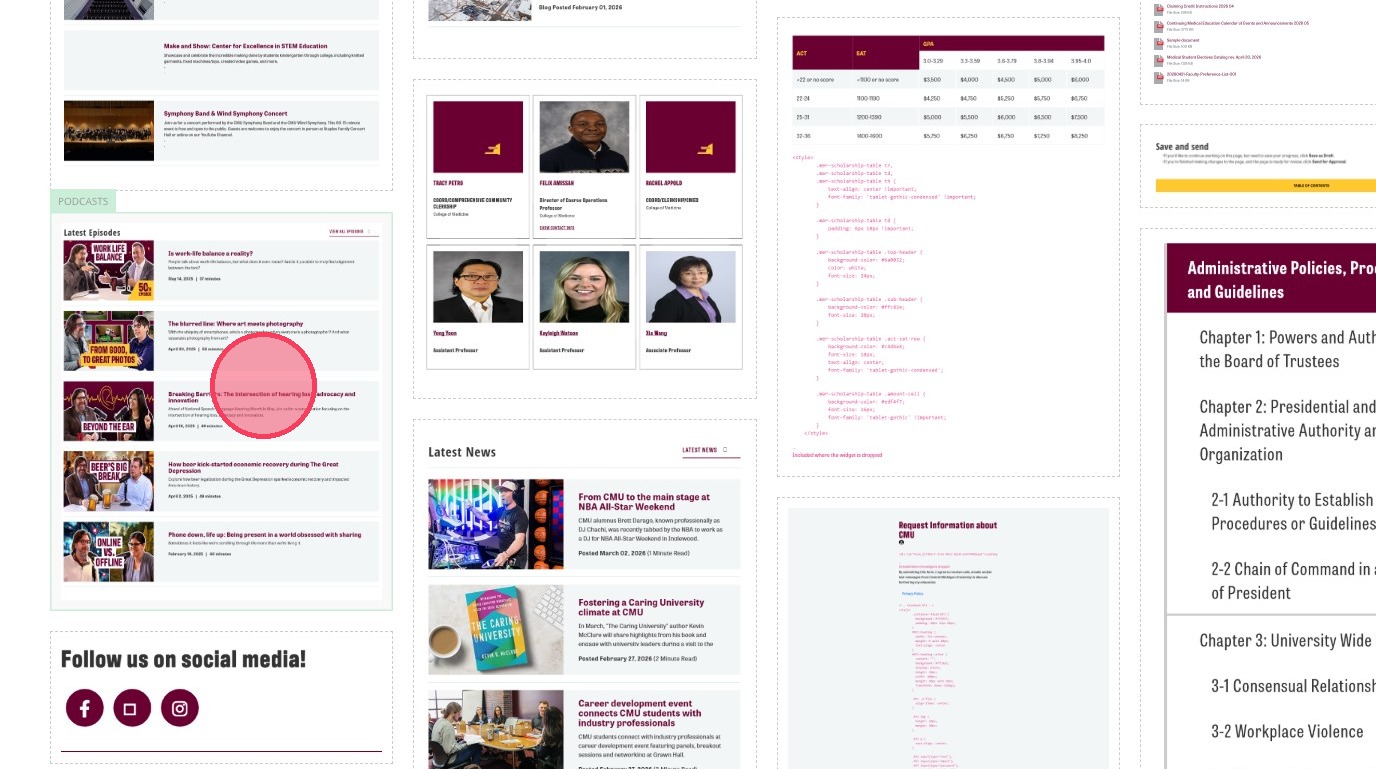
The podcast feature of the Content List widget displays podcast episodes that can be filtered by categories, such as "career development center," "academics," "admissions" and more. To create an episode list, follow the instructions below. Do not use more than one podcast list per page.
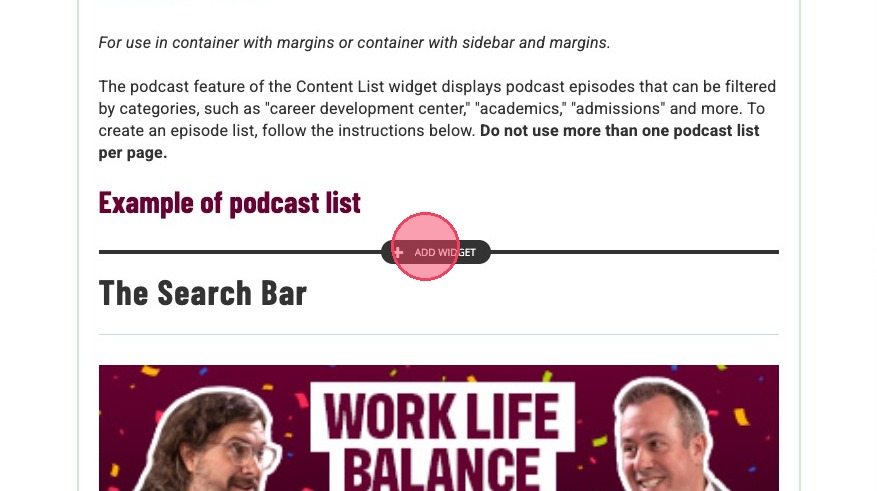
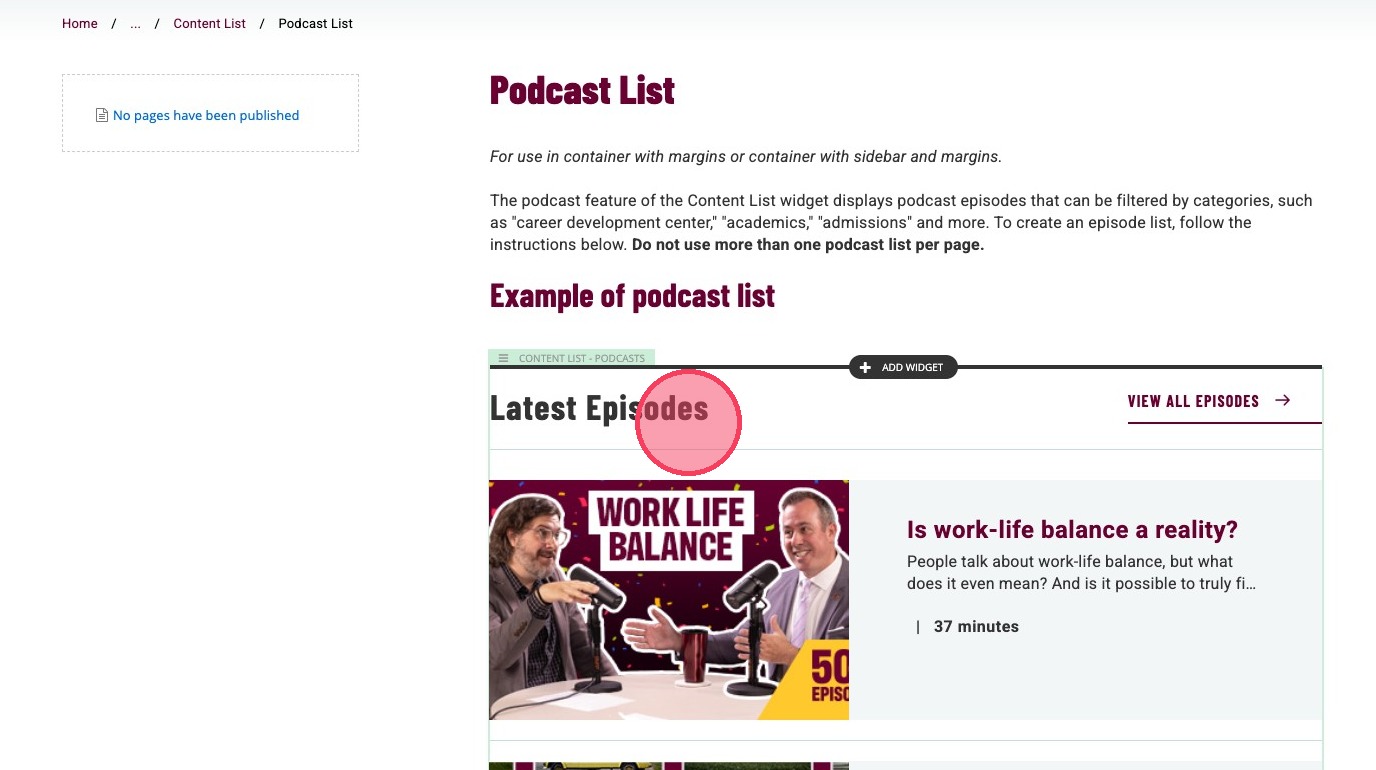
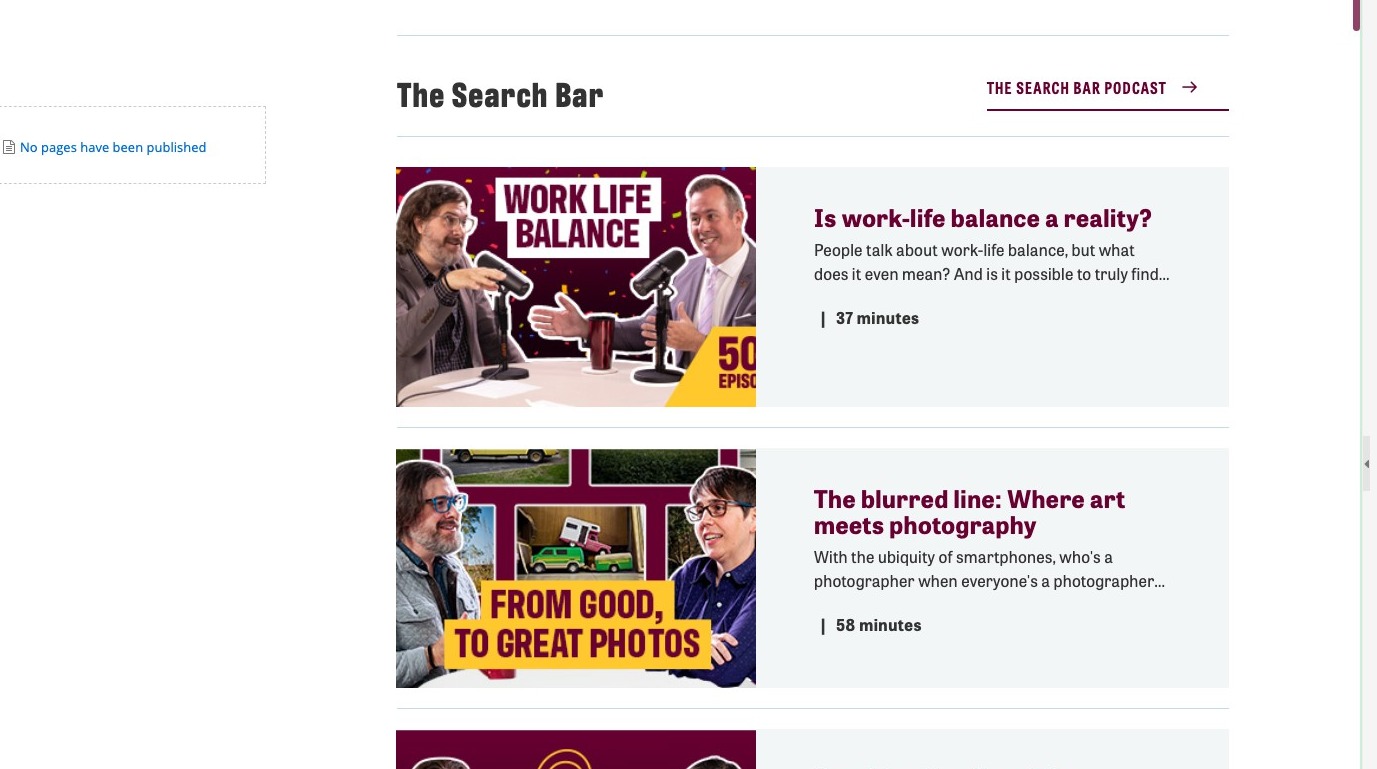
Example of podcast list
The Search Bar
The blurred line: Where art meets photography
Visual demo
Widget standards
This widget does not need a layout.
Do:
- Use filters to direct users to additional, related podcasts.
Do NOT:
- Use more than one podcast list per page.
- Leave "Auto-generated" as the selected option under Single List Items.
- Allow a podcast list widget to remain on the page if there are no episodes to feature.
Written instructions
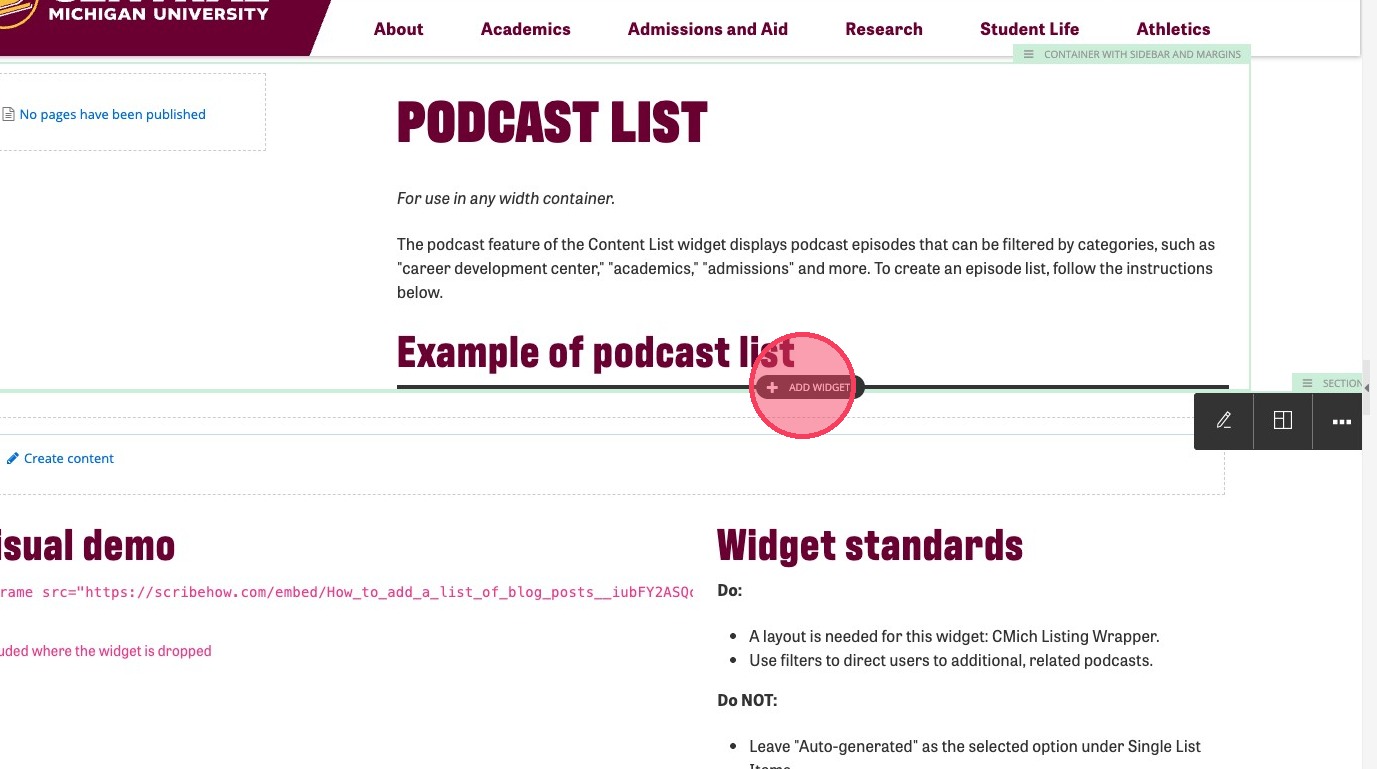
1. Click where in the container you'd like to add a podcast list.

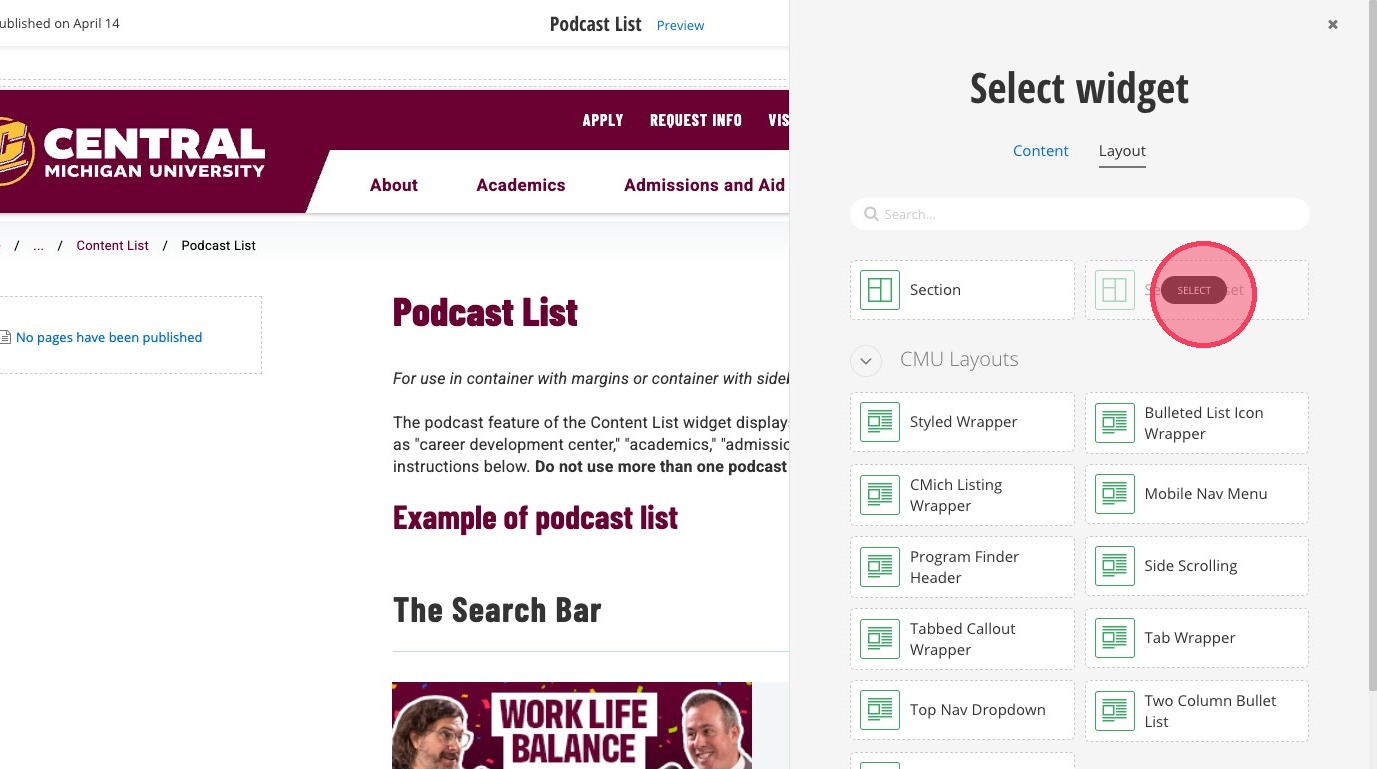
2. Click "Add widget" inside of the container.

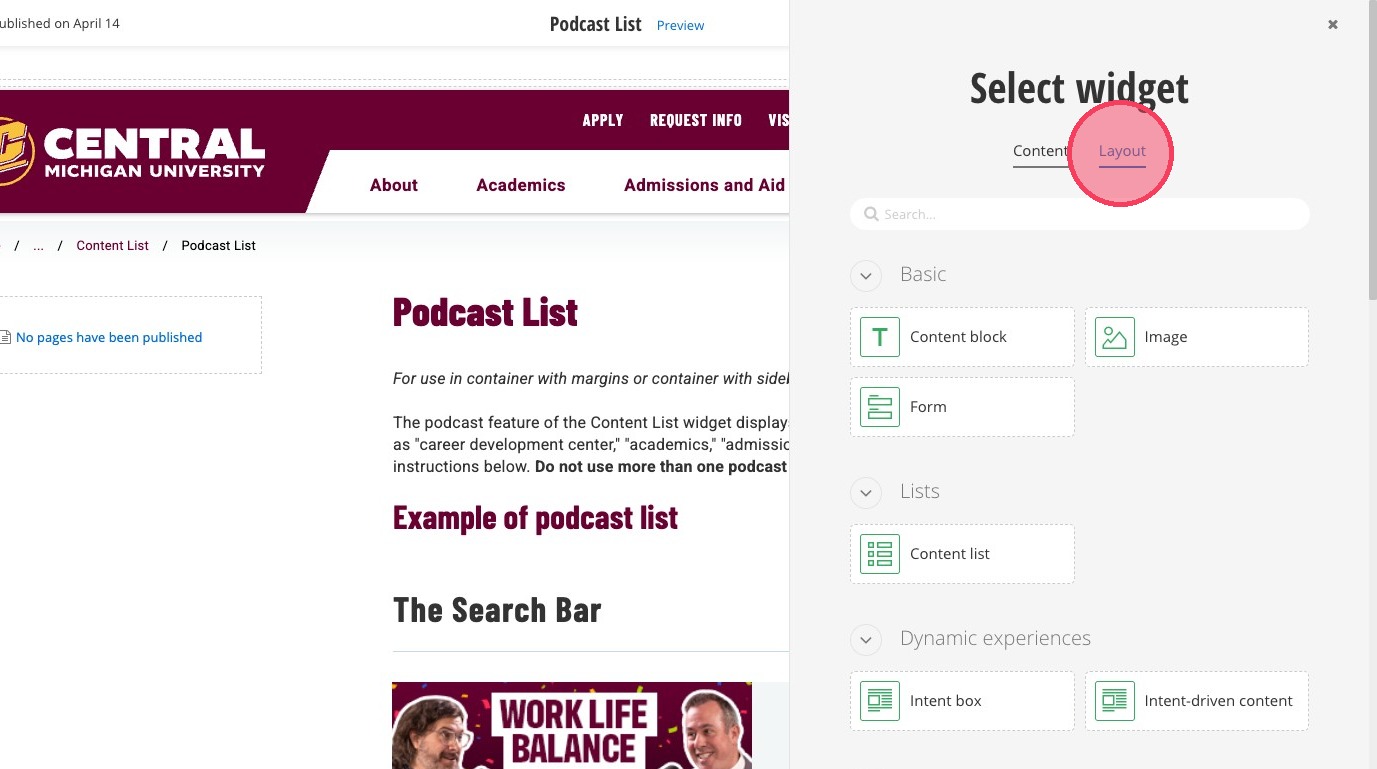
3. Select "Content list"

4. Click "Select content"

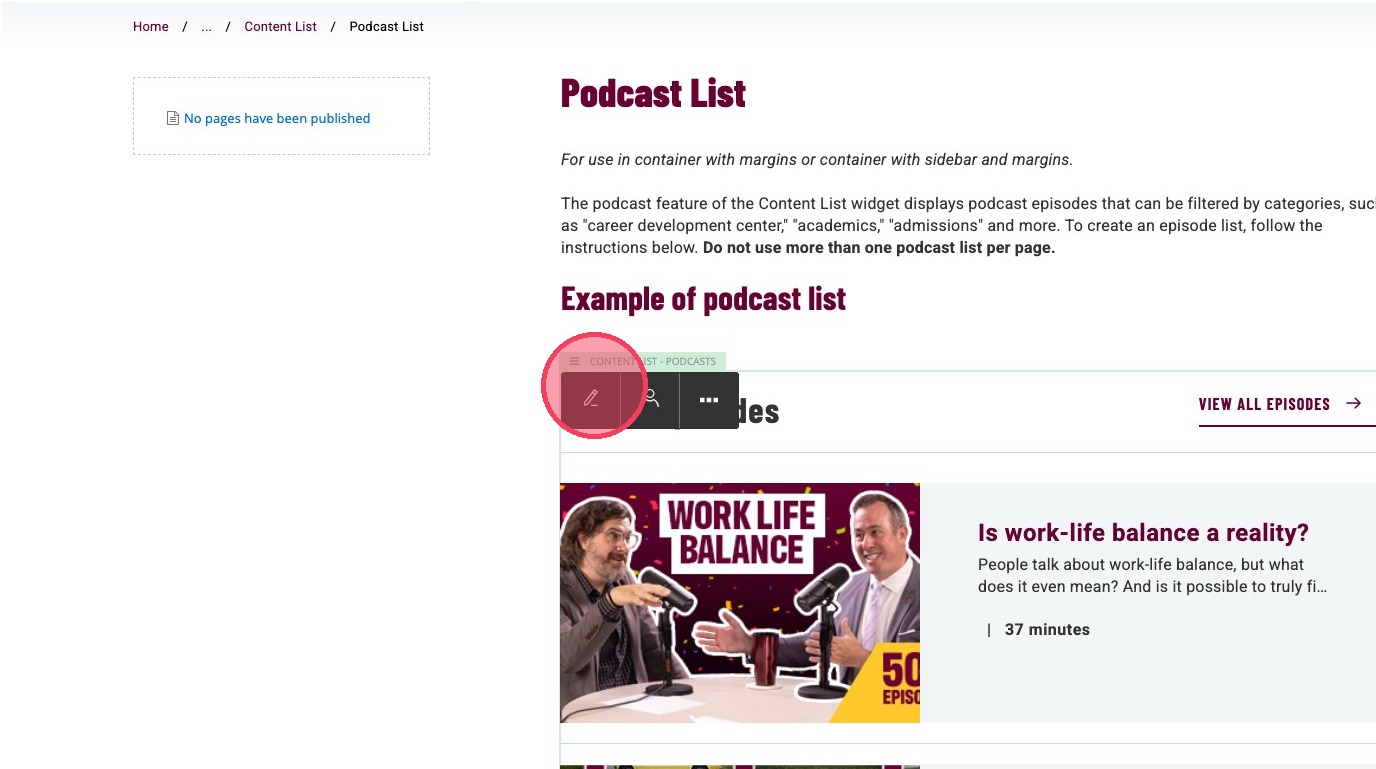
5. Click the edit icon.

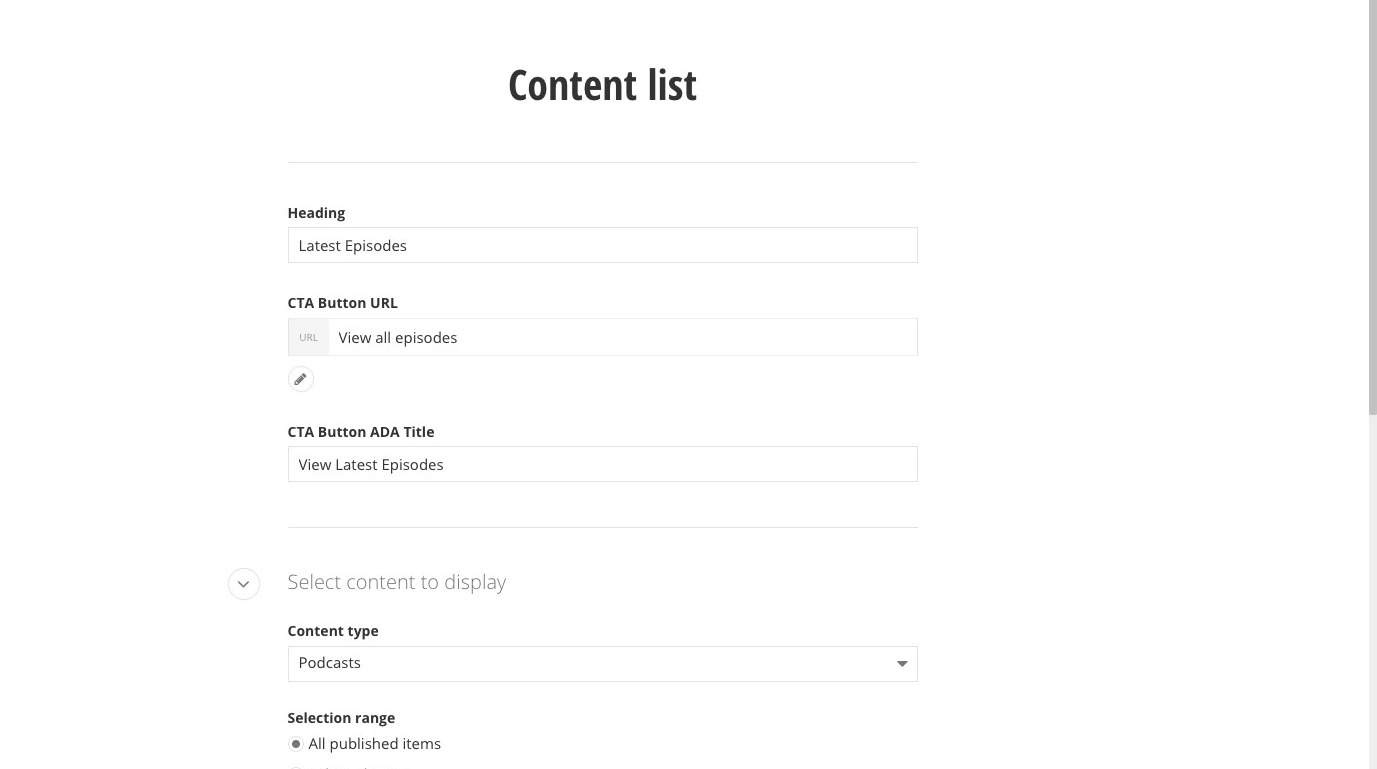
6. Enter heading text. This can be the name of the podcast, or the main subject of the episode list. Please keep the title brief.

7. Optional: Add a CTA back to the homepage of your podcast.

8. Click "Select page or content"

9. Type in the page name of your podcast home page.

10. Select your page, and click "Use selected"

11. Click "Insert link"

12. Type in the ADA text for the CTA Button. Example: View the home page of The Search Bar podcast

13. Under "Select content to display," select the "Podcasts" option.

14. Filter your podcast list by All published items, Selected items or Categories. If you select categories, do not select more than 10 episodes.

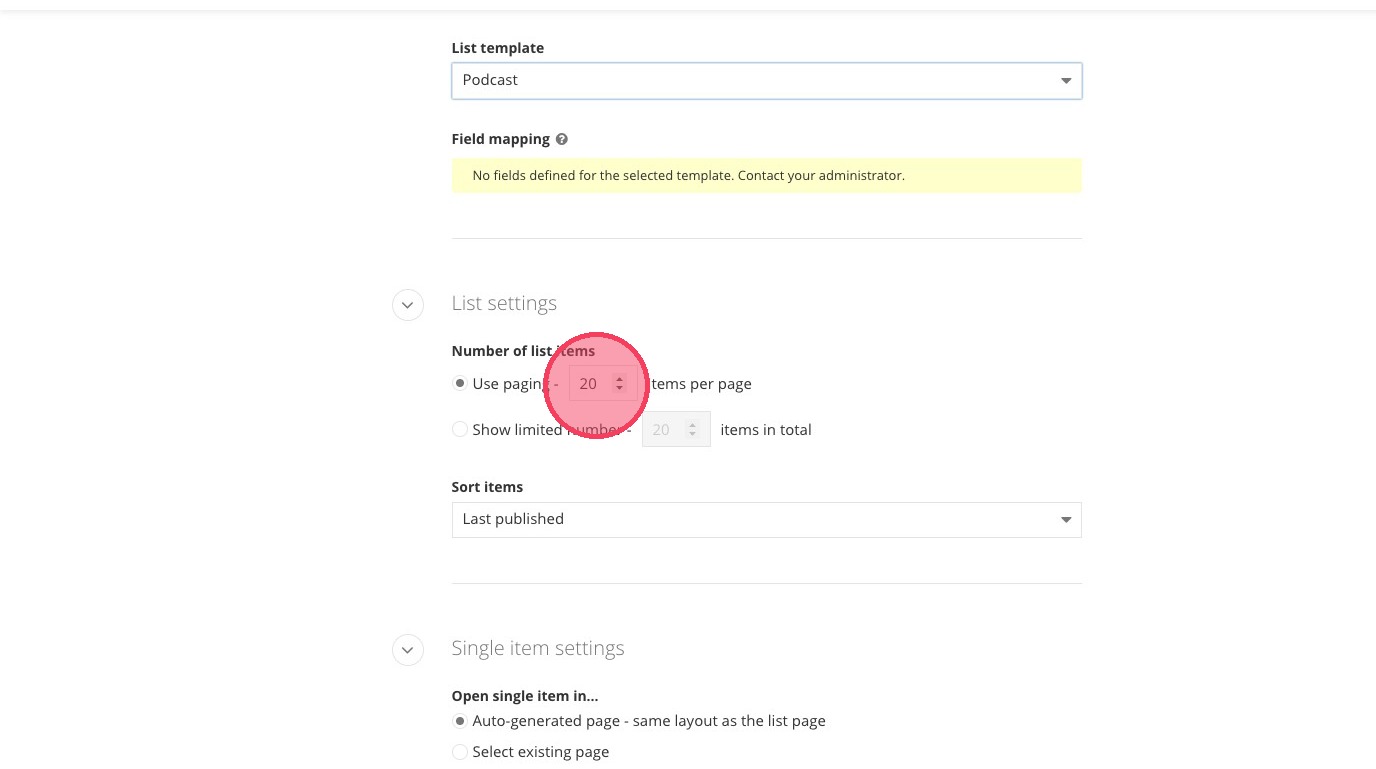
15. Select the "Podcast" option under "List template."

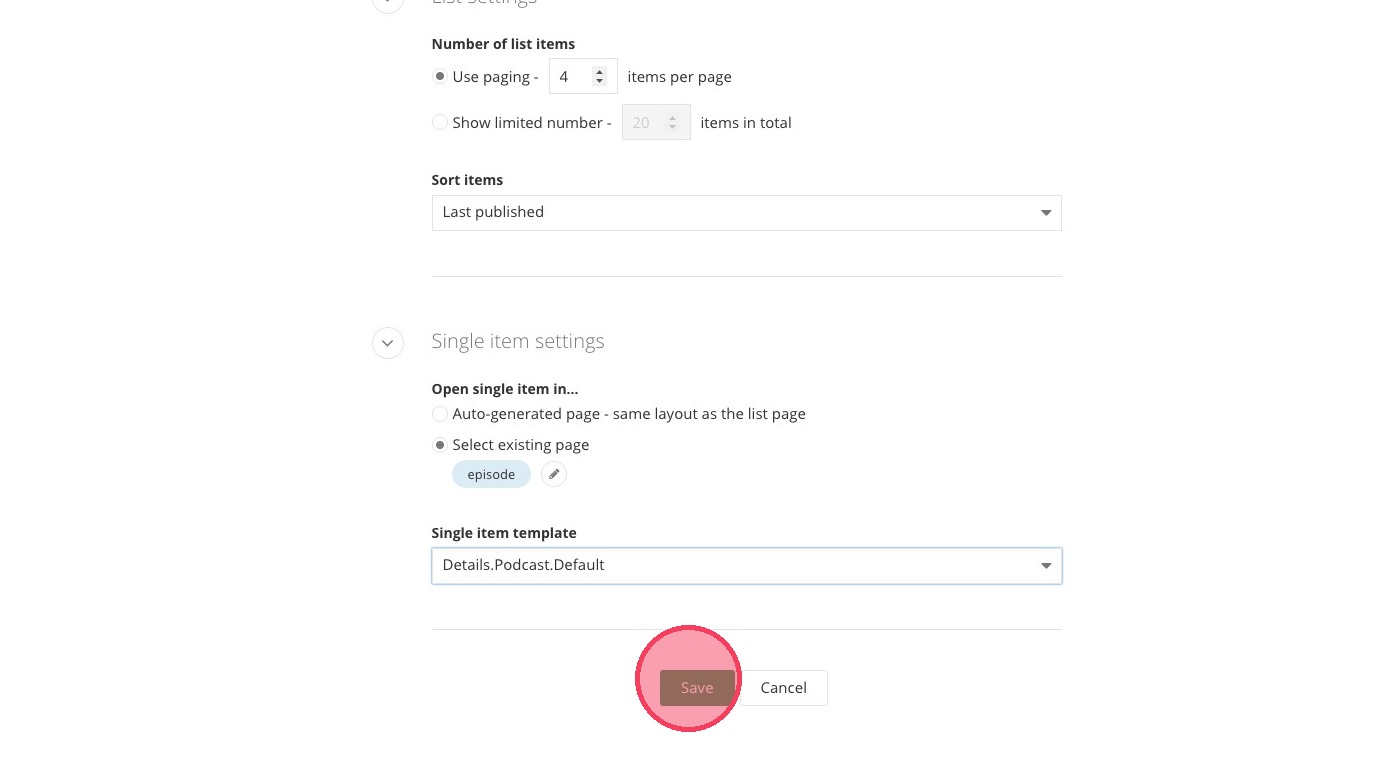
16. Type in 2, 3, or 4 to limit how any items are displayed on the page.
Users will be able to view more episodes by clicking on the home page button you added earlier.

17. Under Single item settings, click the "Select existing page" field.

18. Click the plus icon to add a page.

19. Type "episode"
20. Type in "episode," and click the "episode" page that populates.

21. Select the "Details.Podcast.Default" option.

22. Click "Save"

23. View your podcast list.

Save and send
- If you'd like to continue working on this page, but need to save your progress, click Save as Draft.
- If you're finished making changes to the page, and the page is ready for review, click Send for Approval.
![]()