Now through October 31, we're waiving application fees for all freshman and transfer applicants!
*Common app code: Central27
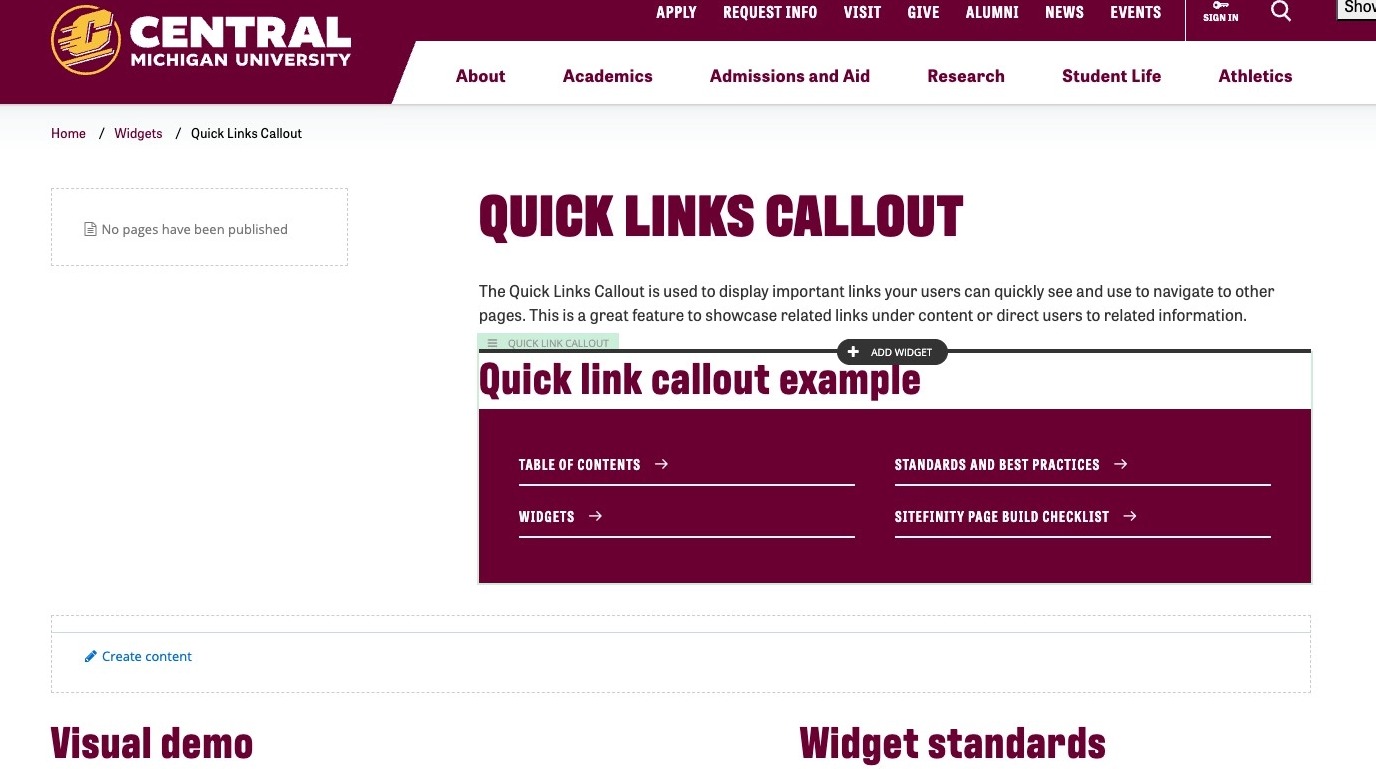
Quick Links Callout
The Quick Links Callout is used to display important links your users can quickly see and use to navigate to other pages or locations on the website. This feature is great for showcasing related links under content or directing users to related information.
Visual demo
Widget standards
- For use in the main area of containers.
- This widget must be in a section
Do:
- Use in main content or full-width areas.
- Use one quick links callout widget per page.
- Use a maximum of six links in one widget.
- If you add a link here, do not repeat the same link elsewhere on the page.
Do NOT:
- Add more than one quick links callout per page.
- Use this widget to link to items also linked elsewhere on the page.
Written instructions
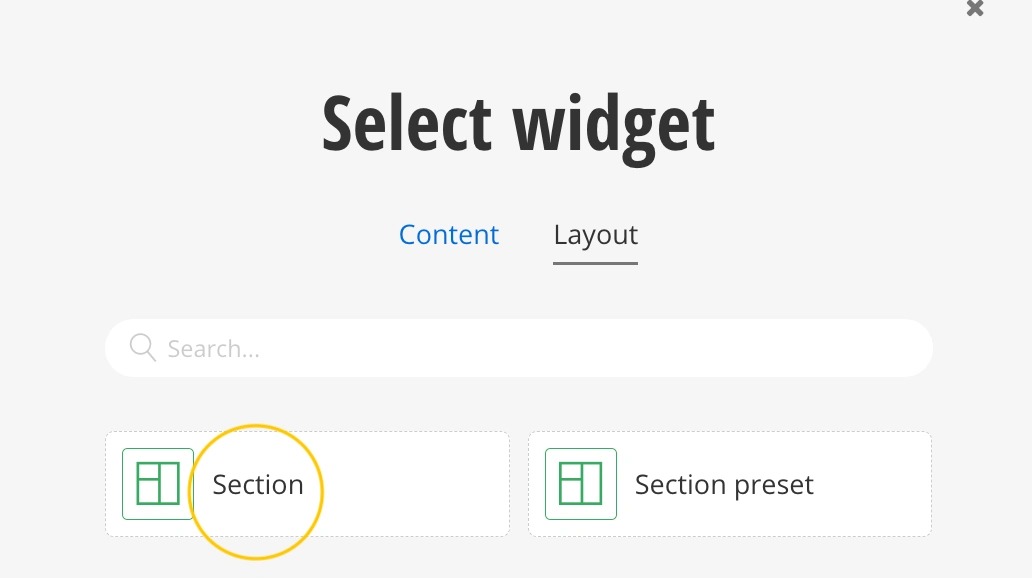
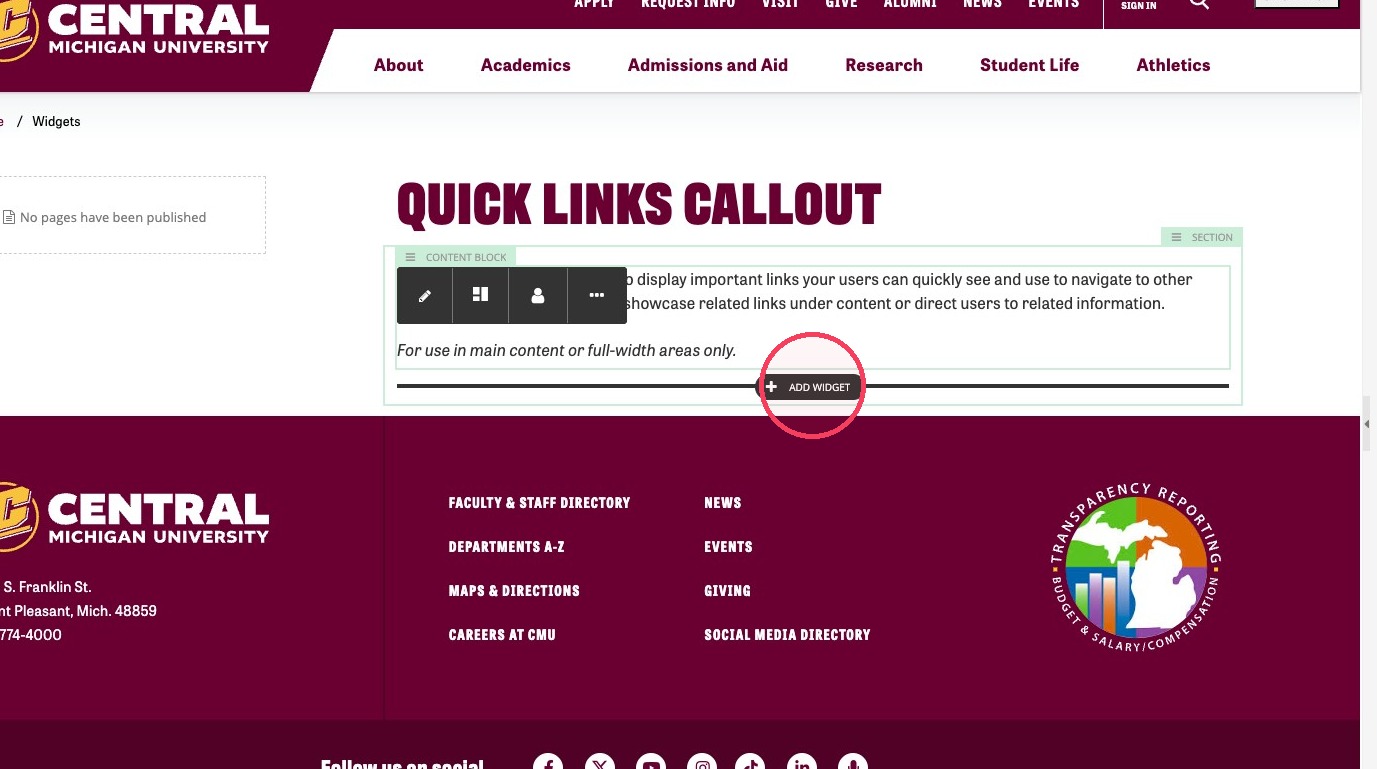
2. Click + Add Widget where you want to add the quick links callout.
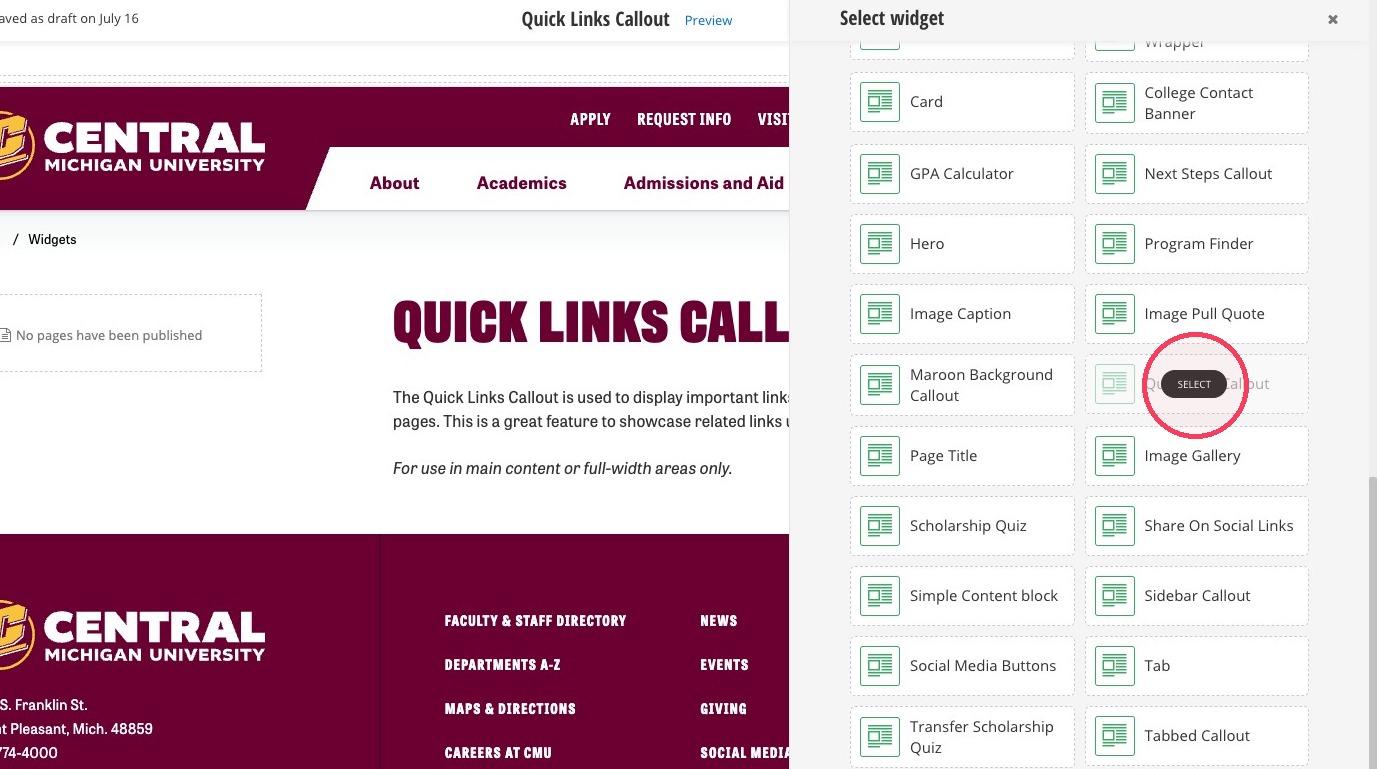
3. Select the Quick Links Callout under the Content tab.
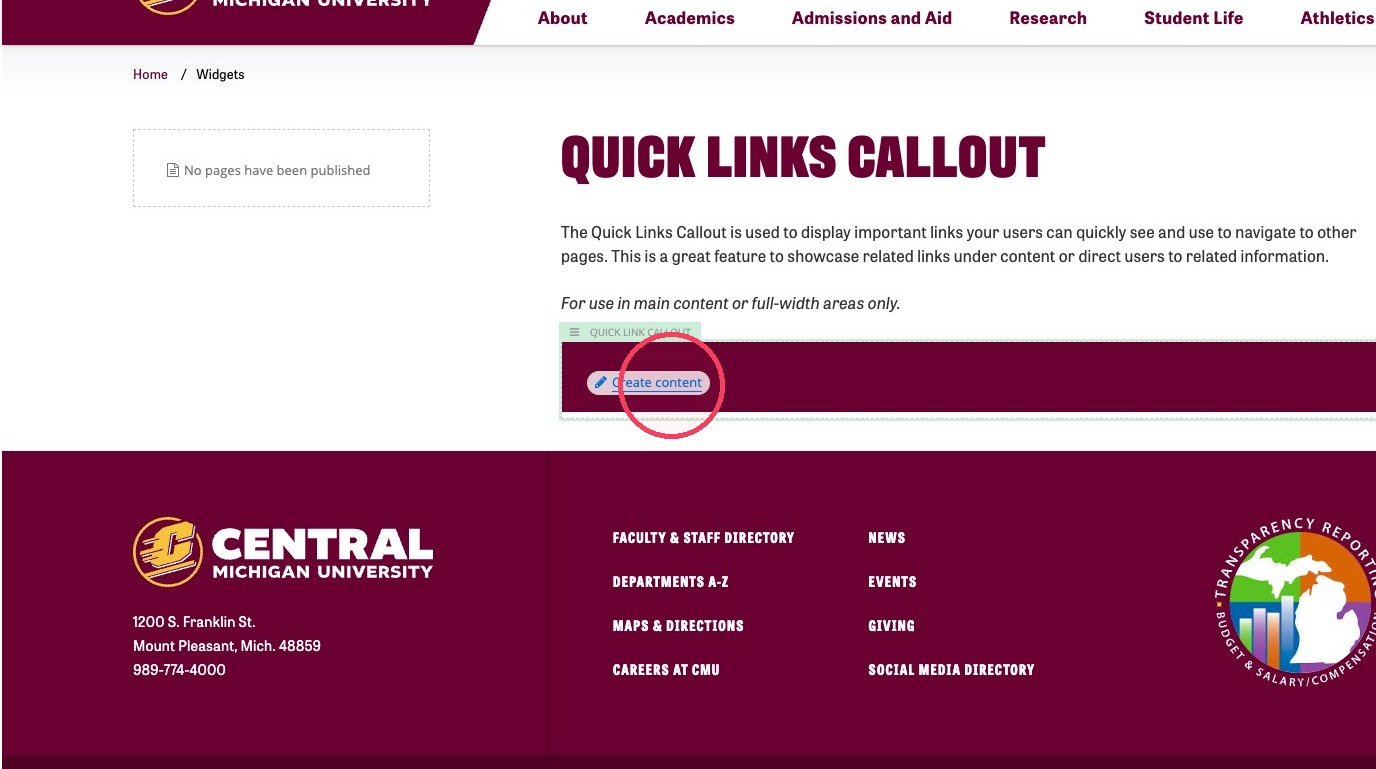
4. Click Create content on the Quick Links Widget you just added.
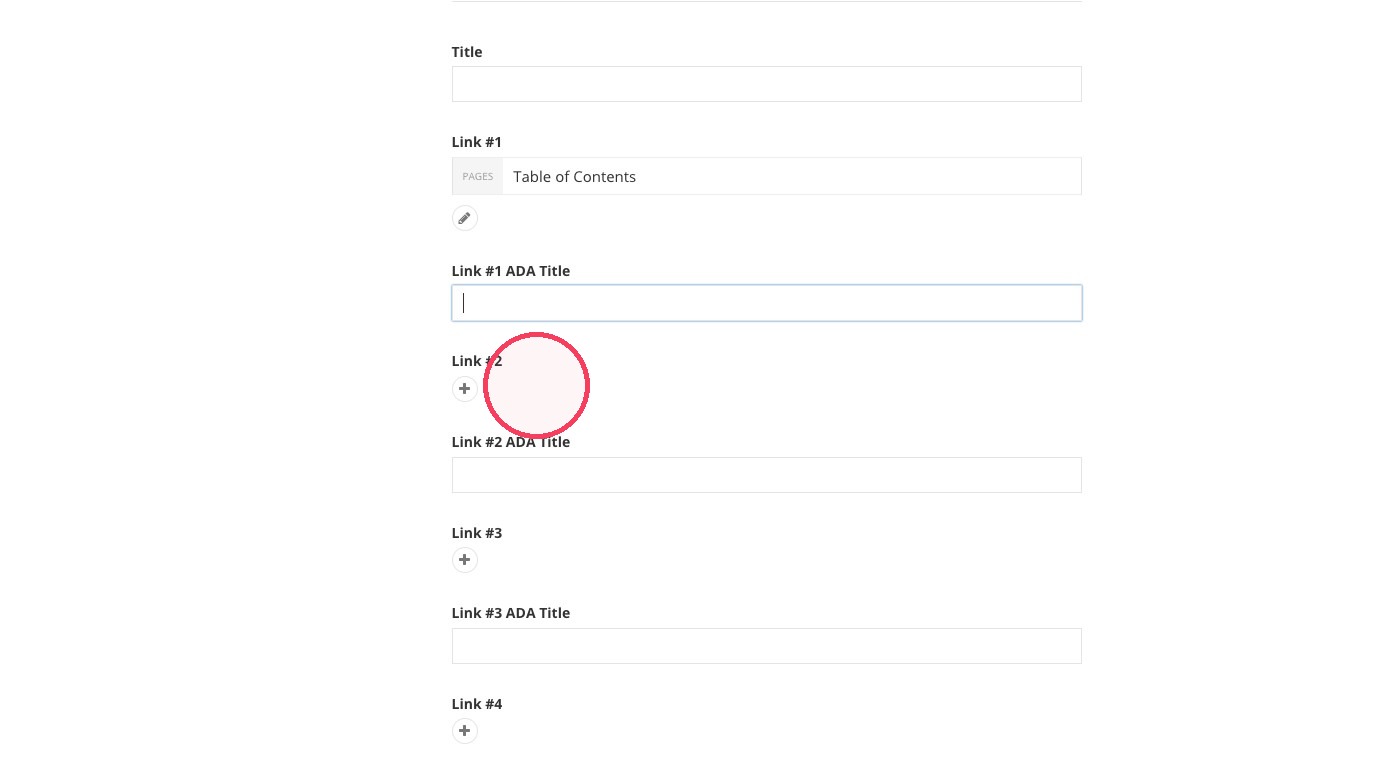
5. Fill out the Quick Links Callout properties. A title is optional.
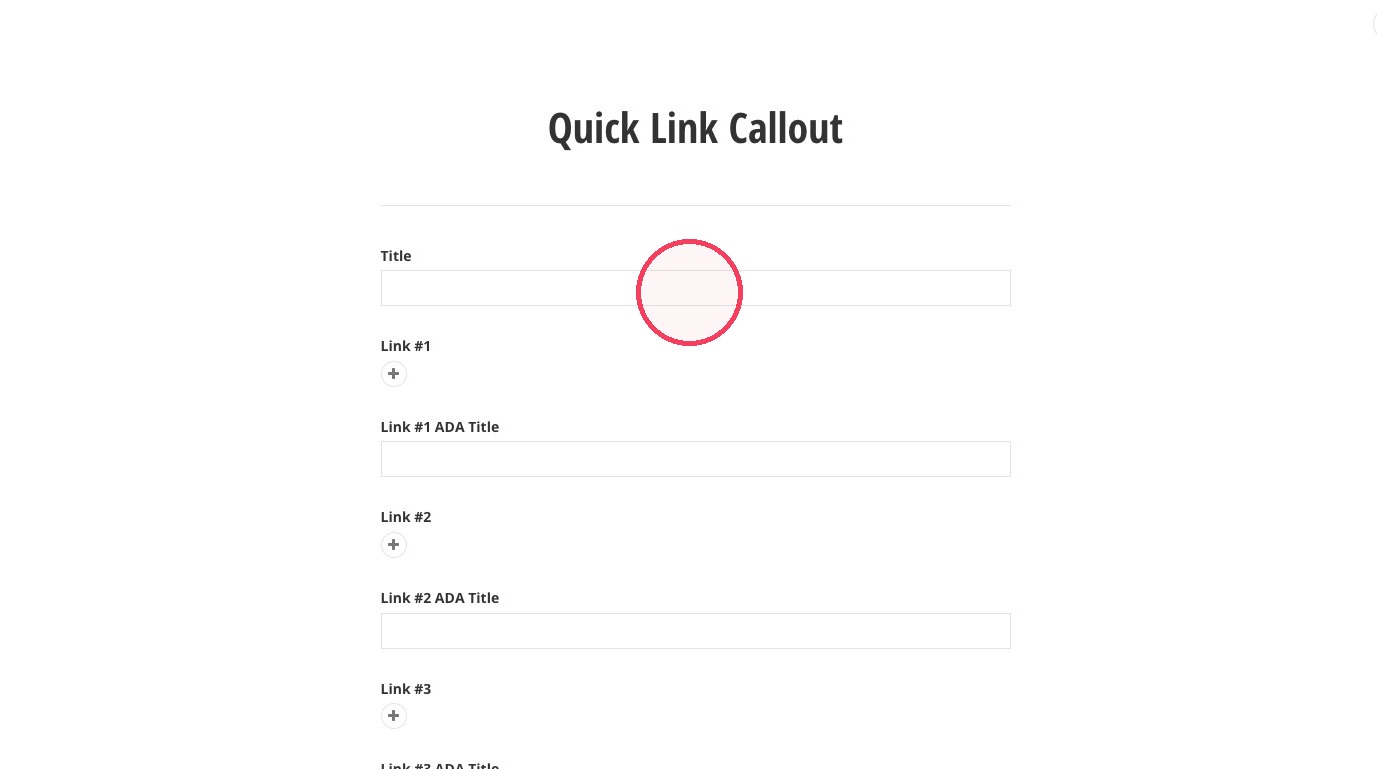
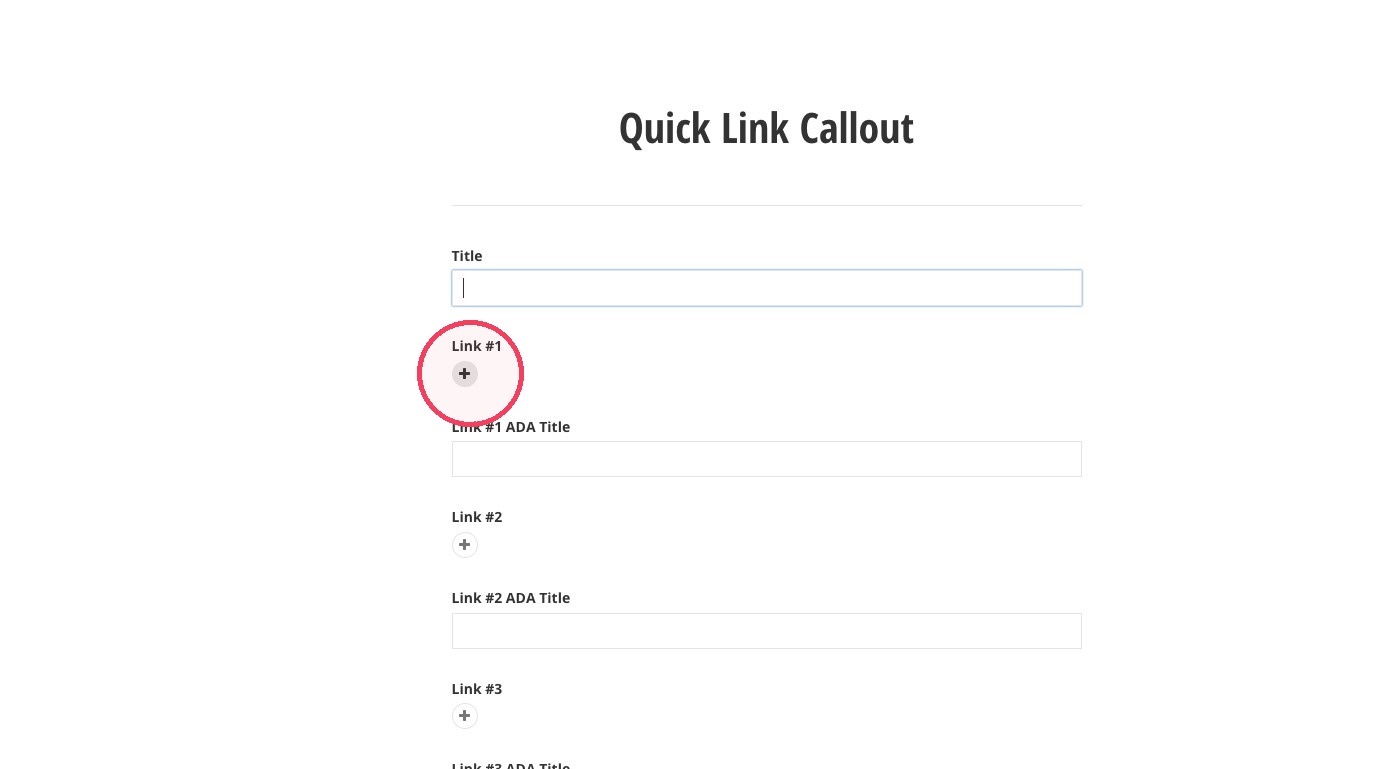
6. Click the plus sign under Link #1 to add your first link.
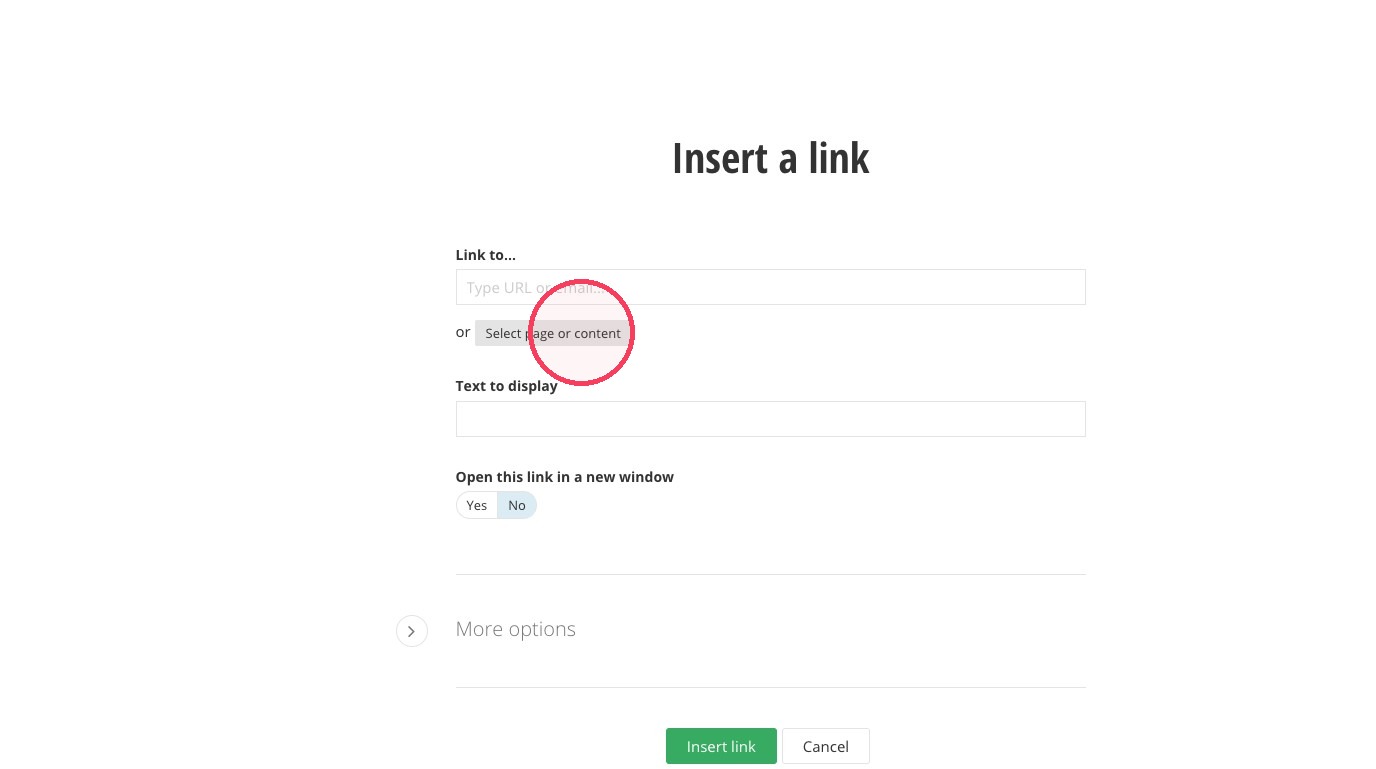
7. Click "Select page or content" that you want to link to.
8. Search for the page or navigate to the page you want to link to.
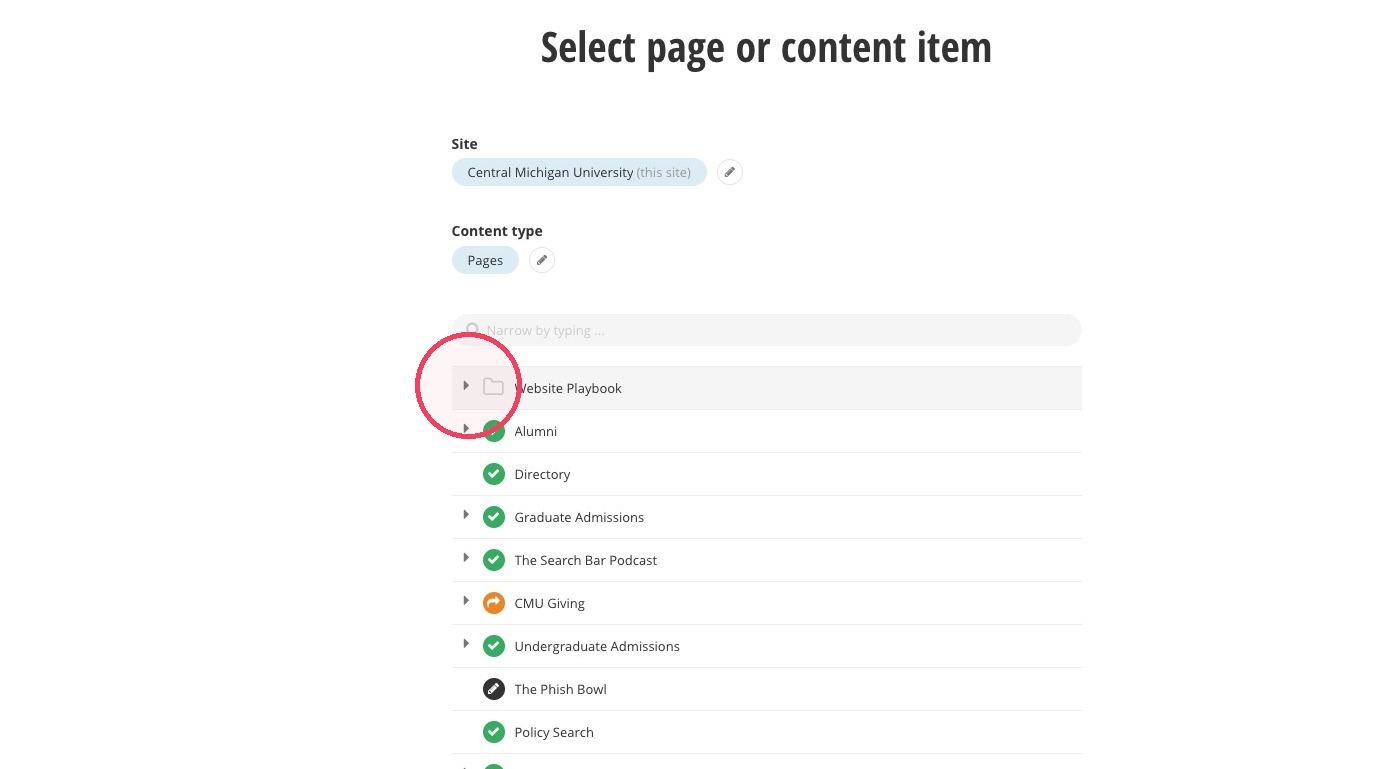
9. Choose a page.
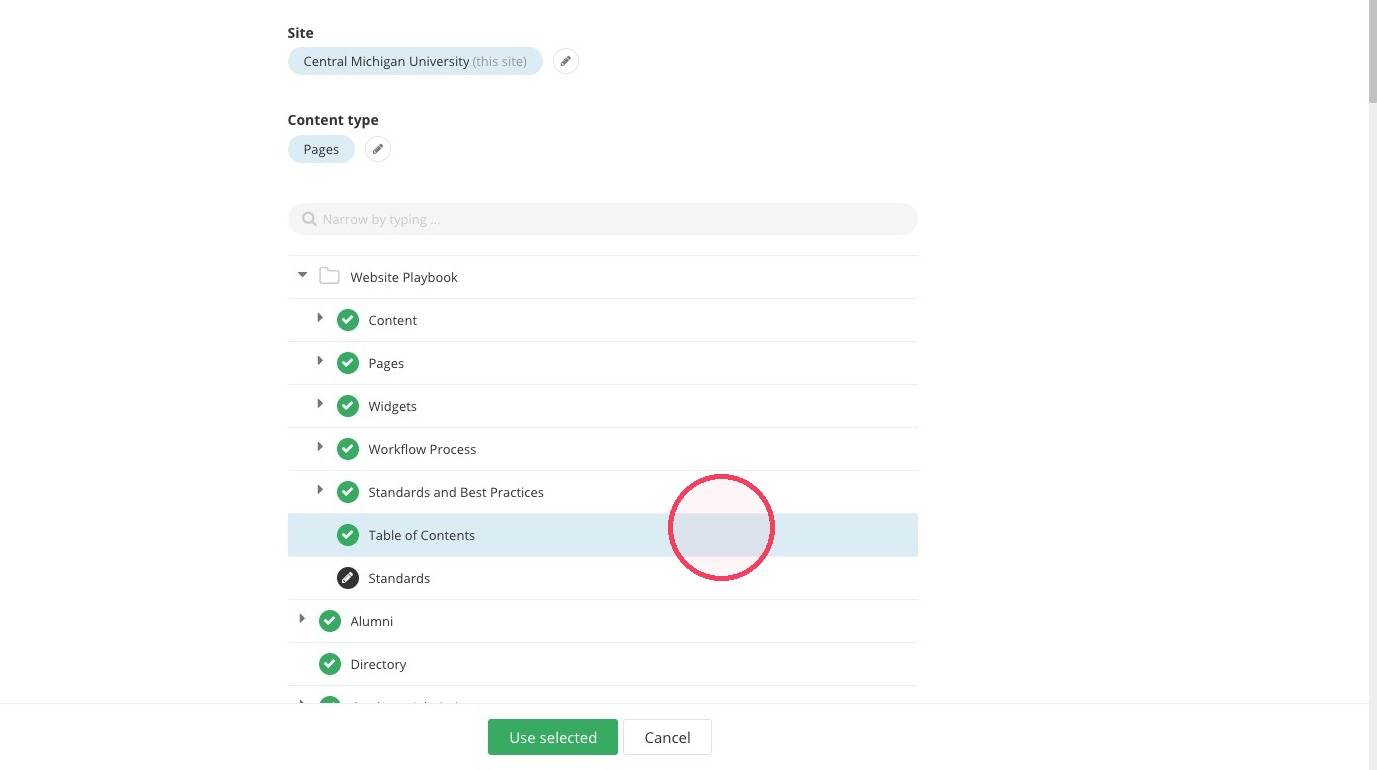
10. Click "Use selected"
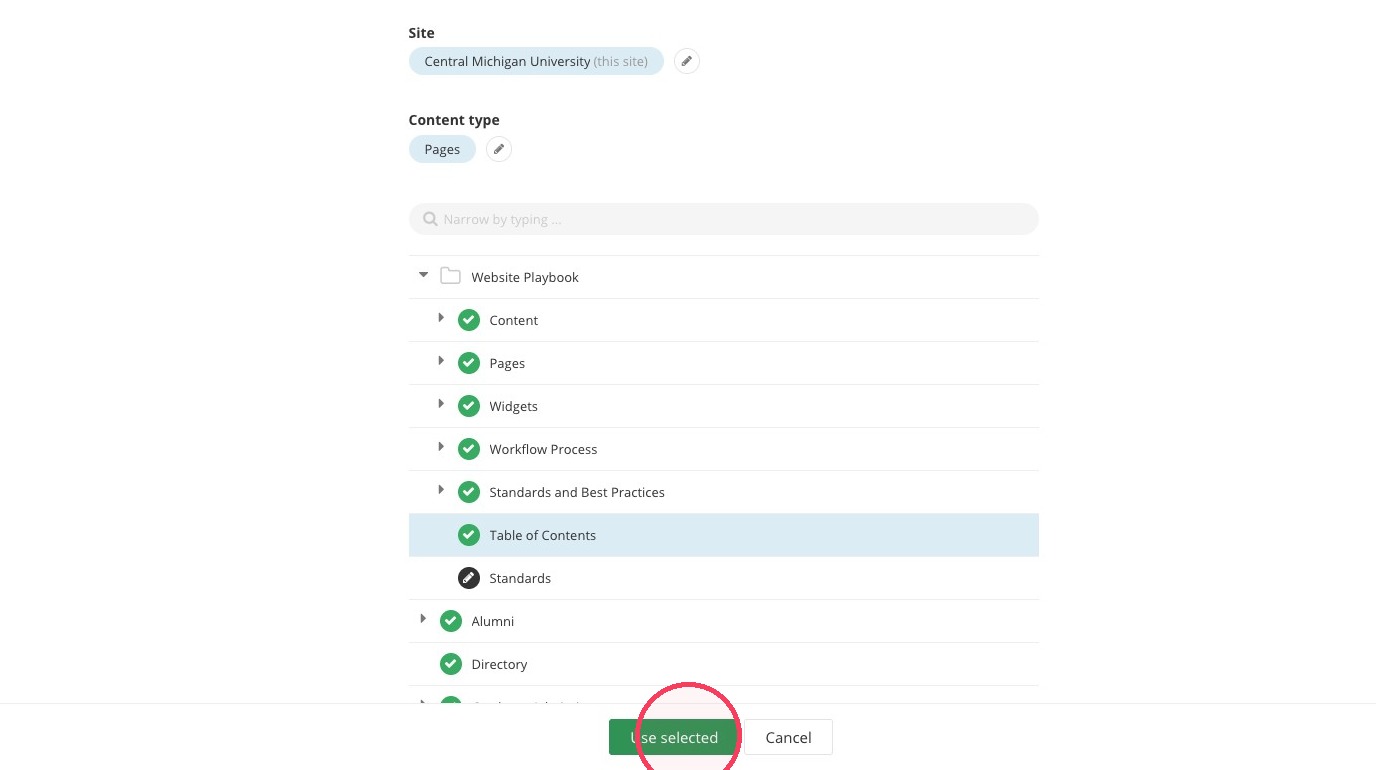
11. Click "Insert link"
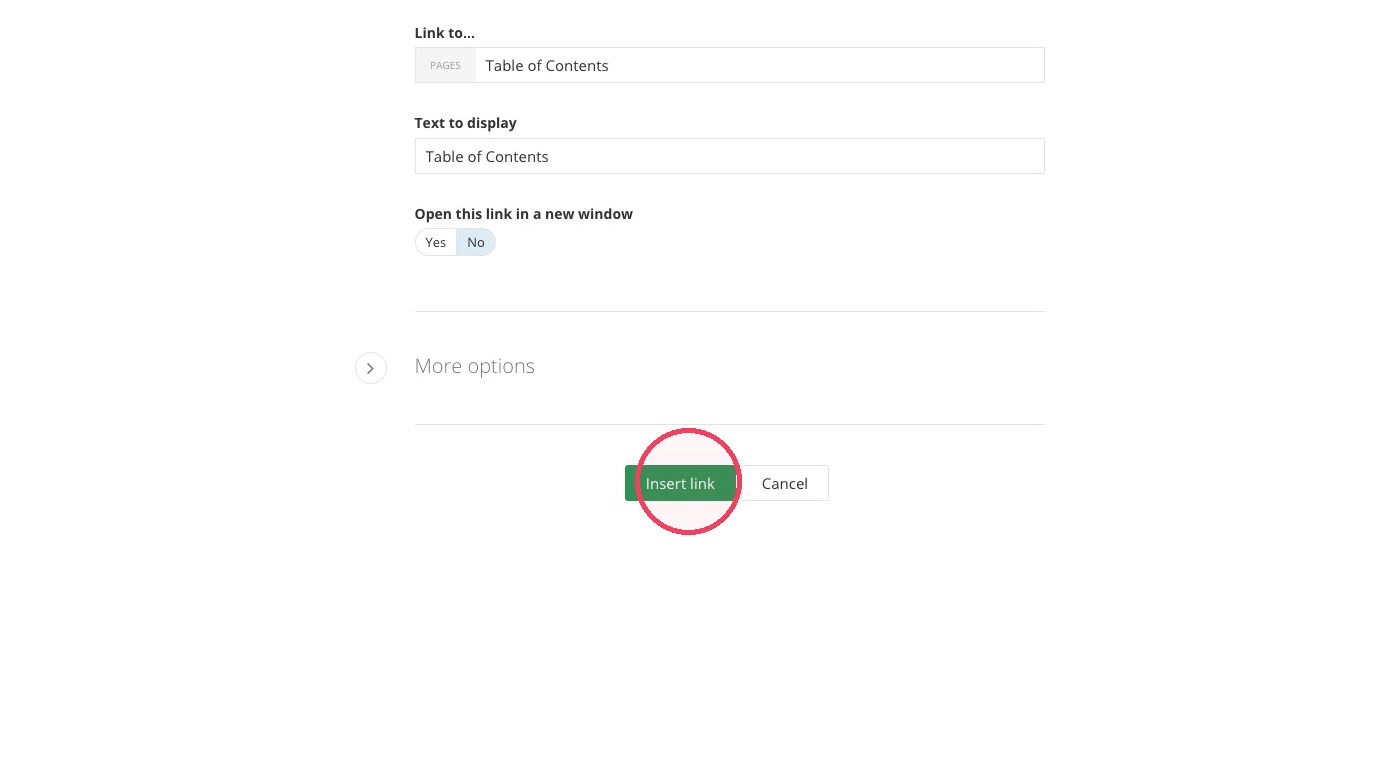
12. Click the Link #1 ADA Title field, and fill out the ADA property. Use this field to describe what happens when you click on the link.
- Example: Open the table of contents for CMU's Sitefinity playbook.
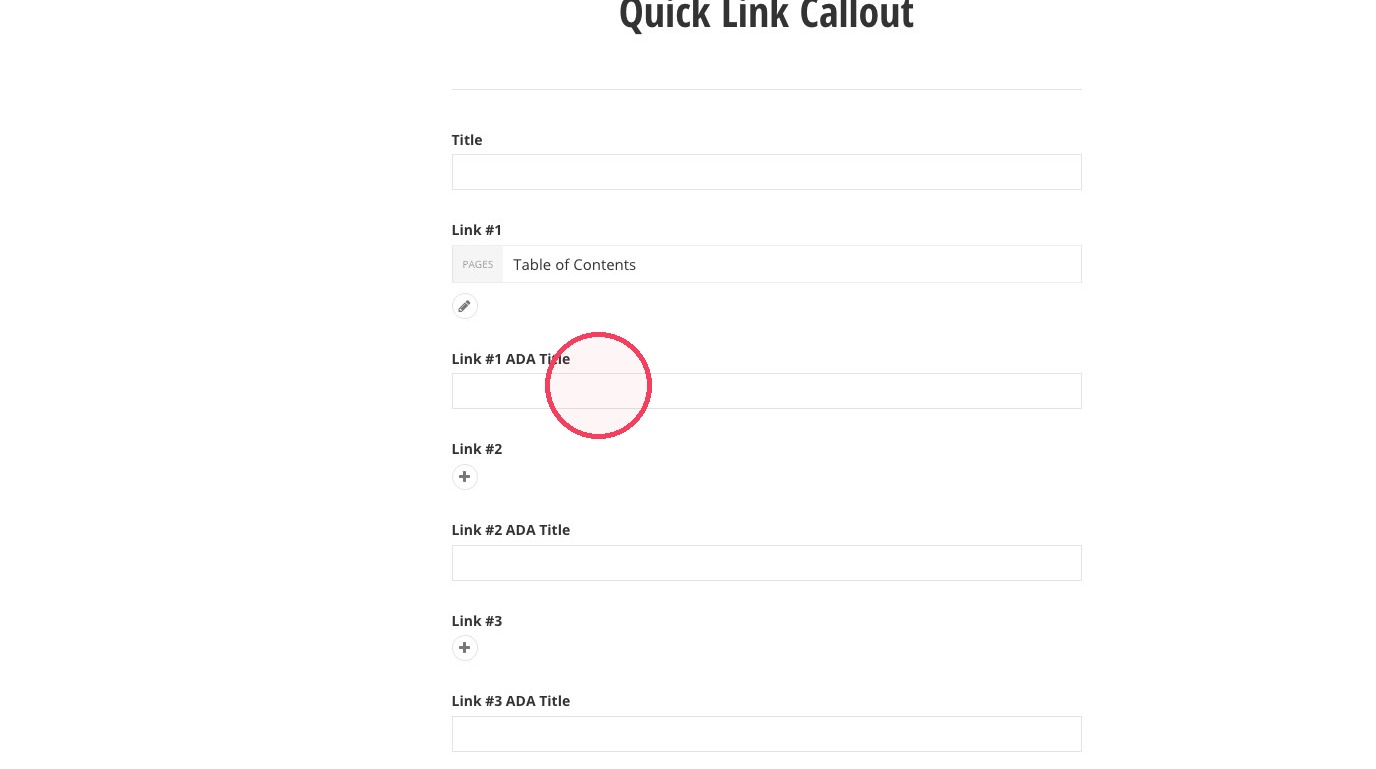
13. Continue you to select links and fill out ADA fields.
14. Click "Save"
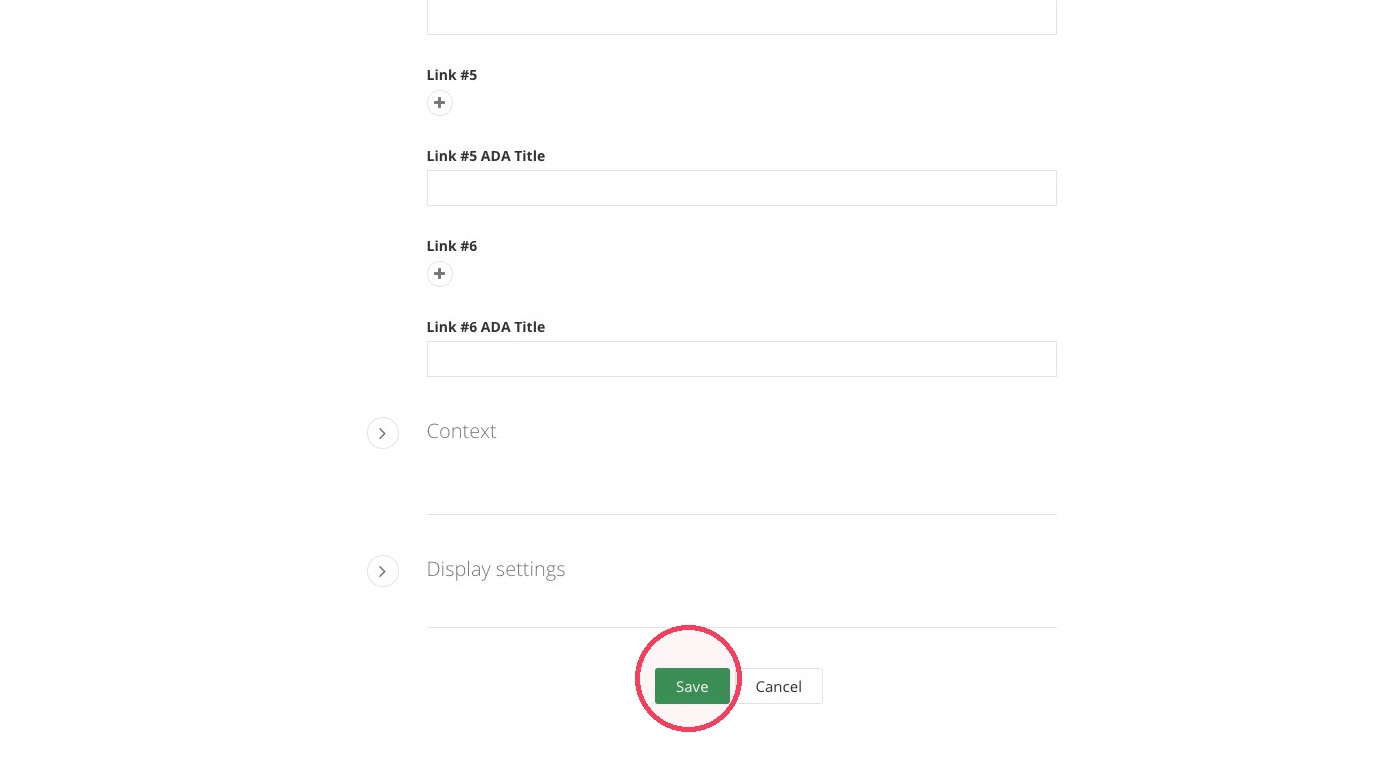
15. Repeat steps 5-13 to add additional links.
16. Review your quick links callout widget and save draft.
Save and send
- If you'd like to continue working on this page, but need to save your progress, click Save as Draft.
- If you're finished making changes to the page, and the page is ready for review, click Send for Approval.
